Microsoft Excel remains the dominant spreadsheet tool for businesses worldwide, but analyzing complex data and troubleshooting formula errors can consume valuable time. Google's Gemini AI offers powerful capabilities that can transform how you work with Excel spreadsheets, from automated data analysis to intelligent formula debugging. Understanding how to use gemini with excel opens new possibilities for efficiency, whether you're managing financial models, creating reports, or simply trying to make sense of messy data. This guide explores practical methods to leverage Gemini's artificial intelligence within your Excel workflow, providing clear steps that work for users at any skill level.
Understanding Gemini's Excel Capabilities
Gemini represents Google's advanced AI technology that can read, interpret, and generate content across multiple formats. When applied to spreadsheet work, Gemini functions as an intelligent assistant that understands data structures, formulas, and analytical patterns.
The AI can process Excel files you upload, analyze their contents, and provide insights about trends, errors, or optimization opportunities. Unlike basic spreadsheet functions, Gemini uses natural language processing to understand your questions in plain English. You can ask it to explain why a formula isn't working, suggest better ways to structure data, or even generate entire spreadsheet templates based on your description.
Key Features for Excel Users
Gemini offers several capabilities specifically valuable for spreadsheet work:
- Formula diagnosis and correction to identify and fix broken calculations
- Data pattern recognition that spots trends, outliers, and inconsistencies
- Natural language queries allowing you to ask questions about your data without complex syntax
- File generation including the ability to create Excel-compatible spreadsheets from scratch
- Template creation based on text descriptions of your needs
According to Google’s official announcement, Gemini can now generate and export files directly from chat prompts, making it easier to create structured Excel documents without manual formatting.

Methods to Connect Gemini with Excel
Learning how to use gemini with excel requires understanding the available integration paths. Each method offers different advantages depending on your technical comfort level and specific needs.
Direct File Upload Approach
The simplest method involves uploading your Excel file directly to Gemini through the web interface or mobile app. This approach requires no technical setup and works immediately.
Steps to upload and analyze:
- Open the Gemini interface at gemini.google.com
- Start a new conversation
- Click the attachment icon or drag your Excel file into the chat
- Ask specific questions about your data or request analysis
This method works best for one-time analysis, quick troubleshooting, or exploratory data review. As detailed in this comprehensive analysis, Gemini can handle various Excel formats and file sizes, though certain limitations apply to extremely large datasets.
Using Add-ins and Plugins
For users who need ongoing integration, several add-ins enable Gemini functionality directly within Excel's interface. The GPT for Excel Word add-in provides one such solution, creating a bridge between AI capabilities and your spreadsheet environment.
Installation process:
- Navigate to the Microsoft Office Add-ins store
- Search for AI-enabled spreadsheet assistants
- Install the appropriate add-in following security prompts
- Configure API connections with your Gemini credentials
- Access AI features through Excel's ribbon interface
This integration allows you to select data ranges and apply AI analysis without leaving your workbook, streamlining repetitive tasks.
Custom Integration Through Macros
Advanced users comfortable with VBA can create custom macros that call Gemini's API. This method, outlined in comprehensive integration guides, offers maximum flexibility for automated workflows.
| Integration Method | Setup Complexity | Best Use Case | Ongoing Cost |
|---|---|---|---|
| Direct Upload | Low | One-time analysis | Free tier available |
| Add-in Plugin | Medium | Regular use | Subscription based |
| Custom Macro/API | High | Automated workflows | API usage fees |
Practical Applications for Excel Work
Understanding how to use gemini with excel becomes truly valuable when applied to real spreadsheet challenges. The following applications demonstrate how AI assistance solves common problems.
Formula Troubleshooting and Repair
Excel formulas break for numerous reasons: incorrect cell references, circular dependencies, data type mismatches, or syntax errors. Gemini excels at diagnosing these issues through natural language explanations.
When you encounter a #VALUE!, #REF!, or #NAME? error, simply describe the problem to Gemini along with your formula. The AI analyzes the structure, identifies the specific issue, and suggests corrected versions. Similar to Gemini’s functionality in Google Sheets, the same diagnostic capabilities apply to Excel formulas.
Example workflow:
Upload your spreadsheet and ask: "Why is cell D15 showing #REF! when I'm trying to calculate the sum of monthly expenses?" Gemini examines the formula, checks cell references, and explains that the referenced range was deleted or moved.

Data Cleaning and Standardization
Inconsistent data formats plague most real-world spreadsheets. Names appear in different cases, dates follow multiple formats, and numerical data contains text characters. Gemini can identify these inconsistencies and recommend transformation approaches.
Ask Gemini to review your dataset and suggest cleaning steps. The AI recognizes patterns like:
- Mixed date formats (MM/DD/YYYY vs. DD-MM-YY)
- Inconsistent capitalization in categorical data
- Trailing spaces or hidden characters
- Numbers stored as text
Rather than manually creating complex formulas, you receive step-by-step cleanup instructions or even generated formulas to apply across your dataset. This capability proves especially valuable when automating reports that require consistent data structure.
Creating Templates from Descriptions
One powerful application involves generating entire spreadsheet templates through conversational descriptions. Instead of building structures from scratch, describe your needs in plain language.
Template creation examples:
- "Create a monthly budget tracker with categories for income, fixed expenses, variable expenses, and savings goals"
- "Build a project timeline with task names, start dates, end dates, assigned team members, and status indicators"
- "Generate an inventory management sheet with product names, SKU numbers, quantities, reorder points, and supplier information"
Gemini processes these requests and creates structured templates complete with appropriate column headers, formatting, and even basic formulas. You can then download these as Excel files and customize them further.
Advanced Techniques for Power Users
Beyond basic applications, learning how to use gemini with excel includes leveraging advanced features that streamline complex analytical work.
Data Analysis and Insight Generation
Upload historical data and ask Gemini to identify trends, anomalies, or predictive patterns. The AI performs statistical analysis and presents findings in accessible language, eliminating the need for specialized statistical knowledge.
Analysis types Gemini can perform:
- Trend identification across time series data
- Correlation detection between variables
- Outlier identification in numerical datasets
- Category-based segmentation and comparison
- Growth rate calculations and projections
For instance, upload sales data spanning multiple quarters and ask: "What seasonal patterns exist in product category performance, and which categories show declining trends?" Gemini examines the data, calculates relevant metrics, and presents findings with specific numbers and recommendations.
Formula Generation from Natural Language
Rather than remembering complex Excel syntax, describe the calculation you need in everyday language. Gemini translates your description into proper Excel formulas.
Translation examples:
| Natural Language Request | Generated Excel Formula |
|---|---|
| "Calculate the average of column B excluding zeros" | =AVERAGEIF(B:B,">0") |
| "Show 'High' if sales exceed 10000, 'Medium' if above 5000, otherwise 'Low'" | =IF(A1>10000,"High",IF(A1>5000,"Medium","Low")) |
| "Count unique values in the range A2 to A100" | =SUMPRODUCT(1/COUNTIF(A2:A100,A2:A100)) |
This capability particularly helps users who understand what they want to calculate but struggle with Excel's specific syntax requirements. Similar to getting expert Excel help, Gemini serves as an on-demand formula consultant.
Automation Strategy Development
For repetitive tasks, Gemini can outline automation strategies using Excel features like macros, Power Query, or VBA scripts. Describe your workflow, and receive step-by-step automation recommendations.
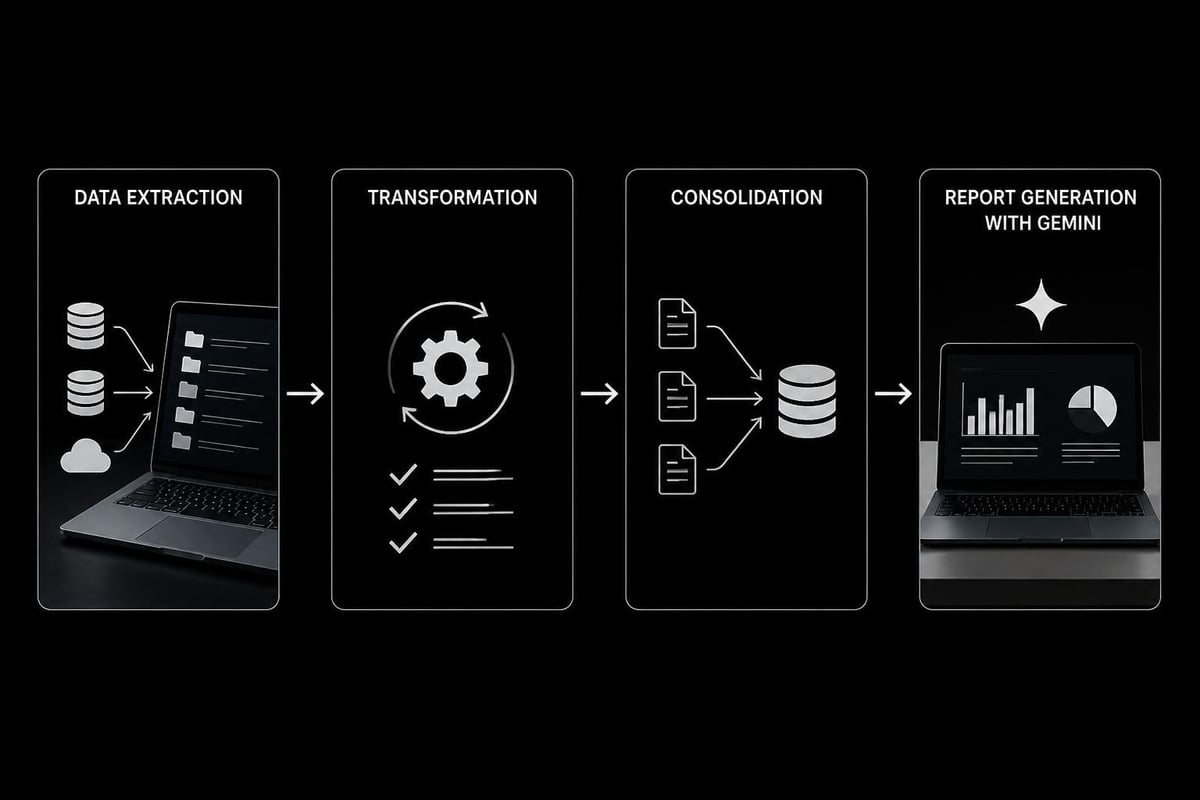
Consider a monthly reporting process requiring data consolidation from multiple sheets. Ask Gemini: "How can I automate combining data from five different worksheets into a summary report?" The AI suggests approaches using Power Query, provides transformation steps, or even generates VBA code for custom automation solutions.
Best Practices and Limitations
Successfully implementing how to use gemini with excel requires understanding both optimal approaches and current constraints.
Optimizing Your Gemini Queries
Effective question structure:
- Be specific about the data range or cells in question
- Provide context about what the spreadsheet accomplishes
- Include relevant details about data types and expected outcomes
- Ask follow-up questions to refine initial suggestions
Instead of asking "Why doesn't this work?" provide: "In my sales tracking spreadsheet, cell E10 contains the formula =VLOOKUP(A10,Products!A:D,3,FALSE) but returns #N/A. The Products sheet contains item codes in column A. Why might this fail?"
Understanding Current Limitations
Gemini's Excel integration, while powerful, has specific boundaries users should recognize:
- File size restrictions may prevent analysis of extremely large workbooks
- Complex VBA macros within uploaded files might not execute
- Real-time data connections cannot be analyzed when files are uploaded
- Privacy considerations require caution with sensitive business data
- Formula compatibility occasionally differs between Excel versions
According to detailed spreadsheet reading analysis, Gemini performs best with standard Excel features and may struggle with highly customized or legacy workbook structures.
Data Security Considerations
Before uploading spreadsheets to any AI platform, review data sensitivity and organizational policies. Consider these security practices:
- Remove personally identifiable information before uploading
- Use sample or anonymized data for testing integration methods
- Review your organization's AI tool usage policies
- Understand data retention policies of AI platforms
- Consider password protection strategies for sensitive workbooks
Comparing Gemini with Other Excel AI Tools
The landscape of AI-assisted spreadsheet work includes multiple options beyond Gemini. Understanding how to use gemini with excel becomes more valuable when you recognize how it compares to alternatives.
Gemini vs. Microsoft Copilot
Microsoft's own Copilot integrates natively with Excel, offering seamless functionality within the Microsoft 365 ecosystem. However, Gemini provides advantages in certain scenarios:
| Feature | Gemini | Microsoft Copilot |
|---|---|---|
| Integration depth | External upload/API | Native within Excel |
| Natural language processing | Advanced conversational AI | Task-focused assistance |
| Cost structure | Free tier available | Requires 365 subscription |
| Cross-platform capability | Works with any Excel file | Optimized for 365 version |
| Data analysis depth | Comprehensive interpretation | Excel-specific insights |
When to Choose Gemini
Gemini proves particularly valuable for:
- Users without Microsoft 365 subscriptions seeking AI assistance
- One-time analysis projects not requiring ongoing integration
- Cross-platform work involving both Excel and Google Sheets
- Exploratory data questions requiring conversational interaction
- Template generation from natural language descriptions
For users committed to the Microsoft ecosystem with active subscriptions, native Copilot might offer smoother workflow integration, while Gemini serves as an excellent alternative or complementary tool.
Training Your Team on AI-Assisted Excel
Organizations implementing how to use gemini with excel benefit from structured training approaches that help teams adopt new capabilities effectively.
Creating Internal Guidelines
Develop clear documentation covering:
- Approved use cases where Gemini assistance is appropriate
- Data handling protocols for sensitive information
- Query templates for common spreadsheet problems
- Verification processes to validate AI-generated formulas
- Escalation paths when AI assistance proves insufficient
These guidelines ensure consistent, secure implementation across your organization. Similar to structured Excel training programs, AI tool adoption requires clear instruction and practice opportunities.
Measuring Productivity Improvements
Track specific metrics to quantify the value of AI integration:
- Time spent on formula troubleshooting before and after implementation
- Reduction in data cleaning hours for standard reports
- Accuracy improvements in complex calculations
- Decrease in support requests to Excel specialists
- User satisfaction scores regarding spreadsheet tasks
These measurements demonstrate ROI and justify continued investment in AI-assisted workflows.
Future Developments in Excel AI Integration
The intersection of artificial intelligence and spreadsheet software continues evolving rapidly. Understanding current capabilities of how to use gemini with excel prepares you for emerging developments.
Anticipated Enhancements
Industry trends suggest several improvements arriving in 2026 and beyond:
- Real-time collaboration where AI assists multiple users simultaneously
- Predictive modeling that automatically suggests analytical approaches based on data patterns
- Enhanced visualization with AI-generated chart recommendations
- Voice-activated queries for hands-free spreadsheet interaction
- Automated quality assurance flagging potential data integrity issues
Preparing for AI Evolution
Stay current with these practices:
- Experiment with new features as platforms release them
- Join user communities discussing AI spreadsheet applications
- Regularly review integration methods for improved efficiency
- Maintain flexibility in your workflows to adopt better tools
- Document successful AI applications for knowledge sharing
As formula explanation capabilities expand across platforms, users who master current AI tools position themselves advantageously for future innovations.
Troubleshooting Common Integration Issues
Even straightforward approaches to how to use gemini with excel occasionally encounter obstacles. Recognizing common problems and their solutions prevents frustration.
File Upload Failures
Problem: Excel file won't upload to Gemini or shows processing errors.
Solutions:
- Verify file size remains under platform limits (typically 10-50MB)
- Remove external data connections before uploading
- Save file in standard .xlsx format rather than legacy .xls
- Check for corrupted workbook elements using Excel's built-in repair tools
- Break large workbooks into smaller, focused files for analysis
Inaccurate or Unhelpful Responses
Problem: Gemini provides generic answers or misunderstands your spreadsheet question.
Solutions:
- Reformulate questions with more specific details about data structure
- Provide sample data or formula examples within your query
- Ask follow-up questions to clarify initial responses
- Explicitly state your Excel version and relevant constraints
- Consider whether the task exceeds current AI capabilities
API Connection Problems
Problem: Add-ins or custom integrations fail to connect with Gemini's API.
Solutions:
- Verify API credentials and authentication tokens are current
- Check network firewalls aren't blocking API requests
- Review API usage limits and quota availability
- Ensure add-in versions are compatible with current Excel builds
- Consult integration documentation for recent changes
When technical challenges persist, sometimes the most effective solution involves seeking professional Excel support from specialists who understand both traditional spreadsheet functions and emerging AI integrations.
Mastering how to use gemini with excel transforms spreadsheet work from tedious manual processes into intelligent, efficient workflows that save time and reduce errors. Whether you're troubleshooting formulas, cleaning data, or generating insights from complex datasets, Gemini provides accessible AI assistance that complements your existing Excel skills. If you're struggling with spreadsheet challenges that AI tools haven't fully resolved, or if you need expert guidance on building cleaner, smarter workbooks, The Analytics Doctor offers personalized Excel training and support tailored to your specific needs. Get practical solutions that make your data work for you.