
Excel continues to be a vital tool for business, education, and personal productivity in 2026. As demands for automation and efficiency grow, users increasingly rely on macros to simplify complex, repetitive tasks.
Macros can transform hours of manual work into a single click, but many users still hesitate due to concerns about security and confusion over different Excel versions. If you have ever wondered how to turn on macro in excel safely and effectively, you are not alone.
This guide offers a clear, step-by-step approach to enabling macros, complete with practical tips, troubleshooting advice, and expert insights. You will also find guidance on understanding macros, handling security, resolving common issues, and advanced macro strategies.
Understanding Macros in Excel: What, Why, and How They Work
Macros in Excel are powerful tools designed to automate repetitive tasks, streamline workflows, and boost productivity. At their core, macros are sets of instructions that tell Excel what actions to perform and in what order. For anyone seeking to master how to turn on macro in excel, understanding what macros do is the essential first step.
What Are Macros in Excel?
A macro is a sequence of commands and functions that can be triggered with a single click or keystroke. Excel macros use a programming language called VBA (Visual Basic for Applications) to record or write these instructions. This capability is especially valuable for users who want to know how to turn on macro in excel, since enabling macros allows Excel to execute automated routines that would otherwise take significant manual effort.
Types of Macros: Recorded vs. VBA Code
There are two main types of macros in Excel:
- Recorded Macros: Created using Excel's built-in Macro Recorder. Users perform actions, and Excel records the steps as VBA code.
- Written Macros: Manually written in the VBA editor. These macros can be customized for complex logic and advanced automation.
| Macro Type | How Created | Flexibility | Skill Level |
|---|---|---|---|
| Recorded Macro | Macro Recorder | Basic | Beginner |
| VBA Written Macro | VBA Editor | Advanced | Intermediate/Expert |
Learning how to turn on macro in excel is vital, as both types require macro-enabled settings to function.
Why Use Macros? Key Benefits
Macros offer several compelling advantages:
- Save time: Automate routine or repetitive tasks.
- Reduce errors: Eliminate mistakes from manual data entry.
- Standardize processes: Ensure consistency in reporting and formatting.
- Boost productivity: Free up time for higher-value work.
According to a 2024 Microsoft report, over 60% of Excel power users rely on macros for daily tasks. This underscores the importance of knowing how to turn on macro in excel for anyone aiming to work efficiently.
Common Macro Examples and Misconceptions
Macros are commonly used for:
- Generating regular reports with one click.
- Applying complex formatting rules across large datasets.
- Importing or exporting data between different sources.
Despite these benefits, some users hesitate to use macros due to concerns about security or perceived complexity. In reality, with proper guidance and secure practices, learning how to turn on macro in excel is straightforward and safe for most users. For those interested in the technical side, this Excel VBA programming basics guide explains how macros function and how to get started with VBA.
Macro Security: Why Are Macros Disabled by Default?
Macros have the potential to execute powerful commands, but this also means they can be exploited by malicious actors. To protect users, Microsoft disables macros by default in most versions of Excel. This security model ensures that only trusted macros are enabled, reducing the risk of viruses and ransomware.
Enabling macros is essential for unlocking advanced Excel functionality. By understanding how to turn on macro in excel safely, users can take full advantage of automation while minimizing security risks.
Step-by-Step Guide: How to Turn On Macros in Excel (2026 Update)
Unlocking the full power of Excel automation starts with understanding how to turn on macro in excel safely and efficiently. This guide walks you through every step, from checking your version to enabling macros across Windows, Mac, and the web. Whether you are a business professional or a student, following these steps ensures you harness macros without risking security.
Checking Your Excel Version and Macro Compatibility
Before you learn how to turn on macro in excel, it is crucial to identify your Excel version. Macro support can vary between Office 365, Excel 2021, Excel 2026, and platform types like Windows, Mac, or web.
To check your version:
- Open Excel, select File > Account (or Help), and view the product information.
- For Mac, go to Excel > About Excel.
Different versions offer varying macro features. For example, Excel for Microsoft 365 supports both VBA and Office Scripts, while Excel 2026 has enhanced security defaults. Web-based Excel has limited macro capabilities.
Here’s a quick comparison:
| Excel Version | Macro Support | Platform |
|---|---|---|
| Office 365/2026 | Full VBA, Office Scripts | Windows/Mac |
| Excel Online (Web) | Office Scripts only | Web |
| Excel 2021/2019 | VBA, limited new features | Windows/Mac |
If you share macro-enabled files between users, always verify compatibility using Microsoft’s official compatibility matrix. This step helps prevent issues when you try how to turn on macro in excel across different environments.
Enabling Macros in Excel for Windows
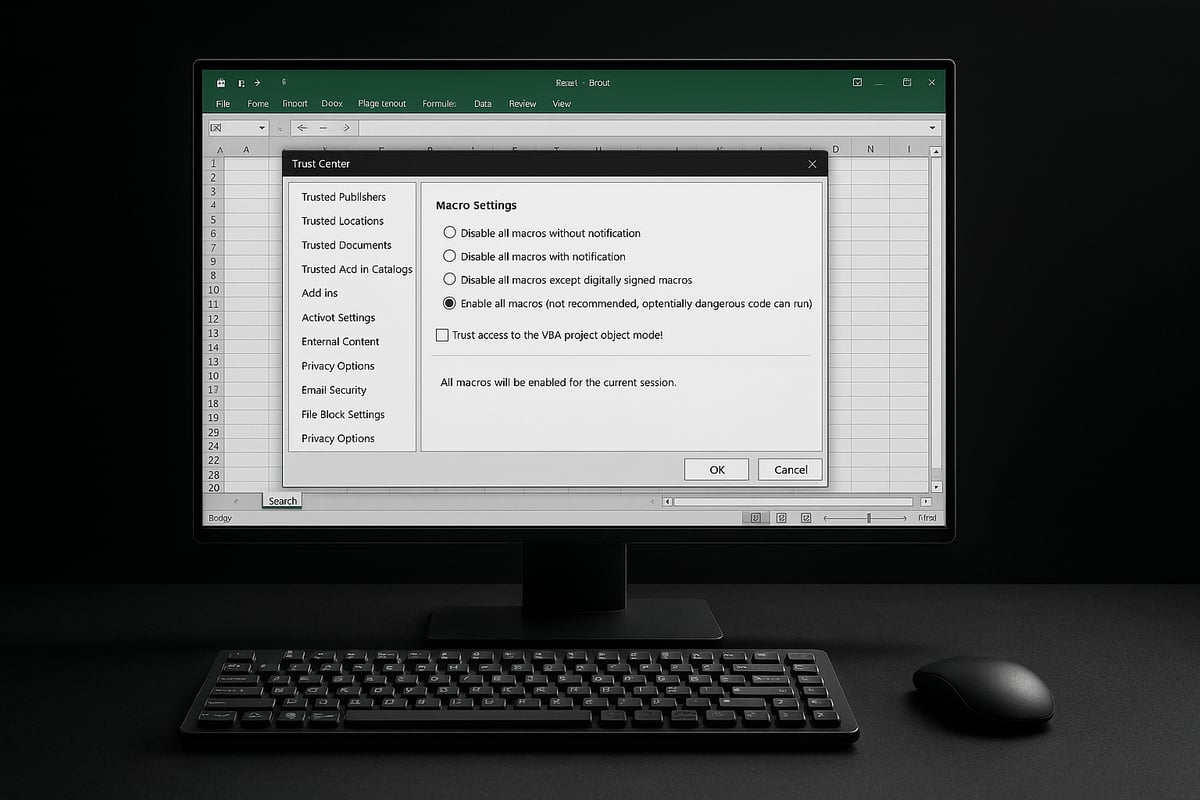
The process for how to turn on macro in excel on Windows is straightforward when you follow the Trust Center steps. Begin by opening your Excel workbook.
- Select File > Options.
- In the left pane, choose Trust Center.
- Click Trust Center Settings.
- Select Macro Settings.
You will see several options:
- Disable all macros without notification
- Disable all macros with notification (recommended)
- Enable all macros
- Disable all macros except digitally signed macros
For most users, "Disable all macros with notification" is the safest choice. This setting blocks macros by default but lets you enable them per file.
The Trust Center interface in Excel 2026 introduces clearer prompts and visual icons. If you need a detailed visual walkthrough, refer to the Enable macros in Excel step-by-step guide.
Remember, how to turn on macro in excel may differ slightly in Excel 2026, so always check for the latest interface changes.
Enabling Macros in Excel for Mac
On Mac, the process for how to turn on macro in excel requires navigating a different path. Open Excel and follow these steps:
- Click Excel in the top menu.
- Select Preferences > Security.
- Under Macro Settings, choose your preferred option.
Some VBA features are not fully supported on Mac. For example, ActiveX controls and certain Windows-specific VBA libraries may not function.
If you open a macro-enabled workbook from an external source, Excel for Mac will prompt you to enable content. Always verify the source before allowing macros.
Following these steps ensures how to turn on macro in excel works reliably on Mac, while keeping your files secure.
Enabling Macros in Excel Online (Web Version)
As of 2026, how to turn on macro in excel in the web version remains limited. Traditional VBA macros are not supported in Excel Online. Instead, Microsoft offers Office Scripts for automating tasks.
To use Office Scripts:
- Open your workbook in Excel Online.
- Click the Automate tab.
- Select Record Actions or New Script to create automation.
If you need VBA capabilities, download the file and open it in Excel for Windows or Mac. For most web-based workflows, Office Scripts offer a secure and flexible alternative.
Understanding these options helps you decide how to turn on macro in excel for cloud-based work.
Enabling Macros for Specific Workbooks or Locations
For advanced users, learning how to turn on macro in excel for specific files or folders increases both productivity and security. Trusted Locations allow you to automatically enable macros for files stored in designated folders.
To set up a Trusted Location:
- Go to File > Options > Trust Center.
- Click Trust Center Settings > Trusted Locations.
- Add a folder path (e.g.,
C:\CompanyMacros).
Storing your macro-enabled templates here means Excel will trust them by default. This is especially useful for company workflows requiring frequent macro use.
Using Trusted Locations ensures how to turn on macro in excel is both safe and efficient, reducing unnecessary prompts and streamlining your daily tasks.
Macro Security and Best Practices in 2026
In 2026, understanding macro security is essential for anyone learning how to turn on macro in excel. With advanced automation comes greater responsibility to protect your data and systems. This section provides a comprehensive guide to the latest security threats, organizational policies, and user best practices for safe macro usage.

Understanding Macro Security Risks
Macros can transform workflows, but they also pose risks when not managed properly. Malware creators often exploit macros to deliver malicious code, targeting users who are unsure how to turn on macro in excel safely.
Recent years have seen an increase in macro-based ransomware attacks. These incidents often begin when a user opens a macro-enabled workbook from an untrusted source, allowing harmful scripts to run. Microsoft has responded by tightening default macro settings and introducing more visible security warnings in Excel 2026.
Below is a summary of key risks and how they are mitigated:
| Security Risk | Mitigation Strategy |
|---|---|
| Macro-based malware | Use trusted locations and digital signatures |
| Ransomware attacks | Keep macro settings on "Disable with notification" |
| Phishing via macros | Educate users on file sources |
By staying informed, users can enjoy macro automation without unnecessary risk.
Safe Macro Enabling: Policies and Recommendations
Safely enabling macros starts with a clear understanding of policies and security guidelines. Many organizations now require macros to be digitally signed by trusted publishers before they are enabled. According to a recent survey, 80% of businesses restrict macro use to signed files, reducing exposure to threats.
For individuals and companies, the best approach is to keep macro settings on "Disable with notification." This allows users to review each macro-enabled file before activating its code. IT departments often establish group policies that enforce these settings company-wide.
If you need further guidance on secure macro configuration, refer to the Microsoft Office macro security guidelines for up-to-date recommendations. These guidelines help ensure you know how to turn on macro in excel safely, balancing productivity with security.
Managing Macro Settings for Organizations
Enterprise environments require consistent macro policies to protect sensitive data. Administrators can use Group Policy or Microsoft Endpoint Manager to set default macro behavior across all user devices. This ensures employees have a secure baseline and reduces the risk of accidental exposure.
For example, an IT department may configure all workbooks from external sources to open with macros disabled unless the file is from a trusted location. Training programs and regular security briefings reinforce these policies, helping staff recognize suspicious files and understand how to turn on macro in excel only when appropriate.
A sample configuration might look like this:
[Macro Settings]
Disable all macros except digitally signed macros
Notify user before enabling unsigned macros
Trusted Locations: \\CompanyServer\MacroTemplates
These steps help organizations streamline workflows without sacrificing security.
Tips for Personal Users: Staying Secure
Personal users also face risks when enabling macros. Before activating any macro, always verify the source of the file. If you receive a workbook unexpectedly, confirm its legitimacy with the sender. Keeping Excel updated ensures you benefit from the latest security patches and protections.
Using antivirus and endpoint protection software alongside Excel adds another layer of defense. When prompted about how to turn on macro in excel, read the warning carefully. If unsure, err on the side of caution and do not enable the macro.
Regularly review trusted locations and remove any that are no longer needed. By following these best practices, you can enjoy the benefits of automation while keeping your data safe.
Troubleshooting Common Macro Issues
Even after learning how to turn on macro in excel, users often encounter obstacles that disrupt workflow. Knowing how to quickly identify and resolve these issues is essential for smooth automation and productivity.
Macros Not Working: Causes and Solutions
If macros are not functioning after you follow the steps for how to turn on macro in excel, several factors could be at play. The most common causes include disabled macros in the Trust Center, unsupported file formats, or blocked content from external sources.
Troubleshooting checklist:
- Confirm that macro settings in the Trust Center are set to "Disable all macros with notification" or "Enable all macros."
- Ensure your file is saved as
.xlsmor another macro-enabled format. - Check for security warnings in the yellow message bar and select "Enable Content" if the file is trusted.
- Review any recent changes to your macro settings after an update.
- Verify that you are not running macros from a blocked location, such as downloaded files or email attachments.
For a deeper dive into troubleshooting steps and error messages, refer to Troubleshooting Excel macro issues.
A typical error message might look like:
"Macros have been disabled. Please enable macros in the Trust Center to run this content."
Resolving these issues promptly ensures you get full value from learning how to turn on macro in excel.
Dealing with Macro Security Warnings
When working on how to turn on macro in excel, you may encounter security warnings designed to protect your system. These warnings often appear as yellow or red banners at the top of the Excel window, prompting you to enable or disable macros.
Best practices for handling warnings:
- Only enable macros from trusted sources.
- Avoid enabling macros in files from emails or unfamiliar websites.
- If unsure, consult your IT department or use built-in Excel help.
Understanding the context of each warning helps you maintain security while using macros effectively. Always pause and consider the source before enabling content. This approach minimizes risk and supports safe macro usage when following how to turn on macro in excel.
Compatibility Problems Across Excel Versions
Compatibility issues can arise after you master how to turn on macro in excel, especially when sharing files across different Excel versions or platforms. For instance, some VBA code may work on Windows but not on Mac or the web version.
Common compatibility challenges:
- Differences in supported VBA features between Windows, Mac, and Excel Online.
- Macro-enabled files (
.xlsm) may lose functionality if opened in the web version. - Office Scripts are available in Excel Online but do not run traditional VBA macros.
| Platform | Macro Support | Notes |
|---|---|---|
| Windows | Full VBA support | Most features available |
| Mac | Partial VBA support | Some limitations |
| Excel Online | No VBA, Office Scripts | Use Office Scripts instead |
To improve cross-platform compatibility, rewrite macros using commonly supported features or consider alternative automation tools. Keeping these factors in mind when learning how to turn on macro in excel ensures your automations work everywhere.
Restoring Default Macro Settings
Occasionally, after experimenting with how to turn on macro in excel, you may need to restore your macro preferences to the default state. This is especially useful after troubleshooting or a failed macro run.
Steps to reset macro settings (Windows):
- Open Excel and select "File."
- Click "Options," then "Trust Center."
- Choose "Trust Center Settings."
- Select "Macro Settings," then choose "Disable all macros with notification."
- Click "OK" to apply changes.
For Mac:
- Go to "Excel" > "Preferences."
- Select "Security."
- Adjust macro settings to your preferred default.
Restoring settings helps prevent unexpected behavior and maintains a secure environment while you continue to refine how to turn on macro in excel. Always double-check your settings after major updates or troubleshooting sessions.
Advanced Tips: Making the Most of Macros in Excel
Unlocking the full potential of macros requires more than just knowing how to turn on macro in excel. Advanced users can harness powerful automation by recording, editing, and writing their own macros, as well as integrating new tools like Office Scripts. Below, we explore expert techniques to maximize efficiency and reliability in your Excel workflows.
Recording and Editing Your Own Macros
For those new to automation, the Macro Recorder is a gateway to mastering how to turn on macro in excel and start streamlining tasks. You can record your actions—like formatting cells or generating reports—and Excel converts these steps into VBA code.
To get started, open the "View" tab, click "Macros," then select "Record Macro." Perform the desired actions, then stop recording. Your macro is saved and ready for use with a single click.
Editing a recorded macro takes your skills further. Open the VBA editor (press Alt + F11), find your macro, and make adjustments to the code. Even simple edits—like changing a range or automating a different worksheet—can elevate your productivity.
Common use cases include:
- Automating repetitive formatting
- Generating standardized reports
- Importing and cleaning data
By learning how to turn on macro in excel and use the recorder, you gain a foundation for deeper automation.
Writing Custom Macros with VBA
Once comfortable recording macros, the next step is writing your own VBA scripts. This unlocks advanced functionality and lets you tailor automation to your exact needs. Understanding how to turn on macro in excel is essential before starting, as VBA will not run if macros are disabled.
A basic VBA macro looks like this:
Sub CleanData()
    Columns("A:A").Select
    Selection.Replace What:=" ", Replacement:="", LookAt:=xlPart
End Sub
This script removes all spaces from column A, perfect for cleaning imported data. Expand your skills by exploring VBA syntax, loops, and conditional statements. The official Microsoft documentation and Excel user forums are valuable resources for learning more.
Experiment with custom macros to automate tasks such as:
- Validating data entries
- Sending automated emails
- Creating complex dashboards
Mastering how to turn on macro in excel and write VBA code gives you a competitive edge in any data-driven environment.
Automating Workflows with Macros and Office Scripts
In 2026, automation in Excel goes beyond VBA. Office Scripts allow you to automate tasks in Excel Online, bridging the gap for cloud-based workflows. Knowing how to turn on macro in excel is still crucial, but Office Scripts offer new possibilities for web users.
Office Scripts use TypeScript, a modern scripting language. You can create scripts to:
- Schedule automated reports using Power Automate
- Clean and format data in shared workbooks
- Integrate Excel tasks with other Microsoft 365 apps
For example, set up a script to run nightly, compiling sales data and emailing your team. While VBA remains powerful on desktop, Office Scripts expand automation to the cloud, making Excel more versatile than ever.
If you are shifting between platforms, learning how to turn on macro in excel and Office Scripts will future-proof your workflow.
Best Practices for Macro Management and Documentation
Efficient macro management ensures your automations remain reliable and secure. After you learn how to turn on macro in excel, adopt a disciplined approach to naming, documenting, and sharing macros.
Follow these best practices:
- Use clear, descriptive names for macros and modules
- Add comments to explain code logic
- Track macro versions and store backups
- Share macros only in trusted environments
When distributing macros within teams, ensure everyone understands the source and purpose. For an in-depth look at secure macro usage, refer to this best practices for enabling macros guide, which covers safe setup and usage in detail.
By consistently applying these best practices and understanding how to turn on macro in excel, you will build robust automation that stands the test of time.
Get Expert Excel Macro Help from The Analytics Doctor
Mastering how to turn on macro in excel is more than just flipping a switch. Many users and organizations struggle with deeper challenges, from navigating security risks to resolving compatibility issues across Excel versions.

These hurdles can slow down productivity and put sensitive data at risk. Common obstacles include:
- Uncertainty about safe macro settings and policy compliance.
- Troubleshooting persistent errors after enabling macros.
- Adapting macro workflows for different Excel environments.
- Integrating automation into complex business processes.
Seeking expert guidance helps you move beyond trial and error. When you work with professionals who understand the complexities behind how to turn on macro in excel, you gain access to proven troubleshooting methods, customized automation, and actionable training.
The Analytics Doctor specializes in supporting both businesses and individuals. Their services include personalized macro troubleshooting, hands-on workshops, and consulting designed to fit any skill level or industry requirement. Whether you are just learning how to turn on macro in excel or managing a team that relies on advanced automation, expert help ensures you unlock Excel’s full potential.
Consider the example of a Texas-based finance team. They faced slow, manual monthly reporting, with hours lost to repetitive tasks. By partnering with The Analytics Doctor, they automated their workflow through custom macros. The result was a dramatic reduction in manual effort, more accurate reports, and a streamlined review process.
Expert support extends beyond problem-solving. The Analytics Doctor provides tailored solutions for every stage, including:
- Step-by-step guidance on how to turn on macro in excel securely.
- Training sessions focused on macro best practices and risk mitigation.
- Custom automation to enhance productivity and standardize processes.
- Ongoing access to free resources, macro templates, and updates.
Security is a top concern for anyone learning how to turn on macro in excel. According to recent Excel macro usage statistics 2025, the majority of power users depend on macros daily. This high usage highlights the importance of balancing automation with robust protection. Knowing the risks, such as those outlined in this overview of Excel macro risks in 2026, makes expert advice even more valuable.
Whether you need help troubleshooting a single macro or building an organization-wide automation strategy, The Analytics Doctor offers ongoing support, resources, and expertise. Take the next step to maximize your productivity and security with professional help tailored to your goals.


