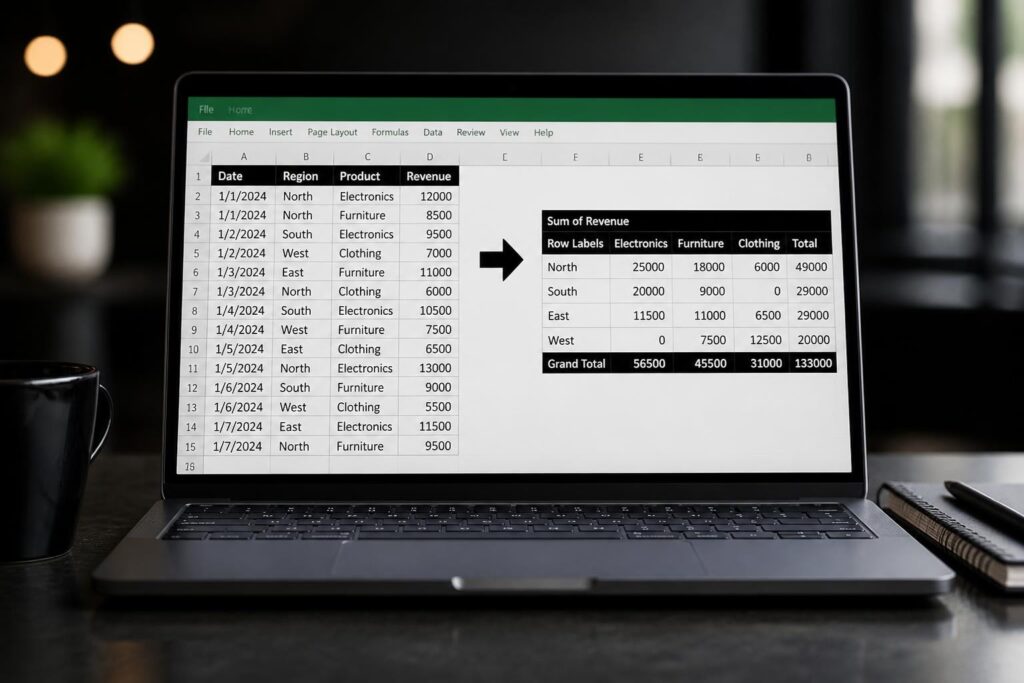
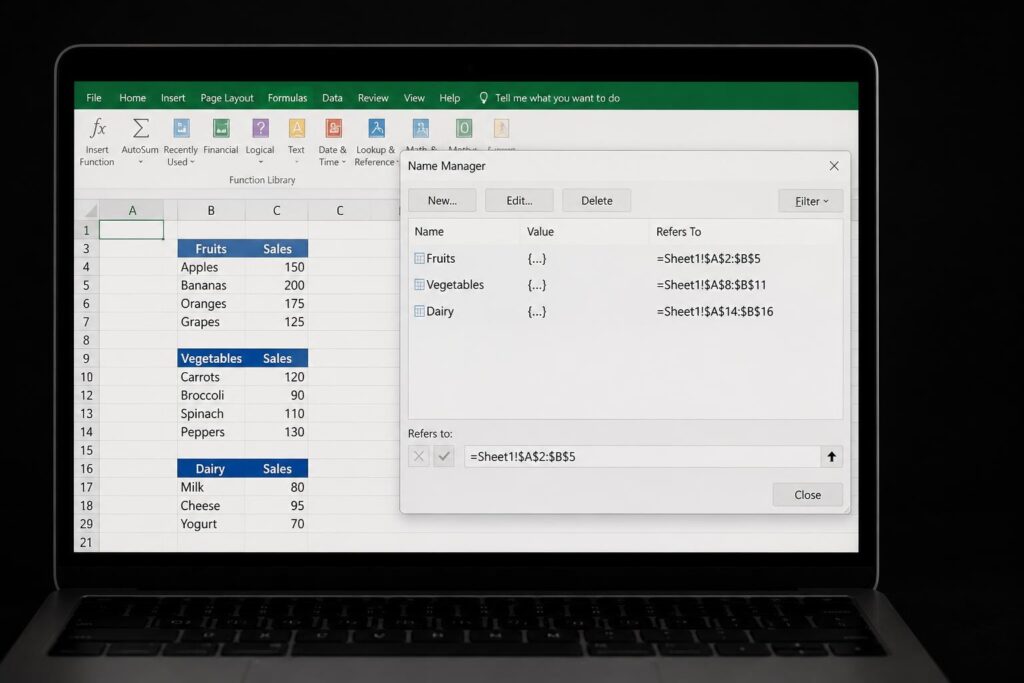
Collaboration has become essential for modern businesses, and knowing how to share an editable Excel file effectively can transform your team's productivity. Whether you're managing budgets, tracking projects, or analyzing data, the ability to share workbooks with editing permissions ensures everyone works with the most current information. This guide walks through the complete process of sharing Excel files for collaborative editing, covering cloud-based solutions, permission settings, and best practices for maintaining data integrity while multiple users work simultaneously.
Understanding Excel File Sharing Options
Before diving into the technical steps, it's important to understand the fundamental difference between sharing static files and creating truly collaborative environments. When you learn how to share an editable Excel file, you're choosing between several distinct approaches, each with specific benefits and limitations.
Cloud-Based Collaboration vs. Traditional Sharing
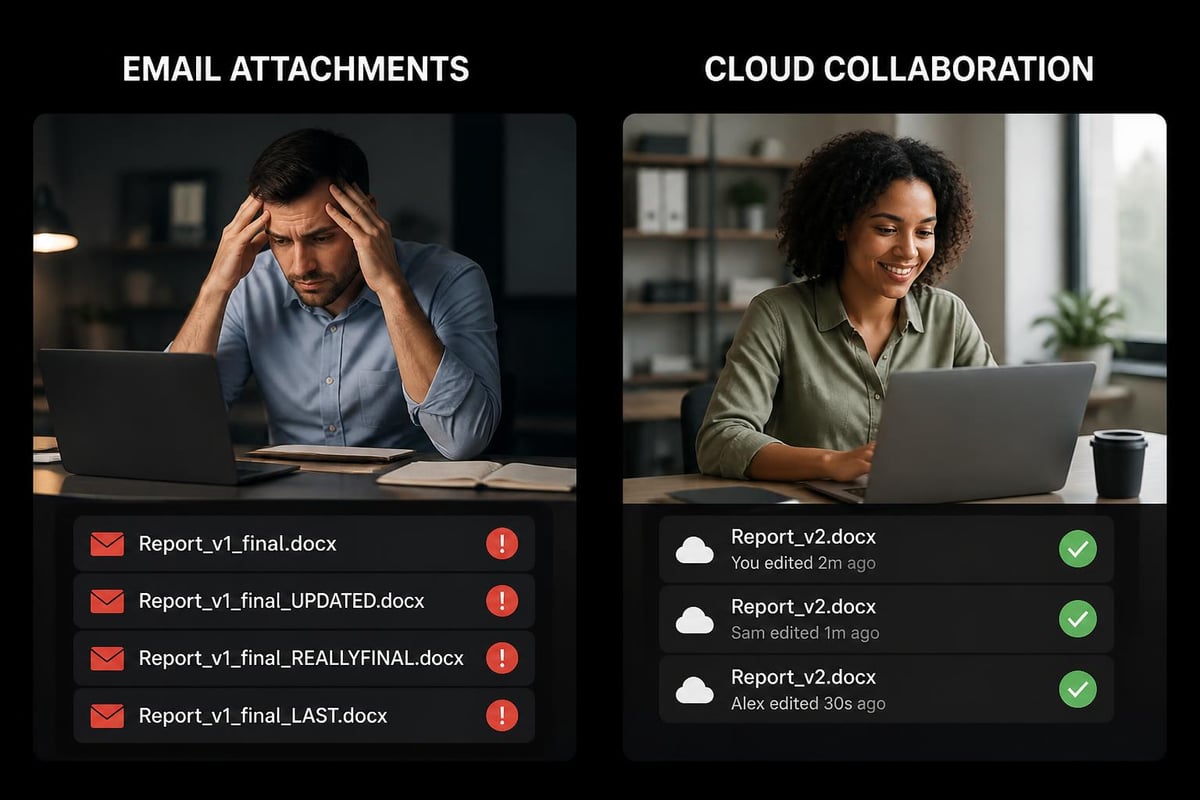
Modern Excel collaboration relies primarily on cloud storage platforms like OneDrive and SharePoint. These services enable real-time co-authoring, where multiple users can edit the same workbook simultaneously and see changes instantly. This approach has largely replaced the legacy Share Workbook feature, which Microsoft has deprecated in favor of more robust cloud-based solutions.
Traditional file sharing through email attachments or network drives creates version control nightmares. Each recipient works on their own copy, leading to files named "Budget_Final_v3_FINAL_revised.xlsx" scattered across your organization. Cloud-based sharing eliminates this chaos by maintaining a single source of truth that everyone accesses.
| Sharing Method | Real-Time Editing | Version Control | Best For |
|---|---|---|---|
| OneDrive/SharePoint | Yes | Automatic | Teams using Microsoft 365 |
| Email Attachment | No | Manual | One-time reviews |
| Network Share | Limited | Manual | Local network environments |
| Legacy Share Workbook | Yes | Limited | Older Excel versions only |
The differences between sharing and co-authoring are significant. Sharing simply grants access to a file, while co-authoring enables simultaneous editing with real-time updates. For most business scenarios in 2026, cloud-based co-authoring provides the most efficient workflow.
Step-by-Step Guide to Sharing Editable Excel Files
Learning how to share an editable Excel file through Microsoft 365 requires just a few straightforward steps. The process begins with saving your workbook to a cloud location that supports collaboration.
Saving Your Workbook to the Cloud
First, ensure your Excel file is saved to OneDrive or SharePoint. This is non-negotiable for real-time collaboration features.
- Open your Excel workbook
- Click File > Save As
- Select OneDrive or SharePoint from the location options
- Choose the appropriate folder within your cloud storage
- Click Save to upload your file
If you're already working in Excel for the web, your files automatically save to OneDrive. For desktop Excel users, this initial upload step establishes the foundation for all subsequent collaboration features.
Configuring Share Settings and Permissions
Once your file resides in the cloud, sharing becomes remarkably simple. The official Microsoft guide on sharing Excel workbooks provides comprehensive details, but here's the streamlined process:
From Excel Desktop:
- Click the Share button in the upper-right corner of the ribbon
- Enter the email addresses of people you want to collaborate with
- Click the permissions dropdown to choose between Can edit or Can view
- Add an optional message explaining what you need from collaborators
- Click Send to distribute access
From Excel for the Web:
- Click Share in the top-right toolbar
- Enter email addresses or get a sharing link
- Set permissions to Can edit for collaborative access
- Choose whether recipients need to sign in or can access anonymously
- Click Send or Copy link
The permission settings determine exactly what recipients can do. Selecting "Can edit" grants full editing rights, while "Can view" restricts users to read-only access. For sensitive financial models or complex dashboards, consider starting with view-only permissions and upgrading specific users as needed.
Managing Link-Based Sharing
Beyond direct email invitations, Excel offers link-based sharing for greater flexibility. This method works particularly well for larger teams or when you need to share access quickly without collecting everyone's email addresses.
- Click Share > Copy Link
- Select link type: Anyone with the link or People in [your organization]
- Choose Can edit or Can view permissions
- Click Copy and distribute the link through your preferred communication channel
Link-based sharing requires careful consideration of security implications. "Anyone with the link" grants access to anyone who receives the URL, even if they're outside your organization. For internal projects, restrict links to people within your organization to prevent unauthorized access.
Advanced Collaboration Features
Understanding how to share an editable Excel file extends beyond basic sharing to encompass powerful collaboration tools that enhance team productivity and maintain data accuracy.
Real-Time Co-Authoring Capabilities
When multiple users edit a shared workbook simultaneously, Excel displays colored cell borders indicating where others are working. Each collaborator sees a different color, with their name appearing when you hover over their active cell. Changes appear within seconds, creating a nearly instantaneous collaborative experience.
Key co-authoring features include:
- Automatic saving every few seconds
- Presence indicators showing who's currently viewing the file
- Cell-level indicators showing active editing locations
- Comments and notes for asynchronous communication
- Version history for reviewing past changes
The collaboration tips from Microsoft emphasize the importance of communication while co-authoring. Use Excel's built-in comments feature (Insert > Comment) to ask questions or provide context without disrupting the data itself.
Version History and Recovery
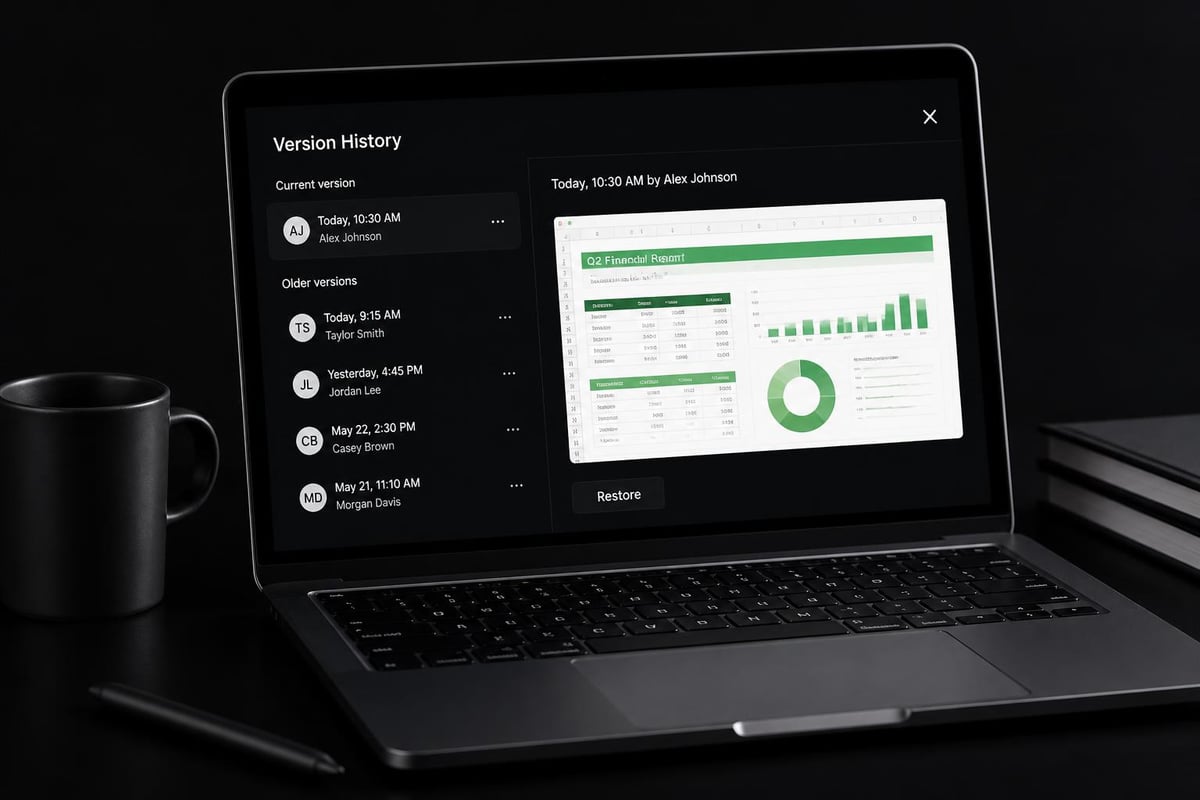
Cloud-based Excel files automatically maintain detailed version history, protecting against accidental deletions or unwanted changes. This safety net proves invaluable when collaboration goes wrong.
To access version history:
- Open the shared workbook
- Click File > Info
- Select Version History
- Review all saved versions with timestamps and editor names
- Click any version to preview or restore it
Version history extends back 30 days for files stored in OneDrive, providing ample opportunity to recover from mistakes. If someone accidentally deletes critical formulas or overwrites important data, simply restore a previous version and continue working. This feature alone makes cloud-based sharing superior to traditional file sharing methods.
Troubleshooting Common Sharing Issues
Even when you know how to share an editable Excel file correctly, technical issues occasionally arise. Understanding common problems and their solutions keeps your collaboration running smoothly.
Resolving Permission and Access Problems
Users sometimes report they cannot edit shared files despite receiving "Can edit" permissions. Several factors cause this frustration:
File Format Limitations: Older .xls files don't support modern co-authoring. Convert to .xlsx format by opening the file and selecting File > Save As > change the file type to Excel Workbook (.xlsx).
Desktop vs. Web Differences: Some features work exclusively in Excel for the web or desktop versions. If users can't edit through one interface, try the alternative.
Blocked Features: Certain Excel features disable co-authoring entirely, including shared workbooks (legacy), merged cells in tables, data validation with formulas referencing other sheets, and protected sheets or workbooks.
If password protection blocks editing, you'll need to remove it before enabling collaboration. Navigate to Review > Unprotect Sheet or Unprotect Workbook, enter the password, and then proceed with sharing.
Addressing Sync and Connectivity Issues
Cloud collaboration requires stable internet connectivity. When connections falter, Excel may display "Upload Pending" or "Sync Error" messages. These typically resolve automatically once connectivity restores, but you can force synchronization:
- Close and reopen the file
- Check OneDrive sync status in the system tray (Windows) or menu bar (Mac)
- Verify you're connected to the internet
- Ensure OneDrive isn't paused or experiencing service issues
- Try opening the file in Excel for the web as an alternative
For teams experiencing persistent problems, professional Excel consulting services can diagnose infrastructure issues and optimize your sharing configuration for reliability.
Best Practices for Shared Excel Workbooks
Knowing how to share an editable Excel file technically is just the beginning. Following established best practices ensures smooth collaboration and prevents the chaos that can emerge when too many people edit without guidelines.
Establishing Clear Editing Protocols
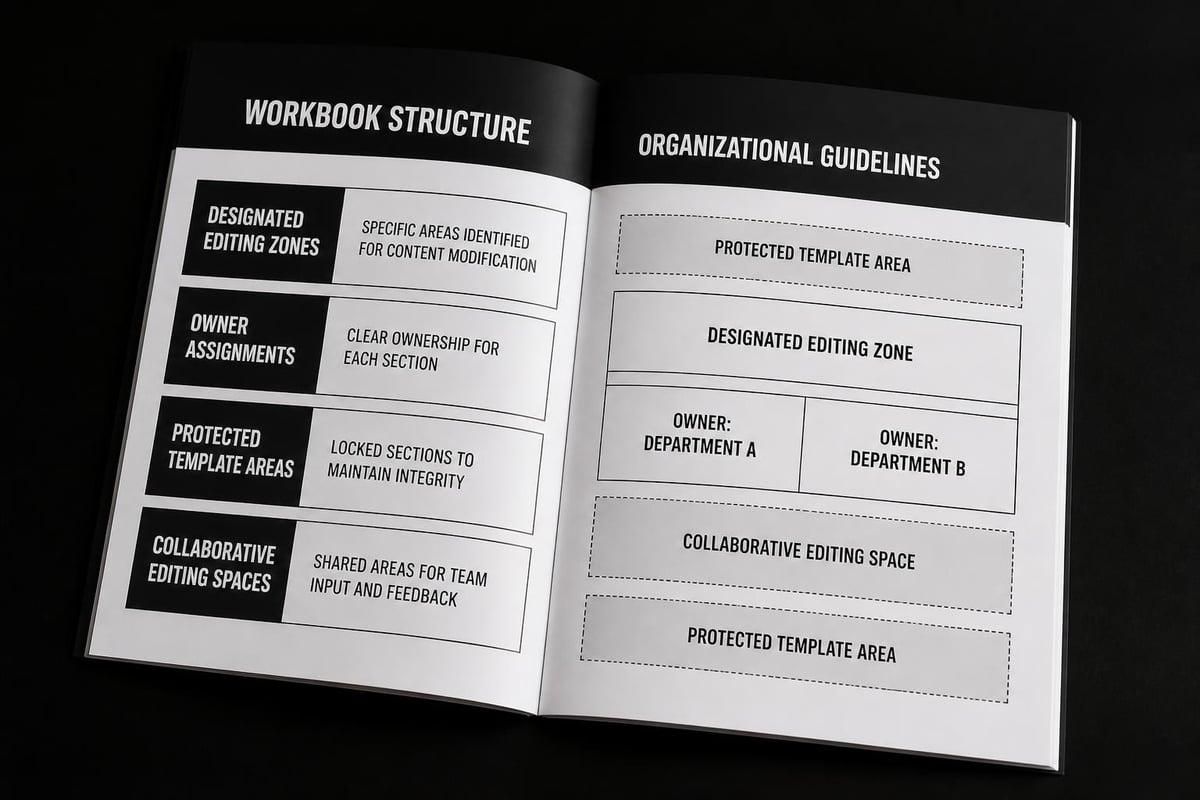
Define ownership and responsibilities:
- Assign specific sections or worksheets to individual team members
- Designate one person as the workbook owner responsible for structure and formatting
- Create a "Read Me" sheet explaining the workbook's purpose, layout, and editing rules
- Use color-coding or naming conventions to indicate which areas require caution when editing
Communication standards:
- Require comments for significant changes
- Establish response time expectations for comment threads
- Schedule regular review meetings to discuss major workbook updates
- Create a change log sheet tracking important modifications
Optimizing File Structure for Collaboration
Large, complex workbooks with hundreds of formulas and multiple pivot tables can strain collaborative features. Consider these optimization strategies:
- Split large workbooks: Divide massive files into smaller, focused workbooks linked through external references
- Minimize volatile functions: INDIRECT, OFFSET, and TODAY recalculate constantly, slowing performance for all users
- Use tables instead of ranges: Excel tables provide structured references that update automatically
- Remove unnecessary formatting: Excessive conditional formatting rules impact performance
- Clean up named ranges: Delete unused names to reduce file complexity
For organizations managing multiple shared workbooks, Excel training programs teach teams consistent practices that prevent common collaboration problems before they arise.
Security Considerations for Shared Files
When you share an editable Excel file, you're potentially exposing sensitive business data. Implementing appropriate security measures protects confidential information while maintaining necessary collaboration.
Setting Appropriate Permission Levels
Microsoft 365 offers granular permission controls that go beyond simple "edit" or "view" settings:
| Permission Level | Can View | Can Edit | Can Share | Can Download | Best For |
|---|---|---|---|---|---|
| Full Control | Yes | Yes | Yes | Yes | Project owners |
| Edit | Yes | Yes | No | Yes | Team collaborators |
| View | Yes | No | No | Yes | Stakeholders |
| Restricted View | Yes | No | No | No | Confidential reviews |
Match permission levels to user roles. Financial analysts working on budget models need full editing access, while executives reviewing final numbers may only require view permissions. The guide on sharing workbooks in Excel for the web explains how to configure these settings for maximum security.
Protecting Sensitive Data Within Shared Workbooks
Even when sharing with trusted colleagues, certain data requires extra protection. Excel provides several mechanisms for securing specific content:
Sheet and Range Protection: Lock specific worksheets or cell ranges while allowing editing elsewhere. This works well for templates where formulas shouldn't change but input cells need regular updates.
Data Validation: Restrict entries to specific values, dates, or formats, preventing accidental data corruption.
Hidden Sheets: Store reference data or calculations on hidden sheets that users don't need to access directly.
Information Rights Management (IRM): For enterprise accounts, IRM enforces document-level permissions that persist even after download, preventing unauthorized copying or forwarding.
Remember that cloud-based sharing means your data lives on Microsoft's servers. For highly sensitive information requiring complete control, consider whether cloud collaboration aligns with your security requirements or if alternative solutions better serve your needs.
Alternative Methods for Legacy Systems
While modern cloud-based collaboration represents the gold standard for how to share an editable Excel file, some organizations still operate with legacy systems or network restrictions that prevent OneDrive usage.
Using Share Workbook Feature (Legacy)
Excel's legacy Share Workbook feature, found under Review > Share Workbook, enables multiple users to edit files stored on network drives. Microsoft has removed this feature from Excel 2026 and strongly discourages its use, but some older installations still support it.
Limitations of legacy sharing:
- No real-time updates (changes sync when saving)
- Many Excel features become disabled
- Higher risk of data corruption
- Limited conflict resolution capabilities
- No automatic version history
If you must use this deprecated feature, save frequently and maintain regular backups. The video tutorial on network-based sharing demonstrates the process, though migrating to cloud-based solutions provides significantly better results.
Network Drive Collaboration Strategies
Organizations with network drives can implement structured workflows that approximate true collaboration:
- Establish a single "master" file that one person owns
- Create a check-in/check-out system using file naming conventions
- Schedule specific editing windows for different team members
- Maintain a separate changelog document tracking modifications
- Perform regular backups before significant editing sessions
These workarounds pale in comparison to proper cloud collaboration, but they provide options when technical or organizational constraints prevent modern solutions.
Maximizing Productivity with Shared Workbooks
Understanding how to share an editable Excel file opens possibilities for collaborative workflows that dramatically improve team efficiency and data accuracy.
Templates for Recurring Collaborative Projects
Create standardized templates for regular collaborative tasks. Monthly budget reviews, quarterly reports, and project tracking spreadsheets benefit from consistent structure that team members recognize and navigate easily.
Template best practices:
- Include clear instructions on the first sheet
- Use data validation to guide input
- Protect formula cells while leaving input areas editable
- Provide example entries demonstrating expected formatting
- Link to supporting documentation or resources
Save templates to a shared OneDrive folder where team members can copy them for new projects, ensuring everyone starts with the correct structure and formulas.
Integration with Other Microsoft 365 Tools
Shared Excel files integrate seamlessly with Teams, SharePoint, and other Microsoft 365 applications. Embed workbooks directly in Teams channels for contextual collaboration, or link them from SharePoint project sites to centralize information.
Excel's integration with Power BI enables teams to collaborate on source data while analysts build visualizations and reports in separate tools. This separation of concerns lets each team member work in their area of expertise without stepping on others' work.
For businesses requiring customized Excel solutions or workflow optimization, specialized Excel help can design integrated systems that maximize Microsoft 365's collaborative potential.
Mastering how to share an editable Excel file transforms isolated spreadsheet work into powerful team collaboration that keeps everyone aligned with current data. Whether you're implementing basic file sharing or orchestrating complex multi-user workflows, the cloud-based tools available in 2026 provide robust capabilities for real-time editing and version control. When you need expert guidance on optimizing your Excel collaboration, resolving sharing issues, or training your team on best practices, The Analytics Doctor delivers personalized solutions that turn spreadsheet challenges into streamlined workflows.