
Do you ever find yourself frustrated when your Excel headers disappear as you scroll, or worry about accidental edits wrecking your data? You are not alone. Many users search for how to lock a row in excel to keep information organized and safe.
This guide is your roadmap to mastering row locking in Excel, giving you control over your data as you work into 2026 and beyond. You will discover the newest methods for freezing, protecting, and managing rows, each explained step by step.
Whether you are a beginner or an experienced user, you will gain actionable solutions, advanced tips, and troubleshooting advice. Get ready to transform your workflow and make Excel work for you.
Understanding Row Locking in Excel: What, Why, and When
Keeping your data organized and secure is a top priority in modern spreadsheets. Many users search for clarity on how to lock a row in excel, but the term “locking” can mean different things depending on your goal. Let’s break down what it truly means to lock a row, why you might want to do it, and when each method is best applied.
What Does “Locking a Row” Mean in Excel?
In Excel, “locking a row” can refer to several features. The most common are freezing, protecting, and hiding. Freezing a row keeps it visible as you scroll, which is helpful when working with large datasets. Protecting a row, on the other hand, involves preventing edits or deletions, adding a layer of security to your most important data. Hiding simply makes a row invisible, which is different from truly locking it.
If you want to keep header rows visible while scrolling, you’re looking for freezing. If your goal is to safeguard formulas or sensitive information, protection is the answer. Learning how to lock a row in excel means understanding which tool to use for each situation.
Freezing vs. Protecting Rows: When and Why
Let’s clarify the differences between freezing and protecting rows:
| Feature | Freezing Rows | Protecting Rows |
|---|---|---|
| Purpose | Keeps rows always visible | Prevents editing/deleting |
| Use Case | Header rows, navigation | Formulas, sensitive data |
| Editing | Allowed | Restricted |
| Deletion | Allowed | Restricted (with protection) |
Freezing is ideal for keeping titles or headers anchored, especially in large spreadsheets. For a detailed walkthrough, see this helpful Freeze row on Excel tutorial.
Protecting is best when you need to control who can edit or remove information. Both features can be used together for maximum control, and knowing how to lock a row in excel helps you tailor your approach for any scenario.
Key Benefits and Common Use Cases
Locking rows in Excel offers several advantages:
- Keeps important information like headers always visible
- Reduces accidental overwrites or deletions
- Protects formulas and reference data
- Makes collaboration easier by preventing unwanted changes
Common scenarios include financial models with fixed headers, project trackers with summary rows, or large datasets that require navigation and data integrity. If you routinely share files, knowing how to lock a row in excel can help ensure your data remains both clear and secure.
Limitations, Collaboration, and Excel 2026 Updates
It’s important to know what locking cannot do. Freezing does not prevent edits or deletions, while protection may not stop all changes if permissions are misconfigured. In shared workbooks, row locking features may behave differently—collaborators might have varying access based on their roles.
Excel 2026 introduces enhanced collaboration tools and improved protection settings for cloud-based workbooks. These updates make it easier to manage locked rows across teams and devices, but the fundamental principles behind how to lock a row in excel remain consistent.
By understanding the differences between freezing and protecting, as well as their real-world applications and limits, you’ll be equipped to maintain clarity, accuracy, and security in any Excel project.
How to Freeze Rows in Excel: Step-by-Step Guide
Freezing rows in Excel is a powerful way to keep important information, such as headers, visible while you scroll through large data sets. If you have ever lost track of column titles or key figures as you move down a sheet, mastering how to lock a row in excel will transform your workflow. This guide offers clear steps, detailed explanations, and practical tips to help users at any level.
What Does Freezing Rows Do?
Freezing rows in Excel keeps designated rows visible at all times, even as you scroll through large amounts of data. Most commonly, people use this feature to keep header rows in view, ensuring column names and categories are always accessible.
This process does not prevent editing or deletion of the frozen rows. Instead, it offers visual anchoring, which is essential when learning how to lock a row in excel for better data navigation. As you explore large tables or multi-page reports, frozen rows act as your guideposts, making data review much more efficient.
Step 1: Prepare Your Worksheet
Before you start, make sure your worksheet is organized for freezing. Place your header or key row at the top, typically row 1, so it is ready to be anchored.
Remove any filters, split panes, or other view modifications that could interfere with the freezing process. It is wise to save a backup copy of your workbook before making changes, especially if you are learning how to lock a row in excel for the first time.
Careful preparation helps avoid issues and ensures freezing rows will work as intended.
Step 2: Using Freeze Panes Feature
Excel’s Freeze Panes tool is straightforward yet powerful. You can access it from the View tab in the ribbon. Here are your main options:
| Option | Action |
|---|---|
| Freeze Top Row | Anchors only the first row |
| Freeze First Column | Anchors only the first column |
| Freeze Panes (custom) | Anchors rows and columns above/left of selection |
How to use Freeze Panes:
- Click on the View tab.
- Select Freeze Panes.
- Choose from:
- Freeze Top Row: Instantly locks row 1.
- Freeze First Column: Locks column A.
- Freeze Panes: Click the first cell below the rows and right of the columns you want to freeze, then select this option for a custom setup.
After freezing, you’ll see a subtle gray border indicating which rows or columns are anchored. If you need more visual guidance, this Freeze a cell in Excel tutorial provides additional screenshots and step-by-step instructions.
Remember, using Freeze Panes is one of the most effective ways to master how to lock a row in excel and improve your overall spreadsheet navigation.
Step 3: Unfreezing Rows
If you ever need to revert your worksheet, unfreezing is simple. Head back to the View tab and select Unfreeze Panes.
Once unfrozen, all rows and columns will scroll normally again. This action is useful when you want to adjust which rows are locked or if you are reformatting your sheet. Understanding how to lock a row in excel also means knowing how to reverse the process quickly and efficiently.
Advanced Freezing Techniques
For more complex sheets, you may want to freeze multiple rows or even combine frozen rows and columns. To do this, select the cell just below the last row and to the right of the last column you want to anchor, then choose Freeze Panes.
Here are some advanced scenarios:
- Freezing multiple header rows for multi-level categories.
- Combining frozen columns and rows for dashboards or reports.
- Using Freeze Panes in large project trackers where both row and column headers must stay visible.
These techniques elevate your skills beyond basic navigation. When you incorporate advanced freezing into your workflow, you are leveraging the full power of how to lock a row in excel for professional data management.
How to Protect Rows from Editing or Deletion
Protecting your data is critical in any professional spreadsheet. If you have ever wondered how to lock a row in excel so colleagues cannot accidentally overwrite or delete important information, this section is for you.
Let us explore what row protection really means, how it differs from simply freezing rows, and why mastering these techniques will keep your spreadsheets secure and efficient.
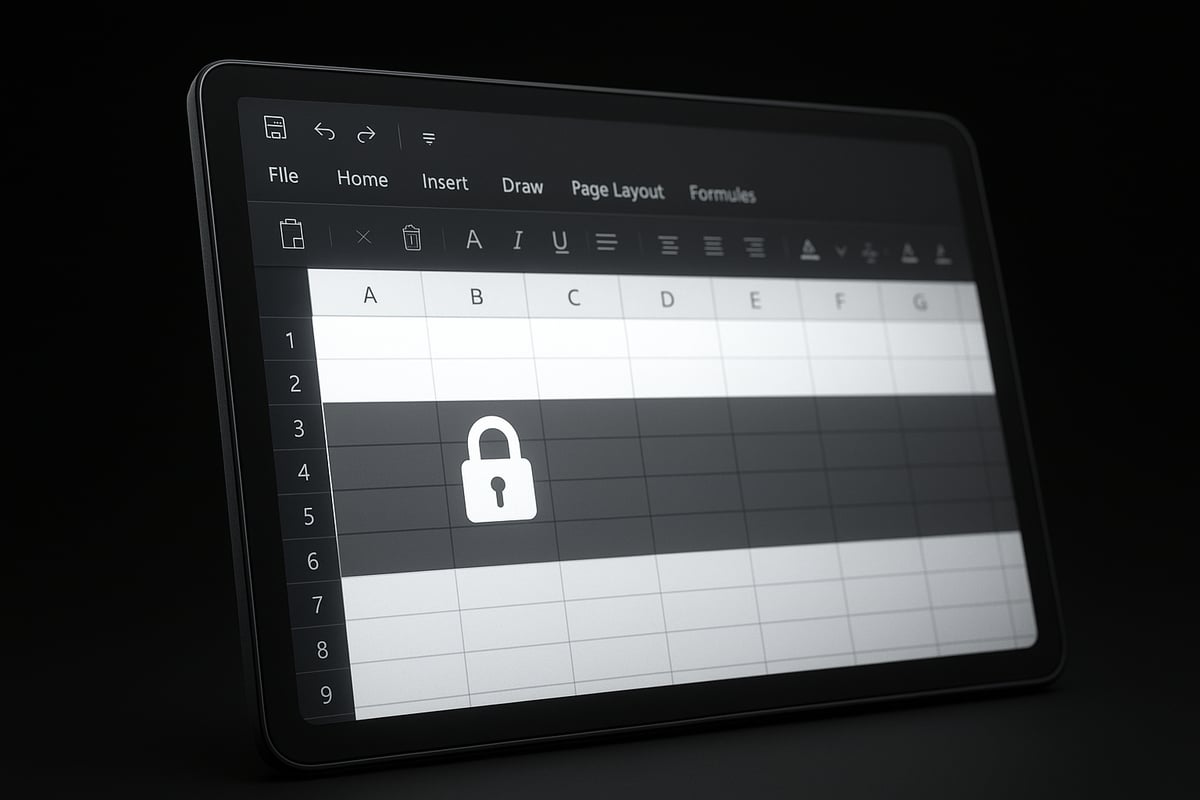
What is Row Protection in Excel?
Understanding how to lock a row in excel starts with knowing the difference between freezing and protecting. Freezing keeps rows visible as you scroll, but does not stop users from editing or deleting content. Protection, on the other hand, prevents unwanted changes.
Excel uses a two-step approach:
- Cell locking: Marks cells as locked, but alone does not secure them.
- Worksheet protection: Activates the lock, requiring a password or permission to edit.
Consider this comparison:
| Feature | Freezing Rows | Locking & Protecting Rows |
|---|---|---|
| Visual anchoring | Yes | No |
| Prevents editing | No | Yes |
| Prevents deletion | No | Yes (with protection) |
You will use row protection to safeguard formulas, sensitive data, or critical headers, especially in shared files.
Step 1: Select and Lock Specific Rows
To begin, open your worksheet and decide which rows you want to protect. By default, all cells in Excel are set to locked, but this only takes effect after worksheet protection is enabled.
Follow these steps on how to lock a row in excel for editing or deletion:
- Select the entire sheet (
Ctrl + A), then right-click and choose Format Cells. - On the Protection tab, uncheck Locked. Click OK. This unlocks all cells.
- Select the specific rows you want to lock.
- Again, right-click, choose Format Cells, and check Locked. Click OK.
This approach ensures only the rows you choose will be protected when you apply worksheet protection.
For a deeper dive into cell locking mechanics, check out the Locked cells in Excel explained guide for advanced context.
Step 2: Apply Worksheet Protection
Now, it is time to activate the lock. Here is how to lock a row in excel using worksheet protection:
- Go to the Review tab, then click Protect Sheet.
- Enter a password if you want to restrict access. (Write it down or use a password manager.)
- In the dialog, select which actions users can perform, such as:
- Select locked cells
- Format cells
- Insert or delete rows
- Sort or use AutoFilter
Only the cells and rows marked as locked will be protected. Unlocked cells remain editable.
If someone tries to edit a protected row, Excel prompts for a password, keeping your data safe. This method is especially useful when you need to control who can update specific sections of your workbook.
Step 3: Testing and Managing Protection
After applying protection, test your settings. Try editing a locked row to confirm it is secure. If you want to make changes later, go to the Review tab and select Unprotect Sheet.
Remember, if you forget your password, recovering access can be difficult. Here is a quick tip for managing passwords:
Tip: Store Excel sheet passwords in a secure, encrypted password manager. Avoid using simple or repeated passwords across workbooks.
How to lock a row in excel also involves regular checks and updates to your protection settings, especially in collaborative environments.
Advanced Protection Scenarios
Excel offers more granular control for advanced needs. If you use Excel 365 or Excel 2026, you can allow specific users to edit certain ranges while keeping other rows locked.
Some additional scenarios:
- Protect formulas but allow data entry: Lock formula cells, unlock input cells, and protect the sheet.
- Collaborative workbooks: In shared workbooks, protection settings can be combined with OneDrive or SharePoint permissions.
- Sensitive data: Use row protection for confidential HR, finance, or project tracker rows.
Knowing how to lock a row in excel for these cases increases your control and reduces the risk of accidental or unauthorized changes.
Troubleshooting Row Protection Issues
Common issues with row protection include users bypassing protection or forgotten passwords. Always double-check your settings. If you encounter persistent problems, review your protection steps or consult with IT support.
Mastering how to lock a row in excel is an ongoing process. With practice and these strategies, you can ensure your data remains accurate and secure.
Locking Rows in Excel Online, Mac, and Mobile: Platform-Specific Steps
Navigating how to lock a row in excel can feel different across platforms. Each version, from browser-based Excel Online to Mac and mobile apps, brings its unique interface and feature set. Knowing the right steps for your device ensures your rows stay visible and protected, no matter how or where you work.
Freezing Rows in Excel Online
If you use Excel Online, learning how to lock a row in excel is straightforward, though some advanced features from desktop versions may not be present. To freeze the top row:
- Open your worksheet in the browser.
- Go to the "View" tab.
- Select "Freeze Top Row" or "Freeze Panes" for custom choices.
This keeps your header visible while scrolling, making data entry easier. For a detailed, cross-platform guide, see How to Lock a Row in Excel.
Protecting Rows in Excel for Mac
On a Mac, how to lock a row in excel involves some menu differences. To freeze rows:
- Click the row below the one you want to keep visible.
- Go to "Window" in the main menu.
- Choose "Freeze Panes."
For protecting rows from editing, select the cells, open the "Format Cells" dialog, check "Locked," then protect the sheet via the "Tools" menu. This combination helps prevent unwanted changes, especially in shared files.
Locking and Freezing on Mobile Devices
Mobile versions of Excel on iOS and Android offer limited row locking. You can view frozen rows set on desktop, but you cannot always set or change these directly in the app. If you need to adjust how to lock a row in excel while mobile, do it first on your computer. For sensitive data, use OneDrive or SharePoint permissions as an extra safety layer.
Compatibility, Collaboration, and 2026 Updates
As Excel evolves, knowing how to lock a row in excel across platforms is essential for remote teams and BYOD environments. In 2026, cloud and mobile versions offer improved compatibility, letting users view and respect frozen or protected rows regardless of device. For large projects or sensitive data, always test your settings on each platform to ensure consistency.
Whether you build financial models on a Mac, track projects online, or review sheets on your phone, the right row locking steps keep your data organized and secure.
Best Practices for Managing Locked Rows in Large or Collaborative Workbooks
Managing locked rows efficiently is essential when dealing with large datasets or collaborative Excel environments. Understanding how to lock a row in excel is just the first step. Applying best practices ensures your data remains organized, secure, and accessible for everyone on your team.

Naming Conventions and Documentation
Begin by adopting clear naming conventions for your locked rows. Label headers and protected areas with descriptive titles. Add comments or a dedicated documentation sheet outlining which rows are locked and why.
This transparency helps both current and future users quickly understand the structure. When teaching others how to lock a row in excel, emphasize the value of documentation to reduce confusion and prevent accidental changes.
- Use color coding for locked rows
- Maintain a change log for locked/unlocked areas
- Include worksheet instructions in a visible cell
Clear documentation supports error reduction and smoother onboarding for new collaborators.
Layering Freezing and Protection for Maximum Control
For more robust control, combine freezing and protection features. Freezing keeps headers visible, while protection restricts edits or deletions. Layering both ensures critical information stays both visible and secure.
If you want to protect sensitive formulas or prevent accidental edits, review how to lock a row in excel alongside cell-level protection. For step-by-step cell protection, consult How to protect a cell in Excel for additional guidance.
- Freeze header rows and protect key data ranges
- Use worksheet protection with custom permissions
- Test protection settings regularly
Layering these tools provides a strong foundation for collaboration and data integrity.
Collaboration and Permissions in Shared Workbooks
Successful teamwork in Excel depends on clear communication and well-managed permissions. When you show others how to lock a row in excel, explain your team's policies for editing, locking, and unlocking rows.
Use OneDrive or SharePoint to share workbooks, setting appropriate permissions for each user. Limit editing rights to only those who need them, and inform all collaborators about which rows are locked.
- Assign editing rights using Excel's "Allow Edit Ranges"
- Notify team members of changes to locked areas
- Schedule regular reviews of permissions
Effective permission management minimizes errors and supports consistent data quality in shared environments.
Version Control and Managing Complex Sheets
Large or complex workbooks require diligent version control and backup strategies. Before locking or unlocking rows, create versioned copies of your file. This practice is vital for anyone learning how to lock a row in excel, especially in high-stakes financial or HR datasets.
Group, hide, and lock related rows together for clarity. Document these choices in a visible location, and regularly back up your workbook to prevent data loss.
- Save incremental versions before changes
- Use grouping and hiding for better organization
- Restore previous versions if needed
These best practices ensure your locked rows remain effective and your data stays secure, even as your workbook evolves.
Advanced Tips, Automation, and Troubleshooting for Row Locking in Excel 2026
Unlocking the full power of how to lock a row in excel goes beyond basic freezing or protection. In this section, you'll discover advanced methods, automation strategies, troubleshooting insights, and compliance tips tailored for Excel 2026. Whether you manage massive datasets or collaborate across teams, mastering these techniques will streamline your workflow and safeguard your data.
Automating Row Locking with VBA and Macros
Automation is a game changer when learning how to lock a row in excel efficiently, especially in repetitive or large-scale scenarios. VBA (Visual Basic for Applications) lets you automate row freezing and protection with just a few lines of code. This saves time, reduces manual errors, and ensures consistency across your workbooks.
For example, to freeze the top row and lock a specific range, you can use the following VBA script:
Sub FreezeAndLockRows()
    ' Freeze the top row
    ActiveWindow.SplitRow = 1
    ActiveWindow.FreezePanes = True

    ' Unlock all cells
    Cells.Locked = False

    ' Lock rows 1 to 2
    Rows("1:2").Locked = True

    ' Protect the sheet
    ActiveSheet.Protect Password:="YourPassword"
End Sub
Before running macros, always enable macro security and save a backup. Macros can introduce risks if sourced externally. For more insights on freezing and locking rows for data management, see this Freezing Panes in Excel resource.
Proper automation can transform how to lock a row in excel for recurring needs, helping you focus on analysis rather than repetitive tasks.
Using Conditional Formatting with Locked Rows
Conditional formatting enhances visibility when applying how to lock a row in excel. By visually distinguishing locked rows, you help collaborators understand which areas are protected.
To highlight locked rows:
- Select your worksheet
- Use a formula-based rule:
=CELL("protect",A1)=1 - Choose a fill color for locked rows
This approach is especially useful in shared workbooks. It provides instant visual cues, reducing accidental edits and boosting team clarity.
Combining conditional formatting with how to lock a row in excel can make protection intuitive for everyone.
Integrating Locked Rows with Data Validation and Form Controls
Pairing data validation with how to lock a row in excel creates robust error prevention. For instance, lock formula rows but allow data entry in other cells. Use drop-down lists or checkboxes for user input, while keeping calculations secure.
Steps for integration:
- Unlock input cells
- Apply data validation rules (e.g., restrict values)
- Lock formula rows and protect the worksheet
This method prevents accidental overwriting and ensures data integrity. It is ideal for financial models, HR sheets, and project trackers requiring both flexibility and protection.
Mastering how to lock a row in excel with validation tools supports clean, reliable data entry.
Troubleshooting Common Issues in Excel 2026
Even experts encounter challenges when using how to lock a row in excel. Common problems include:
- Frozen panes not behaving as expected
- Protection options greyed out
- Compatibility issues with older Excel versions or third-party add-ins
To resolve these:
- Check for hidden panes or conflicting view settings
- Ensure you have the correct permissions
- Update Excel and disable incompatible add-ins
If you forget your protection password, recovery is difficult—keep passwords secure. For more troubleshooting, consult Excel's official documentation or community forums.
Remember, understanding how to lock a row in excel helps you quickly diagnose and fix issues as they arise.
Performance Optimization for Large Datasets
Locking or freezing rows in massive Excel files can impact performance. If you notice lag:
- Limit the number of frozen rows or columns
- Avoid combining too many conditional formats with protection
- Regularly clean up unused data or formatting
Use the latest Excel 2026 features for optimized memory handling. Efficient use of how to lock a row in excel ensures your workbook remains responsive, even as data grows.
Balancing protection with performance is critical for enterprise-level spreadsheets.
Security and Compliance Considerations
Securing sensitive data is a priority when applying how to lock a row in excel, especially in regulated industries. Comply with standards like GDPR or HIPAA by:
- Protecting sheets with strong passwords
- Auditing changes via version history
- Restricting access to confidential ranges
For accessibility and compliance, follow official guidelines like those in the CMS Section 508 Guide for Tables. This ensures your locked rows are usable by all, including individuals with disabilities.
By taking these steps, you uphold both security and regulatory requirements while leveraging how to lock a row in excel.
Expert Help: When to Seek Professional Excel Assistance
Sometimes, even after learning how to lock a row in excel, you might encounter roadblocks that standard guides cannot solve. Maybe your workbook involves complex automations or you are managing sensitive data across a large team. When basic instructions do not address your unique challenges, it is time to consider seeking expert assistance.
Trying to implement advanced features like automated row protection, custom macros, or integrating Excel with other business tools can quickly become overwhelming. If you find yourself spending hours troubleshooting or if your workflow demands a level of security and efficiency beyond the basics, professional help is invaluable.
Professional Excel consultants specialize in solving issues that go far beyond the fundamentals of how to lock a row in excel. Their services include custom automation, robust data protection, advanced troubleshooting, and tailored training for your team. By leveraging their expertise, you can streamline complex processes, minimize errors, and ensure your data remains secure and well-organized.
Training sessions and consulting can dramatically upskill your team, making everyone more confident and productive in Excel. Whether you need to protect sensitive HR data, build dynamic financial models, or manage collaborative project trackers, experts can design solutions tailored to your business needs.
The impact of professional assistance is clear in real-world scenarios. For example, organizations that struggled with managing permissions in shared workbooks saw significant improvements after expert intervention. Custom workflows and automation not only saved time but also reduced costly mistakes.
If you are ready to move beyond basic tutorials on how to lock a row in excel, consider reaching out for specialized support. Investing in professional training or consulting can transform your team’s efficiency and set you up for long-term success.


