Skip to content

Are repetitive spreadsheet tasks taking over your day? Imagine automating those steps in seconds, even if you have never written a line of code. This guide will show you how to enable a macro in Excel and other spreadsheet tools, making automation accessible for every beginner.
You will learn clear, step-by-step methods for enabling macros, understand essential security basics, and discover troubleshooting tips to keep your work safe. Ready to save hours each week and boost your productivity? Follow along and unlock the full potential of your spreadsheets with confidence.
Understanding Macros: What They Are and Why Enable Them
Unlocking the full potential of spreadsheet tools starts with understanding macros. If you have ever wondered how to enable a macro and what it actually does, this section will guide you through the essentials. Macros can transform tasks that once took hours into simple, repeatable actions.

What is a Macro?
A macro is a sequence of automated commands or actions performed within spreadsheet software like Excel, Google Sheets, or LibreOffice Calc. Macros are typically stored in special file types such as .xlsm, .xlsb, and .xltm. These formats signal that the file can contain code.
Common macro tasks include automating formatting, data entry, and calculations. Most macros in Excel use Visual Basic for Applications (VBA) as their programming language. If you are new to VBA, learning the basics can help you understand how to enable a macro and what it can accomplish. For a beginner-friendly introduction to VBA, see Excel VBA programming basics.
Benefits of Using Macros
Macros offer several advantages for anyone working with spreadsheets. The most obvious is saving time on repetitive tasks, such as generating monthly reports or cleaning up large datasets. By standardizing these processes, macros help reduce human error.
Teams and individuals can boost productivity by automating routine operations. For example, a macro can be used to automate invoice creation or consolidate data from multiple sheets. These are just a few reasons why learning how to enable a macro is worthwhile.
- Time-saving for repetitive tasks
- Error reduction through consistency
- Increased productivity for teams
Macro Use Cases for Beginners
If you are just starting out, macros can automate simple tasks like formatting tables, sorting data, or generating charts. Most spreadsheet tools include a macro recorder, which allows you to automate actions without writing code.
Beginner-friendly macro uses include:
- Formatting a table with a single click
- Sorting data in a specific order
- Quickly generating charts from selected data
Macros are especially popular in finance, HR, and project management for tasks such as routine reporting and basic analysis. Knowing how to enable a macro is essential for putting these automations to work.
Risks and Security Concerns
While macros are powerful, they can also pose risks. Some macros may contain malicious code, often referred to as macro viruses. To protect users, most spreadsheet programs set macros to be disabled by default or only enabled after user approval.
Default macro settings are restrictive for a reason. They help prevent unauthorized code from running on your computer. Understanding these risks is crucial before you decide how to enable a macro, especially when working with files from unknown sources.
When Should You Enable a Macro?
You should only enable a macro if the file comes from a trusted source or if you fully understand the code it contains. For example, a company template with macros is generally safe, while files downloaded from the internet or received via email may not be.
Consider enabling macros when:
- Automating tasks you are familiar with
- Working with templates from your organization
- You have verified the source and content
Knowing how to enable a macro safely is as important as knowing when to do so.
Macro Support Across Platforms (2026)
Macro functionality varies across spreadsheet platforms. Excel for Windows and Mac offers robust macro support using VBA. Google Sheets supports macros through Google Apps Script, which is different from VBA. LibreOffice and OpenOffice use their own macro languages, like Basic or Python.
Not all platforms support macros equally. Some, like Apple Numbers, offer limited or no macro capability. Each platform has its own security and enablement process, which you should review before learning how to enable a macro on a new tool.
| Platform | Macro Language | File Types | Security Defaults |
|---|---|---|---|
| Excel (Windows) | VBA | .xlsm, .xlsb | Disabled with notice |
| Excel (Mac) | VBA | .xlsm, .xlsb | Disabled with notice |
| Google Sheets | Apps Script | N/A | Permission required |
| LibreOffice | Basic, Python | .ods | Disabled with notice |
Key Takeaways
Macros can automate and simplify your workflow, but they must be used responsibly. Understanding what a macro is, where it comes from, and how to enable a macro safely is crucial for both productivity and security. As you explore automation, always prioritize trusted sources and familiarize yourself with your platform's macro support.
Step-by-Step: How to Enable Macros in Excel (2026)
Unlocking the full power of automation in Excel starts with understanding how to enable a macro safely and efficiently. Whether you are opening a report from a colleague or automating your own workflow, knowing the right steps protects your data and maximizes productivity.
Opening a Macro-Enabled Workbook
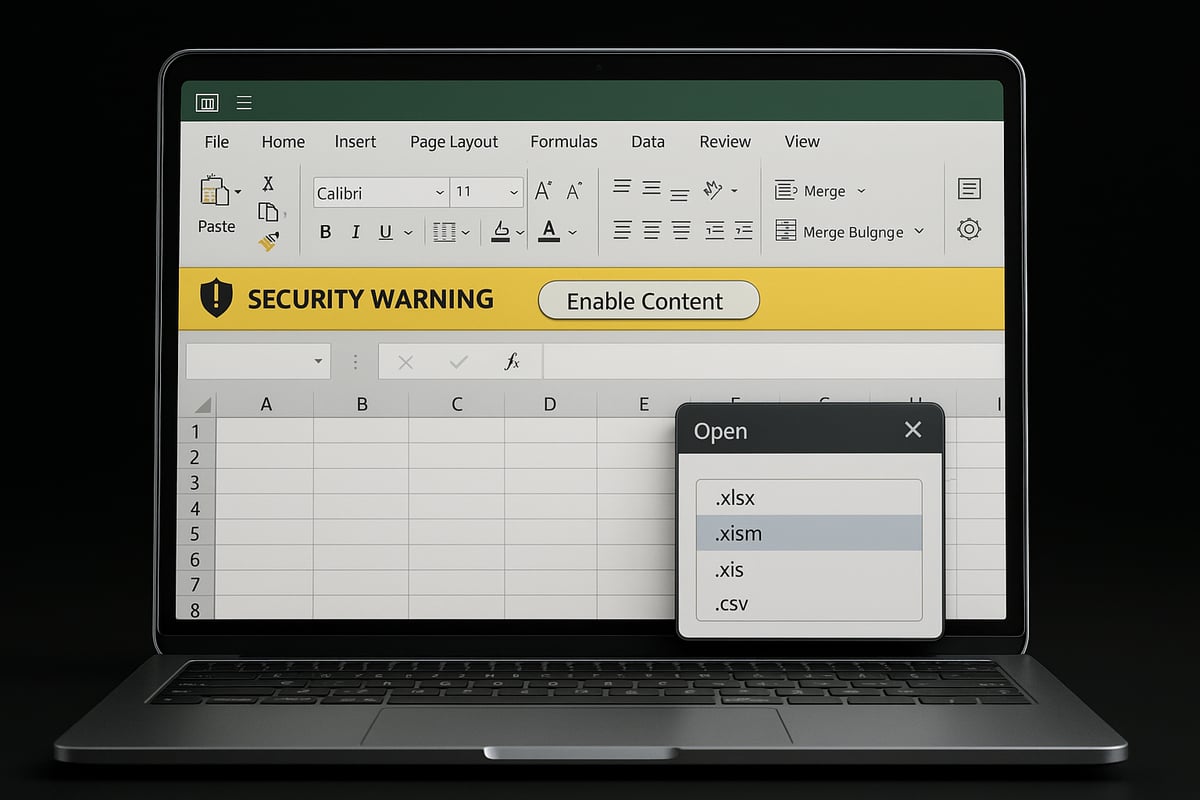
When you first open a workbook that contains macros, Excel alerts you with a yellow security warning bar below the ribbon. Macro-enabled files typically use extensions like .xlsm or .xlsb. Recognizing these file types is essential for anyone learning how to enable a macro. For a detailed overview of macro-enabled workbooks and their unique features, see Macro-enabled workbooks in Excel.
This security prompt is designed to protect you from potentially harmful code. Always check the file extension before proceeding. If you do not see a warning bar, the file may not actually contain macros or may already be trusted by Excel.
Enabling Macros for a Single Session
If you need to enable a macro just once, click the "Enable Content" or "Enable Macros" button in the yellow bar. This allows macros to run temporarily for the current session. Once you close and reopen the workbook, macros will be disabled again unless you repeat the process.
This method is ideal for files you do not use regularly or those from sources you trust only for a single occasion. Remember, understanding how to enable a macro for a session keeps your system safe from unexpected changes or malicious code.
Making a Workbook Trusted
When you enable macros in a workbook from a safe source, Excel may mark the file as a "trusted document." Trusted documents open without prompting you to enable macros each time. This streamlines your workflow for frequently used files.
However, not all files can become trusted, especially those opened from temporary locations or email attachments. Knowing how to enable a macro and make a workbook trusted helps you balance convenience and security. Always verify the file’s origin before adding it to your trusted documents.
Enabling Macros via Backstage View
Sometimes, the yellow security warning bar does not appear, especially if you open a file in a different way. In this case, you can enable macros through the Backstage View. Go to File, select Info, look for the Security Warning area, and choose "Enable Content" followed by "Enable All Content."
This approach gives you more control over how to enable a macro, especially when working with files from internal company sources. Remember, enabling all content should be reserved for documents you fully trust.
Adjusting Macro Settings in Trust Center
For more advanced control, adjust macro settings in the Trust Center. Navigate to File > Options > Trust Center > Trust Center Settings > Macro Settings. Here, you will find four main options:
| Setting | Description |
|---|---|
| Disable all macros without notification | Blocks all macros, no alerts. |
| Disable all macros with notification (default) | Prompts you to enable macros. |
| Disable all macros except digitally signed | Allows only signed macros. |
| Enable all macros (not recommended) | Runs all macros, increasing risk. |
Understanding how to enable a macro through these settings helps you tailor security to your needs. The default option is usually safest for most users.
Setting Up Trusted Locations
Trusted Locations are folders where Excel always enables macros without prompting. Set these up by going to Trust Center > Trusted Locations and adding a dedicated folder. This is especially useful for storing company templates or frequently used macro files.
Do not use broad or temporary folders like Downloads as trusted locations. Learning how to enable a macro safely means only trusting folders you control and monitor. This approach reduces your exposure to unintentional threats.
Unblocking Macros Blocked by Microsoft
In recent versions, Excel may block macros in files downloaded from the internet. If you see a message saying macros are blocked, right-click the file in Windows Explorer, select Properties, and check the "Unblock" box before opening it.
This step is essential for anyone figuring out how to enable a macro in files received via email or online sources. Remember, files from the web are blocked by default to protect you from potential macro viruses. Only unblock files you are certain are safe.
Macro Security Best Practices for Beginners
Automating tasks in Excel can be a game changer, but security should always come first. Before you jump in and learn how to enable a macro, it is crucial to understand the best practices that protect both your data and your organization. Macros are powerful, but without careful setup, they can also be a gateway for security risks. This section breaks down the safest approach for beginners so you can use macros confidently and responsibly.

Understanding Macro Security Settings
The first step in learning how to enable a macro safely is to get familiar with Excel’s Trust Center settings. These settings control how macros behave in your files and help prevent malicious code from running unnoticed.
Excel offers several macro security options:
- Disable all macros without notification: No macros will run, and you receive no alerts.
- Disable all macros with notification: This is the default, so you’re notified when a macro is present.
- Disable all macros except digitally signed macros: Only macros with a valid digital signature are allowed.
- Enable all macros: All macros run without restriction, which is not recommended.
To dive deeper into each setting and see visuals, you can consult Microsoft’s Excel Macro Security Best Practices guide. Understanding these controls is the foundation for safe macro usage.
Enabling Macros Safely
When you are figuring out how to enable a macro, always consider the source. Never open or enable macros in files from unknown or suspicious origins. Stick to files from trusted colleagues, official templates, or your company’s internal resources.
Before enabling, check if the macro is digitally signed by a reputable publisher. Excel will display this information, giving you another layer of assurance. Also, keep your antivirus software active and up to date, as it can help scan for threats in macro-enabled files.
Using Trusted Locations Effectively
Trusted locations are folders where Excel allows macros to run automatically, bypassing some security prompts. When setting up trusted locations as part of learning how to enable a macro, use dedicated folders instead of broad directories like Documents or Downloads.
To add a trusted location, go to File > Options > Trust Center > Trust Center Settings > Trusted Locations. Store only your most used or official macro files here. Avoid making temporary or public folders trusted, as this increases your risk exposure.
Backing Up Data and Monitoring Macro Activity
Always back up your data before running any unfamiliar macro. Even if you know how to enable a macro correctly, mistakes or unexpected results can happen. Save a versioned copy of your file first.
Regularly review which documents and locations you have marked as trusted. Remove trust from files or folders you no longer use. Monitoring your macro activity helps you spot odd behavior early and keeps your data safer.
Organizational Policies and Key Takeaways
Many organizations enforce their own macro policies using group settings or IT controls. If you are part of a company, check with your IT team about any restrictions or guidelines before deciding how to enable a macro on work files.
Remember, security always comes first. Use Excel’s built-in tools to manage macro safety, keep your backups up to date, and stay alert to any changes in your macro environment. With these best practices, you can automate tasks efficiently while minimizing risk.
Troubleshooting Macro Issues and Common Questions
If you run into problems figuring out how to enable a macro, you are not alone. Macro issues can arise due to file types, security settings, or even system restrictions. Let us walk through the most common hurdles and how to resolve them.
Why Can’t I Enable Macros?
Sometimes, you may wonder how to enable a macro but find the option missing. The most frequent reason is the file type. Macros only work in macro-enabled formats like .xlsm or .xlsb. If your file is saved as .xlsx, macros will be unavailable. Also, company group policies or antivirus software can block macros entirely, especially in sensitive environments. If you suspect this, consult your IT administrator.
“Enable Content” Button Missing
If you do not see the “Enable Content” warning bar, check if your file is stored in a trusted location. In trusted folders, macros are enabled automatically, so no prompt appears. Alternatively, the file might be blocked or corrupted. Right-click the file, select Properties, and look for an “Unblock” checkbox. This step is essential for anyone learning how to enable a macro safely.
Macros Still Not Running After Enabling
You might enable macros but still find them non-functional. This issue can result from broken or incompatible macro code. Sometimes, macro security settings remain too restrictive, even after enabling. Check if the macro requires a digital signature or additional permissions. Confirm you have followed the correct steps for how to enable a macro, and review your Trust Center settings.
Enabling Macros Temporarily
If you want to know how to enable a macro for just one session, use the advanced options in Excel. Go to File, select Info, click Security Warning, and choose Advanced Options. Here, you can enable macros only for the current session. This approach is useful for testing unfamiliar files without making permanent changes to your security settings.
Macro Errors and Debugging Basics
Macro errors like “Subscript out of range” or “Object required” are common and can be intimidating to beginners. Use the Visual Basic Editor (Alt + F11) to inspect or step through code. If you are unsure, record a simple macro as a test to verify your setup. For a deep dive into troubleshooting and auditing, review this Audit and debug Excel macros resource for actionable tips.
Excel for Mac and Other Platforms
Troubleshooting macro issues on Excel for Mac or other spreadsheet platforms involves platform-specific steps. On Mac, go to Excel Preferences, then Security & Privacy to adjust macro settings. Google Sheets uses Apps Script, not VBA, so macro support differs. Always consult platform documentation when figuring out how to enable a macro outside of Excel.
Enabling Macros Beyond Excel: Other Spreadsheet Platforms
Exploring how to enable a macro is crucial when working outside of Excel. Many spreadsheet platforms offer automation, but each has unique methods, languages, and security prompts. Let’s break down how to enable a macro in Google Sheets, LibreOffice, Apple Numbers, and more.
Google Sheets
Google Sheets does not use VBA, so how to enable a macro here involves Google Apps Script. You can record a macro or write custom scripts using JavaScript.
To enable a macro:
- Go to
Extensions > Macros > Record macroor selectApps Scriptto write code. - The first time you run a macro, Google prompts you to review and authorize permissions.
- Always check what data or access the script requests.
Google Sheets makes how to enable a macro simple, but always review permissions before approving any script.
LibreOffice and OpenOffice
LibreOffice and OpenOffice support macros, but use different languages like Basic or Python. If you are wondering how to enable a macro in LibreOffice Calc, follow these steps:
- Navigate to
Tools > Options > LibreOffice > Security > Macro Security. - Choose your preferred security level: disable, enable with confirmation, or enable all (not recommended).
- Open your file, and if macros are present, you will be prompted to enable or disable them.
Since macro formats and code differ from Excel, files may not be compatible. Mastering how to enable a macro in these platforms means understanding both file types and security settings.
Apple Numbers and Other Tools
Apple Numbers offers limited macro support. If you need automation, explore Mac’s Automator or third-party add-ons.
To answer how to enable a macro in Numbers: you typically cannot, as direct macro recording is not supported. Instead, use Automator workflows or consider alternative spreadsheet tools with macro capability.
Cross-Platform Considerations (2026)
When considering how to enable a macro across platforms, compatibility is a major concern. Excel macros will not run in Google Sheets, and LibreOffice macros may not import smoothly into Excel.
Here is a quick comparison:
| Platform | Macro Language | Security Prompts | Compatibility |
|---|---|---|---|
| Excel | VBA | Yes | High (within Excel) |
| Google Sheets | Apps Script (JS) | Yes | Google Sheets only |
| LibreOffice | Basic, Python | Yes | LibreOffice only |
| Apple Numbers | None (use Automator) | Limited | Not supported |
Always check documentation for how to enable a macro on your chosen platform and verify if your automation is portable.
Security on Other Platforms
Macro security is universal. Anytime you learn how to enable a macro, review the source and permissions carefully.
- Never enable macros from unknown senders.
- Read all security prompts and warnings.
- Limit macro use to trusted files and locations.
Following safe practices when figuring out how to enable a macro helps protect your data across any spreadsheet environment.
Key Takeaways
Understanding how to enable a macro depends on your spreadsheet platform. Always follow platform-specific best practices for security and compatibility.
Practical Tips for Beginners: Recording, Testing, and Managing Macros
Unlocking the potential of macros starts with hands-on practice. This section offers actionable guidance for beginners, covering how to enable a macro, record your first steps, test safely, and manage your growing library of automations. By following these tips, you will gain confidence and efficiency in Excel and similar spreadsheet tools.
How to Record Your First Macro
Learning how to enable a macro is the first step toward automating your repetitive tasks. Once enabled, recording your own macro is simple even for beginners. Start by opening Excel and navigating to View > Macros > Record Macro. Assign a meaningful name, add a shortcut key if desired, and choose where to store the macro.
For example, to automate table formatting:
1. Click View > Macros > Record Macro.
2. Name it "FormatTable2026".
3. Assign a shortcut (e.g., Ctrl+Shift+T).
4. Perform the formatting steps on your table.
5. Click Stop Recording.
If you need extra guidance, the How to Enable Macros in Excel (2025): Step-by-Step Guide provides clear visuals and walkthroughs.
Running and Managing Macros
After you know how to enable a macro, running and managing them becomes straightforward. To run a macro, go to View > Macros > View Macros, select your macro, and click Run. Editing or deleting macros is done from the same dialog—choose Edit to view the code or Delete to remove it.
You can also assign macros to buttons or shapes for quick access:
- Insert a shape (Insert > Shapes).
- Right-click the shape and select Assign Macro.
- Choose your macro, then click OK.
This setup helps you streamline frequent tasks and improves workflow efficiency.
Testing Macros Safely
Before deploying macros on important files, always test them on sample data. Even if you know how to enable a macro, unexpected results can occur. Make a copy of your spreadsheet, then run the macro on the duplicate.
Keep in mind:
- Macros may not support the Undo feature.
- Test with non-critical data first.
- Document any changes to revert if needed.
By following these precautions, you ensure your data stays safe while you explore automation.
Automating Routine Tasks
Once you understand how to enable a macro, you can start automating everyday processes. Beginners often use macros for:
- Sorting and filtering large data sets.
- Cleaning up duplicate entries.
- Generating charts or summaries.
Example: Record a macro that highlights duplicate values in a column or creates a standard monthly report. Automation not only saves time but also reduces manual errors in repetitive workflows.
Organizing and Storing Macros
Managing where and how you store macros is essential. After you learn how to enable a macro, consider using the Personal Macro Workbook for macros you want available in all Excel files. Macro-enabled files (.xlsm) store macros specific to individual workbooks.
| Storage Option | Scope | Use Case |
|---|---|---|
| Personal Macro Workbook | All Excel workbooks | Global shortcuts, common automations |
| .xlsm File | Single workbook | Project-specific or team templates |
Best practice: Add comments in your macros to explain their purpose. This helps you and others understand the logic behind each automation.
Learning and Improving Macro Skills
Continuous learning is key to mastering how to enable a macro and build more advanced automations. Start with simple recorded macros, then gradually explore editing code. Use Excel’s built-in help and online communities for support.
For structured learning and practical insights, Automate workflows with Excel macros offers resources for upskilling and real-world use cases. Stay updated on new Excel features, such as AI-powered suggestions and enhanced macro security, to keep your skills current in 2026.
Excel Help and Training Resources: The Analytics Doctor
If you are seeking expert guidance on how to enable a macro or need troubleshooting support, The Analytics Doctor is here to help you master Excel automation with complete confidence.

Whether you are a beginner or looking to advance your skills, you can benefit from hands-on training, custom spreadsheet solutions, and clear, step-by-step instruction tailored to your needs.
The Analytics Doctor provides:
- Personalized workshops on how to enable a macro and automate routine tasks.
- Business process automation using macros for greater efficiency.
- Practical exercises and real-world examples that make learning easy and effective.
You will also find free resources, templates, and introductory consulting to help you get started. These tools are designed to simplify how to enable a macro, so you can unlock the full potential of your spreadsheets and boost productivity today.