Skip to content

Ready to transform your Excel experience in 2026? Imagine automating tedious tasks and boosting efficiency with just a few clicks.
In this comprehensive guide, you’ll learn how to activate macros in excel using the most current features and security settings. We address both the technical steps and the latest safety measures, so you can automate with confidence.
Discover what macros are, why they matter, and how Excel’s interface has evolved. Follow our clear, step-by-step roadmap to activation, troubleshooting, and best practices. Unlock powerful automation, eliminate errors, and streamline your workflow—starting today.
Understanding Macros in Excel
Unlocking the potential of macros is fundamental for anyone exploring how to activate macros in excel. Macros transform repetitive tasks into single-click actions, making Excel a true powerhouse for automation and efficiency.
What Are Macros?
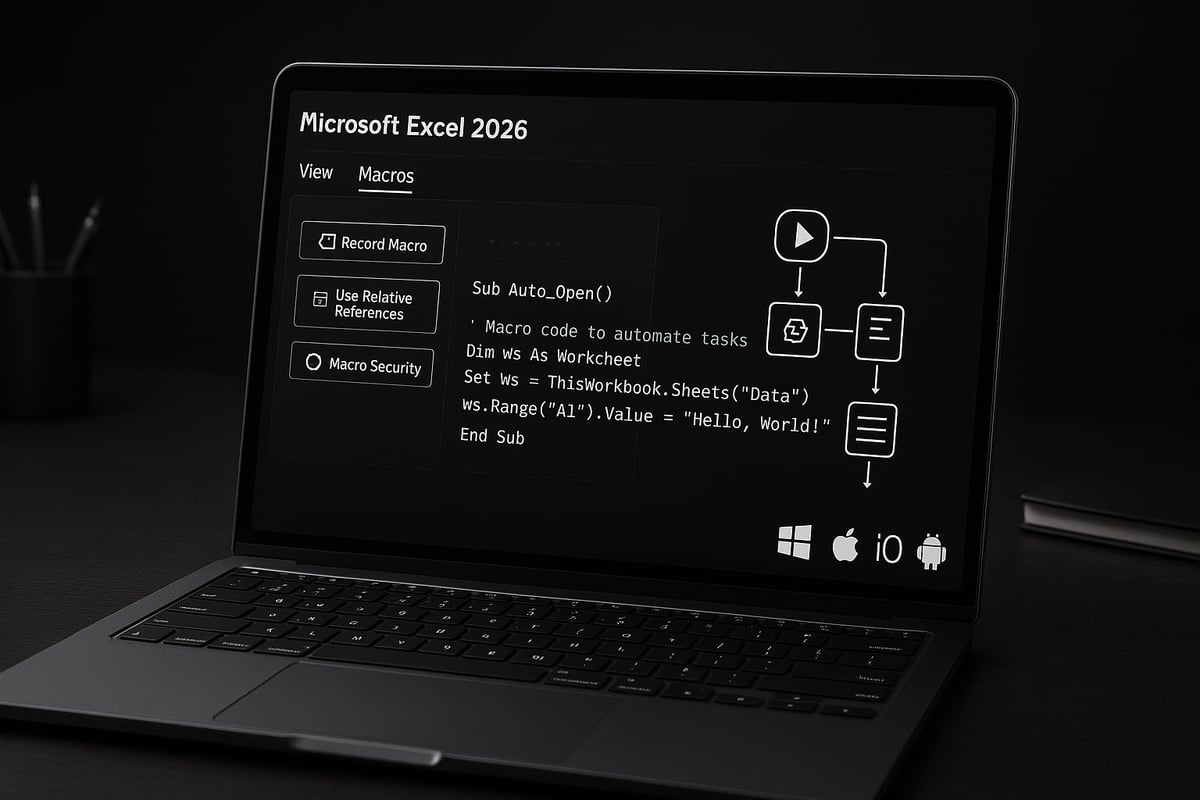
Macros in Excel are sets of instructions that automate tasks, saving time and reducing manual effort. By recording a series of actions or writing code in Visual Basic for Applications (VBA), users can repeat processes with a single command. For instance, macros can reformat data, generate monthly reports, or execute batch calculations.
There are two main types of macros: recorded macros, which capture user actions step by step, and VBA-written macros, which allow for advanced custom logic. Both are crucial for those learning how to activate macros in excel. Common use cases include financial modeling, operations management, and data analysis. For those interested in advanced automation, exploring VBA programming for automation can unlock even more capabilities.
Benefits and Use Cases
Activating macros in Excel delivers significant time savings, especially for users handling repetitive tasks. According to the Microsoft Tech Community, macros can cut task time by up to 80 percent. This efficiency not only improves productivity but also enhances accuracy and consistency across workbooks.
Macros enable custom solutions tailored to unique business processes, like automating monthly sales report creation or consolidating data from multiple sources. As organizations adapt to new workflows in 2026, macro adoption continues to rise, making it essential to understand how to activate macros in excel for streamlined operations.
Common Concerns and Misconceptions
Despite their benefits, some users hesitate to learn how to activate macros in excel due to concerns about security and compatibility. Macro viruses and malware have been real threats, but Microsoft has strengthened macro security with each release. Modern macro settings block potentially harmful code by default and prompt users before enabling content.
Another misconception is that macros are only for advanced users. In reality, even beginners can record simple macros without writing code. Performance impact myths are also common, but well-designed macros run efficiently in Excel 2026. Microsoft's ongoing improvements help ensure macros are safer and more accessible for everyone.
Macro Support in Excel 2026
Excel 2026 introduces several updates that affect how to activate macros in excel. The macro interface has been redesigned, offering clearer options and more intuitive permission prompts. Enhanced security features alert users when macros originate from untrusted sources, reducing the risk of malicious code.
Cross-platform support is also expanded, allowing macros to run on Windows, Mac, and the web (with some limitations). Notable differences from earlier versions include streamlined Trust Center settings and improved compatibility with modern file formats. These advancements make activating and managing macros more straightforward in Excel 2026.
Preparing to Activate Macros: Key Considerations
Activating macros in Excel can transform how you work, but it requires careful preparation. Before diving into how to activate macros in excel, it is essential to recognize macro-enabled files, understand security settings, manage risks, and ensure you have backups. Let us review the crucial steps to get started safely and confidently.
Identifying Macro-Enabled Files
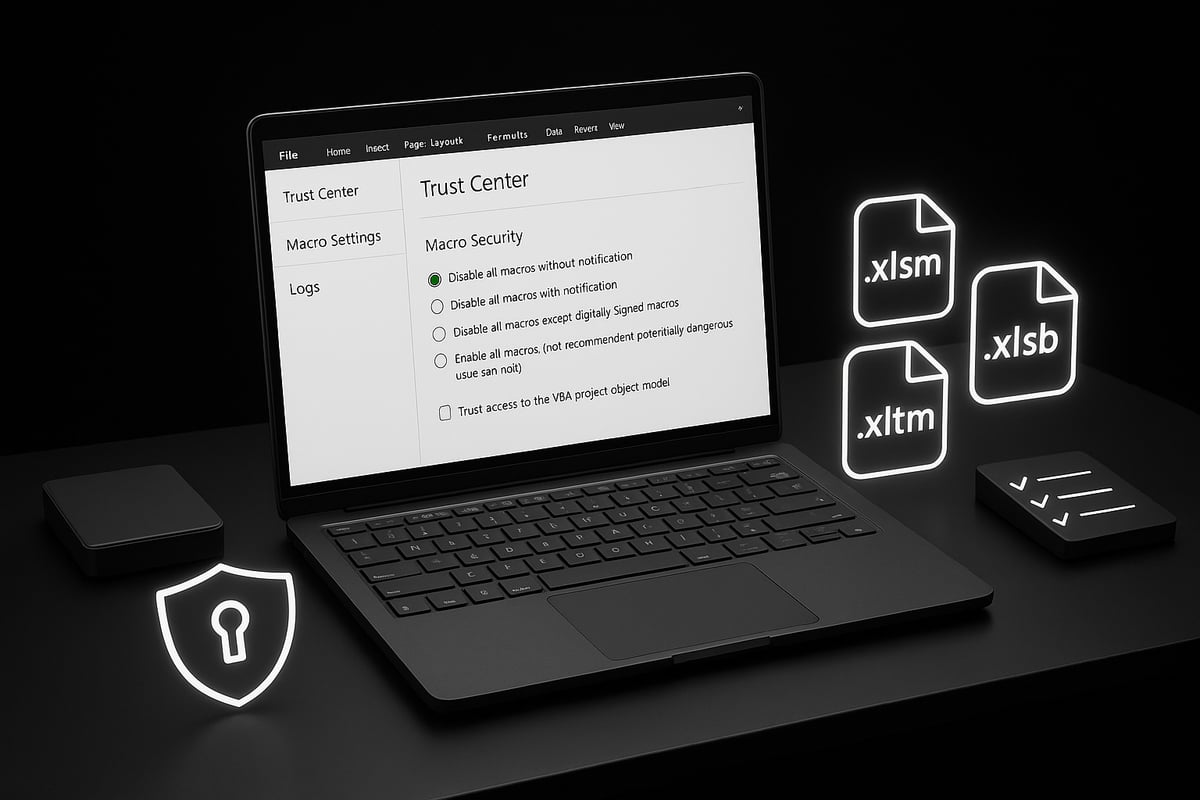
Not all Excel files can run macros. To understand how to activate macros in excel, start by checking the file type. Macro-enabled files typically use the extensions .xlsm, .xlsb, or .xltm. Standard .xlsx files do not support macro code.
Here is a quick table for reference:
| File Extension | Macro Support | Typical Use |
|---|---|---|
| .xlsx | No | Standard workbook |
| .xlsm | Yes | Macro-enabled |
| .xlsb | Yes | Binary workbook |
| .xltm | Yes | Macro template |
Excel 2026 makes it easier to spot macro-enabled files in the file explorer, often marking them with a distinct icon or warning banner. When opening a .xlsm file, you may see a prompt if macros are detected.
Macro Security Settings Overview
Understanding macro security is a core part of how to activate macros in excel. Excel 2026 offers several security levels:
- Disable all macros without notification
- Disable all macros with notification (default)
- Enable all macros (not recommended)
- Disable all except digitally signed macros
Access these options via the Ribbon: File > Options > Trust Center > Trust Center Settings > Macro Settings. Organizational policies may restrict your choices, especially on business devices.
For a step-by-step walkthrough, you can refer to this helpful Enable macros in Excel guide, which covers the latest Excel interface and security options.
Risks and Safe Practices
Security is vital when learning how to activate macros in excel. Macros can carry risks, such as malware or unauthorized code execution. Microsoft reports that default settings now block 70 percent of malicious macro attacks.
To stay safe:
- Only enable macros from trusted sources.
- Verify macro code before running it.
- Use Excel’s macro-blocking features.
- Avoid downloading macro-enabled files from unknown email attachments.
Always review permissions and never ignore security prompts. These simple habits will minimize your risk.
Backing Up Your Workbooks
Before you proceed with how to activate macros in excel, always create a backup. Macros can automate complex tasks, but errors or bugs may affect your data. Excel 2026 includes built-in backup and version history tools.
Follow these best practices:
- Save a copy of your file before enabling macros.
- Use version history to restore previous states if needed.
- Store backups on secure cloud storage or external drives.
- Schedule regular backups, especially for critical workbooks.
If a macro error occurs, restoring from backup is often the fastest route to recovery. Make backups part of your workflow for peace of mind.
Step-by-Step Guide: How to Activate Macros in Excel 2026
Activating macros in Excel 2026 unlocks powerful automation, but following the right steps is essential for both productivity and security. This guide walks you through exactly how to activate macros in excel, ensuring you stay safe while leveraging advanced features.
Step 1: Open Your Excel Workbook
To begin learning how to activate macros in excel, first launch Excel 2026 and open the workbook you want to work with.
Excel macro-enabled files typically have extensions such as .xlsm, .xlsb, or .xltm. If you open a file with one of these extensions, Excel 2026 highlights it with a visual indicator in the file explorer and a yellow security warning at the top of the window.
For example, if you download a sales report template as a .xlsm file, Excel 2026 will display a banner stating that macros are present. Always double-check the file extension before proceeding, as standard .xlsx files do not support macros.
Macro-enabled file extensions:
.xlsm   .xlsb   .xltm
If you see a warning banner, do not enable macros until you are certain the source is trustworthy. This first step sets the foundation for understanding how to activate macros in excel safely and efficiently.
Step 2: Navigating to Trust Center Settings
The next step in how to activate macros in excel is to access the Trust Center, where all macro security settings are managed.
Click on File in the Excel ribbon, then select Options. In the sidebar, choose Trust Center, and then click on Trust Center Settings. Excel 2026 features an updated Trust Center interface, with clearer icons and grouped security options.
Within the Trust Center, look for the "Macro Settings" section. Here, you can view and adjust how Excel handles macro-enabled files.
Screenshot description: The Trust Center window in Excel 2026, with the left menu highlighting "Macro Settings" and a panel on the right showing different security options.
Navigating to the Trust Center is crucial, as it gives you control over how to activate macros in excel for different files and security scenarios.
Step 3: Reviewing and Adjusting Macro Security Levels
Once inside the Trust Center, you will see several macro security options. Understanding these is key to mastering how to activate macros in excel while minimizing risk.
Here’s a summary of the main macro security levels:
| Setting | Description |
|---|---|
| Disable all macros without notification | Blocks all macros silently |
| Disable all macros with notification | Blocks macros, but shows a warning (recommended) |
| Disable all macros except digitally signed macros | Allows only trusted, signed macros |
| Enable all macros | Runs all macros (not recommended) |
For most users, "Disable all macros with notification" is the safest choice. This setting blocks macros by default but lets you enable them when you trust the file. Microsoft has made this the default in recent updates to protect users—see the Microsoft’s Default Macro Blocking Update for details on how this impacts macro activation.
If you are on a secure, trusted network or working with internal documents, you may adjust settings temporarily. However, only advanced users should consider enabling all macros.
By carefully reviewing these options, you ensure you know how to activate macros in excel without compromising security.
Step 4: Enabling Macros for a Specific Workbook
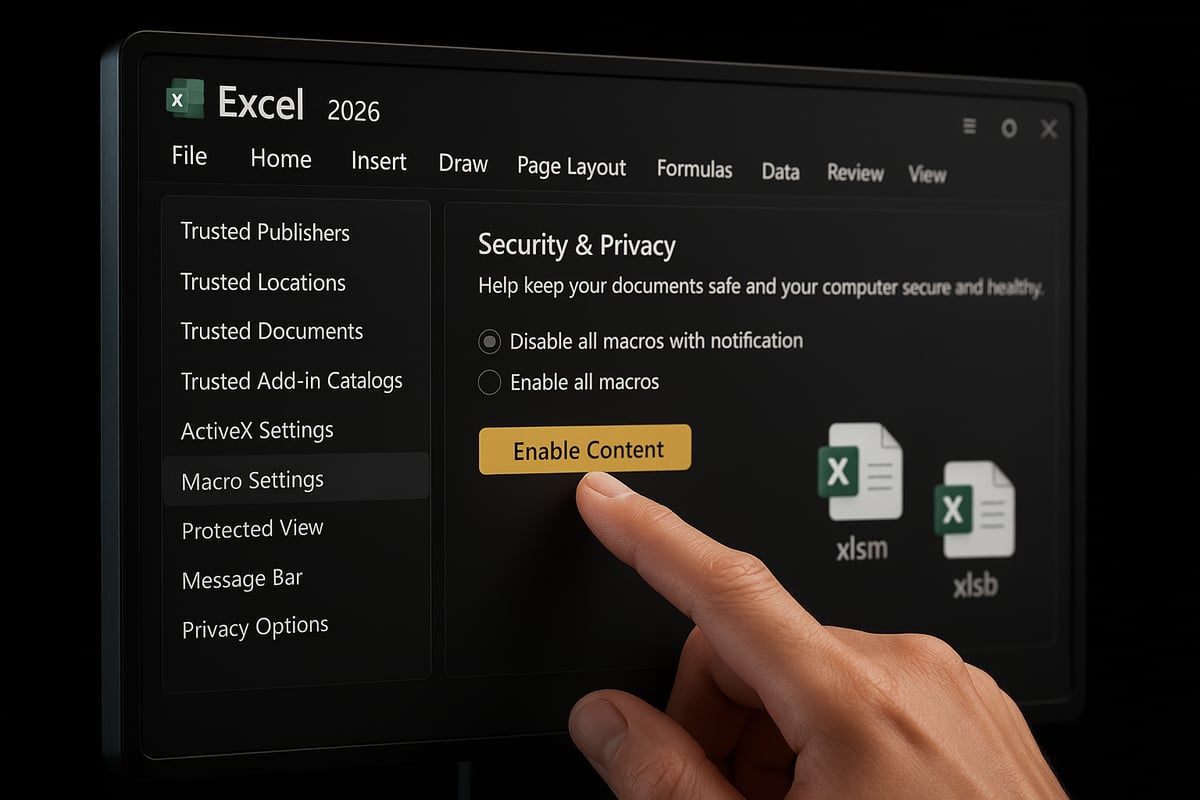
When you open a macro-enabled workbook, Excel 2026 displays a yellow "Enable Content" security warning below the ribbon. This prompt is your signal that macros are present but not yet active.
To proceed, click "Enable Content" only if you trust the file's source. This action activates macros for the current session, allowing automation to run as intended.
For files you use regularly from trusted locations, you can streamline the process:
- Go to Trust Center > Trusted Locations.
- Add the folder containing your macro-enabled files.
- Files in these folders will have macros enabled automatically.
For example, if your team stores monthly reports in a shared, secure folder, adding this location saves time and reduces repeated prompts.
Always remember, part of how to activate macros in excel safely is verifying the source and using Trusted Locations for efficiency and security.
Step 5: Saving and Managing Macro-Enabled Files
After activating and using macros, save your work to preserve automation. When saving, choose the appropriate macro-enabled format:
.xlsmfor standard macro-enabled workbooks.xlsbfor binary workbooks with macros (faster for large files)
If you attempt to save a workbook containing macros as .xlsx, Excel 2026 will warn you that macros will be removed. Always confirm the file extension before saving.
Tips for managing macro-enabled files:
- Store them in clearly labeled folders.
- Use descriptive filenames.
- Back up important macro workbooks regularly.
This attention to file management is a key part of how to activate macros in excel and maintain a reliable workflow.
Step 6: Running and Testing Macros
Once macros are enabled, you can run them using several methods:
- The Excel ribbon: Go to the Developer tab, click "Macros," select the macro, and click "Run."
- Keyboard shortcuts: Assign or use existing shortcuts for quick access.
- Right-click menu: Some macros appear in context menus for convenience.
Before applying macros to critical data, test them on sample or backup copies. This helps prevent unintended changes or errors.
If you encounter issues like "Cannot run the macro," check macro settings, file permissions, or code errors. Careful testing is an essential part of how to activate macros in excel and ensure reliable automation.
Step 7: Disabling or Editing Macros
If you need to stop automation, you can disable macros for a workbook:
- Close and reopen the file, then decline the "Enable Content" prompt.
- Adjust Trust Center settings to increase macro restrictions.
To edit macros, open the VBA editor (Alt + F11). Here, you can modify or remove macro code as needed.
If a macro is outdated or no longer needed, delete it from the workbook to maintain security and clarity.
Understanding how to activate macros in excel includes knowing how to disable or update them, keeping your environment secure and efficient.
Advanced Macro Security and Permissions in Excel 2026
Staying secure while learning how to activate macros in excel is more critical than ever in 2026. With evolving threats and new security features, understanding the landscape helps users make safer choices and avoid costly mistakes.

Understanding Macro-Related Security Risks
Before you learn how to activate macros in excel, it is vital to recognize the risks that macros can introduce. Macro-enabled files have been targeted by cybercriminals for years, resulting in incidents involving viruses, ransomware, and data theft.
Attackers often use social engineering to trick users into enabling malicious macros. In 2025, several high-profile malware campaigns exploited vulnerabilities through macro-laden attachments. These incidents highlight the importance of vigilance.
Awareness of these threats empowers users to make informed decisions and take necessary precautions when working with macro-enabled workbooks.
Excel 2026’s New Security Features
Excel 2026 brings robust improvements to macro security, making it safer for users who want to know how to activate macros in excel. Enhanced macro-blocking automatically restricts files downloaded from the internet, reducing the risk of unknown threats.
Warning dialogs have been redesigned for clarity, providing more context and actionable options. Integration with Microsoft Defender and cloud-based scanning ensures real-time protection. For a deeper dive into these advancements, see Microsoft’s Macro Security Enhancements.
These updates add vital layers of defense, helping both individuals and organizations stay protected.
Managing Trusted Locations and Publishers
To safely use how to activate macros in excel, leverage trusted locations and publishers. Trusted folders allow you to designate safe zones where macros can run without repeated prompts.
For example, you might add a network folder for internal reports. Trusted publishers let you run signed macros from known developers with fewer warnings. Here’s how you might define a trusted location:
C:\Company\TrustedReports\
By using these features, you reduce friction while maintaining strong security controls in your workflow.
Using Digital Signatures for Macros
When exploring how to activate macros in excel, digital signatures play a key role. A digital signature is an electronic certificate that verifies the origin and integrity of a macro.
Signing macros with a certificate assures users that the code has not been altered and comes from a trusted source. In Excel 2026, you can easily apply digital signatures through the Developer tab, enhancing trust and reducing warning prompts.
Digitally signed macros are especially important for businesses, as they ensure compliance and streamline macro execution.
Organizational Controls and Group Policies
For organizations managing how to activate macros in excel at scale, Excel 2026 offers advanced controls. IT administrators can enforce macro policies using Group Policy templates, ensuring consistent security settings across all users.
A common policy is to allow only digitally signed macros, blocking unsigned code by default. For example, a corporate environment might enforce:
- Disable all macros except digitally signed macros
- Restrict trusted locations to company-approved folders
These controls help organizations balance productivity with security and regulatory compliance.
Best Practices for Secure Macro Use
Adopting best practices is crucial when deciding how to activate macros in excel. Always keep Excel and antivirus software up to date to defend against new threats.
Educate users about macro risks, encourage cautious behavior, and review macro-enabled files regularly. Periodic audits can uncover outdated or unused macros, reducing exposure.
By following these guidelines, you can harness the full power of Excel macros while minimizing potential risks.
Troubleshooting Macro Activation Issues
Even with the right steps, many users encounter issues when learning how to activate macros in excel. Troubleshooting macro activation can quickly become frustrating if you do not recognize the right error messages or underlying causes. This section will help you decode the most common problems, resolve security setting conflicts, repair corrupted files, and know where to turn for expert assistance.
Common Problems and Error Messages
When figuring out how to activate macros in excel, users often see warnings like “Macros have been disabled” or “Cannot run the macro.” These messages can result from security settings, file compatibility, or outdated macro code.
Typical problems include:
- Macros not running after an upgrade to Excel 2026
- Files from the internet opening in Protected View
- Missing Developer tab in the ribbon
- Macro compatibility issues between different Excel versions
To resolve these issues, check your Trust Center settings and ensure the file is not blocked by organizational policies. Always confirm that your macro-enabled files use the correct extension, such as .xlsm or .xlsb.
Fixing Macro Security Setting Conflicts
Security conflicts are a common obstacle when you attempt how to activate macros in excel. Organizational policies may override your personal settings, causing macros to remain disabled despite your adjustments.
To resolve these conflicts:
- Open File > Options > Trust Center > Trust Center Settings
- Review current macro security options
- If settings are greyed out, your IT department may enforce restrictions
- Reset Trust Center settings to default if you suspect misconfiguration
If you continue to face permission issues, contact your IT administrator for further guidance. Document any changes you make so you can revert if needed.
Repairing Corrupted Macro-Enabled Files
Corrupted files can prevent you from successfully completing how to activate macros in excel. Symptoms include missing macros, error dialogs, or workbooks that will not open.
Signs of corruption:
- Macros do not appear in the Macro dialog
- Error: “File format or file extension is not valid”
- Workbook fails to open or crashes Excel
Use Excel’s built-in repair tool by going to File > Open > Browse, selecting your file, and choosing Open and Repair. For a comprehensive recovery process, follow Repairing corrupted Excel workbooks for step-by-step instructions tailored to macro-enabled files.
Getting Additional Help
If you have tried all troubleshooting steps and still cannot figure out how to activate macros in excel, do not hesitate to seek support. Microsoft offers official help articles and community forums where you can find answers to common macro problems.
For personalized guidance, consider using Excel consulting and macro support for expert troubleshooting and custom solutions. Professional assistance can save you time, safeguard your data, and ensure your macros function as intended.
Tips and Best Practices for Macro Use in 2026
Unlocking the full efficiency of Excel macros means adopting the right habits and practices. Whether you are just learning how to activate macros in excel or refining advanced workflows, these expert tips will keep your automation secure, organized, and future-proof.
Automating Workflows Efficiently
To maximize the benefits of automation, start by identifying repetitive tasks that consume your time each month. When considering how to activate macros in excel, think about steps you perform regularly, such as importing data, formatting tables, or generating reports.
Combine macros with tools like Power Query and Power Automate to streamline complex sequences. For example, you can automate monthly data imports, apply standardized formatting, and send summary emails, all with a single click.
Best practices include:
- Mapping out your workflow before recording or writing a macro
- Testing your automation on sample data first
- Gradually expanding macro complexity as your needs grow
By approaching automation methodically, you reduce errors and achieve consistent results.
Keeping Macros Organized
Organization is crucial for long-term success when you learn how to activate macros in excel. Use clear, descriptive names for your macros and modules so you (and your colleagues) know their purpose at a glance.
Document your macro code with comments explaining each section's function. This practice is invaluable for troubleshooting or updating your macros later.
Consider these organizational tips:
- Store similar macros in grouped modules
- Use version control systems to track changes to VBA projects
- Maintain a separate log or documentation file for each macro-enabled workbook
Staying organized prevents confusion and saves time during future updates.
Ensuring Compatibility Across Devices and Platforms
With Excel 2026, macro functionality spans Windows, Mac, and the web. Still, not all features work identically everywhere. When planning how to activate macros in excel on different platforms, check for compatibility issues, especially if your team uses a mix of devices.
For detailed insights on macro security and permissions, review Understanding Macro Security and Permissions. This will help you manage access and prevent permission errors.
Tips for cross-platform macro use:
- Test your macros on each target device
- Avoid platform-specific VBA commands where possible
- Document any known limitations or required workarounds
Compatibility checks ensure your automation is reliable for everyone.
Updating and Maintaining Macros
Excel evolves rapidly, so it is vital to maintain your macros for ongoing compatibility. When exploring how to activate macros in excel after an update, review your code for deprecated functions or new features that could improve performance.
Regularly refactor your macros to remove outdated logic and streamline operations. For instance, update macros to leverage new Excel 2026 functions or improved VBA methods.
Maintenance checklist:
- Review macro code after major Excel updates
- Test on a backup copy before deploying changes
- Archive old versions in a secure location
Routine maintenance minimizes disruptions and keeps your automation current.
Learning Resources and Community Support
Staying informed is essential for mastering how to activate macros in excel. Rely on official Microsoft documentation, online tutorials, and reputable books for advanced skills.
Consider joining active macro communities or forums, where you can share experiences and troubleshoot issues. For security-specific guidance, the EPA’s Guidance on Disabling Macros provides authoritative recommendations to protect your workbooks.
Top resources include:
- Microsoft Learn and community forums
- Online courses on VBA and Excel automation
- Peer-reviewed guides and articles
A strong support network accelerates your learning and problem-solving.
Future Trends in Excel Automation
Looking ahead, automation in Excel 2026 is set to become even smarter. AI-assisted macro creation and cloud integrations are making it easier to automate tasks without deep coding expertise.
When considering how to activate macros in excel in the coming years, expect more intuitive tools, real-time collaboration features, and seamless connections to external data sources.
Predictions for the future:
- Broader integration with Microsoft 365 automation tools
- Enhanced security and permission management
- Greater emphasis on user-friendly macro development
Staying adaptable to these trends ensures your skills remain in demand.