
Struggling with excel how to total a column? You are not alone, as this is one of the most common beginner challenges in spreadsheets. Whether you are managing budgets or tracking sales, quick and accurate totals are essential.
This guide will demystify every method for excel how to total a column, ensuring you gain confidence with your data in 2026 and beyond. You will discover Excel’s built-in summing tools, find easy step-by-step instructions, learn troubleshooting tips, and get answers to the most frequent questions.
Ready to save time and reduce errors? Follow this step-by-step guide to master excel how to total a column and streamline your workflow.
Understanding Excel Columns and Data Structures
Every Excel worksheet is built on a simple grid made up of columns, rows, and cells. Columns run vertically, labeled with letters like A, B, and C, while rows are numbered horizontally. Each box in the grid, called a cell, is where you enter your data. Grasping this structure is the first step in mastering excel how to total a column, since knowing where your numbers sit determines how you sum them.
Excel users usually arrange data in single columns, tables, or lists. For example, you might track monthly expenses or sales numbers in one neat column. This organization makes it easy to apply formulas and get accurate totals. If your data is scattered or mixed with text, summing becomes much harder. Clean, well-structured columns are essential for anyone learning excel how to total a column.
Before adding up numbers, your data should be consistent. Avoid mixing text and numbers in the same column, and watch for blank cells or merged cells, which can cause calculation errors. Always check that all entries are formatted the same way, such as all currency or all percentages. Using Excel Tables for dynamic ranges can help keep your data organized and your totals accurate, even as your lists grow.
Summing columns in Excel is a key part of many business tasks. Whether you are managing a budget, tracking expenses, or analyzing inventory, clear column structures make calculations faster and more reliable. By understanding the basics of excel how to total a column, you set yourself up for success in everything from simple reports to complex data analysis.

Quick Methods to Total a Column in Excel
The fastest route to mastering "excel how to total a column" is learning the built-in shortcuts Excel provides. These methods are ideal for quick checks, fast reports, or when you need to double-check your work without advanced formulas. Let us break down each approach, so you can choose the best fit for your needs.

Using the Excel Status Bar
One of the quickest ways to answer "excel how to total a column" is by using the Status Bar at the bottom of your Excel window. Simply click and drag to select the cells in your column. Instantly, the sum appears in the Status Bar—no formula required.
This method is perfect for quick checks. For example, if you are reviewing a budgeting sheet and need to see your total expenses for the month, select the expense column and the total appears right away.
However, the Status Bar sum is temporary. As soon as you deselect the cells, the value disappears. You cannot copy this sum directly into a cell. Also, it only works with visible, selected cells.
Tips for customizing the Status Bar:
- Right-click the Status Bar to choose what statistics display (Sum, Average, Count).
- Use this feature for quick, on-the-fly totals when using "excel how to total a column" in fast-paced scenarios.
- Remember, the Status Bar cannot save or reference the total in formulas.
Here’s a quick table summarizing the pros and cons:
| Feature | Status Bar Method |
|---|---|
| Speed | Instant |
| Copy result? | No |
| Works with filters? | Yes (on selected visible cells) |
| Use in formulas? | No |
If you need a permanent result, try the next method.
Using AutoSum for Fast Totals
AutoSum is the most popular tool for beginners asking "excel how to total a column." It allows you to insert a SUM formula with just a click, making your totals part of your worksheet for future reference.
Step-by-step guide:
- Click the cell where you want your column total (usually below your data).
- Click the AutoSum button (Σ) on the Home tab.
- Excel automatically selects the range above—verify it matches your data.
- Press Enter, and the total appears in your chosen cell.
Prefer shortcuts? Press ALT + = to insert the SUM formula instantly.
AutoSum is smart. It detects adjacent numbers, so if your data is in A1:A10, clicking AutoSum in A11 gives you =SUM(A1:A10).
What if AutoSum selects the wrong range?
- Simply drag to adjust the highlighted area before pressing Enter.
- This flexibility is helpful in scenarios with blank rows or headers.
Example: Summing monthly sales figures at the bottom of a report. Place your cursor below the sales column, use AutoSum, and your total is ready.
For a detailed walkthrough, check the official Microsoft guide on Use AutoSum to sum numbers in Excel.
AutoSum is ideal for anyone frequently searching "excel how to total a column" because it saves time and ensures accuracy.
Manual Arithmetic: The Plus Sign Operator
Sometimes, "excel how to total a column" means you only want to add a few specific cells. In these cases, manual addition with the plus sign operator is quick and effective.
Type a formula like =A1+A2+A3 directly into a cell. This method is best for small datasets or non-adjacent cells.
When to use manual arithmetic:
- Totalling just a handful of numbers.
- Adding values that are not next to each other.
- Checking calculations before building larger formulas.
Example: If you want to add A1, A3, and B2, write =A1+A3+B2.
Keep in mind, this method is not recommended for large columns, as it quickly becomes unwieldy. For bigger tasks, reverting to AutoSum or the SUM function is more efficient when using "excel how to total a column".
Mastering the SUM Function in Excel
Learning to use the SUM function is essential for anyone searching for excel how to total a column efficiently. This section will guide you through every aspect of SUM, from writing your first formula to troubleshooting common errors, ensuring you feel confident with every calculation.

Writing the SUM Formula Step-by-Step
The SUM function is the cornerstone of excel how to total a column. Its basic syntax is simple: =SUM(range). This formula adds up all the numbers within the specified range, whether you are totaling ten rows or an entire column.
To get started, click on the cell where you want your total to appear. Type =SUM(, then select your range by clicking and dragging the mouse over the target cells or typing the range manually, such as A1:A10. Close the parenthesis and press Enter. Instantly, Excel calculates your total.
You can also use the formula bar for entry, which is handy for longer formulas. For example, to sum all sales data in column B from rows 2 to 15, use =SUM(B2:B15). Placing the formula at the bottom of the column is best practice, as it keeps your totals visible and easy to update.
Here is a quick summary table:
| Syntax | Example | Result |
|---|---|---|
=SUM(A1:A10) |
10 rows | Sums A1 through A10 |
=SUM(B:B) |
Full column B | Sums all of column B |
For more details on SUM, visit the SUM function – Microsoft Support page for comprehensive examples and troubleshooting.
Summing Entire Columns or Dynamic Ranges
When working with large datasets, you may need to sum an entire column. In excel how to total a column, you can write =SUM(A:A) to add every numeric value in column A, from top to bottom.
However, be cautious. If your column includes a header (like "Expenses"), the SUM function will try to add everything, including non-numeric cells, which may lead to errors or unwanted results. To avoid this, specify your range, such as =SUM(A2:A100), which skips the header and totals only the data rows.
Dynamic ranges are helpful when your data grows regularly. Using a formula like =SUM(A2:A1000) ensures new entries are included, as long as they fall within the range. Always double-check that your range covers all relevant data but does not extend into empty or unrelated cells.
Summing Across Multiple Columns and Rows
Sometimes, excel how to total a column requires you to add up values spanning multiple columns or rows. The SUM function can handle this with a broader range, such as =SUM(A1:B10). This formula totals everything from cell A1 to B10, covering two columns and ten rows.
If you need to sum non-adjacent columns, you can write =SUM(A1:A10, C1:C10). This approach is useful for totaling specific categories or product groups. To speed up repetitive calculations, use Excel's drag-fill feature: after entering your first SUM formula, drag the fill handle across adjacent cells to automatically copy and adjust the formula for each row or column.
For example, if you are totaling monthly sales for several products, this method saves time and ensures consistency. The flexibility of SUM lets you adapt to any table or reporting format.
Troubleshooting Common SUM Function Errors
Even experts encounter issues when using excel how to total a column. The most common error is #NAME?, which usually means there is a typo in your formula. Double-check for correct spelling and parentheses.
If your SUM formula returns zero, check that your numbers are actually formatted as numbers, not text. Mixed data types can prevent the function from working correctly. Blank or hidden cells, or circular references, can also cause problems.
Sometimes, SUM includes hidden or filtered data unexpectedly. Review your ranges to ensure only the intended cells are included. With careful checks and corrections, your totals will always be accurate.
Advanced Techniques: Totalling Visible Cells and Conditional Sums
When working with large or complex datasets, basic summing methods may not be enough. Advanced users often need to total only filtered or specific data. In this section, you will learn how excel how to total a column applies to visible rows, conditional sums, non-adjacent selections, and best practices for sophisticated workbooks.
Using SUBTOTAL and AGGREGATE for Filtered Data
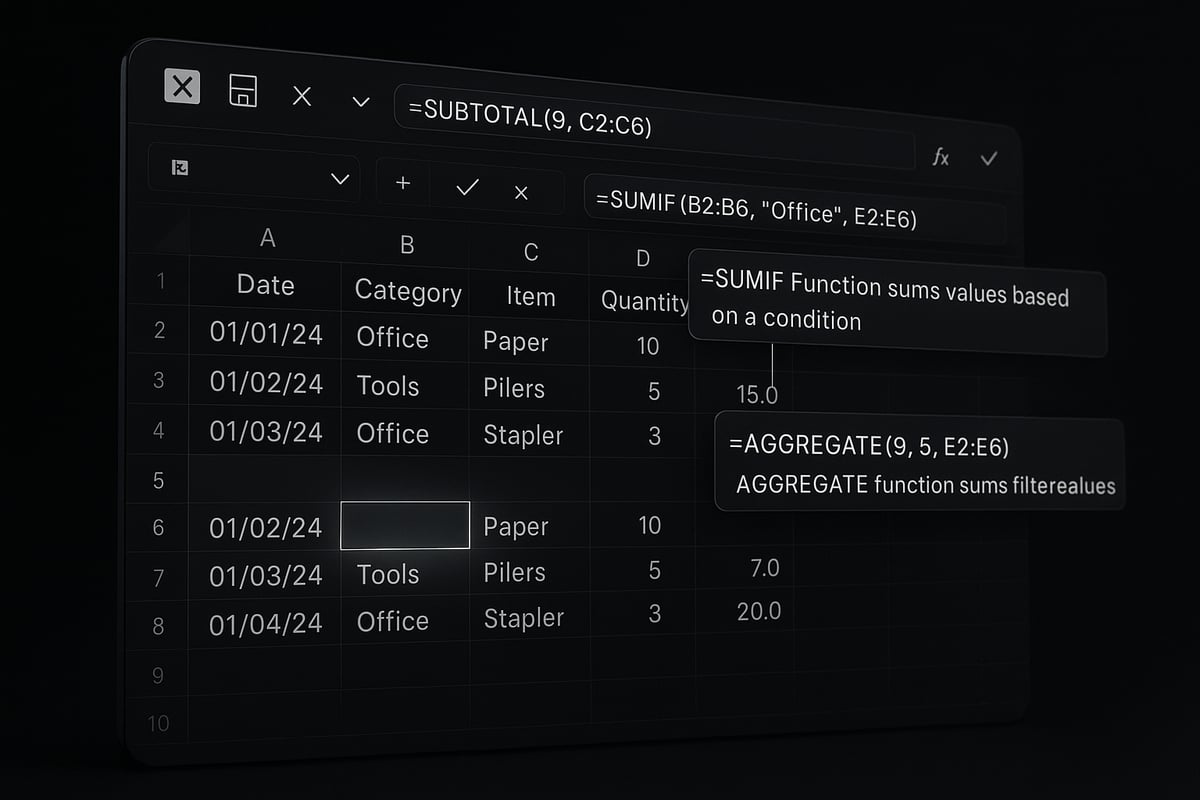
When you filter data in Excel, the standard SUM formula includes both visible and hidden rows. To sum only what you see, use the SUBTOTAL function. The syntax is =SUBTOTAL(9, range), where 9 tells Excel to sum values in the specified range. This approach is essential for anyone searching for excel how to total a column in filtered reports.
To use SUBTOTAL, first filter your data using the built-in filter tools. Then, place the SUBTOTAL formula below your column. It will automatically update to reflect only the visible rows, making your totals dynamic as you change filters. For example:
=SUBTOTAL(9, B2:B50)
This formula totals only the visible values in column B. If you need more flexibility, the AGGREGATE function offers additional options, such as ignoring errors or applying other calculations besides sum. AGGREGATE syntax is similar:
=AGGREGATE(9, 5, B2:B50)
Here, 9 is for SUM, and 5 tells Excel to skip hidden rows.
Common scenarios for SUBTOTAL and AGGREGATE:
- Financial reports with filtered months
- Inventory lists filtered by category
- Large data tables where users frequently hide rows
Remember, both functions are invaluable when your workflow requires excel how to total a column for only the data currently in view.
Conditional Totals with SUMIF and SUMIFS
Often, you need to total only the values that meet certain conditions. SUMIF and SUMIFS are built for just that. The SUMIF function totals values based on a single criterion, while SUMIFS handles multiple criteria. If you want a deeper dive into these methods, the SUM of SUM explained resource provides an excellent breakdown.
The syntax for SUMIF is:
=SUMIF(range, criteria, sum_range)
Suppose you have a sales column and want to total only sales above $500. You would write:
=SUMIF(B2:B50, ">500")
For multiple conditions, use SUMIFS:
=SUMIFS(B2:B50, C2:C50, "North", D2:D50, ">1000")
This sums values in B2:B50 where region is "North" and amount is greater than 1000.
Where do these functions shine?
- Summing expenses by category
- Totalling sales in specific regions
- Calculating bonuses for qualifying employees
Both SUMIF and SUMIFS are essential tools when you want excel how to total a column according to tailored business rules. They save time, reduce errors, and keep your calculations up to date as your data changes.
Totalling Non-Adjacent Cells and Custom Ranges
Sometimes, your data is not in a neat block. You might want to sum up only a few specific cells scattered across your sheet. For this, use the SUM function with comma-separated arguments. For example:
=SUM(A2, A7, B3)
Hold down CTRL while selecting non-adjacent cells with your mouse. This method is perfect for custom selections, such as adding only certain expense types or project milestones.
If you wonder about excel how to total a column for just these unique cases, this approach gives you complete control without complex formulas.
Best Practices for Summing in Large or Complex Workbooks
As your workbooks grow, keeping your sums accurate and manageable becomes crucial. Here are some best practices:
- Name your ranges for clarity, like "Total_Sales"
- Add comments to document your formulas
- Double-check for data consistency before running totals
- Use Excel Tables for dynamic ranges that auto-expand
These steps ensure your excel how to total a column strategy is reliable, scalable, and easy to audit. Consistent practices help prevent errors and support better decision-making as your datasets evolve.
Step-by-Step Guide: Totalling a Column in Excel for Beginners
Struggling with excel how to total a column for the first time? This step-by-step guide breaks the process into simple, actionable steps. Whether you need a quick total for your expenses or want to master more advanced techniques, these instructions will help you sum columns with confidence.
Preparing Your Data
Before diving into excel how to total a column, ensure your data is clean and ready. Start by checking that every cell in your chosen column contains only numeric values. If you spot text, symbols, or errors, clear or correct them.
- Format your column for numbers, currency, or percentages as needed.
- Remove unnecessary blank cells to avoid calculation errors.
- Double-check for any stray text or hidden values that could interfere with your totals.
A well-prepared worksheet sets the foundation for accurate results. Taking a few extra minutes at this stage will save you from headaches later, especially when working with larger datasets.
Using AutoSum to Total a Column
One of the fastest ways to apply excel how to total a column is with AutoSum. This tool automatically detects your data range and inserts the SUM formula in just a few clicks.
Follow these steps:
- Click the cell directly below your data column.
- On the Home tab, select the AutoSum (Σ) button.
- Excel will highlight the likely range. If correct, press Enter. If not, adjust the selection and confirm.
Example Table: AutoSum Steps
| Step | Action |
|---|---|
| 1 | Select cell below column |
| 2 | Click AutoSum (Σ) |
| 3 | Review highlighted range |
| 4 | Press Enter to confirm |
Use this method to quickly total monthly expenses or any list of values. If your column contains blanks, ensure the selected range includes only the data you want.
Writing and Customizing the SUM Formula
For more control over excel how to total a column, write the SUM formula manually. This approach lets you pick partial columns, skip headers, or sum non-adjacent cells.
Here’s a basic example:
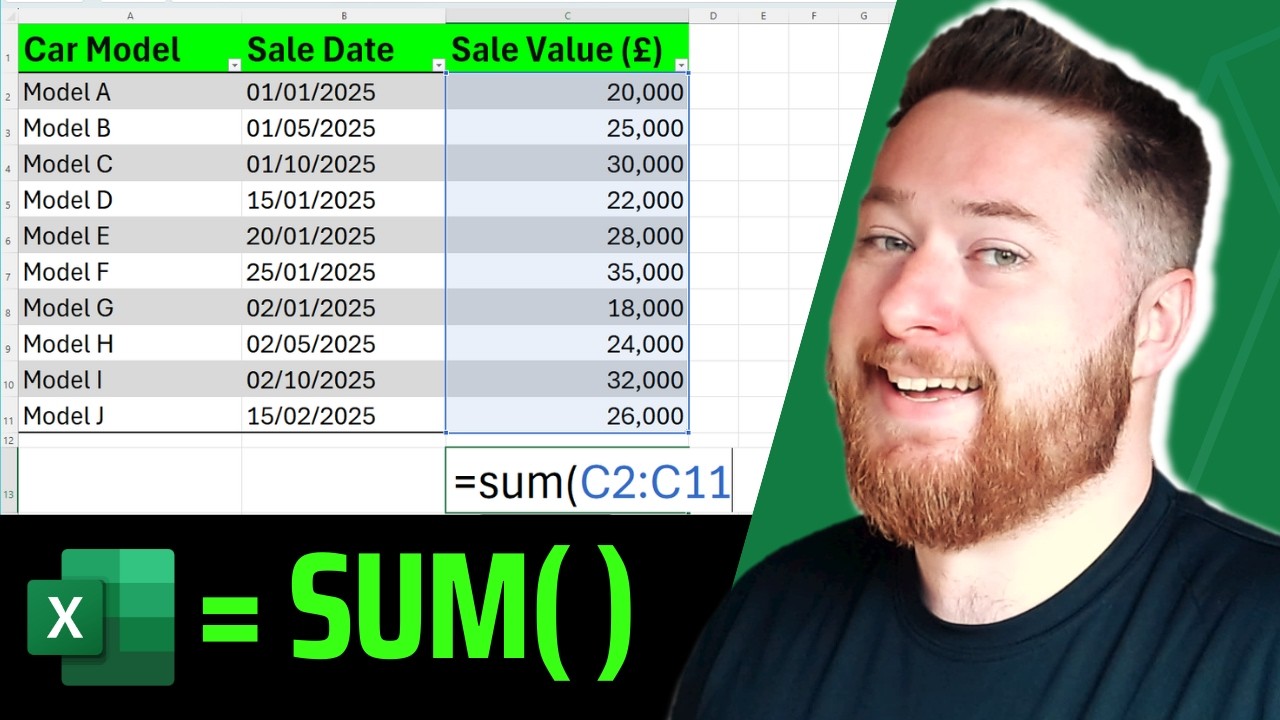
=SUM(A2:A15)
- Type
=SUM(in the desired cell. - Select your range or type it directly (e.g.,
A2:A15). - Close the parenthesis and press Enter.
Want to sum the entire column? Use:
=SUM(A:A)
For an in-depth explanation of these and other methods, check out this How to Sum in Excel: A Full Guide.
Customize your formula to fit your needs. Place it at the bottom of your column or off to the side for summary tables.
Summing Only Visible (Filtered) Data
Sometimes you may need to total only the visible rows after applying a filter. Excel how to total a column for filtered data is possible with the SUBTOTAL function.
Steps to follow:
- Filter your data as required.
- In an empty cell, type:
=SUBTOTAL(9, A2:A100)
- The number 9 tells Excel to sum only visible cells in the selected range.
- Press Enter to see your filtered total.
This method is perfect for monthly reports or when analyzing specific segments of your data. It ensures hidden or filtered-out values are not included in your total.
Troubleshooting and Verifying Your Results
Even when you follow every step, excel how to total a column can sometimes produce unexpected results. Here’s how to check your work:
- Use the status bar at the bottom of Excel to quickly see the sum of selected cells.
- Double-click your formula cell to highlight the included range.
- Watch for common errors like numbers stored as text or accidental omissions.
- If something doesn’t add up, review your data and formula ranges.
A careful review helps you catch mistakes before they impact your final numbers. Practice these checks until they become second nature.
Frequently Asked Questions About Totalling Columns in Excel
When learning excel how to total a column, beginners often encounter a series of common questions. Below, you will find clear answers to the most frequent topics, helping you sum columns with confidence.
How do I sum only specific cells in a column?
To add only certain cells, use the SUM function with comma-separated arguments. For example: =SUM(A2, A5, A8) totals just those chosen cells. Hold the CTRL key to select non-adjacent cells before using AutoSum or entering your formula.
Can I total columns with mixed data types or blanks?
Yes, but results may vary. Excel ignores blank cells in sums. However, if a cell contains text or an error, the formula could return zero or cause an error. Make sure your column contains only numbers for accurate results. If you need help fixing formula issues, check this Excel troubleshooting guide.
What’s the fastest way to total a column for a report?
The quickest method is to select the cell below your data and click the AutoSum button. Alternatively, press ALT + = for instant results. This shortcut makes excel how to total a column extremely efficient for quick summaries.
How do I fix the SUM formula not working?
Common reasons include:
- Numbers stored as text
- Typing errors in the formula
- Hidden or filtered data affecting totals
Use the error-checking tool or review your data format. For persistent issues, consult the Excel troubleshooting guide for step-by-step solutions.
Are there keyboard shortcuts for summing columns?
Absolutely. Press ALT + = to insert the SUM formula instantly. After entering your range, press Enter to get your total. These shortcuts make excel how to total a column much faster and reduce manual effort.
How do I sum columns in Excel Online or on a Mac?
The steps are similar across platforms. Use the AutoSum button or type =SUM(range). Keyboard shortcuts may differ; on Mac, use Command + Shift + T for AutoSum. Always verify the selected range before confirming.
Can I automate column totals for new data entries?
Yes, automation is possible. For dynamic totals, convert your data to an Excel Table, which automatically extends formulas as you add new rows. For more advanced automation, explore business process automation using Excel to streamline repetitive column summing tasks.
What are the differences between SUM, SUBTOTAL, and AGGREGATE?
Here’s a quick comparison:
| Function | Best For | Ignores Hidden Rows | Supports Conditions |
|---|---|---|---|
| SUM | Basic totals | No | No |
| SUBTOTAL | Filtered/visible data | Yes | No |
| AGGREGATE | Advanced calculations | Yes | Yes |
Choosing the right function helps you master excel how to total a column in various scenarios.
Related Excel Tips and Next Steps for Beginners
Even after mastering excel how to total a column, there is so much more you can do in Excel. Expanding your skills unlocks new ways to analyze, summarize, and manage your data. Let us explore some essential tips and next steps to help you grow as an Excel user.
Exploring More Excel Functions
Once you are comfortable with excel how to total a column, try out related functions like =AVERAGE(), =COUNT(), and =MAX(). These tools help you gain deeper insights, from averages to counts and identifying the highest or lowest values in your data set.
For larger datasets, functions such as SUMIFS or SUMPRODUCT offer advanced filtering and calculations. Want to optimize performance as you use these formulas? Explore Excel performance – Tips for optimizing performance obstructions to ensure your spreadsheets remain fast and efficient.
Using Excel Tables for Dynamic Data
Transforming your data into an Excel Table makes managing and totaling columns easier. With a table, formulas like excel how to total a column automatically adjust as you add or remove rows. Tables also improve formatting, enable filtering, and make your workbook more dynamic for future analysis.
Try converting your range to a table by selecting your data and pressing Ctrl + T. Tables are especially handy for ongoing expense tracking or growing sales lists.
Keyboard Shortcuts for Faster Totals
Speed up your workflow by learning keyboard shortcuts. For example, press ALT + = to instantly insert the SUM formula at the end of a column. Navigating cells quickly with Ctrl + Arrow Keys also helps when working with large datasets.
Practicing these shortcuts alongside excel how to total a column will save time and streamline your daily tasks.
Where to Learn More About Excel
To continue building your skills beyond excel how to total a column, seek out quality tutorials and resources. Microsoft’s official support pages, YouTube channels, and online courses provide step-by-step guides for every level.
Joining online Excel communities or forums is also a great way to ask questions, share tips, and stay motivated.
Practice Makes Perfect
The best way to become confident with excel how to total a column and other Excel skills is through practice. Download sample spreadsheets or use your own data to experiment with formulas, tables, and shortcuts.
Set small challenges for yourself, like summarizing monthly expenses or creating a sales report. Each success builds your understanding and comfort with Excel.
Stay Current with Excel 2026
Finally, Excel continues to evolve. Make it a habit to explore new features introduced in Excel 2026, such as improved functions or updated data tools. Staying informed will keep your skills sharp and ensure you always get the most out of excel how to total a column and beyond.
Regular use, curiosity, and a willingness to learn are your keys to becoming an Excel expert.


