In today’s data-driven world, mastering Excel is essential for professionals, students, and business owners alike. As we approach 2025, the ability to create an excel is more valuable than ever for organizing, analyzing, and reporting data with confidence.
This comprehensive guide is designed to walk you step-by-step through the process, ensuring you gain practical skills that translate directly to real-world results. You will learn everything from setting up your first spreadsheet to leveraging advanced automation and best practices.
Ready to unlock the full potential of Excel? Let’s dive in and see how you can transform your data skills for the future.
Understanding the Basics of Excel
In 2025, the ability to create an excel is more important than ever. Whether you are a student, business owner, or data analyst, understanding what Excel is and why it is essential forms the foundation for mastering this tool.
What is Excel and Why is it Essential?
Microsoft Excel is a powerful spreadsheet application designed to help users organize, analyze, and report data efficiently. It is widely used for budgeting, forecasting, and automating repetitive tasks across industries. Over 750 million people globally rely on Excel for tasks ranging from tracking expenses to generating business insights. For example, companies use Excel to create an excel budget model that helps forecast revenue and manage costs. Mastering these basics is key to unlocking Excel’s full potential.
Key Features and Interface Overview
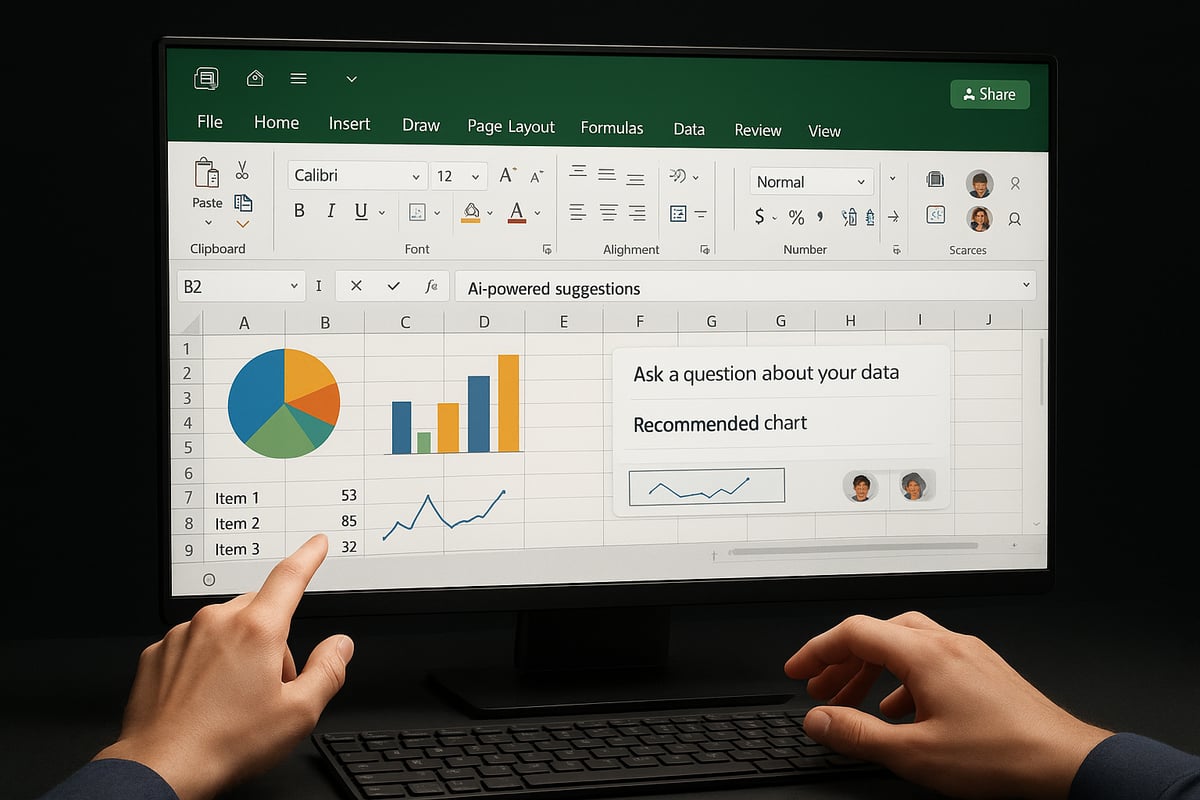
To create an excel that is both functional and efficient, familiarity with Excel’s interface is crucial. The ribbon organizes commands, while worksheets contain grids of cells arranged in columns and rows. Notably, the 2025 version introduces AI-powered suggestions, smarter collaboration tools, and a refreshed Home screen. Navigating this updated interface allows users to quickly access templates, customize views, and streamline their workflow. For a hands-on walkthrough, see our Step-by-step Excel creation tutorial.
Excel File Types and Compatibility
When you create an excel file, you will encounter several formats: XLSX for standard workbooks, XLS for legacy files, CSV for plain text data, and macro-enabled files for automation. Compatibility is a strong suit, as Excel integrates seamlessly with Google Sheets and cloud storage platforms. According to Gartner in 2024, 60 percent of businesses now use cloud-based Excel, making collaboration and access more flexible than ever.
Common Excel Terminology
Understanding core terms is essential before you create an excel from scratch. Key concepts include formulas (custom calculations), functions (predefined calculations), ranges (selected cell groups), tables (structured data areas), and charts (visual data representations). For example, a formula like =A1+B1 adds two cells, while the SUM function totals a range. Knowing the difference helps users apply the right tool for the task.
Setting Up Excel for the First Time
To create an excel, start by installing Excel via Microsoft 365 on desktop or accessing the web version. Sign in with your Microsoft account to unlock full features and cloud sync. Adjust regional settings to ensure dates and numbers display correctly for your location. For instance, setting the format to your country standard prevents confusion in financial reports or schedules.
Navigating the Excel Workspace
Once you create an excel file, explore the workspace. Customize the Quick Access Toolbar for frequently used commands, and use the search feature to find functions or help topics instantly. Excel offers a range of pre-built templates for tasks like budgeting or project management, helping beginners start with a solid foundation. These tools make your first experience productive and intuitive.
Step-by-Step Guide: Creating an Excel Spreadsheet in 2025
Ready to create an excel spreadsheet from scratch? This step-by-step guide will help you master the process using the latest Excel 2025 features. Whether you are a beginner or looking to upgrade your workflow, follow these clear steps to get started and unlock Excel's full potential.
Step 1: Opening Excel and Starting a New Workbook
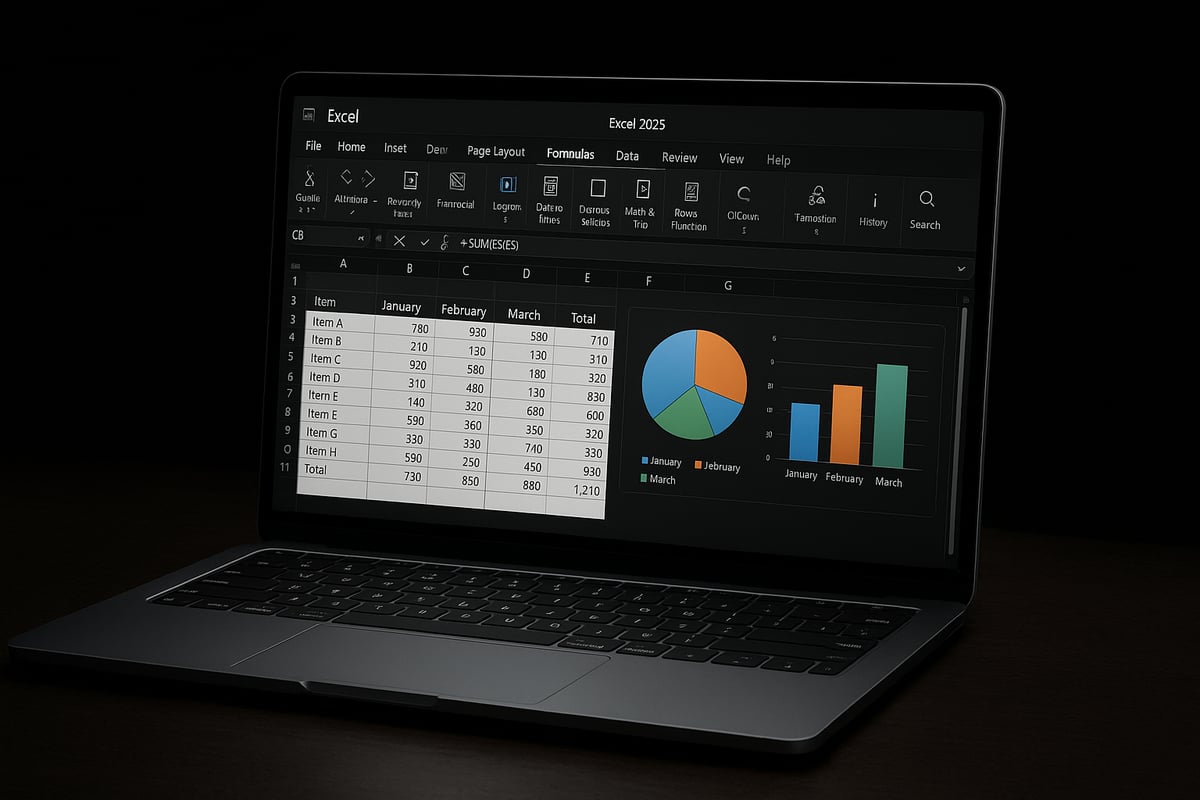
To begin, launch Excel 2025 on your device. You can access it via the desktop app, web browser, or mobile app. After signing in, you will see the new Home screen featuring recent files and templates.
Choose to create an excel workbook by selecting either a blank workbook or a professionally designed template. For example, you might pick a project tracker template to save time. Templates are especially helpful if you want a pre-built structure for common tasks.
No matter your starting point, beginning with the right workbook sets the foundation for an efficient workflow. This step is crucial as it determines how easily you can create an excel file tailored to your needs.
Step 2: Designing the Structure of Your Spreadsheet
Before you enter data, plan the overall layout. Decide which columns and rows you need and define your data categories, such as dates, names, or amounts. Use clear headers at the top of each column and apply freeze panes to keep these headers visible as you scroll.
For example, when you create an excel monthly expense tracker, your headers might include Date, Category, Description, and Amount. Structuring your spreadsheet well ensures data stays organized and easy to analyze.
To deepen your understanding of spreadsheet structure and tables, explore this guide on creating Excel tables and structure for more tips and examples.
Step 3: Entering and Formatting Data
Now, input your data. Excel supports different types: text, numbers, dates, and currencies. Select the appropriate type for each cell to avoid confusion later.
Format your cells for readability. Adjust fonts, apply colors, and add borders for emphasis. Use number formats to display currencies or percentages correctly. For instance, you can create an excel sheet highlighting overdue tasks with conditional formatting, which changes cell color based on your criteria.
Small formatting touches make your spreadsheet visually appealing and easier to interpret.
Step 4: Using Formulas and Functions
Leverage Excel's power by entering formulas and functions. Start with basics like =SUM(), =AVERAGE(), or =COUNT(). These let you quickly total figures, calculate averages, or count entries.
Excel 2025 introduces AI-powered formula suggestions. As you create an excel calculation, the software recommends the right formula based on your context. For example, if you enter sales data, Excel might suggest a formula to tally total sales automatically.
Using formulas not only saves time but also ensures accurate calculations.
Step 5: Creating Tables and Sorting/Filtering Data
Convert your data range into a table for easier management. Tables add features like automatic filtering, sorting, and dynamic referencing. To create an excel table, highlight your data and select "Format as Table" from the ribbon.
With your data in a table, use the sort and filter tools to view specific information. For example, you can sort sales data by value or filter it by region to focus on specific trends.
Tables keep your data organized and make analysis more efficient.
Step 6: Visualizing Data with Charts and Conditional Formatting
Bring your data to life by adding visual elements. Insert charts like bar, line, or pie charts to illustrate trends. Select your data and choose a chart type from the Insert tab.
Apply conditional formatting to highlight trends or outliers. For instance, you can create an excel report that automatically highlights the top 10 percent of performers in green, making it easy to spot high achievers.
Visuals make complex data more accessible and help you communicate insights clearly.
Step 7: Saving, Sharing, and Securing Your Workbook
When your spreadsheet is ready, save it to your preferred location—local drive, OneDrive, or SharePoint. Excel 2025 offers enhanced sharing options: generate a link, set permissions, and track version history.
If your data is sensitive, protect your file with password encryption. For example, you can restrict access to financial data by setting a password before sharing.
Proper saving and sharing practices ensure your work remains secure and accessible to the right people.
Advanced Excel Techniques for 2025
Unlocking the full power when you create an excel means mastering advanced tools that elevate your data analysis and workflow. In 2025, Excel has evolved dramatically, offering cutting-edge features for automation, visualization, and seamless collaboration. Let’s explore the latest techniques every user should know.
Leveraging PivotTables and PivotCharts
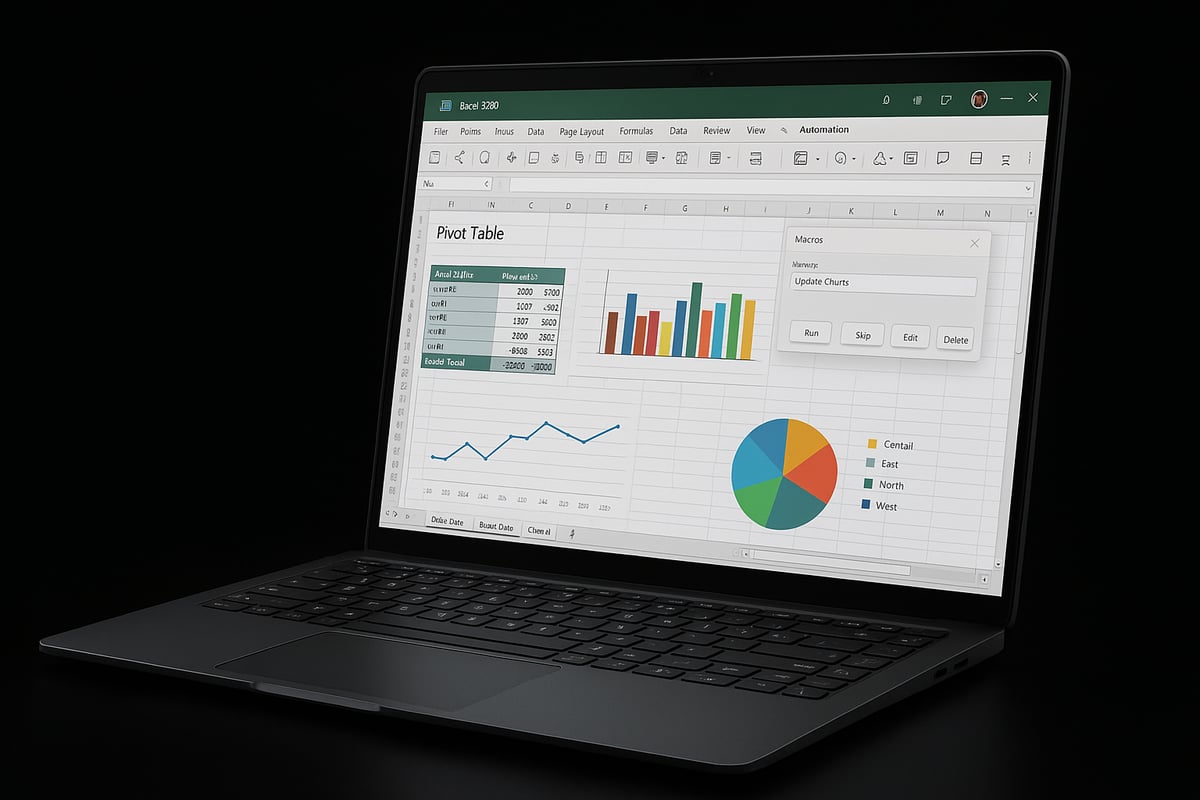
PivotTables remain essential for anyone aiming to create an excel that delivers dynamic insights. With just a few clicks, you can summarize huge datasets, spot trends, and drill into details by dragging and dropping fields. In 2025, enhanced PivotChart interactivity makes it even easier to visualize patterns.
For example, a sales manager can create an excel PivotTable to compare quarterly revenue by product line, then use a PivotChart to reveal which items drive growth. The intuitive interface means more time analyzing, less time formatting.
Key benefits:
- Instantly group and summarize data
- Filter and slice information for custom views
- Visualize results with interactive charts
With PivotTables, your ability to create an excel that tells a story is unmatched.
Automating Tasks with Excel Macros and AI
To maximize efficiency, learning to create an excel with automation is crucial. Macros allow you to record repetitive steps, then replay them with a single action. In 2025, Excel’s AI-powered automation takes this further, suggesting smart routines based on your habits.
For instance, you might record a macro to format weekly reports, then let AI recommend optimizations for even faster execution. These innovations make it easier to create an excel process that runs itself.
Recent updates include:
- AI suggestions for automating common tasks
- Macro editing with improved error detection
- Integration with cloud-based workflows
For a deeper dive into the latest automation upgrades, check out What’s New in Excel (May 2025). Embracing automation transforms how you create an excel for business or personal use.
Data Validation and Error Checking
Maintaining data quality is vital when you create an excel for analysis. Data validation helps restrict entries, such as accepting only dates or valid email addresses. Error checking tools scan your sheet for inconsistencies, reducing costly mistakes.
To set up validation, select your range, open the Data tab, and define criteria. For example, restrict a column to numbers between 1 and 100. Use error checking to highlight formula issues, ensuring your results are always trustworthy.
Benefits:
- Prevents incorrect data entry
- Flags potential errors instantly
- Enhances confidence in reporting
By applying these tools, you create an excel environment that safeguards accuracy.
Collaborating in Real-Time with Teams
In 2025, real-time teamwork is central to how you create an excel for group projects. Excel now supports co-authoring, letting multiple users edit simultaneously. Comments, change tracking, and conflict resolution streamline communication.
Imagine a finance team updating a shared budget—everyone sees changes live, reducing email back-and-forth. Use the Share button to invite colleagues, set permissions, and monitor version history.
Collaboration features:
- Simultaneous editing on web and desktop
- Inline comments and threaded discussions
- Activity logs for accountability
These advancements mean you can create an excel that brings teams together without friction.
Integrating Excel with Other Tools and Apps
To extend your workflow, create an excel that connects seamlessly with external data sources. Excel 2025 integrates with Power BI, Teams, databases, and APIs. This connectivity enables real-time updates and richer analysis.
For example, import sales data from a CRM or pull live stock prices using a web query. Export tables to Power BI for advanced dashboards or connect with Teams for instant sharing.
Integration highlights:
- Import/export from multiple platforms
- Automate data refreshes for up-to-date insights
- Connect with cloud storage for anywhere access
Integrations empower you to create an excel that serves as your data command center.
Customizing Excel with Add-Ins and Extensions
Custom add-ins help you create an excel tailored to your needs. In 2025, installing add-ins is simpler, with a curated marketplace for productivity, visualization, and data cleaning tools.
For example, use a data cleaning add-in to remove duplicates or standardize formats. Manage add-ins via the Insert tab, enabling or disabling features as projects require.
Popular add-ins:
- Data analysis packs
- Advanced charting tools
- Workflow automation extensions
These enhancements ensure you create an excel that grows with your skills.
Troubleshooting Common Excel Issues
Even experts encounter problems as they create an excel. Common issues include broken formulas, missing links, or unsaved work. Excel’s troubleshooting tools help you diagnose and fix errors swiftly.
When you see a #VALUE! error, use the built-in error checker to identify the cause. Recover unsaved workbooks from the Document Recovery pane. For persistent problems, consult Excel’s help or community forums.
Troubleshooting steps:
- Use error checking for formulas
- Restore previous versions from OneDrive
- Re-link external data sources
With these tools, you can confidently create an excel that is robust and reliable.
Best Practices for Effective and Efficient Excel Use
Mastering best practices is essential if you want to create an excel that is reliable, accurate, and easy to manage. By following these proven strategies, you will streamline your workflow, minimize errors, and maximize productivity in every project.
Organizing and Documenting Your Workbooks
To create an excel that is easy to navigate and hand off, start with clear naming conventions for files, sheets, and ranges. Add comments to explain complex formulas and document key steps within your workbook. This habit ensures anyone collaborating can quickly grasp your logic.
- Name sheets by purpose, such as "2025 Budget" or "Q1 Sales"
- Use cell comments to clarify calculations
- Maintain a summary sheet for workbook documentation
For more structured projects, consider learning how to create an Excel database to keep large datasets organized and accessible.
Ensuring Data Accuracy and Consistency
When you create an excel for critical tasks, always prioritize data accuracy. Use drop-down lists for standardized entries and apply data validation rules to catch errors before they spread. This approach prevents issues like duplicate contacts or inconsistent date formats.
- Set up data validation for emails, dates, and numbers
- Use conditional formatting to highlight anomalies
- Regularly audit your workbook for inconsistencies
A well-validated sheet reduces the risk of mistakes and saves time on corrections.
Enhancing Productivity with Keyboard Shortcuts
If you want to create an excel efficiently, keyboard shortcuts are your secret weapon. Mastering shortcuts accelerates navigation and editing, especially with new 2025 features for AI and collaboration.
| Action | Shortcut (Windows) | Shortcut (Mac) |
|---|---|---|
| Create Table | Ctrl + T | Cmd + T |
| Quick Chart | Alt + F1 | Fn + F1 |
| AI Formula Suggestion | Ctrl + Shift + A | Cmd + Shift + A |
Test shortcuts for quick chart creation or instant cell formatting. The more you use them, the faster your workflow becomes.
Keeping Workbooks Secure and Private
As you create an excel with sensitive data, security should be top of mind. Protect workbooks with strong passwords and restrict sharing permissions using Microsoft 365 features. Always double-check who has access to files containing financial or personal information.
- Password-protect files using File > Info > Protect Workbook
- Limit sharing to trusted collaborators
- Enable version history for tracking changes
Taking these steps helps safeguard your information and ensures compliance with data policies.
Regular Maintenance and Backup Strategies
To maintain integrity as you create an excel, implement consistent backup routines. Store files on OneDrive or SharePoint for automatic version control. Clean up outdated data and remove duplicates to keep your workbook streamlined.
- Schedule regular backups
- Use cloud auto-save features
- Remove obsolete sheets and unused ranges
When troubleshooting issues or recovering lost data, refer to guides like troubleshooting common Excel errors for practical solutions.
Staying Updated with Excel’s Latest Features
Excel is constantly evolving. Stay ahead by exploring Microsoft’s roadmap, joining beta programs, and enabling automatic updates. In 2025, enhancements like AI-powered insights and smarter formula suggestions can transform how you create an excel for business or personal use.
- Join the Office Insider program for early access
- Read update logs and feature announcements
- Experiment with new AI tools
For a summary of the most impactful changes, see 5 Excel Improvements Microsoft Announced in 2025.
Learning Resources and Expert Help for Excel Mastery
Mastering how to create an excel is easier than ever with the right learning resources and expert support. Whether you are starting from scratch or aiming to refine advanced skills, a wealth of options is available to guide your journey. Let us explore the best tools and communities for Excel mastery in 2025.
Online Courses, Tutorials, and Certifications
To create an excel confidently, consider enrolling in structured online courses. Leading platforms like Microsoft Learn, Coursera, and LinkedIn Learning offer beginner to advanced tracks. Many programs provide hands-on labs, interactive quizzes, and video tutorials.
- Microsoft Office Specialist (MOS) Excel 2025 certification is widely recognized.
- Courses often cover data analysis, automation, and reporting.
- Progress tracking and personalized feedback help ensure continuous improvement.
By following these paths, you gain the skills to create an excel for any need, from basic data entry to complex analytics.
Community Forums and Support Channels
Engaging with the Excel community is a practical way to solve challenges as you create an excel. Support forums like Microsoft Community, Reddit, and Stack Overflow connect you with experienced users and experts.
- Post specific questions for quick, targeted answers.
- Search existing threads for common solutions.
- Share tips and learn from real-world scenarios.
When you create an excel and encounter issues, these communities often provide fast, reliable help tailored to your needs.
Books and Guides for All Skill Levels
Books remain a valuable resource as you learn to create an excel efficiently. Comprehensive guides such as “Excel 2025 Bible” and “Data Analysis with Excel” cover everything from formulas to visualization.
- Free and paid eBooks are available for deep dives.
- Reference guides help with complex functions and troubleshooting.
- Step-by-step instructions support both beginners and advanced users.
Having a reliable guide on hand ensures you can create an excel that is robust and effective for any project.
The Analytics Doctor: Personalized Excel Training and Troubleshooting
For tailored support, The Analytics Doctor offers personalized help for those looking to create an excel with confidence. Services include custom training sessions, formula troubleshooting, and automation solutions for individuals and organizations.

- Receive expert advice on specific challenges.
- Access hands-on support for formula fixes and data cleanup.
- Upskill with workshops designed for your goals.
With this practical guidance, you can create an excel that meets your unique requirements and maximizes productivity.
Staying Ahead: Excel Trends and Innovations for 2025
Excel continues to evolve, introducing features that make it easier to create an excel and analyze data smarter. AI integration, enhanced collaboration, and mobile improvements are shaping the future of spreadsheet work.
Stay informed about the latest advancements by exploring new tech features for Dec 2024-Feb 2025: Excel, Teams, Power BI, Canva, Zoom, Google Sheets++. Leveraging these innovations ensures your skills remain current and your workbooks deliver powerful insights.