Macros are the secret weapon behind high-speed productivity in spreadsheets. Yet, most people never discover the true potential of these powerful automation tools.
In this expert guide, you will learn exactly how to enable the macro on every major platform in 2026. Whether you use Windows, Mac, or the web, this walkthrough ensures you unlock advanced automation safely and efficiently.
We will break down what macros are, why enabling them matters, and provide step-by-step instructions for each platform. You will also find security best practices, troubleshooting tips, and the latest trends to keep your workflow at the cutting edge. Ready to transform your spreadsheet game? Let’s begin.
Understanding Macros: What, Why, and Where
Unlocking spreadsheet automation starts with understanding macros. To master how to enable the macro, let us explore what macros are, why they matter, where they are used, and the file types that make it all possible.
What Are Macros?
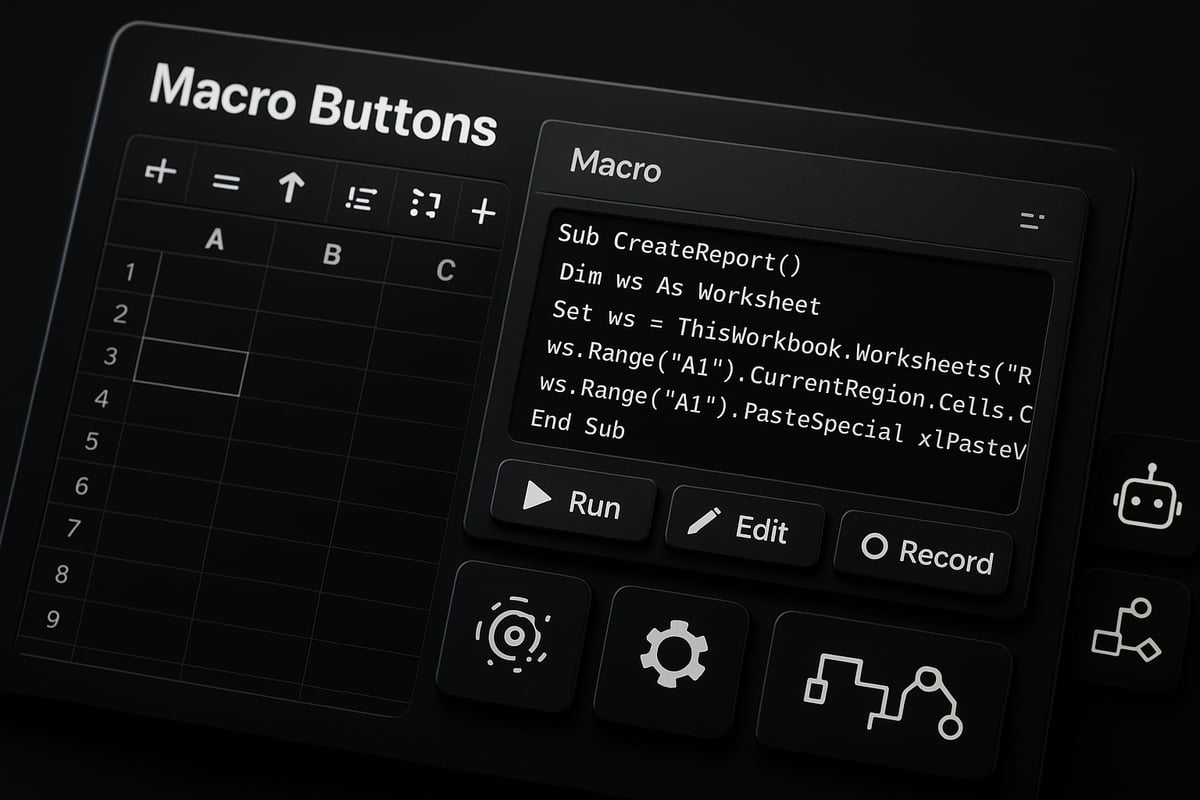
Macros are sets of instructions that automate repetitive tasks within spreadsheets like Excel or Google Sheets. When you learn how to enable the macro, you unlock tools that can handle everything from simple formatting to complex calculations.
There are two main types: recorded macros, which capture your actions step by step, and written macros, often using VBA (Visual Basic for Applications) code for advanced logic. Common uses include:
- Financial modeling
- Automated reporting
- Data cleaning
For example, a macro could generate and format a monthly sales report with a single click. Whether you are recording steps or coding with VBA, knowing how to enable the macro is the first step to boosting productivity.
Why Enable Macros?
Enabling macros provides powerful benefits. Automating workflows saves time, reduces errors, and ensures consistency across reports. According to Microsoft studies, macro automation can speed up reporting tasks by 40 percent.
Macros are valuable in various scenarios:
- Business analysis
- Academic research
- Inventory management
They also support compliance by creating audit trails of every automated task. Imagine automating your invoice generation process—once you know how to enable the macro, your team can focus on higher-value work instead of manual entry.
Where Are Macros Used?
Macros are available across several spreadsheet platforms, including Microsoft Excel (Windows, Mac, Web), Google Sheets, and LibreOffice. Each platform offers unique strengths and some limitations.
Industries such as finance, HR, operations, and education rely heavily on macros for efficiency. Compatibility can be an issue—some features work differently on Windows than Mac, and web versions often have limited macro support.
For example, moving a macro-enabled file between Excel and Google Sheets may require adjustments. Understanding these challenges is crucial when learning how to enable the macro across different environments.
Macro Types and File Formats
Macro-enabled files use specific extensions, such as .xlsm, .xlsb, or .xltm, to distinguish them from standard spreadsheets. When you open these files, Excel prompts you about macro security, and default settings may block macros until you enable them.
There are differences between VBA and newer tools like Office Scripts. VBA is the traditional scripting language for macros, while Office Scripts offer cloud-based automation in recent Excel versions.
When saving a workbook with macros, always choose a macro-enabled format. For a step-by-step guide on working with macro-enabled files in Excel, see Macro-enabled files in Excel. This is essential knowledge for anyone who wants to fully leverage how to enable the macro safely and efficiently.
Step-by-Step: How to Enable Macros in Microsoft Excel (Windows, Mac, Web)
Unlocking advanced spreadsheet automation starts with understanding how to enable the macro in your environment. The process varies by platform, so follow these platform-specific steps to ensure macros run smoothly and securely on your version of Excel or alternative spreadsheet software.
Enabling Macros in Excel for Windows (2026 Update)
On Windows, Excel 2026 introduces a refreshed interface for managing macro settings. To master how to enable the macro, begin with the Trust Center:
Step-by-step:
- Open Excel and select File in the ribbon.
- Choose Options, then select Trust Center.
- Click Trust Center Settings.
- Select Macro Settings. You will see:
- Disable all macros without notification
- Disable all macros with notification
- Enable all macros
- Enable only digitally signed macros
By default, Excel 2026 disables macros with a notification prompt for security. If you want to enable macros for a downloaded template, choose "Enable all macros" temporarily or use "Enable with notification" for selective control.
When you open a macro-enabled file (like .xlsm), Excel may display a yellow security warning. Click Enable Content if you trust the source.
Example: You receive a monthly sales report template with embedded macros. After downloading, open the file, review the warning, and select Enable Content to activate automation.
Over 80% of business Excel users operate on Windows, making it vital to know how to enable the macro efficiently.
Enabling Macros in Excel for Mac (2026 Update)
Excel for Mac presents a slightly different path for how to enable the macro due to differences in system security.
Steps for Mac users:
- Open Excel, go to Excel > Preferences.
- Select Security & Privacy.
- Under Macro Security, choose your preferred setting:
- Disable all macros
- Disable with notification
- Enable all macros
On Mac, you may see a dialog box asking for explicit permission to run macros, especially when opening files from external sources.
Example: While working on a macro-enabled financial model, you open the .xlsm file and receive a prompt. Click Enable Macros to allow the automation.
Known issues include stricter permission prompts and occasional compatibility warnings. If you encounter persistent blocking, try moving the file to a trusted location or adjusting your system's privacy settings.
Enabling Macros in Excel for Web
As of 2026, the web version of Excel has limited macro support. If you wonder how to enable the macro in Excel Online, keep these points in mind:
- Macros created in desktop Excel (VBA) do not run in the web version.
- You can view and edit macro-enabled files, but macros remain inactive.
- To run macros, select Open in Desktop App from the web interface.
Microsoft's roadmap suggests future improvements for macro compatibility in Office for Web. For now, desktop Excel is required for full macro functionality.
Example: You try running a macro in Excel Online, only to see a message that macros are disabled. Opening the same file in desktop Excel restores macro automation.
Enabling Macros in Other Spreadsheet Platforms
Beyond Microsoft Excel, understanding how to enable the macro in other platforms is essential for cross-platform productivity.
- Google Sheets: Use Extensions > Macros or Apps Script to record or write automation scripts. Enable scripts as prompted.
- LibreOffice: Go to Tools > Options > LibreOffice > Security > Macro Security to adjust permissions.
- Compatibility can be challenging when moving files between platforms. Macro code may not transfer seamlessly.
For a comparison of macro compatibility and enabling steps across spreadsheet versions, refer to the Microsoft Office Excel versions guide.
Example: Migrating a macro-enabled Excel file to Google Sheets may require rewriting automation using Google Apps Script.
Expert Excel Help from The Analytics Doctor
Sometimes, even after following how to enable the macro on your own, complex issues or advanced automation needs call for expert guidance.

Professional support streamlines macro setup, resolves persistent compatibility or security problems, and ensures your macros are optimized for business workflows.
The Analytics Doctor specializes in Excel automation and training. With tailored macro solutions, you can automate monthly reporting, standardize processes, and upskill your team for sustained productivity.
Example: A company struggling with inconsistent monthly reports worked with The Analytics Doctor to automate their workflow, reducing manual effort and increasing accuracy.
With custom training and ongoing support, your organization can unlock the full power of macros, transforming spreadsheet tasks into efficient, reliable processes.
Macro Security: Protecting Your Data and Devices
Macros can supercharge your spreadsheet productivity, but they also introduce unique security concerns. Understanding how to enable the macro safely is essential for every user in 2026. Let’s explore the risks, best practices, and cutting-edge tools that keep your data and devices protected.

Understanding Macro Security Risks
Macros are powerful, yet they have been a common target for cybercriminals. When you learn how to enable the macro, you also need to be aware of the potential threats.
Malicious macros can be embedded in seemingly harmless files. Once enabled, these macros might install malware, steal data, or even compromise entire networks.
Consider the Emotet malware outbreak in 2023, which exploited Excel macros to infiltrate organizations worldwide. Macro viruses operate by running hidden code when a file opens, making them a persistent risk vector.
Microsoft and cybersecurity experts regularly publish warnings about enabling macros from untrusted sources. Always exercise caution and understand the implications before proceeding.
Configuring Safe Macro Settings
The foundation of macro security is proper configuration. When you decide how to enable the macro, start by reviewing Trust Center settings in Excel or your spreadsheet platform.
You can choose to:
- Allow only digitally signed macros
- Use notifications before enabling macros
- Restrict macros to trusted locations
Establishing trusted folders for macro-enabled files helps reduce accidental exposure. Creating a policy for signed macros adds another layer of protection. For an in-depth approach, consult the Excel Macro Security Best Practices recommended by Microsoft.
Remember, it is crucial to revisit these settings after every software update, as defaults may change.
Best Practices for Macro Safety
Developing strong habits is key when considering how to enable the macro in your workflow. Here are some essential best practices:
- Never enable macros from unknown or unexpected sources
- Keep Excel, your operating system, and antivirus software updated
- Train your team to recognize suspicious macro-enabled files
Establish a company policy for handling attachments, especially those containing macros. For example, only open macro files stored in designated secure folders and verify the sender before enabling any macro.
These habits can prevent many common attacks and reduce the risk of a security incident.
Advanced Security Tools and Features (2026)
Excel 2026 brings significant advancements in macro security. When you research how to enable the macro, you will encounter new tools:
- Enhanced sandboxing to isolate macro execution
- Real-time macro scanning with Microsoft Defender for Office 365
- Automated alerts for suspicious macro activity
According to Microsoft, these features have helped reduce macro-related malware incidents by over 60% since 2025.
Here’s a summary of the latest security enhancements:
| Feature | Benefit |
|---|---|
| Sandboxing | Isolates risky macros |
| Real-time scanning | Detects malware instantly |
| Defender integration | Enterprise-grade protection |
Staying up to date with these tools ensures your macro usage remains both productive and secure.
Troubleshooting Macro Issues: Common Problems and Solutions
Encountering issues while learning how to enable the macro is common, even for experienced spreadsheet users. Troubleshooting macro errors efficiently can save you time, frustration, and help maintain workflow continuity. Let’s walk through the most frequent problems, their solutions, and when to seek expert assistance.
Common Macro Errors and What They Mean
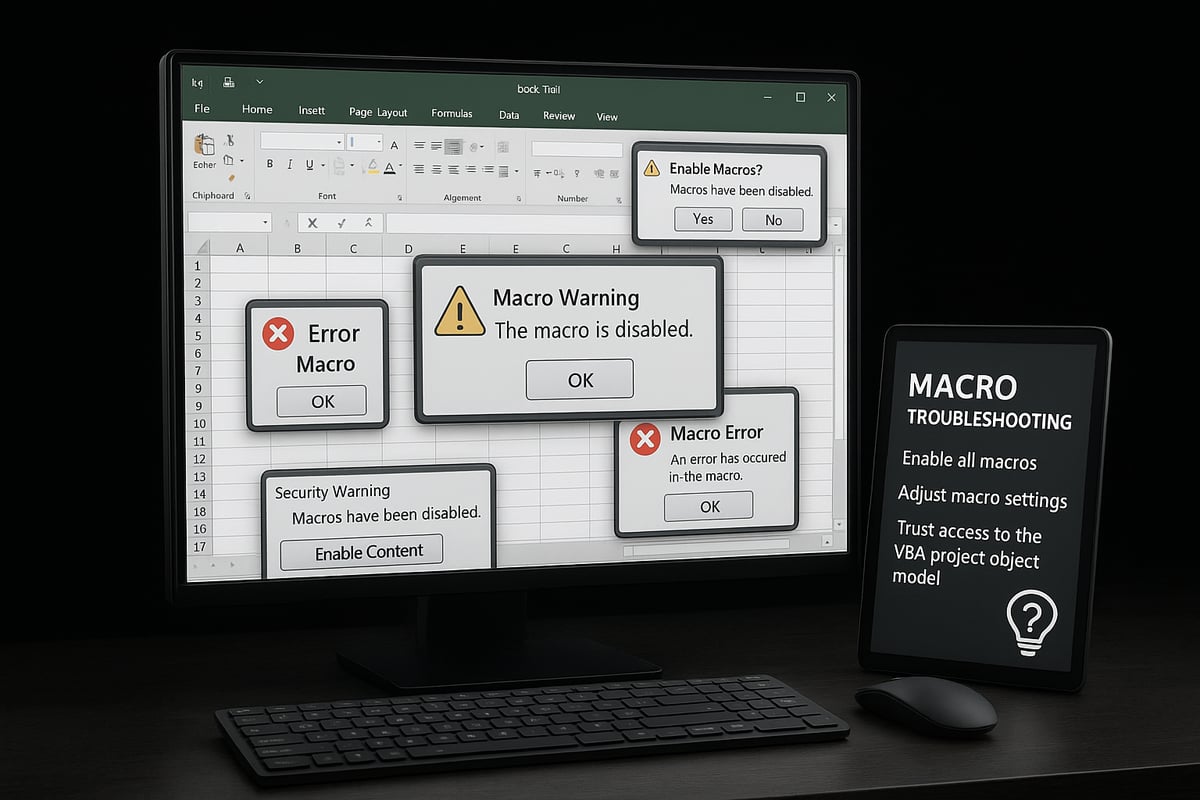
Understanding error messages is the first step in learning how to enable the macro successfully. The most frequent errors include:
- "Macros are disabled": This means macro functionality is blocked by your Excel settings.
- "Cannot run the macro": Often caused by incorrect macro names, missing code, or incompatible versions.
- "Compile error": Indicates a coding issue, such as a missing reference or syntax error.
These errors can stem from outdated Excel versions, incorrect macro settings, or even file corruption. For example, if you try to run a macro from an older workbook in Excel 2026, compatibility issues may trigger compile errors. Always check the macro name and ensure it matches exactly with what is referenced in your code.
If you see persistent errors, start by reviewing your macro security settings and verifying the file type. Macro-enabled files should have extensions like .xlsm or .xlsb to ensure proper execution. When in doubt, saving a new copy of your document can sometimes resolve minor corruption issues.
Fixing Macro Compatibility Problems
Compatibility between Excel versions is a frequent concern when users wonder how to enable the macro across platforms. VBA code written for older versions, such as Excel 2016, may not function perfectly in Excel 2026 due to changes in supported functions or security protocols.
Key compatibility challenges include:
- Differences in VBA libraries between Windows and Mac
- Deprecated functions in newer Excel releases
- Macro code referencing unavailable add-ins or controls
To address these, review your VBA code for outdated references. Use Excel’s built-in compatibility checker to identify problematic code lines. If you’re migrating files between platforms, test macros on both systems and refactor code as needed. Consider encapsulating platform-specific logic inside conditional statements.
For teams working with multiple Excel versions, maintaining a single macro library with clear documentation can significantly reduce compatibility headaches. This approach streamlines how to enable the macro for everyone, regardless of their device.
Dealing with Disabled or Blocked Macros
Sometimes, even after following steps on how to enable the macro, Excel continues to block functionality. The most common causes are:
- Files downloaded from email or the internet are automatically marked as unsafe.
- Macro settings in the Trust Center restrict execution.
- Excel’s Protected View prevents macros from running.
To unblock a macro-enabled file:
- Right-click the file in Windows Explorer and select "Properties."
- Check the box labeled "Unblock" at the bottom of the dialog.
- Open the file in Excel and review any security prompts.
If you are dealing with password-protected or restricted files, refer to Troubleshooting Excel file protection for detailed steps to regain access. Always verify the file’s source and scan it for malware before enabling macros. This process is a crucial part of how to enable the macro safely.
When to Seek Professional Help
While most issues with how to enable the macro can be resolved using built-in tools and guides, some scenarios require expert intervention. Signs you need professional help include:
- Persistent errors after troubleshooting all standard steps
- Macros that fail due to complex VBA code or advanced automation logic
- Business-critical automations that stop working after an upgrade
Professional services offer advanced diagnostics, code repair, and process optimization. They can help you audit existing macros, upgrade legacy code, and implement solutions tailored to your workflow.
For organizations needing robust automation, the Excel VBA programming guide provides a comprehensive overview of best practices and expert support options. Leveraging these resources can transform how to enable the macro from a frustrating process into a streamlined, reliable experience.
If unresolved macro errors are impacting productivity or compliance, do not hesitate to consult with an Excel specialist. The right expertise minimizes downtime and ensures your automation remains secure and future-proof.
Advanced Macro Tips and Automation Trends for 2026
Unlocking the full potential of macros in 2026 means going beyond basic automation. New tools, cloud integration, and best practices ensure your workflows stay efficient and secure. Explore the latest strategies to master how to enable the macro for advanced productivity.
Automating Beyond VBA: New Tools and Technologies
Excel 2026 brings powerful alternatives to traditional VBA macros, including Office Scripts and Power Automate. These tools simplify automation, making it more accessible for users who want to learn how to enable the macro for complex tasks.
Office Scripts allow you to record and edit actions using TypeScript, which is easier to maintain than VBA. Power Automate connects Excel with external data sources, enabling seamless workflow automation without manual intervention.
For example, you can use Power Automate to refresh sales data every morning, saving hours each week. For a detailed look at these innovations, see What’s New in Excel January 2026.
These new technologies ensure your macros are flexible and ready for the future.
Integrating Macros with Cloud and Third-Party Services
Modern macro solutions are not limited to your desktop. Understanding how to enable the macro in cloud environments unlocks new ways to connect Excel with services like OneDrive and SharePoint.
Macros can now interact with APIs and external databases, automating data imports or report deliveries. Imagine a macro that compiles inventory data and emails it to your team, all triggered by a single click.
Cloud integration means your automated workflows are available anywhere and always up to date. This approach keeps you agile and ensures your processes evolve with business needs.
Boosting Productivity with Macro Best Practices
To maximize efficiency, focus on best practices when learning how to enable the macro. Design macros in modular segments, so you can reuse code across projects.
Document your VBA scripts with clear comments, making maintenance and updates easier. Schedule routine macro runs using Windows Task Scheduler or built-in Excel features.
Consider this checklist for macro excellence:
| Best Practice | Benefit |
|---|---|
| Modular Design | Easier updates, reuse |
| Documentation | Faster troubleshooting |
| Scheduled Runs | Consistent productivity |
If you're starting out, avoid common pitfalls by reviewing VBA for Beginners: Top Mistakes to Avoid.
A well-organized macro library sets your team up for ongoing success.
Future-Proofing Your Macros
Preparing for Excel 2026 and beyond means ensuring your macros remain compatible and secure. When you know how to enable the macro with the latest settings, you minimize disruption after updates.
Take advantage of AI-powered macro suggestions, a new feature in Excel 2026 that recommends improvements for your scripts. Stay informed about evolving security and compliance requirements to protect sensitive data.
For legacy macros, update code to support cloud storage and multi-platform use. Upgrading early means your automation stays robust as technology changes.
Resources for Learning and Mastery
Continuous learning is key to mastering how to enable the macro. Leverage resources like Microsoft’s official documentation, LinkedIn Learning courses, and active forums.
Join Excel macro user groups to exchange tips and troubleshoot challenges. Books and webinars provide structured guidance for users at every skill level.
Peer support accelerates your progress, keeping you up to date with the latest macro trends and tools.