Did you know the right Excel function can save you hours every week? With the right approach, you can unlock the full potential of your data. The excel vlookup how to guide is your gateway to mastering one of Excel’s most powerful lookup tools. Imagine instantly finding any value in vast spreadsheets, streamlining your workflow, and making confident decisions faster. In this guide, you’ll discover step-by-step instructions, expert tips, and practical examples that will transform your Excel skills for 2026 and beyond. Ready to become an Excel lookup expert? Start here.
Understanding VLOOKUP: What It Is and Why It Matters
Unlocking the secrets of data management in Excel starts with one core tool: VLOOKUP. Whether you’re a beginner or an experienced analyst, understanding the excel vlookup how to process is foundational for fast, accurate data retrieval.

What is VLOOKUP?
VLOOKUP stands for "Vertical Lookup," a versatile function in Excel that searches for a value in the first column of a table and returns a corresponding value from another column. Think of it as asking Excel to quickly find information in massive datasets, much like searching for a specific book in a library by its title.
The syntax for VLOOKUP looks like this:
=VLOOKUP(lookup_value, table_array, col_index_num, [range_lookup])
lookup_value: The value you want to find.table_array: The range of cells containing the data.col_index_num: The column number with the return value.[range_lookup]: TRUE for approximate match, FALSE for exact.
VLOOKUP searches vertically—down the first column. In contrast, HLOOKUP scans horizontally across the top row. For example, if you have a list of products and prices, you can find the price of "Photo frame" by searching for its name in the product column.
Here’s a quick comparison:
| Feature | VLOOKUP | HLOOKUP | XLOOKUP |
|---|---|---|---|
| Search Direction | Vertical (columns) | Horizontal (rows) | Both directions |
| Return Value | Right of lookup col | Below lookup row | Any direction |
| Flexibility | Limited | Limited | High |
For a visual breakdown of the VLOOKUP syntax, see the VLOOKUP refresher guide.
Why Use VLOOKUP?
Mastering excel vlookup how to techniques can transform how you handle data. VLOOKUP streamlines data retrieval, making it possible to pull information from large datasets in seconds instead of hours.
Key benefits include:
- Efficiency: Automates repetitive lookup tasks, eliminating manual searching.
- Accuracy: Reduces the risk of human error, ensuring consistency in reports.
- Speed: Enables quick analysis, even with thousands of rows.
Common use cases:
- Financial modeling: Link account names to balances.
- Inventory management: Find product quantities or reorder levels.
- HR databases: Retrieve employee details by ID.
- Sales tracking: Match sales figures to products or regions.
According to Microsoft, VLOOKUP ranks among the top five most-used Excel functions worldwide. When comparing manual searching to VLOOKUP, the function consistently delivers faster and more reliable results, which is why learning excel vlookup how to skills is a must for anyone serious about data analysis.
Limitations and Common Misconceptions
While VLOOKUP is powerful, it comes with limitations. Understanding these can help you avoid common pitfalls as you practice excel vlookup how to methods.
- Left-to-Right Search Only: VLOOKUP looks for values only to the right of the lookup column. It cannot search to the left.
- Column Order Matters: The lookup column must always be the first column in your table_array.
- First Match Only: If multiple matches exist, VLOOKUP returns only the first one it finds.
- Misconception: Some believe VLOOKUP can search both directions, but this is not the case.
Here’s a quick list of workarounds and alternatives:
- Rearrange columns to place the lookup column first.
- Use INDEX and MATCH to look up values to the left.
- For more flexibility, consider XLOOKUP, which overcomes many of these limitations.
As Excel evolves, newer functions like XLOOKUP offer more robust solutions, but knowing the excel vlookup how to basics remains essential for legacy workbooks and broad compatibility.
Step-by-Step: How to Use VLOOKUP in Excel
Mastering the process of using VLOOKUP is essential for anyone aiming to sharpen their data analysis skills. In this section, you will learn the excel vlookup how to method in a practical, stepwise approach. Each stage is designed to help you build confidence so you can handle data lookups efficiently and accurately.
Preparing Your Data for VLOOKUP
Before you begin with the excel vlookup how to process, your data must be in optimal shape. Start by organizing your dataset in a vertical table, with each column clearly labeled. The first column should contain unique identifiers, such as customer IDs or product codes. This ensures each lookup finds the correct entry without confusion.
Duplicates can disrupt your lookup results, so it is crucial to remove them. If you are unsure how, follow this How to remove duplicate records in Excel guide for stepwise instructions. Always clean your data by checking for extra spaces, inconsistent formats, or typos.
Here are some key steps for preparing your data:
- Place all data in a single table with clear headers.
- Ensure the first column has unique, standardized values.
- Remove or correct any duplicate records.
- Clean up inconsistent entries using Excel’s TRIM and CLEAN functions.
Taking these steps at the outset will make your excel vlookup how to journey much smoother and more reliable.
Writing the VLOOKUP Formula: A Chronological Guide
Now that your data is ready, it is time to write the VLOOKUP formula. The excel vlookup how to method follows a logical sequence. Here is a step-by-step guide:
- Select the cell where you want the lookup result to appear.
- Type
=VLOOKUP(to start your formula. - Enter the
lookup_value(the value you want to find). - Specify the
table_array(the range of your table). - Set the
col_index_num(the column number to return data from). - Choose
range_lookup(TRUE for approximate, FALSE for exact match). - Press Enter to see your result.
For example, to find the price of a "Photo frame" in a product list, your formula might look like this:
=VLOOKUP("Photo frame", A2:B16, 2, FALSE)
Remember, every part of the formula must be accurate. The excel vlookup how to process is much easier when you break it down into these simple steps.
Using the VLOOKUP Wizard (Excel Interface)
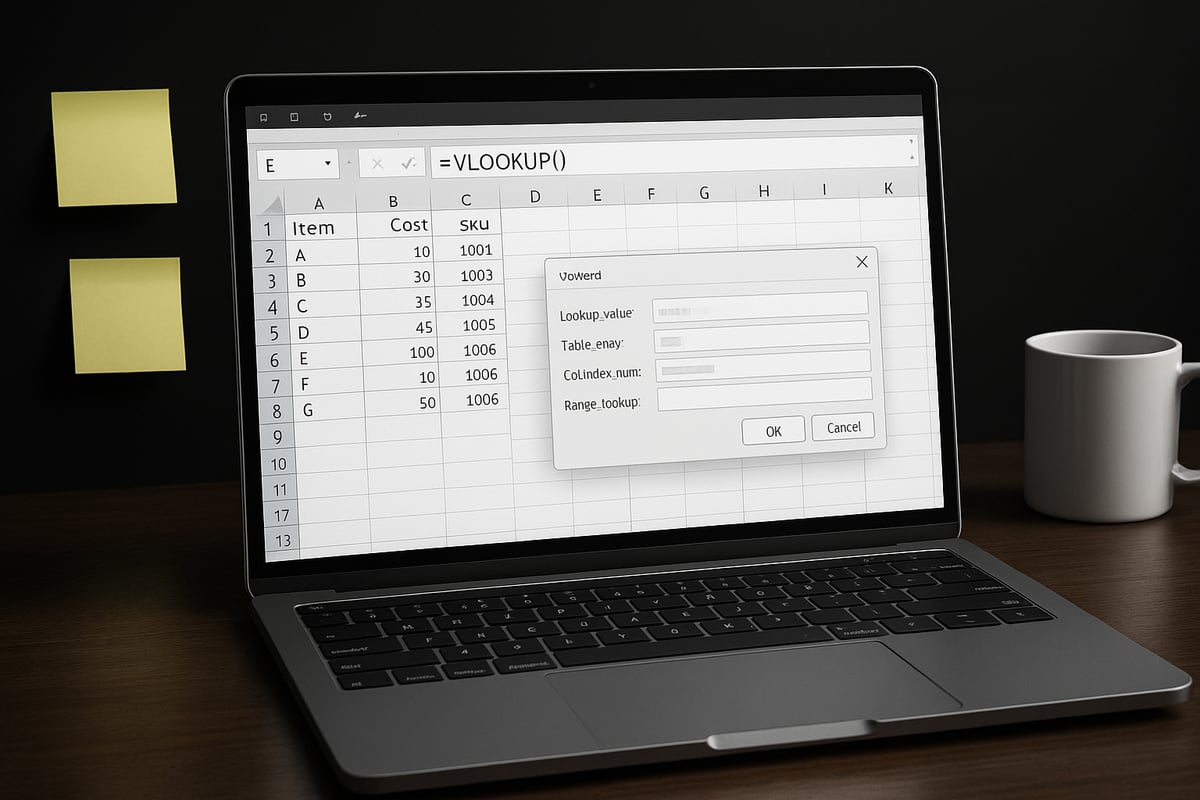
For users who prefer a guided approach, Excel’s built-in VLOOKUP wizard streamlines the excel vlookup how to process. Navigate to the Formulas tab, then click on Lookup & Reference, and select VLOOKUP. A dialog box will appear, prompting you to fill in the necessary fields.
This wizard asks for:
- Lookup value: the data you want to find.
- Table array: the range containing your data.
- Column index number: which column to retrieve the result from.
- Range lookup: choose TRUE or FALSE for match type.
By following the wizard, you reduce the risk of syntax errors. The excel vlookup how to method becomes more approachable, especially for those new to Excel formulas.
Suppose you are retrieving tournament information. Enter the participant’s name as the lookup value, select the relevant table, and specify which column holds the data you need. The wizard will build the formula for you and insert it directly into your selected cell.
Practical Example Scenarios
Understanding the excel vlookup how to approach is best achieved through real-world examples. Here are several scenarios where VLOOKUP proves invaluable:
- Employee Information: Find an employee’s department by entering their ID.
- Product Lookup: Retrieve a product category from a sales list using its item code.
- Data Merging: Combine customer details from two worksheets into one report.
- Sales Automation: Automatically pull commission rates for your team based on sales data.
For instance, imagine you have two separate spreadsheets for inventory and sales. Use VLOOKUP to match product codes and bring stock levels into your sales report. This not only saves time but also reduces manual errors.
Here is a quick summary table:
| Scenario | Lookup Value | Table Array | Result |
|---|---|---|---|
| Employee Department | Employee ID | HR database | Department |
| Product Category | Product Code | Sales list | Category |
| Combine Data | Customer ID | Both sheets | Full record |
| Commission Rate | Salesperson | Commission list | Rate |
By mastering these scenarios, the excel vlookup how to technique becomes a key part of your data toolkit.
Advanced VLOOKUP Techniques for Power Users
Mastering advanced techniques is crucial if you want to unlock the full potential of the excel vlookup how to approach. Whether you work with complex datasets, dynamic ranges, or need to automate workflows, these strategies will elevate your lookup skills and make your formulas more robust.
Using VLOOKUP with Named Ranges and Dynamic Data
One advanced excel vlookup how to technique is using named ranges. Named ranges make formulas easier to read and maintain, especially when your data expands or contracts.
To create a named range, select your data, go to the Name Box, and type a descriptive name. For example, ProductList. Now, instead of referencing A2:B100 in your VLOOKUP, use ProductList, making your formula flexible if the table size changes.
When your dataset grows, update the named range, and all linked VLOOKUP formulas adjust automatically. This reduces errors and supports scalable data models.
Handling Approximate vs. Exact Match
Understanding when to use approximate or exact matches is a key excel vlookup how to skill. The range_lookup argument controls this behavior.
Use FALSE for exact matches, such as when looking up unique IDs. Use TRUE for approximate matches, like grading scales, but only if your lookup column is sorted in ascending order. Unsuitable use of approximate matching on unsorted data can lead to incorrect results.
For instance, retrieving a letter grade based on score ranges requires TRUE, while finding a product by SKU needs FALSE. Always check your data’s order and match type for reliable lookups.
Error Handling with IFERROR and ISNA
Advanced users know that excel vlookup how to mastery means handling errors gracefully. The most common error, #N/A, appears when a value is not found. To manage this, wrap your VLOOKUP in IFERROR:
=IFERROR(VLOOKUP(A2, ProductList, 2, FALSE), "Not Found")
Alternatively, use ISNA to distinguish between missing data and other errors. This approach lets you display custom messages or alternative calculations, improving the user experience and making your spreadsheets more professional.
Multi-Sheet and Multi-File VLOOKUP
If your data lives across multiple sheets or workbooks, excel vlookup how to methods can still help. Reference another sheet by including its name:
=VLOOKUP(A2, Sheet2!$A$2:$B$100, 2, FALSE)
For external files, use the full file path and sheet name. Ensure both workbooks are open to avoid reference errors. This approach is essential for consolidating reports or combining departmental data, and it keeps your analysis centralized and efficient.
Using VLOOKUP with Data Validation and Dropdowns
Combining excel vlookup how to strategies with data validation unlocks dynamic forms. Create dropdowns for lookup values using Data Validation, then auto-populate related fields based on the selection.
For instance, select a customer ID from a dropdown, and VLOOKUP returns the address automatically. This minimizes errors, speeds up data entry, and enhances accuracy. For a deeper dive into validation techniques, check out this guide on data validation rules in Excel.
By integrating these advanced methods, you future-proof your lookup workflows and keep your Excel skills ahead of the curve.
Troubleshooting VLOOKUP: Common Problems and Solutions
Mastering the excel vlookup how to process means understanding not just how to use the function, but also how to troubleshoot common issues that can arise. Even seasoned users encounter errors that can disrupt analysis and reporting. Let’s break down the most frequent VLOOKUP problems and practical solutions.

Diagnosing Typical VLOOKUP Errors
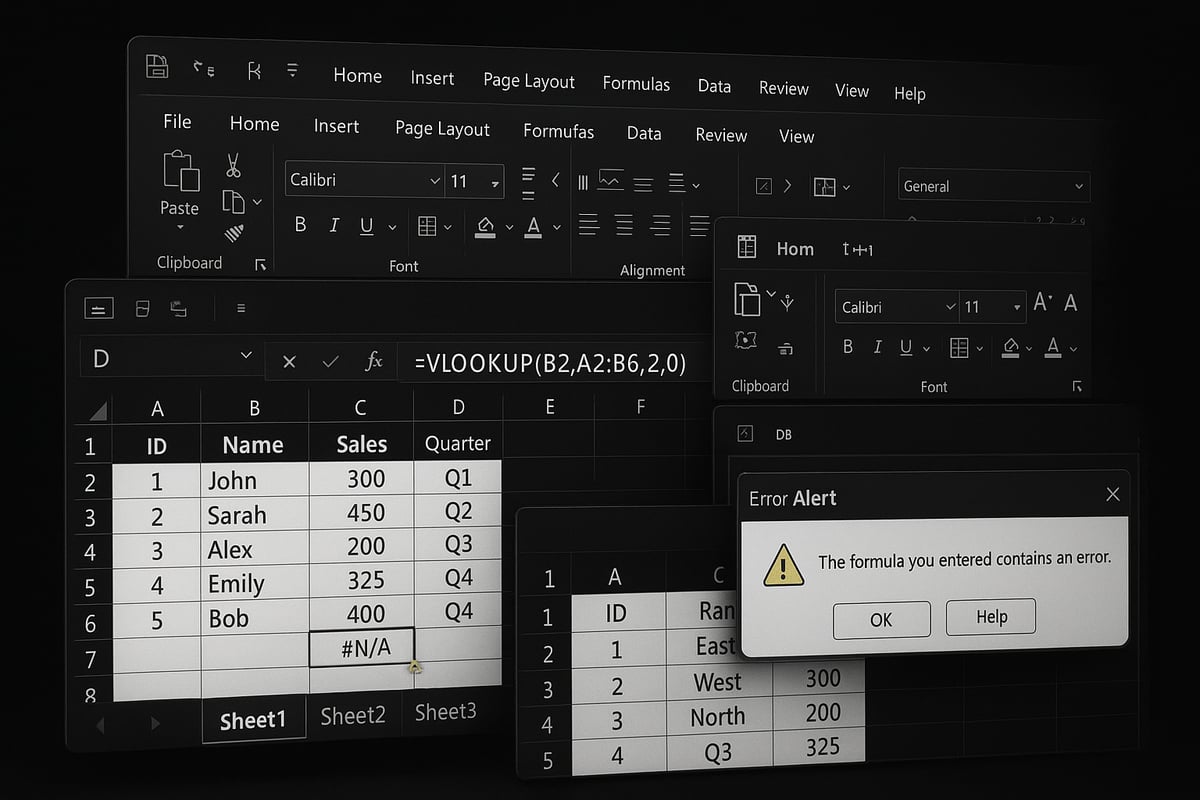
When using excel vlookup how to formulas, three main errors commonly appear:
| Error | Cause | Solution |
|---|---|---|
| #N/A | Lookup value not found | Check data match |
| #REF! | Column index out of range | Adjust col_index |
| #VALUE! | Wrong data type or argument structure | Fix formula input |
The #N/A error signals that the lookup value is missing in the first column of your table. A #REF! error means your col_index_num is higher than the number of columns in your range. #VALUE! often points to a mismatch in data types or an incorrectly structured formula. Always double-check your formula components and table layout.
Fixing Data and Formula Issues
Many excel vlookup how to issues stem from data mismatches. If your lookup_value is text but your table column is numeric (or vice versa), the lookup will fail. Inconsistent formatting, such as leading or trailing spaces, can also cause problems.
To resolve these, use Excel’s TRIM function to clean up extra spaces, or the VALUE function to convert text numbers into actual numbers. Make sure your lookup_value and the first column of your table_array are formatted the same way. Always scan for duplicates or inconsistencies before running your formula.
Dealing with Inserted or Deleted Columns
A common excel vlookup how to pitfall is changing your table structure after setting up formulas. If you insert or delete columns inside your table_array, your col_index_num might now reference the wrong column, leading to errors or inaccurate results.
To avoid this, consider using named ranges or the MATCH function inside your VLOOKUP to dynamically reference columns. This approach helps your formulas adapt to changes in your data layout, reducing the risk of broken lookups.
Understanding VLOOKUP’s Left-to-Right Limitation
VLOOKUP only searches from left to right within your table_array. If you need to look up a value to the left of your key column, VLOOKUP cannot help directly. You must rearrange your data or use alternative functions.
If you want to explore more flexible lookup methods, check out this VLOOKUP limitations and alternatives resource for practical solutions like INDEX/MATCH and XLOOKUP, which overcome many of VLOOKUP’s constraints.
Tips for Reliable VLOOKUP Performance
For consistent excel vlookup how to results, always use absolute references (e.g., $A$2:$C$16) for your table_array. Regularly audit your lookup tables for outdated or incorrect data. Document your formulas clearly, especially if others will use your workbook.
Lastly, keep your data clean and organized. Consistency in formatting and structure is key to preventing the majority of lookup errors.
VLOOKUP vs. XLOOKUP and Other Lookup Alternatives
Understanding the differences among Excel's lookup functions is essential for anyone searching for an effective excel vlookup how to guide. In this section, you will learn how VLOOKUP, HLOOKUP, and XLOOKUP compare, and when to use each function for optimal results.
Comparing VLOOKUP, HLOOKUP, and XLOOKUP
Excel provides several lookup functions, each with unique strengths. VLOOKUP performs vertical searches in tables, while HLOOKUP looks horizontally across rows. XLOOKUP, the newest addition, offers more flexibility.
| Function | Direction | Lookup Flexibility | Compatibility |
|---|---|---|---|
| VLOOKUP | Vertical | Left to right | Universal |
| HLOOKUP | Horizontal | Top to bottom | Universal |
| XLOOKUP | Both | Any direction | Excel 365+ |
For users seeking a comprehensive excel vlookup how to comparison, understanding these distinctions is crucial. VLOOKUP is ideal for legacy workbooks, whereas XLOOKUP is recommended for modern, complex lookups.
Key Advantages of XLOOKUP Over VLOOKUP
XLOOKUP resolves many of VLOOKUP's limitations. It can search in any direction, eliminating the left-to-right constraint. XLOOKUP does not require column numbers; instead, you reference the exact column, reducing errors when tables change.
In addition, XLOOKUP gracefully handles missing values and allows for default responses. For a step-by-step guide, see How to use XLOOKUP in Excel.
With XLOOKUP, the excel vlookup how to workflow becomes more reliable and less prone to breakage during data updates.
When to Use Each Function
Choosing between these functions depends on your task. Use VLOOKUP for straightforward, vertical lookups in older files. HLOOKUP is best for horizontal tables, though it is less common.
XLOOKUP is preferred for new projects, as it handles both vertical and horizontal data, supports backward compatibility, and offers advanced error management. If you are searching for an excel vlookup how to approach that is future-proof, XLOOKUP is the top choice.
Migrating from VLOOKUP to XLOOKUP
Switching from VLOOKUP to XLOOKUP is straightforward. Identify existing VLOOKUP formulas and replace them with XLOOKUP syntax. For example:
=VLOOKUP("A102", A2:C100, 2, FALSE)
becomes
=XLOOKUP("A102", A2:A100, B2:B100, "Not Found")
This migration enhances reliability and supports evolving data structures. Anyone focused on excel vlookup how to best practices should consider updating their workbooks.
Other Lookup Functions: INDEX/MATCH
INDEX/MATCH is a powerful alternative, especially when you need to look up values to the left or require more flexibility. This combo function is often preferred for advanced lookup scenarios.
For example:
=INDEX(B2:B100, MATCH("A102", A2:A100, 0))
Unlike VLOOKUP, this method is not limited by column direction. For a deeper comparison, consult INDEX MATCH vs VLOOKUP. When you need an excel vlookup how to solution for complex tasks, INDEX/MATCH is a valuable addition to your toolkit.
Real-World Applications and Expert Tips for Mastering Lookup Skills
Unlocking the potential of the excel vlookup how to function transforms everyday data tasks into streamlined, error-free processes. Whether you manage inventory, process payroll, or analyze sales data, mastering lookup skills is essential for business efficiency and confidence.
Practical Business Use Cases for VLOOKUP
For many professionals, the excel vlookup how to process is a daily necessity. In inventory management, VLOOKUP lets you instantly retrieve stock levels, reorder points, or supplier information from sprawling product lists.
Human Resources teams rely on it to pull employee details, departmental data, or benefits status from large databases. Financial analysts use VLOOKUP to link accounts, reconcile transactions, or automate monthly reporting. In sales environments, VLOOKUP automates commission calculations and tracks performance targets.
A practical scenario involves comparing two versions of a spreadsheet to identify discrepancies, which is a common task for auditors and managers. If you want to learn more, check out this guide on how to compare two Excel spreadsheets using lookup techniques and best practices.
Expert Tips for Efficient Lookup Workflows
To get the most out of excel vlookup how to methods, focus on creating error-resistant workflows. Start by using data validation rules to minimize input mistakes in your lookup tables. This ensures only valid values are entered, reducing the risk of formula errors.
Combine VLOOKUP with conditional formatting to highlight missing or mismatched data instantly. Regularly audit your formulas, especially after updating data sources, to ensure accuracy and reliability.
Document lookup tables and formulas using clear naming conventions and comments. This helps teams collaborate efficiently and makes troubleshooting easier when scaling up your operations.
Advanced Lookup Scenarios
Once you have mastered the basics, advanced excel vlookup how to scenarios can further accelerate your workflow. Nested VLOOKUPs are useful for multi-level lookups, such as finding a manager's email by first retrieving their ID from one table, then their contact details from another.
Leverage array formulas to process batch lookups, retrieving multiple values at once. Integrating VLOOKUP with macros allows for automation of repetitive lookup tasks, saving hours each month.
These techniques are especially valuable in environments that require frequent data consolidation, such as finance or project management, where speed and accuracy are critical.
Staying Updated: VLOOKUP in Excel 2026 and Beyond
The excel vlookup how to skillset remains crucial as Excel evolves. In Excel 2026, new features like dynamic arrays and enhanced cloud compatibility improve lookup efficiency and collaboration.
Cloud-based Excel offers real-time updates, making lookup tables accessible to distributed teams. As lookup functions receive periodic upgrades, staying informed about new capabilities ensures your workflows remain future-proof.
Regularly review Microsoft’s release notes and experiment with new features to keep your lookup skills sharp and relevant.
Resources for Further Learning
Continuous improvement is key to mastering excel vlookup how to techniques. Start with official Microsoft Excel documentation for in-depth explanations and updates. Enroll in reputable online courses to deepen your understanding and explore advanced functions.
Participate in community forums to exchange solutions and discover innovative lookup strategies. Bookmark expert blogs and tutorials for step-by-step guides and troubleshooting support.
By leveraging these resources, you ensure your lookup skills keep pace with Excel’s ongoing evolution.