Over 750 million people rely on Excel for business decisions, yet manual data entry often leads to costly errors. Imagine streamlining workflows and reducing mistakes with a simple, interactive drop list. This expert guide reveals how to make a drop list in excel using the latest 2026 features, empowering you to boost data accuracy and efficiency. Discover essential concepts, setup steps, advanced customization, troubleshooting tips, and real-world applications. Ready to transform your spreadsheets? Follow this step-by-step guide for seamless data management.
Understanding Drop Lists in Excel
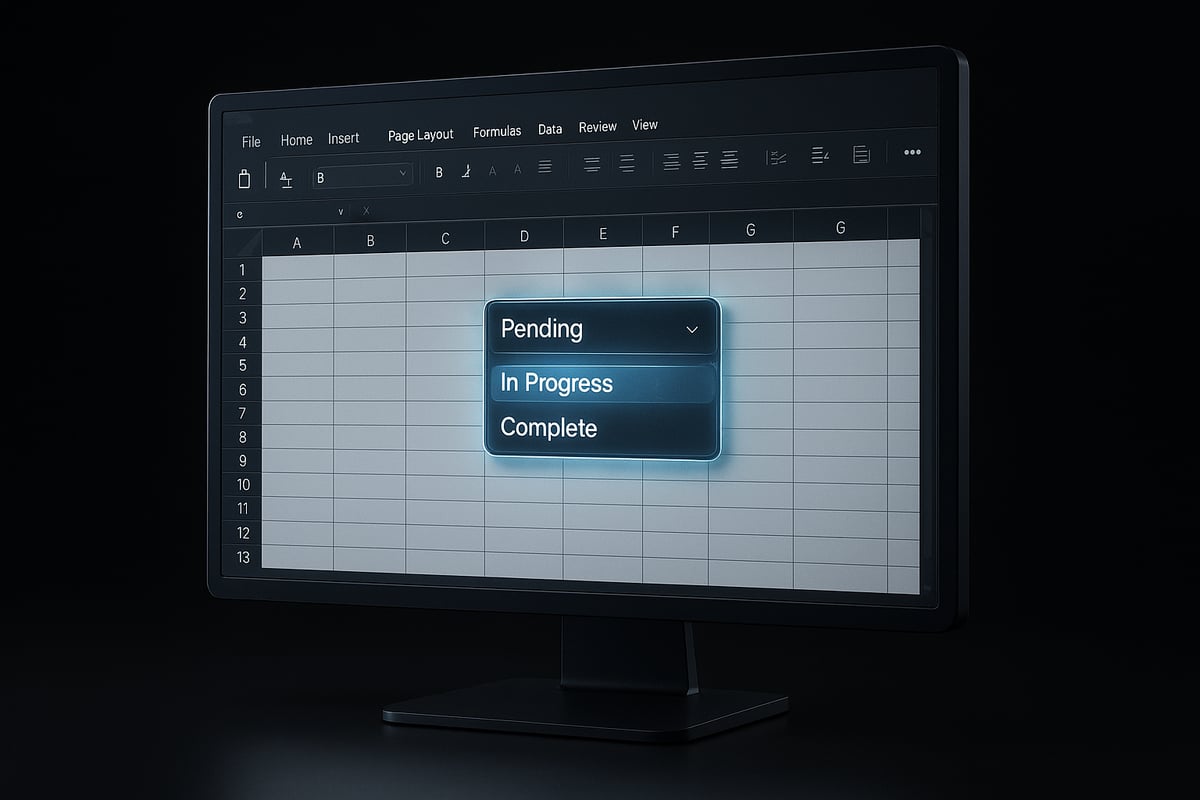
Drop lists, also called drop-down lists, are a cornerstone of modern Excel data management. If you have ever wondered how to make a drop list in excel, you are not alone. These interactive lists let users select a value from a predefined set, ensuring accuracy and consistency in every entry. For those seeking a detailed walkthrough, How to create a drop-down list provides clear, step-by-step guidance.
What Is a Drop List in Excel?
A drop list in Excel is a user-friendly control embedded in a cell that allows selection from a set of options. This feature streamlines data entry by limiting choices to only valid responses. Knowing how to make a drop list in excel is vital for anyone who wants to prevent typos or input mistakes. Drop lists are part of Excel’s broader data validation tools, but they stand out for their ease of use and visual clarity.
Why Use Drop Lists: Key Benefits
Implementing drop lists offers several advantages:
- Data Consistency: Only approved values can be entered.
- Fewer Errors: Restricting choices prevents invalid data.
- Faster Entry: Users quickly select from options rather than typing.
Compared to input messages or error alerts, drop lists are proactive. They guide users before mistakes occur, rather than after. Learning how to make a drop list in excel is a practical way to build smarter, more reliable spreadsheets.
| Feature | Drop Lists | Input Messages | Error Alerts |
|---|---|---|---|
| Proactive Guidance | Yes | No | No |
| Prevents Invalid Data | Yes | No | Yes |
| User Experience | High | Medium | Medium |
Where Drop Lists Matter Most
Drop lists excel in scenarios where accuracy is critical. Common use cases include:
- Data entry forms, where you want uniform responses
- Dashboards, to filter reports quickly
- Inventory sheets, for standardized product names or codes
According to Microsoft, over 60 percent of business spreadsheets use data validation, with drop lists being the most popular method. Understanding how to make a drop list in excel can transform processes in HR onboarding, project management, and finance.
Types of Drop Lists and Excel’s Evolution
There are two main types of drop lists:
- Single-select: Users pick one value per cell.
- Multi-select: Users can choose multiple options, often using workarounds or scripts.
Excel’s drop list functionality has evolved steadily. Early versions offered basic lists, but Excel 2026 introduces improved support for dynamic sources, richer formatting, and better integration with external data. As workplace needs grow, mastering how to make a drop list in excel remains a core skill for business professionals.
Preparing Your Data for Drop Lists
Preparing your data is a crucial first step in how to make a drop list in excel. Well-organized source data ensures your drop lists work smoothly and prevent errors. Before you start building, invest time in cleaning and structuring your data for long-term reliability.
Why Clean Data Matters
When considering how to make a drop list in excel, remember that drop lists are only as reliable as their source data. Clean, consistent data eliminates confusion and ensures users select valid options every time.
Inconsistent entries, hidden spaces, or blank cells can cause drop lists to display missing or duplicate values. This not only frustrates users but also undermines the integrity of your spreadsheet.
Start by reviewing your data for typos, extra spaces, or inconsistent capitalization. Keeping your source list tidy lays a solid foundation for dependable drop lists.
Formatting Your Source List
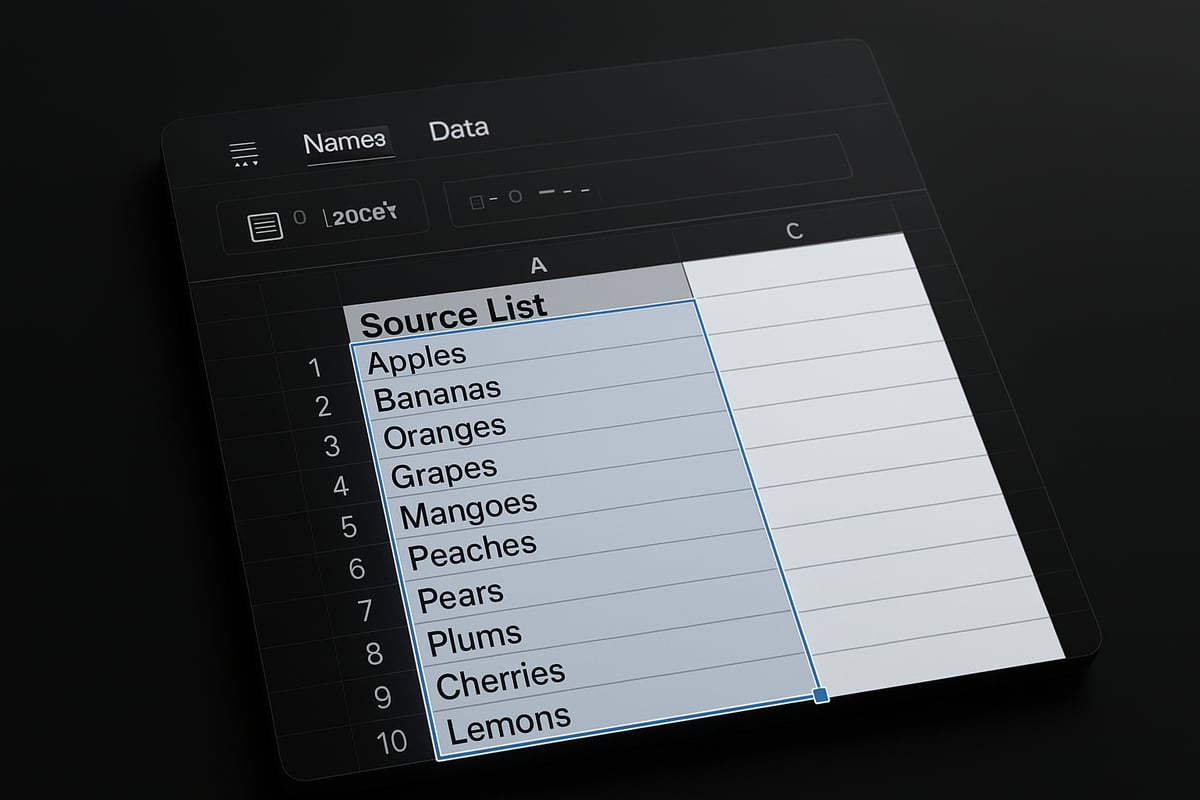
Proper formatting is essential in how to make a drop list in excel. Source lists should be a single column, with each option occupying its own cell. Avoid leaving blank rows, as these can introduce empty selections in your list.
Ensure all items use the same data type. For example, do not mix numbers and text in one list. Consistent formatting helps Excel recognize your list and apply validation rules accurately.
For best results, place your source list on a separate worksheet or a dedicated area. This approach keeps your main data clean and makes updates easier as your list evolves.
Static and Dynamic Drop Lists
Understanding the difference between static and dynamic lists is key to how to make a drop list in excel. A static list contains a fixed set of values, while a dynamic list updates automatically as you add or remove items.
To create a dynamic drop list, convert your source data into an Excel Table. Tables expand automatically when new data is added, ensuring your drop list always reflects the latest options.
Consider naming your source range using the Name Manager. Named ranges like "DepartmentList" make it easier to reference your data and enhance clarity, especially in complex workbooks.
Best Practices and Common Pitfalls
Mastering how to make a drop list in excel means avoiding common mistakes. Check for duplicate entries that can confuse users. Sort your list alphabetically for a more intuitive experience.
Remove hidden characters and avoid merged cells, as these disrupt drop list functionality. If you need help, learn how to remove duplicate records in Excel for a streamlined source list.
Always test your drop list on both Excel 2026 and earlier versions to confirm compatibility. Document your source data location and naming conventions, so others can maintain your spreadsheet with ease.
Step-by-Step: How to Make a Drop List in Excel
Mastering how to make a drop list in excel is essential for modern data management. With Excel 2026, the process is more intuitive and robust, supporting both beginners and advanced users. This section will take you through each step, ensuring you can create, customize, and troubleshoot drop lists for any scenario.
Accessing Data Validation Tools
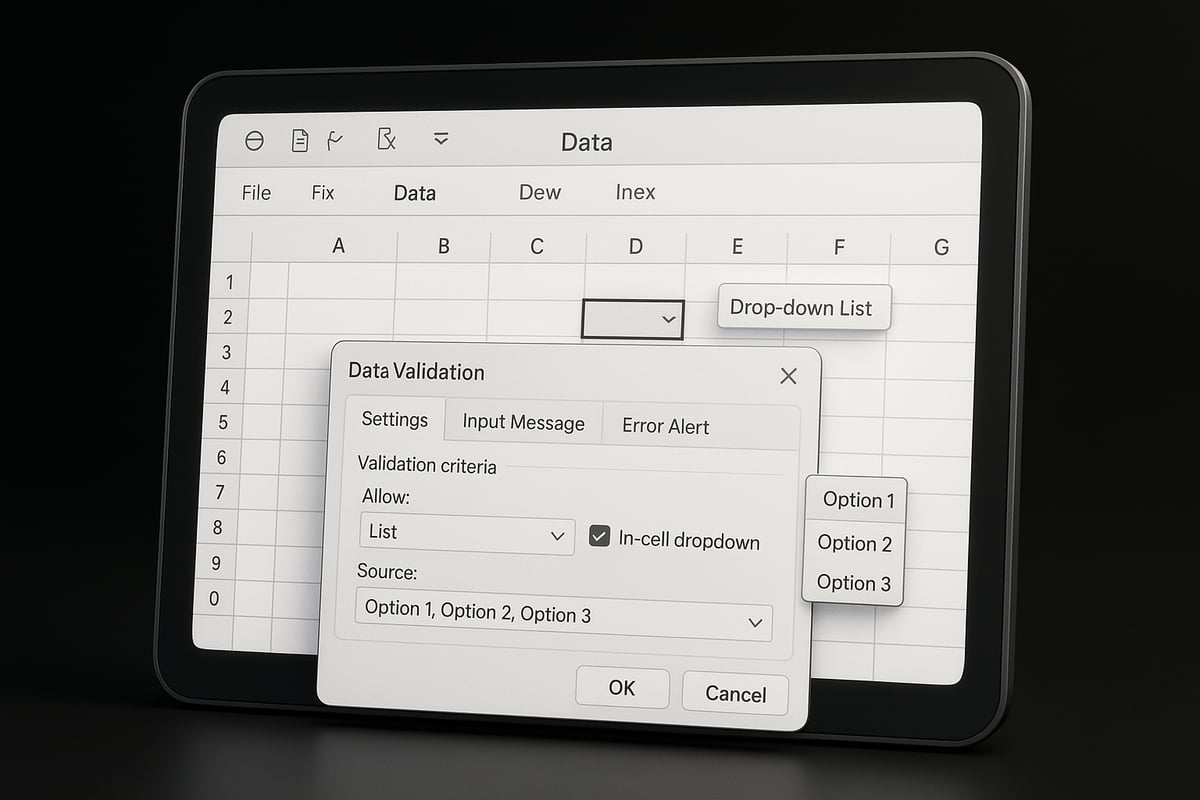
The first step in how to make a drop list in excel is accessing the Data Validation tools. In Excel 2026, you will find Data Validation under the “Data” tab in the ribbon. The icon is now visually distinct, featuring a shield with a checkmark, making it easier to spot.
If you are accustomed to earlier versions, you will notice that the layout has been streamlined. The Data Validation dialog box now opens with a simplified interface, showing validation options front and center.
For quicker access, use the keyboard shortcut: Alt + D + V + V. This shortcut launches the Data Validation dialog instantly, saving you time during frequent edits. The dialog box is crucial, as it is where you set up all validation criteria for your drop lists.
You can also right-click a cell, select “Data Validation” from the context menu, and jump directly to the setup screen. These changes in Excel 2026 are designed to speed up the workflow for anyone learning how to make a drop list in excel.
Creating a Basic Drop List
Once you have the Data Validation dialog open, follow these steps to learn how to make a drop list in excel:
- Select the target cell or range where you want your drop list.
- Click “Data Validation” in the ribbon or use the shortcut.
- In the dialog, set “Allow” to “List.”
- Enter your list values separated by commas (e.g.,
Pending, In Progress, Complete), or reference a cell range containing your list.
Here is a quick example:
- Select cell B2 for a project status drop list.
- In the Source box, enter:
Pending, In Progress, Complete. - Click OK. Now, B2 features a clickable drop arrow with your options.
You can reference a range as well:
- Prepare your list in cells E1:E3.
- In the Source box, enter:
=$E$1:$E$3.
For more tips on both simple and dependent lists, see this Excel drop-down list best practices guide.
If you need to edit the list later, revisit the Data Validation dialog and update the Source. Each step above is fundamental in how to make a drop list in excel, ensuring consistent data entry and fewer errors.
Using Named Ranges and Excel Tables
To elevate how to make a drop list in excel, use Named Ranges or Excel Tables for your source data. Named Ranges simplify referencing and improve clarity, especially in complex workbooks.
To define a Named Range:
- Highlight your list (e.g., E1:E10).
- Click in the Name Box (left of the formula bar), type a name (e.g.,
StatusList), and press Enter.
Now, in your Data Validation Source, type: =StatusList. This makes your drop list easier to manage and update.
For dynamic lists, convert your source to an Excel Table:
- Select your list, then click “Insert” > “Table.”
- Name your table in the Table Design tab (e.g.,
EmployeeTable). - Reference the table column in Data Validation, such as
=EmployeeTable[Name].
With Excel Tables, any new item added to the list is automatically included in your drop list. This is a game-changer for how to make a drop list in excel with data that changes frequently.
Here’s a comparison:
| Feature | Named Range | Excel Table |
|---|---|---|
| Static List | Yes | No |
| Dynamic Updates | No | Yes |
| Easy Reference | Yes | Yes |
Using these features ensures your drop lists remain flexible and robust.
Adding Input Messages and Error Alerts
Another important aspect of how to make a drop list in excel is guiding users with input messages and error alerts.
To add an input message:
- In the Data Validation dialog, switch to the “Input Message” tab.
- Enter a helpful title (e.g., “Select Status”) and a message (e.g., “Choose from the drop list to update status”).
This message appears when the cell is selected, offering guidance before data entry.
To set up error alerts:
- Go to the “Error Alert” tab.
- Choose a style (Stop, Warning, or Information).
- Enter a custom error message, such as “Please choose only from the options in the drop list.”
Custom alerts prevent accidental or invalid entries, reinforcing the effectiveness of how to make a drop list in excel for data accuracy.
Creating Dependent (Cascading) Drop Lists
For advanced users, learning how to make a drop list in excel often means creating dependent or cascading lists. These allow one drop list’s options to change based on a previous selection.
For example, selecting a country in one cell filters the available cities in the next.
Step-by-step:
- List main categories (e.g., Countries) in one column.
- Next to each, list subcategories (e.g., Cities) in separate columns or sheets.
- Name each subcategory range exactly as the main category (no spaces).
- In the dependent drop list’s Data Validation Source, use the
=INDIRECT(A2)formula, whereA2is the first drop list.
Excel 2026 may offer new functions for easier cascading lists, but INDIRECT remains widely compatible.
Example:
- A1: “USA”, “Canada”
- B1:B3: “New York”, “Los Angeles”, “Chicago”
- C1:C2: “Toronto”, “Vancouver”
Selecting “USA” in A2 enables only US cities in B2.
Keep in mind:
- Avoid spaces in range names.
- Test thoroughly, as complex cascading lists can be sensitive to typos.
Mastering this technique expands what’s possible when exploring how to make a drop list in excel for project management, forms, and dashboards.
Advanced Drop List Customization
Excel’s drop list customization capabilities have expanded dramatically, especially in the latest versions. Mastering advanced options for how to make a drop list in excel enables you to create interactive, user-friendly spreadsheets that adapt to any workflow.
Whether you are aiming for a polished look, need multi-select functionality, or want lists that update automatically, the right customization techniques will take your data management to the next level.
Formatting and Styling Drop Lists
A well-designed drop list does more than just restrict input. Visual cues help users navigate and select data accurately. When learning how to make a drop list in excel, start by applying cell formatting for clarity.
You can:
- Change font color or background based on selection
- Use bold or italics for emphasis
- Adjust borders for better visibility
Conditional formatting is especially powerful. For example, you can automatically color-code selections by category. To do this, use the Conditional Formatting tool with a formula like =A2="Complete" and apply a green fill to highlight completed tasks.
Tables are also useful for summarizing formatting options:
| Formatting Option | Purpose | Example Use |
|---|---|---|
| Font Color | Highlight status or priority | Red for "Urgent" |
| Conditional Formatting | Visual feedback on selection | Green for "Approved" |
| Borders | Delineate drop list areas | Thick outline for input |
Consistent formatting not only improves the look but also boosts user confidence and reduces mistakes in how to make a drop list in excel.
Allowing Multiple Selections (Workarounds)
By default, Excel drop lists only allow a single selection. However, many scenarios—such as assigning multiple team members to a project—require multi-select capability. Understanding how to make a drop list in excel with multiple selections involves creative workarounds.
Options include:
- VBA macros: Write a simple VBA script to append multiple selections in a cell. For example:
Private Sub Worksheet_Change(ByVal Target As Range)
    If Not Intersect(Target, Range("B2")) Is Nothing Then
        If Target.Validation.Type = 3 Then
            If InStr(Target.Value, ",") = 0 Then
                Target.Value = Target.Value
            Else
                Target.Value = Target.Value & ", " & Target.Value
            End If
        End If
    End If
End Sub
- Office Scripts: In Excel for the web, use Office Scripts to mimic multi-select behavior.
- Checkboxes: For simple lists, insert form controls or ActiveX checkboxes, though this is more manual.
Remember to inform users when a drop list supports multi-selection. Include a note or input message. While this feature is not native, these workarounds enable advanced scenarios in how to make a drop list in excel.
Dynamic Drop Lists with Formulas
To maximize efficiency, dynamic drop lists adjust automatically as data changes. When setting up how to make a drop list in excel, leverage formulas and structured references for flexibility.
Use the following strategies:
- Excel Tables: Convert your source list into a Table. The drop list will expand as you add items.
- Formulas: Use
FILTER,SORT, orUNIQUEto create lists that react to user input or other criteria. - Example: Create a drop list that only shows available products based on inventory status:
=FILTER(Products[Name], Products[Stock] > 0)
This approach ensures your drop lists are always current. For a comprehensive guide on dynamic and advanced options, see Advanced Excel drop-down list techniques.
Dynamic drop lists are particularly useful for dashboards and forms, making how to make a drop list in excel adaptable for any business case.
Drop Lists with Data from External Sources
Integrating drop lists with external data sources broadens their usefulness. If your workflow depends on real-time updates, knowing how to make a drop list in excel that pulls from SharePoint, Power Query, or cloud databases is essential.
Best practices include:
- Use Power Query to connect to external tables, then reference the query output as your drop list source.
- For SharePoint or OneDrive, ensure links are stable and permissions are set correctly.
- Refresh data connections regularly to keep lists up to date.
Security is crucial. Limit access to sensitive external data and use error alerts to handle sync issues. For example, a sales team might use a drop list that always reflects the latest product catalog from a shared database.
By mastering these advanced techniques, you ensure how to make a drop list in excel meets the highest standards of automation and reliability.
Troubleshooting and Best Practices
Efficient troubleshooting is essential for anyone learning how to make a drop list in excel, especially with the advanced features in Excel 2026. Even experienced users encounter occasional hiccups, such as drop lists not appearing or validation errors disrupting workflow. Identifying these issues early helps maintain data integrity and ensures your spreadsheet processes stay smooth.
Common Issues and Solutions
Blank drop lists or missing items often stem from misconfigured source ranges or hidden characters in your source data. Always check for merged cells, inconsistent formatting, or unintentional blank rows. If your drop list is not displaying as expected, verify that the Data Validation settings are referencing the correct range and that there are no leading or trailing spaces.
Validation errors can occur if users attempt to enter values outside your predefined list. To address this, set up clear input messages and custom error alerts. For further guidance on maintaining robust validation, refer to Data validation rules in Excel.
Maintenance and Cross-Platform Tips
When learning how to make a drop list in excel, remember to check compatibility across Windows, Mac, and Excel Online. Some advanced features or VBA scripts may behave differently between platforms. Test your drop lists in the environments your team uses most.
Shared workbooks require extra attention. Changes to source ranges or tables can disrupt existing drop lists, so always communicate updates to collaborators. For dynamic lists, using Excel Tables helps ensure your drop lists update automatically as data changes. If you encounter issues in Excel 2026, review version-specific settings like enhanced validation options or new formula behaviors.
Reliability Checklist and Documentation
Maintaining reliable drop lists means following a checklist for best practices. Here is a quick reference:
| Task | Recommendation |
|---|---|
| Source data formatting | Single column, no blanks |
| Data type consistency | All entries same type |
| Range referencing | Use Named Ranges or Tables |
| Error alert setup | Custom messages |
| Regular testing | Verify on all platforms |
| Documentation | Comment complex validations |
Documenting your drop list logic is crucial for future updates or handovers. Add comments to cells, use descriptive names, and keep a version history. Feedback from recent Excel forums highlights the importance of clarity in collaborative files.
Adopting these best practices ensures that how to make a drop list in excel will remain smooth and error-free. Whether you are building simple lists or complex cascading menus, a systematic approach minimizes disruptions and supports consistent data entry. By staying organized and proactive, you will master how to make a drop list in excel for any business scenario.
Real-World Use Cases and Expert Tips
Unlocking the full power of Excel drop lists transforms everyday spreadsheets into robust tools for business and project management. When you understand how to make a drop list in excel, you open the door to streamlined workflows, fewer mistakes, and a more intuitive user experience.
Practical Applications in Business and Projects
Mastering how to make a drop list in excel is a game changer for organizations of any size. Consider inventory management: a drop list lets users select standardized product names, reducing costly errors and keeping reports consistent. No more typos or mismatched entries—just clean, reliable data.
Project tracking benefits significantly from drop lists. Team members can update task statuses by selecting from options like Pending, In Progress, or Complete. This ensures everyone is on the same page and progress can be monitored at a glance.
HR onboarding is another area where learning how to make a drop list in excel shines. New hires can be assigned to departments or roles using drop lists, which streamlines data collection and helps managers avoid duplication or inconsistent titles.
In financial modeling, scenario selection is simplified. Analysts use drop lists to toggle between projections, assumptions, or risk levels, making complex models more interactive and less prone to manual entry errors.
These practical applications illustrate why drop lists have become standard in modern Excel workflows. They enhance accuracy, save time, and provide a user-friendly interface for critical business processes.
Expert Tips for Efficiency and User Experience
Knowing how to make a drop list in excel is just the beginning—optimizing the user experience takes your spreadsheets to the next level. Start with keyboard shortcuts: after selecting a cell with a drop list, press Alt+Down Arrow to open the list quickly. This small tip can speed up data entry dramatically.
Visual cues make drop lists even more effective. Use conditional formatting to highlight selections or add icons next to key options. For example, color-code project statuses or use a green check for completed tasks. For more ideas on designing intuitive drop lists, explore User-friendly drop-down lists design for best practices.
Protecting drop list cells prevents accidental overwrites. Lock the cells after setting up your drop lists and protect the worksheet, ensuring only valid selections are made. This step is crucial in shared workbooks or when multiple users are involved.
Monthly reporting can also benefit from drop lists. Imagine a scenario where department leads update their metrics by simply picking from a list—fast, accurate, and consistent. By focusing on these expert tips, you maximize the benefits of knowing how to make a drop list in excel across different teams and processes.
Excel Training and Support from The Analytics Doctor
If you want to master how to make a drop list in excel or need help with advanced scenarios, The Analytics Doctor provides tailored Excel training and support. Services include one-on-one coaching for individuals seeking to deepen their skills and group workshops for teams aiming to standardize data entry practices.

Custom spreadsheet development is also available. Whether you need automated drop lists, data validation across large workbooks, or integration with external databases, The Analytics Doctor delivers expert solutions that drive real results.
Workflow optimization is a specialty. The team helps businesses leverage drop lists for improved accuracy and efficiency, ensuring your Excel solutions are robust and scalable. Free resources, templates, and guides are available to support users at every level.
For personalized consultation or to discuss custom Excel projects, reach out to The Analytics Doctor. Investing in expert guidance ensures you and your team can confidently apply how to make a drop list in excel to solve real business challenges and unlock the full potential of your data.