Tired of fighting messy Excel sheets and repeated values? You are not alone. Hidden duplicates can waste hours and lead to costly errors in your reports.
This expert guide reveals how to find duplicate in excel column using the latest features and techniques available in 2026. You will discover why duplicates matter, explore Excel’s built-in tools, unlock advanced methods, and get troubleshooting tips to keep your data accurate.
Ready to streamline your spreadsheets, reduce mistakes, and make better decisions? Follow this step-by-step guide for actionable, up-to-date solutions to master your data.
Why Finding Duplicates in Excel Matters

The Impact of Duplicate Data
Duplicate data in Excel can quietly undermine the accuracy and reliability of your reports. Even a single repeated value can distort totals, averages, and other calculations, leading to poor business decisions. For example, a finance team might unknowingly process the same invoice twice, resulting in overpayments and reconciliation headaches.
The financial consequences are significant. According to Gartner, poor data quality costs organizations an average of $12.9 million each year. Understanding how to find duplicate in excel column is crucial for maintaining trustworthy and actionable data.
Common Causes of Duplicate Entries
There are several ways duplicate entries can creep into your spreadsheets. Manual data entry is a frequent offender, especially when multiple team members contribute to the same file. Importing data from various sources can also introduce unintentional repeats. Copy-paste errors during data consolidation and automated system glitches further compound the issue.
Whenever you are learning how to find duplicate in excel column, it is essential to recognize these causes to prevent future problems.
When and Where Duplicates Commonly Occur
Duplicates are especially prevalent in large datasets, such as CRM exports and inventory lists. Sales tracking sheets, survey results, and form responses often contain repeated values, which can be hard to spot at first glance. The larger your dataset, the higher the risk of hidden duplicates slipping through.
By focusing on how to find duplicate in excel column, you can target these high-risk areas and maintain cleaner records.
The Benefits of Removing Duplicates
Removing duplicates delivers immediate benefits. Your analysis becomes more accurate, reports are more reliable, and costly mistakes are minimized. Teams save time by avoiding manual checks, boosting productivity and confidence in every decision.
To streamline your workflow and ensure you are using the latest techniques, explore resources like Check for duplicates in Excel for detailed step-by-step methods.
Key Arguments and Insights
It is important to remember that not all duplicates are mistakes. Sometimes, repeated values are intentional, such as tracking loyal repeat customers. Before removing any data, always consider the context and purpose of the information.
Developing a thorough understanding of how to find duplicate in excel column will help you use Excel’s built-in and advanced tools safely and effectively, ensuring you only remove what truly needs to go.
Built-In Excel Tools for Finding Duplicates
Keeping your data clean is crucial, especially when learning how to find duplicate in excel column efficiently. Excel's built-in tools empower users to spot and manage repeated values directly, saving time and reducing errors. Let us explore the most practical solutions for everyday spreadsheet challenges.
Conditional Formatting: Highlighting Duplicates
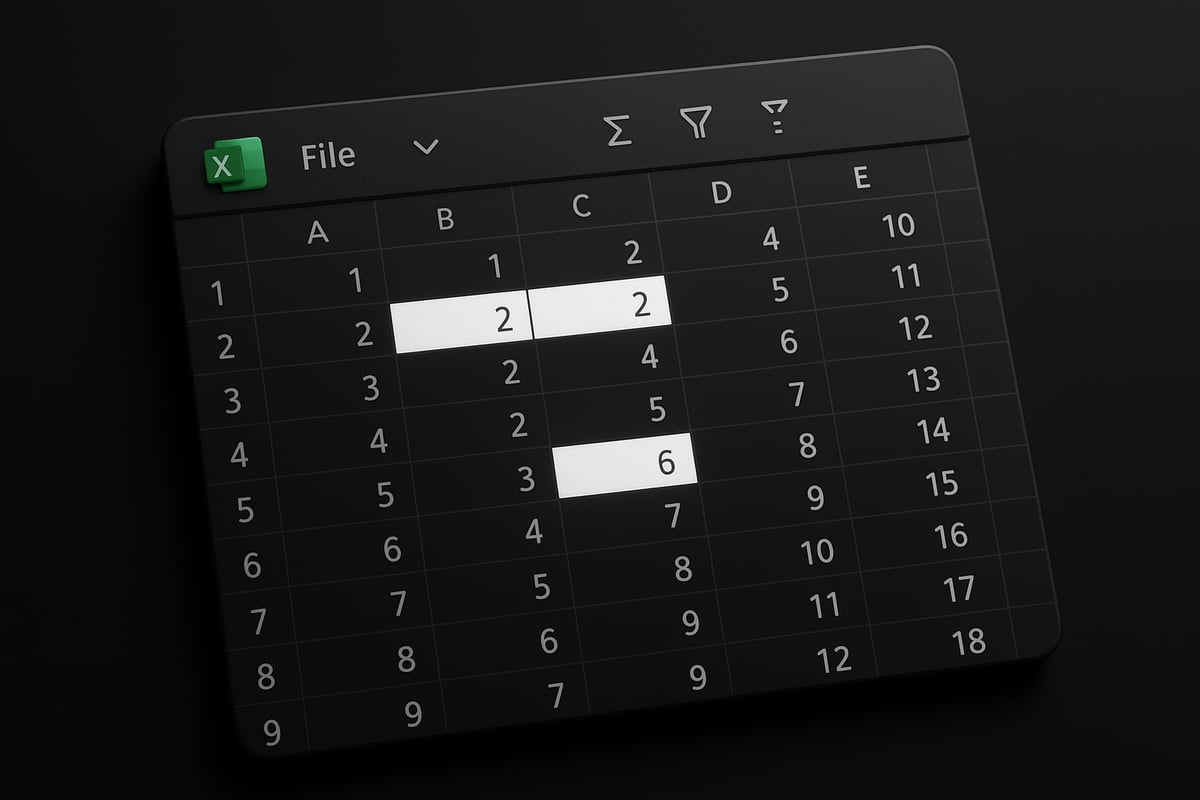
Conditional Formatting is one of the fastest ways to visually identify duplicates. To start, select the column where you want to learn how to find duplicate in excel column. Go to the Home tab, click Conditional Formatting, then choose Highlight Cells Rules and select Duplicate Values.
Excel will instantly highlight cells with repeated values. You can customize the highlight color for better visibility, making it easy to spot issues in customer IDs or product codes. This method is ideal for quick reviews before deeper data cleaning.
However, remember that Conditional Formatting only highlights duplicates. It does not remove or filter them, so further action is needed to fully resolve redundancy.
Remove Duplicates Feature: Clean Up Instantly
The Remove Duplicates feature is a powerful tool for anyone who wants to know how to find duplicate in excel column and clean up their data in seconds. Begin by selecting the data range, then go to the Data tab and click Remove Duplicates.
A dialog box will appear, allowing you to choose which columns to check for duplicates. After confirming your selections, Excel summarizes how many duplicates were removed and how many unique values remain. For example, if you manage a product list with thousands of SKUs, this feature can eliminate repeated entries with minimal effort.
According to Microsoft, over 65 percent of Excel users managing large datasets rely on this feature. While effective, always back up your data before using Remove Duplicates to avoid accidental loss.
Advanced Filters: Extracting Unique or Duplicate Values
Advanced Filters offer a more tailored approach for users focused on how to find duplicate in excel column with specific criteria. Start by creating a criteria range, then select your data range. Under the Data tab, choose Advanced in the Sort & Filter group.
Here, you can filter to show either unique records or only duplicate entries. You also have the option to extract filtered results to a new location, which is especially useful when working with mailing lists or survey responses.
For example, you may want to filter a mailing list to find repeated addresses for targeted follow-up. Advanced Filters provide flexibility and control for more complex scenarios.
Limitations and Best Practices
While built-in tools make it easy to learn how to find duplicate in excel column, there are some important limitations. Removing duplicates without reviewing can lead to accidental data loss. Always create a backup before making changes.
It is best practice to carefully review highlighted or flagged duplicates before deleting them. Excel's Undo feature can help reverse mistakes, but only if you spot them right away. Regularly audit your data and document any changes for transparency.
Taking these steps helps maintain data integrity and ensures that only unnecessary duplicates are removed from your spreadsheets.
Key Arguments and Perspectives
Excel's built-in tools are user-friendly and designed for fast, effective results when you need to know how to find duplicate in excel column. They are perfect for quick checks and straightforward data cleaning tasks.
However, for more complex needs, such as finding duplicates across multiple columns or sheets, you may want to explore advanced methods. For a deeper dive into these scenarios, see this Find duplicates across sheets guide.
Ultimately, built-in features are a great starting point, but understanding their limitations ensures you choose the best approach for your data. Combine these tools with careful review to achieve cleaner, more reliable results.
Advanced Methods: Formulas and Power Query
When basic tools are not enough, advanced methods provide the power and precision needed for how to find duplicate in excel column, especially in large or complex datasets. Whether you are an analyst or a data manager, these approaches let you automate, customize, and scale your duplicate detection process.

Using Excel Formulas to Find Duplicates
Formulas offer a flexible way to approach how to find duplicate in excel column, giving you control over detection and reporting. The most common methods use the COUNTIF and COUNTIFS functions.
For a single column, you can insert a helper column with this formula:
=COUNTIF(A:A, A2)>1
This returns TRUE if the value in A2 appears more than once. For multiple columns, use COUNTIFS to check combinations.
Array formulas allow dynamic duplicate checks. For example, to flag duplicate email addresses across two lists, try:
=IF(COUNTIF($B$2:$B$100, B2)>1, "Duplicate", "Unique")
Benefits include real-time updates and the ability to flag without removing data. However, formulas may slow performance in very large files. Always double-check for hidden characters or case differences, as these can affect results.
Leveraging Power Query for Complex Duplicate Detection
Power Query is ideal for how to find duplicate in excel column when dealing with multiple tables, sources, or very large datasets. It automates and streamlines the process, making it repeatable with just a few clicks.
Here is a typical workflow:
- Load your data into Power Query by selecting "From Table/Range" on the Data tab.
- Use the "Remove Duplicates" option on selected columns, or flag duplicates with custom steps.
- Preview the changes, then "Close & Load" to update your worksheet.
With Power Query, you can merge multiple tables, clean up merged sales data, or automate monthly duplicate checks. Its strength lies in handling hundreds of thousands of rows efficiently. Remember, Power Query does not change your original data unless you confirm the load, so always validate the results before finalizing.
VBA Macros for Automated Duplicate Management
If you regularly need how to find duplicate in excel column, VBA macros can automate the process and save time. Macros are ideal for routine or bulk checks, especially in standardized reports.
Here is an example macro to highlight duplicates in column A:
Sub HighlightDuplicates()
    Dim rng As Range
    Dim cell As Range
    Set rng = Range("A2:A1000")
    For Each cell In rng
        If WorksheetFunction.CountIf(rng, cell.Value) > 1 Then
            cell.Interior.Color = RGB(255, 199, 206)
        End If
    Next cell
End Sub
Always create a backup before running macros. Test scripts on small data samples to ensure they work as intended. Macros can be shared across workbooks, but be aware of compatibility and security settings, especially when collaborating.
Combining Methods for Robust Results
For the most reliable outcomes in how to find duplicate in excel column, combine advanced methods. For example, use formulas to flag potential duplicates, then Power Query to remove or export them. This layered validation minimizes the risk of accidental data loss and ensures no duplicate is overlooked.
You may also want to explore specialized Excel duplicate finder tools for even more advanced scenarios or integration with enterprise workflows.
A quick comparison:
| Method | Best for | Automation | Customization | Limitations |
|---|---|---|---|---|
| Formulas | Small to medium | Manual | High | Performance on large sets |
| Power Query | Large datasets | High | Moderate | Steeper learning curve |
| VBA Macros | Routine tasks | Very High | High | Security, maintenance |
Combining these tools supports a robust, repeatable, and scalable duplicate management workflow.
Key Arguments and Insights
Advanced methods for how to find duplicate in excel column offer flexibility, efficiency, and automation. They empower users to handle growing data volumes, complex structures, and evolving business needs.
While formulas, Power Query, and macros provide significant advantages, each comes with a learning curve and potential compatibility issues in shared workbooks. Always balance power with caution, and document your processes for team transparency.
Choose the method, or combination, that best aligns with your data complexity, team skill level, and workflow requirements. With practice, these advanced tools will transform your Excel experience, ensuring clean, accurate, and actionable data.
Step-by-Step Guide: How to Find Duplicates in Excel Column (2026 Edition)
Are you searching for the most reliable way to clean up your data? This step-by-step guide will walk you through how to find duplicate in excel column, using 2026’s latest tools. Whether you have a small list or a massive database, follow these steps to ensure your data is accurate, organized, and ready for analysis.
Step 1: Prepare and Backup Your Data
Before you begin, always make a backup. Data cleaning can be risky, especially when learning how to find duplicate in excel column. Start by saving a copy of your file with a new version name, such as “Q2_SalesData_Backup_2026.xlsx.”
Use Excel’s “Save As” feature or copy your worksheet to a new tab. This precaution ensures you can always revert to your original data if something goes wrong. Proper preparation is the first step toward error-free duplicate detection and peace of mind.
Step 2: Choose Your Duplicate Detection Method
Next, select the approach that best fits your needs. When considering how to find duplicate in excel column, think about your data’s size and complexity.
Here’s a quick comparison:
| Method | Best For | Skill Level |
|---|---|---|
| Conditional Formatting | Quick visual checks | Beginner |
| Remove Duplicates | Instant cleanup | Beginner |
| Formulas | Custom scenarios | Intermediate |
| Power Query | Large/complex datasets | Advanced |
For short lists, built-in tools suffice. For enterprise datasets, formulas or Power Query may be required.
Step 3: Apply Conditional Formatting
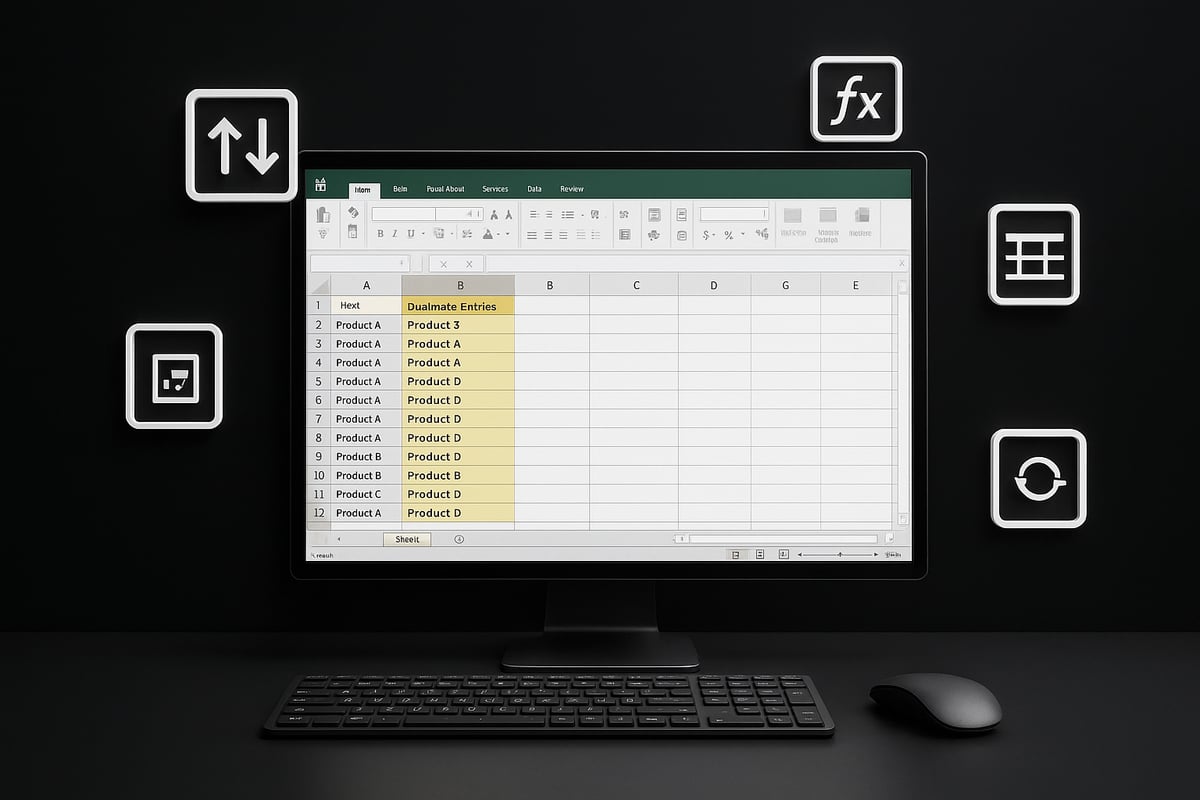
One of the easiest ways to start is with Conditional Formatting. To learn how to find duplicate in excel column using this method, select your column, go to the Home tab, and choose Conditional Formatting > Highlight Cells Rules > Duplicate Values.
Pick a color that stands out, like bright yellow, to instantly reveal repeated entries. This visual cue helps you spot issues quickly, but remember, this method only highlights duplicates, it does not remove them. Adjust formatting as needed for better clarity.
Step 4: Use Remove Duplicates Feature
For a fast cleanup, use the Remove Duplicates tool. This built-in feature is a staple for those learning how to find duplicate in excel column efficiently. Select your data, navigate to the Data tab, and click Remove Duplicates.
Choose the columns you want to check, review the summary dialog, and confirm your selections. Excel will remove duplicate rows, leaving only unique values. Always review the results to ensure no important data was lost during the process.
Step 5: Use Formulas for Custom Checks
Custom formulas offer greater control when figuring out how to find duplicate in excel column. Insert a helper column and use =COUNTIF(A:A, A2)>1 to flag duplicates in column A.
This formula returns TRUE for repeated entries. For more complex checks, use COUNTIFS for multi-column scenarios. Here’s an example:
=COUNTIF(A:A, A2)>1
This approach is ideal for flagging duplicates without deleting data, giving you flexibility in handling sensitive information.
Step 6: Power Query for Advanced Scenarios
Handling large datasets? Power Query is your ally when tackling how to find duplicate in excel column at scale. Import your data into Power Query, use the Remove Duplicates or Group By features, and load the cleaned results back to your worksheet.
This method is perfect for monthly reports or merging data from multiple sources. Power Query automates the process and reduces manual effort, making it a top choice for analysts and advanced users.
Step 7: Review and Validate Results
After cleaning, review your data carefully. Use filters and sorting to double-check for remaining issues. This step is crucial when perfecting how to find duplicate in excel column, as accidental data loss can occur.
For ongoing data hygiene, consider using Prevent duplicate data entry techniques to stop duplicates at the source. Regular audits and validation rules help maintain clean, reliable datasets for the long term.
Troubleshooting & Best Practices for Duplicate Management
Dealing with duplicate values in Excel can be frustrating, especially when the root cause is not immediately obvious. If you are learning how to find duplicate in excel column, you may encounter several common issues that can complicate your data cleanup process. Let us break down the most frequent challenges and offer proven solutions to keep your data accurate and reliable.
Common Issues and How to Fix Them
One of the most common obstacles when you try how to find duplicate in excel column is hidden inconsistencies. Extra spaces, invisible characters, or formatting mismatches can prevent Excel from identifying true duplicates.
For example, "John Doe" and "John Doe " (with a trailing space) may appear identical to the naked eye but are treated differently by Excel. To fix this, use the TRIM and CLEAN functions:
=TRIM(CLEAN(A2))
Apply this formula in a helper column to strip unwanted spaces and non-printing characters before running duplicate checks. Also, ensure all data is formatted consistently (e.g., text vs. numbers) for accurate results.
Preventing Future Duplicates
Prevention is always better than cure when it comes to how to find duplicate in excel column. Set up data validation rules to block duplicate entries at the source. For instance, you can use the "Data Validation" feature to require unique values in a column, especially for critical fields like email addresses or product IDs.
Consider adding drop-down lists and form controls to standardize data entry. This approach reduces the risk of accidental duplicates caused by typos or inconsistent naming. By putting these measures in place, you create a first line of defense against data quality issues.
Best Practices for Ongoing Data Hygiene
Maintaining clean data is a continuous effort, not a one-time fix. Schedule regular audits and cleanups to ensure your duplicate management process remains effective. Document your data entry procedures so your team knows exactly how to find duplicate in excel column and maintain consistency.
Here is a quick summary of best practices:
| Practice | Benefit | Frequency |
|---|---|---|
| Monthly audits | Catch new duplicates early | Monthly |
| Process docs | Team consistency | Quarterly |
| Scheduled cleanups | Prevent buildup | Monthly |
For more expert guidance, explore Gartner’s 12 Actions to Improve Data Quality, which outlines strategies for sustainable data quality management.
Key Arguments and Insights
Being proactive is crucial. Companies that prioritize data governance and train teams on how to find duplicate in excel column see significant reductions in error rates. According to Harvard Business Review, organizations with strong data protocols can cut duplicate rates by up to 60%.
Investing in training and clear documentation pays dividends, especially for teams working with large datasets or shared files. The more informed your users are, the fewer issues you will face down the line.
Advanced Tips
Take your duplicate management to the next level by automating checks with scheduled scripts or Power Query refreshes. Excel add-ins can further streamline how to find duplicate in excel column, offering features beyond built-in options.
Stay current with Excel updates, as new tools and AI-driven features are regularly introduced to improve data cleaning and validation. By leveraging automation and the latest enhancements, you can ensure your data remains accurate, actionable, and easy to manage.
FAQs: Finding Duplicates in Excel Columns
Navigating how to find duplicate in excel column can prompt many questions, especially with evolving Excel features and growing data challenges. Below, we address the most common FAQs, equipping you with practical solutions for every scenario.
How do I highlight only the first or last duplicate?
To highlight just the first or last duplicate when learning how to find duplicate in excel column, use formulas paired with conditional formatting. For the first duplicate, insert a helper column and use =COUNTIF($A$2:A2, A2)=1. Apply conditional formatting to highlight cells where the formula returns TRUE. For the last duplicate, adjust the formula to =COUNTIF(A2:$A$100, A2)=1. This approach pinpoints specific instances, making review easier.
Can I find duplicates across multiple columns or sheets?
You can use COUNTIFS or Power Query for advanced scenarios when figuring out how to find duplicate in excel column across multiple fields. For columns, try =COUNTIFS(A:A, A2, B:B, B2)>1 to flag rows with matching values. For multiple sheets, use Power Query to merge and compare datasets efficiently. This ensures that even complex, cross-referenced duplicates are detected and managed accurately.
What if my data has case-sensitive duplicates?
Case-sensitive duplicates can complicate how to find duplicate in excel column, but Excel formulas can help. Use =SUMPRODUCT(--EXACT(A2, $A$2:$A$100))>1 to detect exact matches, including letter casing. Conditional formatting with custom formulas enables color-coding only those entries that match in both value and case, ensuring your results are precise.
How do I handle duplicates in large datasets (100,000+ rows)?
Handling large datasets requires efficient tools for how to find duplicate in excel column. Power Query is ideal: import your data, select "Remove Duplicates," and export the cleaned set. For formulas, use dynamic arrays or helper columns to minimize calculation lag. Always back up your data before bulk operations to prevent accidental loss and maintain integrity.
Are there risks in removing duplicates automatically?
Automatic duplicate removal can lead to unintended data loss if not managed carefully. When addressing how to find duplicate in excel column, always review flagged entries before deletion and keep a backup. Poor duplicate management is costly; The Real Cost of Bad Data highlights how unchecked errors can undermine business outcomes. Always validate changes before finalizing.
Can I automate duplicate detection in Excel?
Yes, automation is possible for how to find duplicate in excel column. Use VBA macros to flag or remove duplicates on a schedule, or set up Power Query refreshes for ongoing checks. For example:
Sub HighlightDuplicates()
    Columns("A:A").FormatConditions.AddUniqueValues
End Sub
This script highlights duplicate values in column A, streamlining routine data hygiene tasks.
What’s new in Excel 2026 for duplicate management?
Excel 2026 introduces AI-powered duplicate suggestions and workflow enhancements, making how to find duplicate in excel column faster and more intuitive. Features like real-time data validation, customizable duplicate rules, and improved integration with Power Query offer users smarter, more automated control. Stay updated to leverage these advancements for optimal data quality.