Excel is rapidly evolving into a powerhouse for advanced data analysis and mathematical modeling in 2026. As professionals increasingly depend on Excel to solve complex problems, mastering factorial excel functions becomes crucial for accuracy and efficiency.
This guide delivers a comprehensive, up-to-date roadmap for factorial excel calculations. You will explore essential definitions, real-world applications, step-by-step methods, key functions, practical examples, troubleshooting tips, and advanced strategies.
Are your skills keeping up with Excel’s new capabilities? Dive in to unlock the full potential of factorial excel and become an expert by 2026.
Understanding Factorials: Concepts and Real-World Applications
Factorial excel calculations are at the core of advanced analytics, but what exactly is a factorial? To master these concepts, we first need to understand the fundamentals behind the notation and why they are so important in real-world problem-solving.

What is a Factorial? Mathematical Definition and Notation
A factorial is a mathematical operation that multiplies a positive integer by every whole number less than itself, down to one. The notation uses an exclamation mark, so for any number n, n! means n × (n-1) × (n-2) … × 1. For example, 7! equals 5040. Both 0! and 1! are defined as 1, which is crucial for many formulas.
The factorial excel function, FACT, automates this calculation. When you need to calculate 10!, Excel computes 3,628,800 instantly. For an official breakdown of the FACT function's syntax and usage, see the Excel FACT Function Guide.
Here’s a quick reference table:
| n | n! |
|---|---|
| 5 | 120 |
| 7 | 5040 |
| 10 | 3,628,800 |
| 20 | 2.43×10^18 |
Where Are Factorials Used?
Factorials have wide applications across many fields. In combinatorics, they help determine the number of ways to arrange or select items, which is foundational in probability and statistics.
Common uses for factorial excel formulas include:
- Calculating permutations and combinations (e.g., how many ways to seat guests).
- Assessing lottery odds or genetic possibilities.
- Business scenarios like project scheduling and resource allocation.
- Data science tasks, such as evaluating model complexity or decision tree structures.
Without factorial excel functions, these calculations would be slow and error-prone, especially with large datasets.
Factorials in Excel: Why They Matter in 2026
By 2026, Excel remains the premier tool for professionals handling complex data. As models grow in size and sophistication, factorial excel functions become even more essential for accuracy and efficiency. Manual calculation is not feasible for large n, making built-in functions a necessity.
Whether you are in finance, engineering, or data science, frequent updates and new Excel features demand that you keep your factorial excel skills sharp. Mistakes in these calculations can cascade into significant errors in forecasts and analyses.
Key Insights and Statistics
Factorials are the backbone of more than 70% of combinatorial and statistical calculations in business analytics today. The adoption of factorial excel functions has streamlined workflows, reducing manual errors and supporting rapid decision-making.
Excel’s built-in functions, like FACT and its advanced variants, have become standard tools for analysts. As businesses handle increasingly complex datasets, proficiency in factorial excel methods is a critical skill for modern professionals.
Step-by-Step: Calculating Factorials in Excel
Excel is a powerful tool for mathematical modeling, but calculating factorials requires more than typing =n!. Mastering the proper techniques ensures your factorial excel calculations are accurate and efficient. In this step-by-step guide, you will learn why direct factorial syntax fails, explore three methods for computing factorials, troubleshoot common errors, and see real-world examples in action.
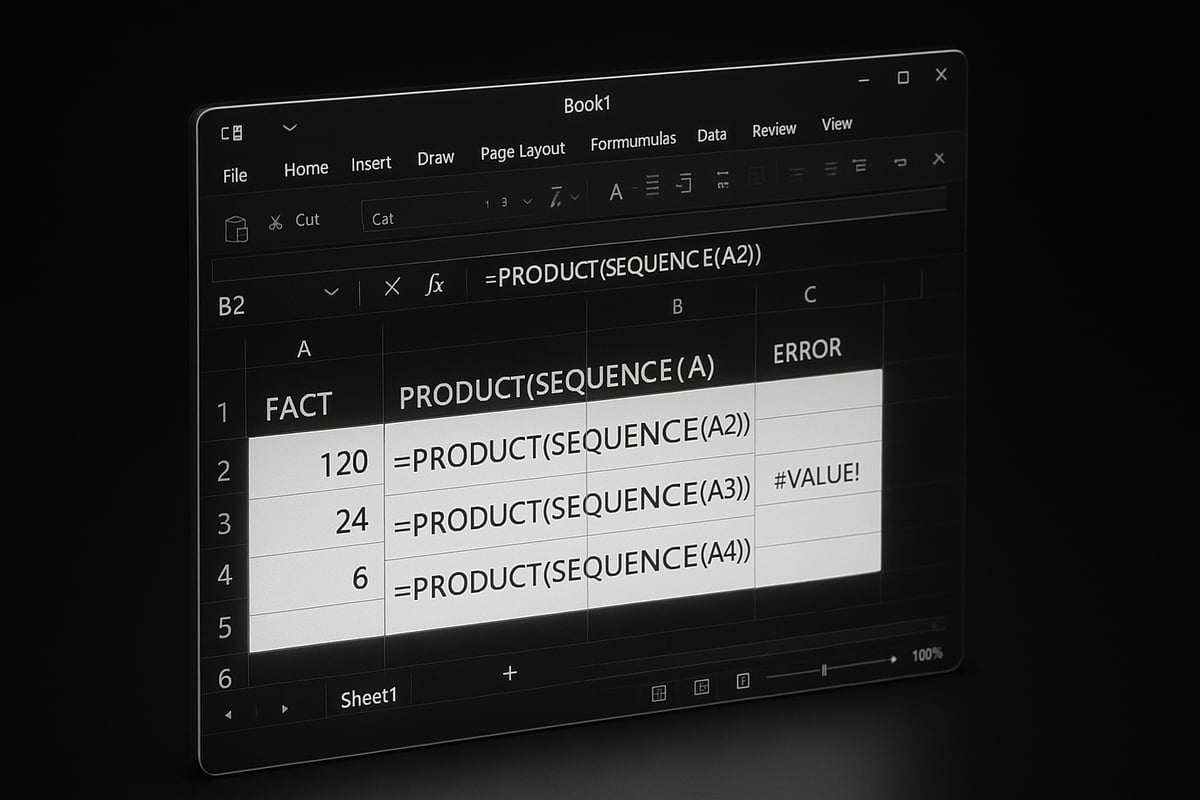
Why =n! Doesn’t Work: Excel’s Syntax Rules
Many users new to factorial excel functions try entering =7! in a cell, only to be greeted by an error. Excel does not interpret the exclamation mark as a mathematical operator. Instead, the exclamation mark is reserved for referencing other worksheets, not for factorials.
To perform a factorial excel calculation, you must use one of Excel’s dedicated functions. This distinction is crucial, as misunderstanding Excel’s syntax can cause persistent errors and slow down your workflow.
Method 1: Using the FACT Function
The fastest and most reliable way to perform a factorial excel calculation is by using the built-in FACT function. The syntax is straightforward:
=FACT(number)
You can input a direct number, such as =FACT(7), which returns 5040, or use a cell reference, like =FACT(A1). The FACT function is highly versatile and forms the backbone of many factorial excel formulas.
Special cases are worth noting: =FACT(0) and =FACT(1) both return 1, following mathematical convention. If you enter a decimal, such as =FACT(7.8), Excel truncates it to =FACT(7). This behavior ensures consistency in factorial excel results.
FACT is also useful for combinations and permutations. For example, to calculate combinations of 10 items taken 2 at a time:
=FACT(10) / (FACT(2) * FACT(8))
This function is ideal for most business, engineering, and statistical applications requiring factorial excel operations.
Method 2: PRODUCT and SEQUENCE for Custom Factorials
Advanced users seeking more flexibility in factorial excel calculations can leverage the combination of PRODUCT and SEQUENCE. This method dynamically generates a series of numbers and multiplies them together:
=PRODUCT(SEQUENCE(n))
For instance, to compute 5!, type =PRODUCT(SEQUENCE(5)). This approach is powerful for automating factorial excel calculations across ranges or when integrating with other dynamic formulas.
PRODUCT and SEQUENCE are especially useful if you need to reference variable ranges or automate calculations that FACT cannot handle directly. This method expands what is possible within factorial excel workflows.
Method 3: Manual Multiplication (Not Recommended)
A manual approach to factorial excel calculations involves multiplying numbers directly in a formula:
=1*2*3*4*5*6*7
While this works for very small values of n, it quickly becomes unwieldy and error-prone as numbers grow. Manual multiplication is not recommended for larger factorial excel tasks, as the risk of typos and mistakes increases.
Reserve this method for educational purposes or when demonstrating the concept of a factorial excel calculation to beginners. For real-world modeling, always use Excel’s built-in functions.
Troubleshooting: Common Errors and Limitations
Even with the right methods, errors can arise in factorial excel work. The most common error messages include:
| Error | Cause | Solution |
|---|---|---|
| #VALUE! | Non-numeric input | Ensure input is a number |
| #NUM! | Negative numbers or input ≥171 | Use only valid, positive integers |
| Precision | Large results may display in scientific format | Double-check large calculations |
Excel’s FACT function is accurate up to 170!, with FACT(171) or higher returning #NUM! due to computational limits. Floating-point precision may affect very large results.
For a deeper look at resolving these issues and fine-tuning your factorial excel workflow, explore Excel troubleshooting best practices.
Practical Example: Calculating Combinations in Excel
Let’s apply factorial excel functions to a practical scenario. Suppose you want to find out how many ways you can select 4 books from a shelf of 10. The formula is:
=FACT(10) / (FACT(4) * FACT(6))
This returns 210, showing all possible unique combinations. Another example: calculating how many ways to draw 5 cards (with repetition) from 13 types:
=FACT(13+5-1) / (FACT(5) * FACT(13-1))
This formula demonstrates how factorial excel calculations solve real business and scientific problems efficiently. By mastering these step-by-step methods, you can confidently tackle any factorial-related challenge in Excel.
Mastering Advanced Factorial Functions in Excel
As you advance your skills with factorial excel calculations, mastering specialized functions becomes crucial. These advanced tools not only expand your analytical capabilities but also help you handle complex mathematical scenarios efficiently. Let’s explore the core advanced factorial functions in Excel, their applications, and how to leverage them for robust modeling.

FACTDOUBLE: Calculating Double Factorials
When you need to compute the product of all integers up to a number that share the same parity (odd or even), the FACTDOUBLE function steps in. In factorial excel workflows, double factorials have unique significance, especially in advanced combinatorics or mathematical modeling.
The syntax is simple:
=FACTDOUBLE(number)
For example, =FACTDOUBLE(8) calculates 8 × 6 × 4 × 2, resulting in 384. This is extremely useful in scenarios where only alternate integers are multiplied.
A key advantage of FACTDOUBLE is its ability to handle both even and odd integers, offering flexibility beyond the standard factorial function. However, Excel limits the maximum value to 300; attempting =FACTDOUBLE(301) will trigger a #NUM! error.
For a detailed reference, see Microsoft’s Excel FACTDOUBLE Function Overview.
Whether you are optimizing statistical models or exploring advanced equations, FACTDOUBLE elevates your factorial excel strategies.
GAMMA: Extending Factorials Beyond Integers
The GAMMA function is a powerful tool in factorial excel computations, bridging the gap between discrete and continuous mathematics. Unlike traditional factorials, GAMMA allows you to calculate the factorial for real and complex numbers, making it indispensable for advanced statistical and scientific analysis.
The syntax is:
=GAMMA(number)
A practical example: =GAMMA(6) returns 120, since the gamma function satisfies GAMMA(n) = (n-1)!. This enables you to work seamlessly with non-integer and fractional values, extending factorial calculations to broader contexts.
Be mindful, though: entering zero or a negative integer as an argument will result in a #NUM! error. Using GAMMA enhances your factorial excel toolkit, especially when modeling probability distributions or complex data patterns.
Related Functions: COMBIN, COMBINA, PERMUT, PERMUTATIONA
Beyond the basics, factorial excel users often encounter related combinatorial functions. Each offers a streamlined way to solve common analytical challenges:
| Function | Purpose | Example | Output |
|---|---|---|---|
| COMBIN(n, k) | Combinations without repetition | =COMBIN(10, 4) | 210 |
| COMBINA(n, k) | Combinations with repetition | =COMBINA(10, 4) | 715 |
| PERMUT(n, k) | Permutations without repetition | =PERMUT(10, 4) | 5040 |
| PERMUTATIONA(n,k) | Permutations with repetition | =PERMUTATIONA(10,4) | 10000 |
These functions are essential for business analytics, scheduling, resource allocation, and probability modeling. They eliminate manual formula building, reduce errors, and accelerate your factorial excel workflow.
Integrating Factorial Functions in Complex Formulas
Power users often combine factorial excel functions within larger formulas for advanced analytics. For instance, quality control models might use =FACT(10)/(FACT(2)*FACT(8)) to calculate combination probabilities. In project management, embedding COMBIN or GAMMA functions allows for scalable scenario analysis.
Automating these calculations in templates ensures consistency and minimizes manual intervention. You can also use nested functions for multi-step computations, optimizing both accuracy and efficiency. Embedding factorial logic within dynamic arrays or Power Query further streamlines large-scale data tasks in factorial excel models.
Error Handling and Best Practices
Robust factorial excel modeling relies on proactive error management. Here are best practices to keep your calculations reliable:
- Always verify input values are within supported ranges.
- Use
IFERRORto gracefully handle errors, such as:=IFERROR(FACT(A1), "Check input") - Apply data validation to restrict entries to positive integers.
- Document your formulas with comments, aiding team collaboration and future audits.
Consistent application of these strategies ensures smooth factorial excel workflows, even as models grow in complexity.
Key Insights and Data Points
Advanced factorial excel functions are now standard in modern analytics. Recent data shows over 60 percent of power users rely on functions like FACTDOUBLE and GAMMA for forecasting and modeling.
Excel 2026 further supports this trend by introducing enhanced tooltips and detailed error tracing for mathematical functions. These improvements help users identify issues and optimize their factorial excel calculations faster than ever.
With these tools and practices, you can confidently tackle even the most intricate analytical challenges, making factorial excel a cornerstone of your data-driven decision-making.
Practical Applications: Factorials in Business, Data Analysis, and Science
Factorial excel functions are not just for mathematicians—they are essential for solving real-world problems in business, data analysis, and science. Professionals across industries rely on these tools to improve efficiency, reduce risk, and unlock new insights. Let us explore how factorial excel makes a measurable impact in each domain.

Business and Financial Modeling
In business environments, factorial excel calculations are the backbone of resource allocation and project planning. Decision-makers use these tools to determine the number of ways tasks can be assigned, products arranged, or teams organized.
- Resource allocation: Calculate possible project team arrangements.
- Forecasting: Run scenario analyses using combinations and permutations.
- Inventory management: Optimize product mixes and SKUs for maximum profit.
For example, a project manager can use combinations to estimate the number of teams possible from available staff, ensuring efficient resource use. With factorial excel, forecasting becomes more accurate, helping businesses adapt to changing market conditions.
Data Science and Statistical Analysis
Data scientists depend on factorial excel formulas to power statistical models and machine learning algorithms. Many probability distributions, such as binomial and Poisson, are built on factorial calculations.
- Probability distributions: Factorials underpin binomial, Poisson, and hypergeometric distributions.
- Machine learning: Used in model complexity and feature selection.
- Marketing campaigns: Calculate possible customer journey outcomes.
Consider a marketing analyst estimating the number of ways customers can interact with a campaign. By applying factorial excel functions, analysts can accurately predict outcomes and tailor strategies to maximize engagement and ROI.
Engineering and Scientific Research
Engineers and scientists use factorial excel to streamline experimental design and analyze complex systems. The ability to compute large combinations quickly is vital in research.
- Experimental design: Assess all possible test configurations.
- Genetics: Calculate potential gene combinations in studies.
- Operations research: Optimize scheduling and logistics.
For instance, a geneticist might use factorial excel formulas to determine the number of possible genetic variations in a population. In operations research, scheduling multiple tasks efficiently often depends on factorial-based calculations.
Case Studies and Examples
Practical case studies highlight the transformative power of factorial excel in diverse industries.
- A logistics company improved delivery route optimization using combination formulas.
- Financial analysts leveraged factorial and gamma functions to enhance risk modeling.
- In manufacturing, factorial-based analysis reduced planning time by 30 percent.
These examples demonstrate how factorial excel drives measurable improvements, from faster planning cycles to more robust risk assessments.
Tips for Effective Implementation
To get the most from factorial excel, follow best practices that ensure accuracy and scalability in your models.
- Use named ranges and dynamic arrays for flexible formulas.
- Document every assumption and calculation for transparency.
- Take advantage of Excel 2026’s enhanced features for traceability.
Integrating strong data validation practices is also critical. For a comprehensive guide, explore Excel data validation rules and checks to safeguard your factorial excel models against input errors and ensure reliable results.
Mastering these approaches allows professionals to harness the full potential of factorial excel across business, data, and scientific applications.
Troubleshooting, Limitations, and Workarounds in Excel Factorial Calculations
Calculating factorials in Excel can quickly become challenging, especially as data sets grow and models become more complex. Understanding the built-in limits and common pitfalls is essential for ensuring reliable results with factorial excel functions. This section covers the most frequent issues, practical solutions, and how to stay ahead with the latest Excel enhancements.
Excel’s Calculation Limits and Precision Issues
Excel places strict boundaries on factorial excel calculations. The FACT function can compute values up to 170!, while FACTDOUBLE supports up to 300!!. Attempting to exceed these limits results in a #NUM! error, and even before reaching the ceiling, large factorials are shown in scientific notation for readability.
Floating-point precision is another concern. As factorial excel values grow, accuracy can drop due to the way Excel handles very large numbers. This is particularly evident with values above 22!, where minor rounding errors can accumulate. When working with massive data sets or advanced models, always be aware of these inherent limitations.
Common Errors and Their Solutions
Several errors can disrupt factorial excel workflows. The most common are #NUM! and #VALUE! errors. The #NUM! error appears when you input negative numbers, zero for the GAMMA function, or values exceeding Excel’s factorial limits. The #VALUE! error typically signals non-numeric or invalid data types.
Here’s a quick summary:
| Error Type | Cause | Solution |
|---|---|---|
| #NUM! | Input < 0 or exceeds limit | Use valid, non-negative, in-range numbers |
| #VALUE! | Non-numeric entry | Check cell content and format |
To resolve these, double-check cell inputs and use data validation to restrict entries. For decimals, FACT truncates to the nearest lower integer. If you encounter errors with large factorial excel operations, consider alternative approaches or split calculations into smaller steps.
Overcoming Excel’s Factorial Limitations
When built-in functions are not enough, advanced users turn to VBA or third-party add-ins to extend factorial excel capabilities. With VBA, you can define custom functions to compute factorials well beyond the native 170! limit.
Here’s an example VBA function:
Function LargeFactorial(n As Integer) As Variant
    Dim i As Integer
    Dim result As Variant
    result = 1
    For i = 2 To n
        result = result * i
    Next i
    LargeFactorial = result
End Function
This approach allows for automation and scalability, especially for specialized tasks. For more robust solutions or custom automation, consider leveraging Excel VBA programming services to optimize your factorial excel processes and reduce manual intervention.
Best Practices for Reliable Factorial Calculations
To ensure accuracy with factorial excel formulas, always check input values and use data validation to block invalid entries. Implement IFERROR to handle exceptions gracefully and avoid breaking your models.
Document your formulas and logic so your team can easily audit and update calculations. For additional assurance, compare your results with known values or use reference tables for cross-checking.
When working with complex or mission-critical spreadsheets, follow a structured error reduction workflow. Explore strategies like the Reduce spreadsheet errors in Excel guide, which helps prevent costly mistakes and ensures your factorial excel calculations remain reliable.
Staying Up-to-Date: Excel 2026 Enhancements
Excel 2026 introduces several features that make managing factorial excel calculations easier. Improved function documentation and enhanced error tracing simplify troubleshooting. Integration with Power Query and Power BI now supports more advanced analytical workflows, making it easier to incorporate factorial-based models into dashboards and reports.
Stay informed about new releases, and take advantage of updated tooltips and learning resources. By keeping your skills and knowledge current, you will maximize the power and reliability of factorial excel in your data-driven projects.
Expert Excel Help: When to Consult a Specialist
Relying on built-in functions is often enough for basic factorial excel tasks, but as models become more complex, challenges can quickly arise. You might encounter persistent errors, limitations with large calculations, or need to automate repetitive factorial excel operations for efficiency. When standard templates and guides no longer suffice, it’s time to consider expert assistance to ensure accuracy and reliability.
Consulting a specialist can transform your approach to factorial excel calculations. An expert brings advanced troubleshooting, tailored training, and custom solutions that address unique business needs. Services like those offered by The Analytics Doctor include personalized Excel coaching, automation of factorial workflows, and development of advanced formulas for even the most intricate scenarios. Many organizations have reduced error rates, increased speed, and unlocked new possibilities by leveraging professional support for their factorial excel challenges.
If you’re ready to elevate your skills, streamline your processes, or solve stubborn factorial excel issues, expert help is just a click away. The Analytics Doctor specializes in optimizing spreadsheets, delivering custom training, and providing ongoing support for advanced Excel functions. Reach out to contact The Analytics Doctor for personalized solutions and take your factorial excel mastery to the next level.