Excel skills are more valuable than ever in 2026, shaping how businesses, educators, and individuals manage data and improve productivity. As spreadsheets grow in complexity, drop-down lists have become essential for simplifying data entry and reducing costly mistakes.
Learning how to make a drop down in excel not only streamlines your workflow but also unlocks advanced features for data validation and process automation. With the right techniques, you can transform your spreadsheets into powerful tools for analysis and decision-making.
This expert guide will walk you step by step through the basics, advanced methods, troubleshooting tips, and best practices. Whether you are a beginner or looking to optimize your Excel skills, you will find clear, actionable advice here.
Understanding Excel Drop-Down Lists
Drop-down lists are a foundational tool in Excel, shaping how users enter and manage information. If you want to learn how to make a drop down in excel, you first need to understand the role and versatility of these lists. They help users select values from a pre-defined set, boosting accuracy and efficiency in any spreadsheet.

What is a Drop-Down List in Excel?
A drop-down list in Excel is a feature that allows users to choose a value from a defined set, right within a cell. It is a core part of data validation, letting you control what can be entered, and is essential when you want to know how to make a drop down in excel.
Drop-down lists are commonly used for standardized inputs, such as selecting departments in HR forms or product names in inventory sheets. Unlike combo boxes or form controls, which are objects placed over cells, drop-down lists are embedded directly in the cell, making them more integrated and easier to manage.
Industries like finance, HR, and logistics rely on drop-downs for processes such as onboarding, order forms, and reporting. For example, an employee onboarding form might use a drop-down list to ensure the correct department is selected every time.
If you want to explore the technical details behind drop-down creation and data validation, review the Excel data validation rules guide for a comprehensive overview.
Benefits of Using Drop-Down Lists
The primary reason professionals focus on how to make a drop down in excel is the significant reduction in data entry errors. Drop-downs ensure only valid selections are made, improving consistency across your data.
They also save time on repetitive tasks. Users can quickly pick from a list instead of typing, which streamlines the workflow and makes spreadsheet navigation smoother. Clean, uniform data from drop-downs supports better analysis, automation, and conditional formatting.
A recent Microsoft survey found that over 70% of Excel users rely on data validation features, showing just how essential drop-downs are for modern spreadsheet management.
Types of Drop-Down Lists in Excel
When learning how to make a drop down in excel, it is important to know the different types available. Drop-downs can be static, where the list never changes, or dynamic, where the list updates automatically as source data grows.
There are single-select drop-downs, which are native to Excel, and multi-select drop-downs, which require workarounds such as VBA scripting. The source for your list can be a manually typed set, a range of cells, a named range, or even an external data source.
Compatibility is also key. Most desktop versions, including Excel 2026 and Office 365, support all basic drop-down features. However, some advanced options may not work identically in Excel Online. Always test your drop-downs when sharing files across different platforms.
Here’s a quick comparison:
| Feature | Drop-Down List | Combo Box/Form Control |
|---|---|---|
| Cell Integration | Yes | No |
| Data Validation | Built-in | Separate |
| Usable in Tables | Yes | Limited |
Ultimately, the type you choose will depend on your workflow needs and the complexity of your data. Understanding these variations is essential before you start applying how to make a drop down in excel to your own projects.
Step-by-Step Guide: How to Make a Basic Drop-Down in Excel
Learning how to make a drop down in excel is a foundational skill that boosts accuracy and efficiency. This guide walks you through each step, from preparing your source data to customizing and maintaining your drop-down lists. Follow along to create user-friendly, professional spreadsheets that streamline data entry and prevent errors.

Preparing Your Data for Drop-Down Lists
Before you dive into how to make a drop down in excel, start by organizing your source data. Place your list of allowed values in a single column or row on a separate worksheet or an out-of-the-way area of your current sheet. This ensures clarity for future updates and minimizes accidental changes.
Consider using named ranges for your source list. Select the range, then click in the Name Box above column A and assign a name (e.g., Departments). This makes referencing the list easier, especially as your spreadsheet grows.
For large or frequently updated lists, use Excel Tables. Tables automatically expand as you add new items, so your drop-down stays current. For example, if you are creating a sales order form, list all product names in a table called ProductsTable. This approach reduces manual updates and errors.
Keep your source list free from blanks or duplicates. Review it regularly to maintain clean data.
Creating a Drop-Down List Using Data Validation
Once your source data is organized, you are ready to learn how to make a drop down in excel using Data Validation. Start by selecting the cells where you want the drop-down to appear. Navigate to the Data tab, then click on Data Validation in the Excel 2026 ribbon.
In the Data Validation dialog, choose "List" as the validation criteria. In the Source field, either type your values separated by commas (e.g., Yes,No,Maybe) for a quick static list, or reference your named range or table (e.g., =Departments or =ProductsTable[ProductName]).
Click OK to apply. Test your drop-down by clicking the arrow in the target cell. You should see your list of options available for selection.
If your drop-down is not working, double-check the source reference and confirm that the cells are not protected or hidden. Following these steps ensures a functional drop-down that simplifies data entry for any user.
Customizing Drop-Down List Appearance and Behavior
After you master how to make a drop down in excel, take your lists further by customizing their appearance and behavior. Add input messages to guide users when they select the cell. In the Data Validation window, switch to the Input Message tab and enter a helpful tip, such as "Select a department from the list."
Set up error alerts on the Error Alert tab to prevent invalid entries. Choose a style (Stop, Warning, or Information) and add a clear message like "Please select a valid department code."
You can adjust the drop-down arrow's visibility by formatting the cell or using custom cell styles for a more polished look. To prevent blanks or duplicates, use formulas or conditional formatting alongside your drop-down. For instance, restrict users from entering an invalid department by setting the validation to accept only items from your source list.
For more ideas on user-friendly design, see this Excel drop-down lists best practices guide, which covers advanced tips and tricks.
Editing or Removing Drop-Down Lists
Knowing how to make a drop down in excel is just the start—you also need to maintain and update your lists as requirements change. To edit the source list, update your original values or add new items to your table or named range. The drop-down will reflect these changes automatically if you used a dynamic source.
To remove a drop-down, select the relevant cells, open Data Validation, and click Clear All. This erases the drop-down without affecting any previously entered data in those cells.
Troubleshooting is straightforward: if your drop-down list is not appearing, check for hidden columns, incorrect source references, or worksheet protection. Always keep your source lists accessible and documented for easy updates.
By following these steps, you will master how to make a drop down in excel, ensuring your spreadsheets remain accurate, efficient, and easy to use for everyone involved.
Advanced Drop-Down Techniques for Power Users
Unlocking the full potential of Excel means moving beyond the basics. If you want to truly master how to make a drop down in excel, you’ll need to explore dynamic, cascading, and multi-select options, as well as advanced formatting, integration, and security features. This section guides you through each advanced technique step by step, helping you streamline workflows and ensure data integrity.
Creating Dynamic Drop-Down Lists
Dynamic drop-down lists are essential for anyone who wants to keep their Excel files scalable and up to date. When you learn how to make a drop down in excel that updates itself, you save time and reduce manual errors.
Start by organizing your source data in an Excel Table. Tables automatically expand as you add new entries, ensuring the drop-down always includes the latest options. To reference a Table as your source, select the column containing your list and assign it a named range or use structured references.
For more flexibility, you can use the OFFSET and COUNTA functions to define a dynamic named range. For example:
=OFFSET(Sheet1!$A$2,0,0,COUNTA(Sheet1!$A:$A)-1,1)
This formula automatically adjusts as your list grows or shrinks. Remember to use these dynamic ranges in the Data Validation source field.
Dynamic drop-downs are perfect for inventory lists, client directories, or project codes that change frequently. By mastering dynamic lists, you enhance how to make a drop down in excel work for evolving data needs.
Dependent (Cascading) Drop-Down Lists
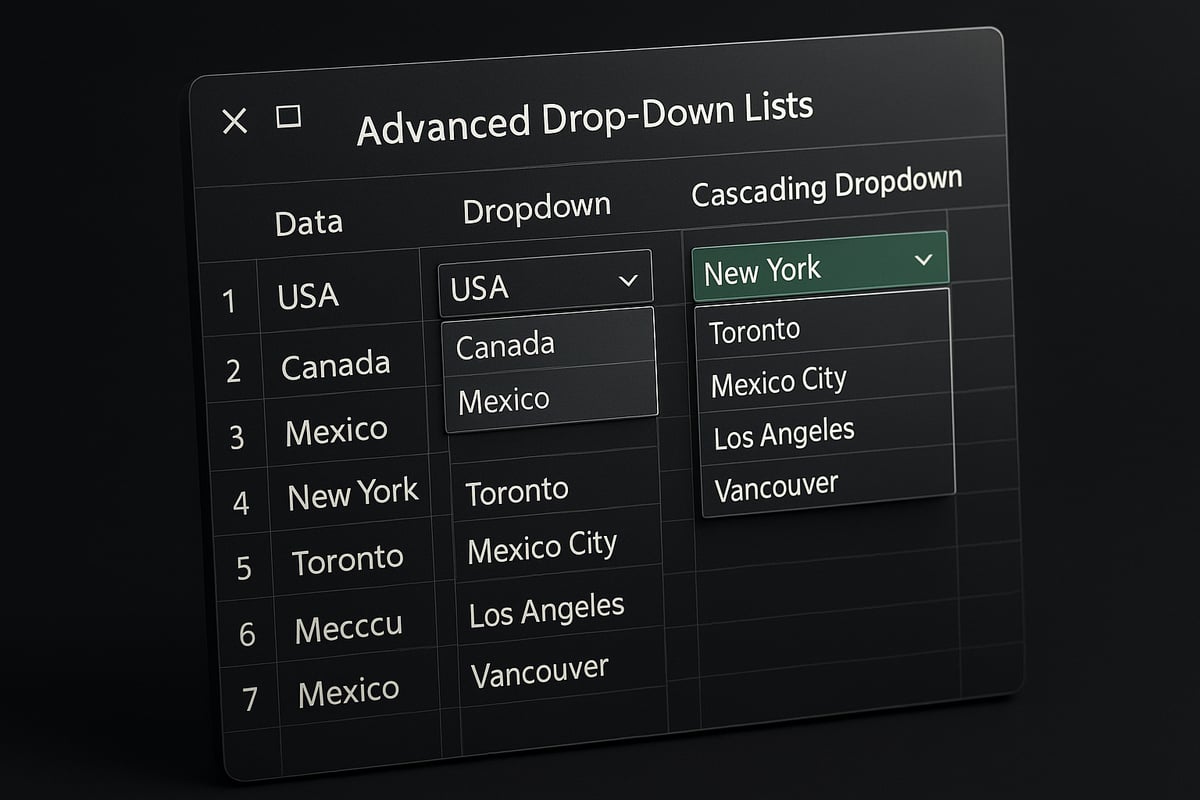
Sometimes, you need drop-down lists where the options in one list depend on the selection in another. For example, selecting a country in one cell and seeing only relevant cities in the next. This is called a dependent or cascading drop-down.
To set up cascading drop-downs, structure your data with each main category (like "Country") as a header, and subcategories (like "Cities") listed below. Use named ranges for each sub-list. In your second drop-down, use the INDIRECT function to reference the selection from the first drop-down.
For example, if cell A2 contains the country, and your city lists are named ranges like "USA", "Canada", etc., set the data validation source for the city drop-down to:
=INDIRECT(A2)
This setup ensures users only see relevant options, preventing mismatches and speeding up data entry. For a detailed walkthrough, see Build dependent drop-down lists.
Mastering dependent lists is a key step in how to make a drop down in excel work for complex forms and workflows.
Multi-Select Drop-Downs: Workarounds and Limitations
By default, Excel’s built-in drop-downs only allow one selection per cell. If you need users to select multiple options, you’ll need workarounds or VBA solutions.
One popular workaround is to use VBA to concatenate multiple selections in a single cell. Here’s a basic VBA example:
Private Sub Worksheet_Change(ByVal Target As Range)
    Dim OldValue As String
    Dim NewValue As String
    On Error GoTo ExitSub
    If Target.Column = 2 And Target.Validation.Type = 3 Then
        Application.EnableEvents = False
        NewValue = Target.Value
        Application.Undo
        OldValue = Target.Value
        Target.Value = OldValue & ", " & NewValue
    End If
ExitSub:
    Application.EnableEvents = True
End Sub
Paste this code into the worksheet module. Now, each time you select a value from the drop-down, it adds to the cell, separated by commas.
Be aware that multi-select drop-downs may not be compatible with all Excel features, such as filtering or formulas. Still, understanding this technique expands your toolkit for how to make a drop down in excel more flexible for project or skill tracking.
Drop-Downs with Conditional Formatting and Formulas
Advanced drop-down lists can do more than just collect data. They can also trigger formatting and calculations, making your spreadsheets interactive and insightful.
Conditional formatting lets you change cell colors based on drop-down selections. For example, you might highlight "Overdue" tasks in red and "Complete" tasks in green. Select your range, choose Conditional Formatting, and set rules based on the drop-down values.
You can also use drop-down selections in formulas. For example, a formula like:
=IF(B2="High Priority", "Immediate Action Required", "Standard Follow-Up")
displays a message based on the selected priority.
These enhancements make how to make a drop down in excel not just about data entry, but about building interactive dashboards and reports.
Integrating Drop-Downs with Excel Tables and PivotTables
Drop-down lists become even more powerful when integrated with Excel Tables and PivotTables. Tables ensure your drop-down sources remain current, as they automatically expand with new data.
When using structured references in Tables, your data validation source might look like:
=Table1[Products]
PivotTables can use drop-down lists to filter data dynamically. Place drop-downs above your PivotTable and link them to filters using formulas or slicers for an interactive analysis experience.
Integration is essential for anyone focused on how to make a drop down in excel that supports robust, real-time data analysis.
Security and Data Protection Considerations
With advanced drop-down lists, protecting your data is crucial. Always lock cells containing drop-downs by selecting them, right-clicking, and choosing "Format Cells", then enabling protection.
Protect your worksheet to prevent unauthorized changes to drop-downs or their sources. Go to the Review tab, select "Protect Sheet", and set permissions as needed.
For sensitive data, store source lists on hidden or protected sheets. This helps prevent accidental edits and maintains data integrity.
By prioritizing security, you ensure that how to make a drop down in excel remains safe, reliable, and professional for all users.
Common Problems and Troubleshooting Drop-Down Lists in Excel
Troubles with drop-down lists can disrupt your workflow and undermine the benefits of knowing how to make a drop down in excel. Below, we break down frequent issues, practical solutions, and expert tips to keep your data validation running smoothly.

Drop-Down List Not Appearing or Working
One of the most common frustrations users face when learning how to make a drop down in excel is a list that does not display or function as expected. This could be due to hidden columns, incorrect source range references, or worksheet protection settings that block interaction.
To troubleshoot:
- Check if the source range is visible and not hidden.
- Confirm that the data validation settings point to the correct range.
- Ensure that the worksheet or cell is not protected, preventing edits.
- Try copying the worksheet to a new file to see if the issue persists.
If these steps do not resolve your issue, consult this Troubleshooting Excel drop-down issues guide for in-depth solutions and step-by-step instructions.
Data Validation Source Errors
Errors often arise when the source data for a drop-down list is moved, deleted, or renamed. This is a frequent challenge for those exploring how to make a drop down in excel, especially when using named ranges or external data sources.
Best practices to avoid source errors:
- Always use named ranges for dynamic lists.
- Double-check external links regularly.
- Keep source lists on the same sheet or in a dedicated data tab.
- Document any changes to list sources for future reference.
For further insights into data validation and troubleshooting, see Excel drop-down lists data validation statistics, which covers common pitfalls and expert recommendations.
Handling Blank or Duplicate Entries
Blank and duplicate entries in drop-down lists can confuse users and compromise data quality. When you learn how to make a drop down in excel, always check the source list for these issues.
To manage blanks and duplicates:
- Use formulas like
=UNIQUE()and=FILTER()to create clean lists. - Regularly audit your source range for empty cells.
- Apply conditional formatting to highlight duplicates.
- Remove blanks before setting up data validation.
These practices help maintain accurate, user-friendly drop-downs for all scenarios.
Compatibility Issues Across Excel Versions
Not all drop-down features work identically in Excel 2026, Office 365, and Excel Online. Compatibility problems can arise when sharing files or collaborating across platforms, even if you know how to make a drop down in excel.
Consider the following:
- Features like dynamic arrays may not be available in older versions.
- Excel Online may display drop-downs differently or limit certain settings.
- Test your spreadsheets on all platforms before distribution.
- Stick to standard data validation techniques for maximum compatibility.
By understanding version-specific limitations, you can ensure your drop-down lists function correctly for every user.
Best Practices and Expert Tips for Drop-Down Lists in Excel
Building effective drop-down lists transforms spreadsheets into user-friendly, error-resistant tools. To truly master how to make a drop down in excel, follow these best practices and expert insights. Each tip below ensures your lists are efficient, scalable, and accessible for every user.
Designing User-Friendly Drop-Downs
A well-designed drop-down list makes data entry seamless and intuitive. When planning how to make a drop down in excel, keep the list concise. Only include relevant items to prevent overwhelming users. For long lists, group items logically or use separate sections to improve navigation.
Add descriptive input messages to guide users on what to select. Tooltips can clarify any uncertainties. Consistent formatting, such as cell colors or icons, helps users identify drop-downs quickly.
- Keep lists short and specific
- Use categories for lengthy options
- Provide clear instructions alongside each drop-down
A user-focused approach results in fewer mistakes and greater satisfaction with your Excel solutions.
Maintaining and Updating Drop-Down Lists Efficiently
Maintaining clean and up-to-date source lists is essential for anyone learning how to make a drop down in excel. Use dynamic named ranges or Excel Tables, which automatically expand as new items are added. This reduces manual updates and ensures accuracy.
Document the source and logic of each drop-down within your workbook. A simple table or comment can explain where data comes from and how it is maintained. For frequently changing lists, centralize your source data on a dedicated sheet.
- Use Excel Tables for dynamic growth
- Name your ranges for easy reference
- Document source lists and update procedures
Efficient maintenance prevents errors and keeps your spreadsheets reliable over time.
Enhancing Drop-Down Functionality with Automation
Automation unlocks advanced potential when you explore how to make a drop down in excel. VBA (Visual Basic for Applications) can automate updates, enforce rules, and even enable multi-select capabilities. Automating drop-downs reduces repetitive tasks and ensures consistency across large workbooks.
For example, you can automatically refresh a drop-down list when new data is imported. To learn more about automating drop-downs, see Automate drop-downs with VBA.
- Automate updates with macros or VBA
- Set up notifications for changes in source data
- Use automation to support complex workflows
Automated drop-down lists save time and reduce the risk of human error in your Excel operations.
Accessibility and Usability Considerations
Accessibility is a core element of how to make a drop down in excel effective for all users. Ensure keyboard navigation works smoothly so users can move through drop-downs without a mouse. Adjust cell sizes and font contrast for readability, especially for visually impaired users.
Test your drop-downs on mobile and touch devices to confirm compatibility. Avoid small touch targets and ensure the drop-down arrow is clearly visible.
- Enable keyboard-friendly navigation
- Optimize layout for mobile and tablet use
- Choose high-contrast formatting for visibility
Prioritizing accessibility broadens your spreadsheet’s reach and usability.
Real-World Examples and Case Studies
Understanding how to make a drop down in excel is easier with real-world context. For instance, a finance team implemented drop-down lists for expense categories and reduced manual entry errors by 60 percent. HR departments use drop-downs to streamline onboarding, ensuring only valid department codes are selected.
Templates for inventory management, project tracking, and client records all benefit from structured drop-downs. Each scenario demonstrates the value of applying best practices to achieve accuracy and efficiency.
- Finance: Error reduction in expense reporting
- HR: Consistent department selection during onboarding
- Inventory: Clean product selection in order forms
These case studies highlight the practical impact of expert drop-down list design.