Imagine trying to juggle deadlines, payroll, and schedules without a reliable way to track time. In today's data-driven world, even a simple mistake in time calculations can lead to missed opportunities or costly errors.
This guide is designed to help you master time formulas in 2025, making sure your calculations are accurate, efficient, and stress-free. Whether you work in payroll, project management, or operations, understanding time formulas is essential for success.
You'll learn foundational concepts, practical formulas, troubleshooting tips, and advanced techniques that solve real-world challenges. Many professionals struggle with inconsistent formats or confusing results, but this step-by-step resource offers clear, actionable solutions.
Ready to simplify your workflow and take control of your data? Dive into this comprehensive guide and transform the way you handle time calculations.
Understanding Time Calculations: The Foundation
Accurate time management is the backbone of any successful business. Whether you are processing payroll, scheduling projects, or tracking daily operations, getting time calculations right is non-negotiable. Time formulas are central to ensuring your data-driven decisions are reliable and efficient.
The Importance of Accurate Time Calculations
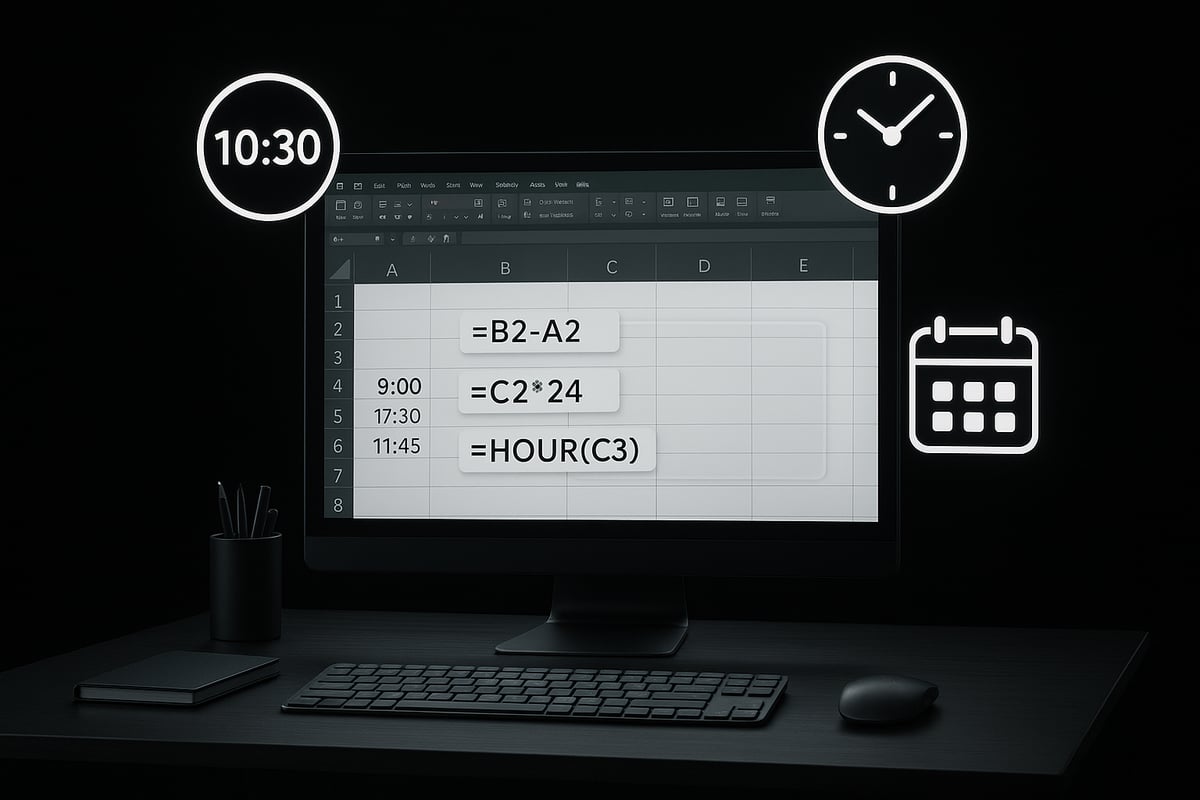
Time calculations play a critical role in payroll, project management, and everyday business operations. If you miscalculate shift durations, employees might receive incorrect pay, leading to disputes and compliance issues.
Consider this: Excel, the most popular spreadsheet software, is used by more than 750 million people worldwide to handle business-critical calculations, including time formulas. A single error in these calculations can lead to missed deadlines, inaccurate reports, or costly payroll mistakes.
Mastering time formulas not only saves valuable hours but also reduces stress for everyone involved. For example, a miscalculated shift duration can throw off an entire week’s payroll, creating confusion and extra work for HR. By understanding the fundamentals, you can prevent these common headaches and keep your operations running smoothly.
How Time is Represented in Spreadsheets and Software
Understanding how time is stored in spreadsheets is essential for working effectively with time formulas. Most software, including Excel, represents dates as serial numbers. For example, January 1, 1900, is stored as 1, and each day increases this count by one.
Time itself is stored as a fraction of a day. For instance, 0.25 represents 6:00 AM, while 0.5 is 12:00 PM. When date and time are combined, you get a number like 45205.4375, which translates to December 31, 2023, at 10:30 AM.
Different platforms handle time formulas in slightly different ways:
| Platform | Date Start | Serial Example | Time as Fraction | Notes |
|---|---|---|---|---|
| Excel | 1/1/1900 | 45205 | 0.25 = 6:00 AM | Serial system, fractions |
| Google Sheets | 12/30/1899 | 45205 | 0.5 = 12:00 PM | Similar to Excel |
| Databases | Varies | Varies | Varies | Often use timestamps |
Knowing these differences helps you avoid errors when transferring or sharing data between systems using time formulas.
Common Challenges with Time Calculations
Despite their importance, time calculations are a frequent source of errors in spreadsheets. Common issues include time overflows when totals exceed 24 hours, negative times that display as "###", and inconsistent formats that lead to confusion. Industry estimates suggest that up to 30% of spreadsheet errors can be traced back to incorrect time or date formulas.
For example, if time values are entered in inconsistent formats, project schedules might be completely misaligned. These problems can multiply quickly, especially in large or collaborative files. To understand the scale and impact of these errors, consider this analysis on Spreadsheet Errors: What We Know. What We Think We Can Do, which explores common pitfalls and strategies for error reduction.
By learning to identify and resolve these challenges, you ensure your time formulas deliver accurate, actionable results every time.
Essential Time Formulas & Functions for 2025
Mastering time formulas is crucial for anyone working with schedules, payroll, or analytics in 2025. The right approach makes handling hours and minutes efficient, accurate, and stress free. Let us break down the key formulas and functions you need, using clear examples and best practices.
Creating and Converting Time Values
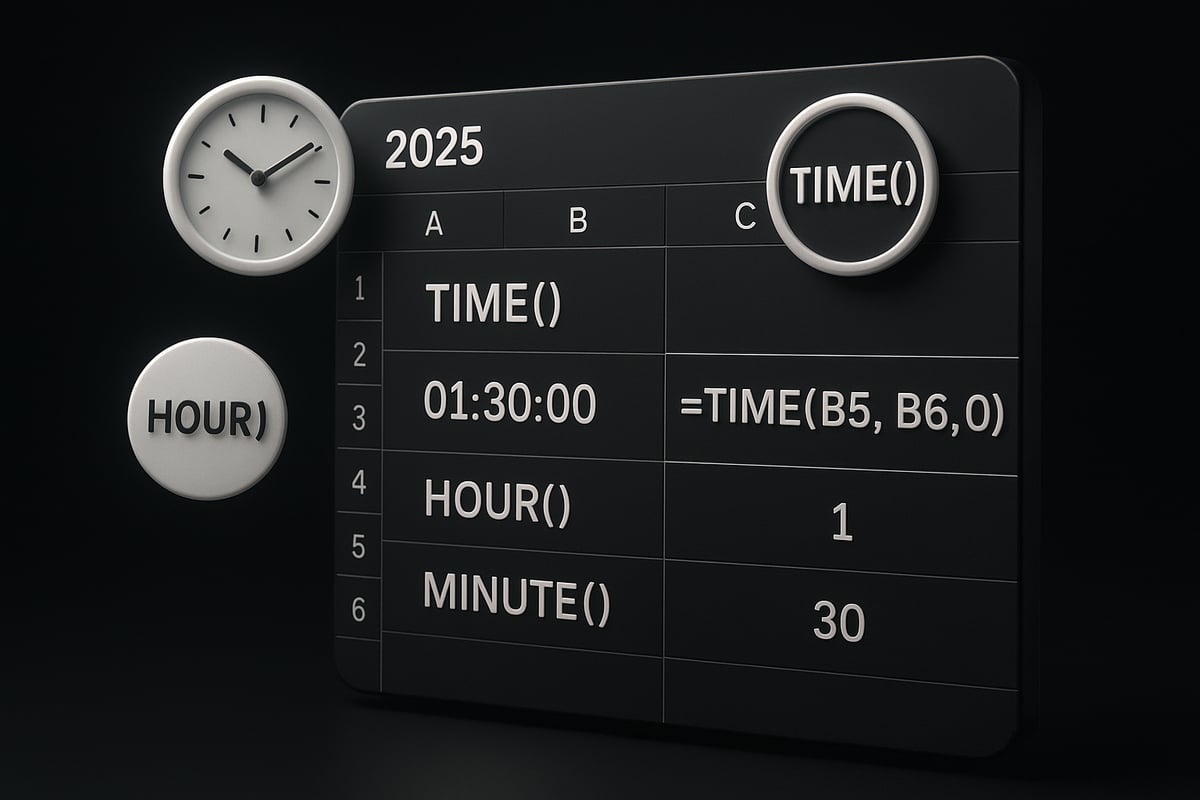
When building time formulas, the first step is entering and converting time values accurately. The TIME() function lets you construct a time from hours, minutes, and seconds. For example, =TIME(14, 30, 0) returns 2:30 PM. This is ideal for structured data entry.
On the other hand, TIMEVALUE() converts a text string like "2:30 PM" into a time serial number. This is vital when importing data from external sources.
Compare both functions in the table below:
| Function | Input Type | Example Input | Output |
|---|---|---|---|
| TIME() | Numbers | 14, 30, 0 | 2:30 PM |
| TIMEVALUE() | Text String | "2:30 PM" | 0.604166… |
Remember, using the correct function prevents errors in time formulas, especially when your data comes from mixed sources. Also, be aware of edge cases, such as TIME(27, 0, 0), which rolls over to 3:00 AM the next day.
Extracting and Manipulating Time Components
Time formulas often require breaking down a time value into its parts. The HOUR(), MINUTE(), and SECOND() functions help you extract specific components.
For example, if cell A2 contains 10:45:30, you can use:
=HOUR(A2)    // Returns 10
=MINUTE(A2)  // Returns 45
=SECOND(A2)  // Returns 30
This is helpful for shift analysis or scheduling, where only the hour might matter. These time formulas allow quick insights and enable you to build reports that highlight trends, such as peak work periods or late arrivals.
Calculating Time Differences
A core use case for time formulas is finding the difference between two times. Subtract the start time from the end time directly, like =B2-A2, to get the elapsed time.
To express this difference in hours, multiply the result by 24, since Excel stores time as a fraction of a day:
=(B2-A2)*24 // Total hours worked
For minutes, multiply by 1440. These calculations are essential for payroll, tracking hours, or analyzing project durations.
Example: If an employee clocks in at 8:15 AM and out at 4:45 PM, =B2-A2 returns 0.354, but formatting as h:mm shows 8:30.
Adding and Subtracting Time
Time formulas also help add or subtract hours, minutes, or seconds. Use arithmetic or the TIME() function to adjust time values.
To add 2 hours to a start time in A2:
=A2 + TIME(2,0,0)
When totaling multiple shifts, times may exceed 24 hours. In such cases, use custom formatting like [h]:mm to display results correctly. For instance, summing 15:00 and 18:00 should show 33:00, not 9:00.
Weekly timesheets rely on these techniques to provide accurate totals, making time formulas indispensable for operations and reporting.
Handling Negative and Overflow Times
Negative times and overflows are common challenges with time formulas. If a calculation results in a negative time, Excel may display "###" or an error. To fix this, wrap the formula with MOD() to force a positive result:
=MOD(EndTime-StartTime,1)
For durations over 24 hours, always use custom number formats like [h]:mm. Troubleshooting these issues is essential, and you can find more tips in Fixing Excel Formula Errors.
Understanding these nuances ensures your time formulas deliver reliable, actionable results in any scenario.
Formatting and Presenting Time Results
Getting accurate results from time formulas is only half the challenge. How you format and present those results determines whether your data is clear or confusing. Even the best time formulas can produce misleading outputs if not displayed correctly. Let’s explore how to make your time calculations both accurate and easy to understand.

Time Formatting Basics
Spreadsheets store time as decimal values, which can be confusing at first glance. For example, 0.5 in Excel represents 12:00 PM, because it is half of a 24-hour day. By default, time formulas will display results according to the worksheet’s built-in time format. If you enter 6:00, the underlying value is 0.25, but it appears as 6:00 AM.
Improper formatting can quickly lead to misinterpretation. For instance, if you sum several time values and the total exceeds 24 hours, your spreadsheet may display 2:00 instead of 26:00. Always check the format applied to your cells, especially when working with time formulas that involve large totals or durations.
Custom Time Formats for Readability
To make complex results from time formulas easier to read, custom formats are essential. One of the most useful is [h]:mm, which allows totals over 24 hours to display correctly. Without this, adding 15:00 and 18:00 might show 9:00 instead of 33:00.
Applying a custom format is simple:
- Select the time result cells.
- Right-click and choose "Format Cells."
- Go to "Custom" and enter
[h]:mm.
In Google Sheets, use Format > Number > Custom number format and type [h]:mm.
| Example | Formula | Default Output | Custom Format Output |
|---|---|---|---|
| 15:00 + 18:00 | =A1+A2 |
9:00 | 33:00 |
With these adjustments, your time formulas will always present accurate, readable results.
Using TEXT() for Friendly Output
The TEXT() function is a powerful way to convert raw results from time formulas into easy-to-read strings. For example, =TEXT(0.1458, "h:mm") displays "3:30", making summaries and reports more user-friendly.
However, using TEXT() converts numbers to text. This means you cannot use the output in further time formulas without converting it back. Use this approach when you want to display results clearly, but keep original values intact for calculations.
When summarizing times for reports, dashboards, or client-facing sheets, the TEXT() function offers a clean, professional look.
Displaying Negative and Special Time Results
Negative durations and special cases are common challenges when working with time formulas. By default, negative times may show as "###" or error values, especially if the wrong format is applied. To fix this, you can use custom number formats or wrap your calculation with the MOD() function to keep values positive.
For example, =MOD(B1-A1,1) ensures a valid result even if the end time is earlier than the start time. This is especially useful in project management, where you may need to track lost or gained time.
If you encounter persistent formatting issues or error displays, the Excel Troubleshooting Guide provides step-by-step solutions for resolving common problems with time formulas.
Step-by-Step Guide: Performing Time Calculations in 2025
Mastering time formulas in 2025 requires a methodical approach. This step-by-step guide walks you through each critical stage, from data entry to advanced reporting. Whether you are a beginner or a seasoned analyst, these practical steps ensure accuracy and efficiency with time formulas.

Step 1: Entering and Validating Time Data
Accurate time formulas start with precise data entry. Use a consistent format, such as 24-hour (14:00) or 12-hour (2:00 PM), to avoid confusion. Always check if your spreadsheet recognizes the input as a valid time; in Excel, recognized times are right-justified by default.
If you encounter unexpected left-justified times, these are likely stored as text. To convert them, use the TIMEVALUE() function:
=TIMEVALUE("2:30 PM")
This formula turns a text string into a usable time value. Always validate your data before applying time formulas to prevent errors later in your calculations.
Step 2: Calculating Time Intervals and Durations
After entering your data, the next step is to calculate intervals between times. To find elapsed time, simply subtract the start time from the end time:
=EndTime - StartTime
For date intervals, functions like DAYS() or DATEDIF() are useful. For example, to calculate project duration:
=DATEDIF(StartDate, EndDate, "d")
Time formulas also allow you to measure age, task durations, or the gap between events. Always ensure both values are in the same format before performing calculations.
Step 3: Adding and Subtracting Time Components
To adjust schedules or account for overtime, you often need to add or subtract hours, minutes, or seconds. Use arithmetic or the TIME() function to simplify these operations. For example, to add 2 hours and 30 minutes:
=StartTime + TIME(2,30,0)
For more complex schedules, consider helper columns to break down calculations. This approach helps manage multiple adjustments, such as breaks or shift changes, keeping your time formulas organized and clear.
Step 4: Summing and Averaging Multiple Time Values
Summing time values is essential for tracking weekly or monthly totals. Use the SUM() function to add multiple times:
=SUM(A2:A8)
To display totals exceeding 24 hours, apply a custom format like [h]:mm. This ensures that 33 hours appears as "33:00" rather than "9:00". For averages, divide the total by the count of entries:
=SUM(A2:A8)/COUNT(A2:A8)
Custom formatting makes your time formulas more readable and your reports more professional.
Step 5: Troubleshooting Common Time Calculation Errors
Even experienced users encounter errors when working with time formulas. Common issues include #VALUE! errors, "###" displays, or negative results. These usually stem from inconsistent formats or invalid operations.
To resolve these, first check your data formats. If you still face problems, forums like How to fix time calculation? [SOLVED] offer practical solutions and advice from real users.
Use helper columns to isolate errors and apply functions like MOD() to handle negative times. Consistent validation and referencing expert resources will keep your time formulas accurate and reliable.
Step 6: Presenting and Reporting Time Data Effectively
Clear presentation of results is vital for decision-making. Format your time formulas using built-in or custom formats for clarity. Conditional formatting can highlight overtime or anomalies, drawing attention to critical data points.
When exporting data for payroll, project management, or analytics, double-check that your time formulas are preserved and readable in the destination system. Well-structured reports not only look professional but also build trust in your data.
Advanced Time Calculation Techniques for Power Users
Mastering time formulas at an advanced level unlocks new efficiencies for professionals managing complex schedules, global teams, or large datasets. Explore these power-user techniques to elevate your time management and reporting in 2025.
Working with Workdays, Holidays, and Custom Schedules
When projects depend on business days rather than calendar days, time formulas like WORKDAY() and NETWORKDAYS() become essential. These functions let you calculate deadlines, lead times, or staffing needs by excluding weekends and custom holidays.
For instance, =WORKDAY(start_date, days, [holidays]) returns the next working day after a set number of days, skipping listed holidays. Creating a dynamic holiday list in a separate range ensures your calculations remain accurate year after year.
Custom scheduling is also possible. By combining time formulas with lookup tables, you can model nonstandard workweeks or variable shifts. This flexibility is crucial for industries with rotating schedules or international operations.
Time Calculations Across Time Zones
With remote work and global collaboration on the rise, handling time zones is a must. Time formulas can adjust timestamps for different locations using offset values. For example, adding or subtracting a fixed number of hours helps align meeting times across regions.
A practical approach is to store all times in UTC, then convert to local time as needed. Use helper columns to apply offsets dynamically based on each participant’s location. This prevents confusion and ensures accurate reporting across teams.
When daylight saving changes occur, update your offsets or use reference tables for automatic adjustments. Consistent time zone handling with time formulas is key to smooth multinational operations.
Automating Time Calculations with Formulas and Scripts
Automation dramatically increases efficiency for recurring time calculations. Advanced users leverage array formulas to process entire columns of time data at once, minimizing manual intervention.
For even more power, employ scripting tools like VBA in Excel or Google Apps Script in Sheets. Scripts can auto-generate timesheet summaries, flag anomalies, or trigger alerts for overtime.
For a deeper dive into automating and optimizing workflows, see Working with Excel Processes. Integrating automation with time formulas not only saves time but also reduces the risk of human error in complex calculations.
Integrating Time Calculations with Other Data Types
Advanced analytics often require blending time formulas with lookup, logic, and aggregation functions. For example, you might use VLOOKUP to compare scheduled and actual start times, then apply conditional formatting to flag late arrivals.
Combining time formulas with logical operators enables dynamic dashboards, highlighting trends or exceptions in your data. Aggregation tools like SUMIFS or AVERAGEIFS further enhance your ability to analyze performance over specific periods.
Seamless integration of time formulas with other spreadsheet features ensures robust, actionable insights for decision-makers.
Real-World Applications and Use Cases
Time formulas are at the heart of countless business operations. From payroll to project management, their precision shapes outcomes and drives efficiency. Let us explore how time formulas power real-world solutions across industries.
Payroll and Attendance Tracking
Accurate payroll relies on time formulas to calculate regular and overtime hours. Whether you manage hourly employees or salaried staff, these formulas ensure every minute worked is accounted for.
Automated timesheets use time formulas to subtract clock-in and clock-out times, apply break deductions, and flag overtime. For example, a formula might subtract 0.5 hours for lunch if a shift exceeds six hours. This level of precision prevents costly payroll mistakes and helps organizations comply with labor laws.
Project Management and Scheduling
Time formulas are essential for tracking project progress, meeting deadlines, and allocating resources. Managers use formulas to calculate task durations, forecast completion dates, and identify potential bottlenecks.
A well-structured spreadsheet can highlight late tasks or overdue milestones, making it easier to keep projects on track. For a deeper dive into using time formulas in scheduling, visit Excel for Project Management, which covers practical applications for project teams.
Operations and Resource Planning
In manufacturing, healthcare, and service industries, time formulas help sum machine hours or employee shifts for capacity planning. By totaling time values across weeks or months, leaders can spot trends and optimize staffing levels.
For example, summing all technician hours reveals if you are understaffed during peak times or overstaffed during slow periods. This data-driven approach maximizes productivity and controls costs, all thanks to reliable time formulas.
Data Analysis and Reporting
Time formulas enable powerful data analysis. Businesses track customer response times, service durations, or employee performance using calculated fields.
Visualizing these results with charts or dashboards makes trends easy to spot and decisions more informed. However, accuracy is critical, since calculation errors can distort reports. For guidance on resolving common issues, review this Calculation error in spreadsheet discussion, which shares tips from Excel experts.
Staying Up-to-Date with Time Calculation Best Practices
Time formulas evolve with software updates and new business needs. Staying current ensures you use the most efficient methods and avoid legacy pitfalls.
Regularly review documentation and participate in forums to learn about new features or best practices. As organizations rely more on automation, keeping your time formulas accurate and up-to-date is essential for reliable results.
Frequently Asked Questions About Time Formulas
Even experienced users encounter challenges with time formulas. Below, find answers to the most frequent questions, including practical advice for mastering time-based calculations in 2025.
What are the most common mistakes in time calculations and how to avoid them?
One of the most frequent mistakes in time formulas is inconsistent formatting or misinterpreting how time values are stored. This can lead to errors like incorrect payroll or project deadlines. As highlighted in The Risk of Spreadsheet Errors, even small mistakes in time formulas can have significant business impacts. To avoid issues, always double-check input formats and use built-in validation tools.
How do I handle time calculations that cross midnight or span multiple days?
Calculating time that crosses midnight can be tricky with time formulas. The best approach is to use logic that adds 24 hours when the end time is less than the start time. For durations spanning multiple days, subtract the start date and time from the end, ensuring results reflect total elapsed hours or minutes.
What’s the difference between serial time and formatted time?
Serial time is how spreadsheets store dates and times internally, as numbers representing days since a base date. Formatted time is how those numbers appear to users, such as "2:30 PM." Understanding the distinction is crucial for accurate time formulas and prevents confusion during calculations.
How can I automate recurring time calculations?
You can automate time formulas using built-in spreadsheet functions and scripts. Features like array formulas, macros, or Google Apps Script help process large datasets efficiently. Automation reduces manual errors and saves time, especially when managing timesheets or recurring schedules.
Are there differences in time formulas between Excel, Google Sheets, and other platforms?
Yes, while core time formulas like HOUR(), MINUTE(), and TIME() exist in both Excel and Google Sheets, some functions have different names or syntax. Always consult the documentation for your platform to ensure compatibility and avoid formula errors when moving files between systems.
Where can I find more resources or get expert help with time formulas?
To deepen your understanding of time formulas, explore official help centers, online courses, and community forums. Many spreadsheet platforms offer tutorials and sample templates. For complex scenarios, consider consulting a data specialist or joining professional groups focused on spreadsheet best practices.