
Imagine glancing at a single screen and instantly knowing who is present, absent, or late—no more paper files or manual tallying. For many businesses, tracking daily staff attendance is a critical task that often eats up time and leads to frustrating errors.
Manual attendance logs can quickly become a source of confusion and lost productivity. Errors in record-keeping not only impact payroll accuracy but can also create compliance risks.
The staff daily attendance sheet in excel offers a powerful, customizable solution for organizations of any size. With the right setup, you can streamline attendance management, reduce errors, and gain instant insights.
In this expert guide, you will learn how to create, manage, and optimize your attendance tracking for 2026 standards. We will cover essential Excel features, step-by-step instructions, automation tips, and advanced reporting to ensure your process is accurate and efficient.
Why Use Excel for Staff Daily Attendance in 2026?
Excel remains the gold standard for business data management, and the staff daily attendance sheet in excel continues to lead the way for tracking staff presence. With companies facing ever-changing work environments, from in-office to remote and hybrid models, Excel’s adaptability is more valuable than ever.

Excel’s Enduring Dominance in Attendance Tracking
The staff daily attendance sheet in excel is trusted by organizations worldwide for its reliability and familiarity. Businesses rely on Excel because it offers a proven blend of structure and flexibility, which is essential for accurate attendance tracking. Excel’s widespread adoption ensures that teams can use its features without steep learning curves or costly onboarding.
Flexibility and Customization for Every Business
One of the strongest advantages of a staff daily attendance sheet in excel is its ability to be tailored for any organizational need. Whether you run a small shop or a large enterprise, you can design custom templates to fit unique schedules, shift patterns, and leave policies. Excel supports everything from simple daily logs to complex, multi-level attendance systems, making it suitable for any business structure.
Cost-Effectiveness and Cloud Accessibility
Choosing a staff daily attendance sheet in excel means avoiding expensive software subscriptions. Excel is often included in standard business software packages, making it a budget-friendly option. With Excel Online and OneDrive, teams can access and update attendance sheets from anywhere, supporting remote and hybrid workforces. Real-time collaboration is now seamless, improving efficiency for HR and management.
Seamless Integration and Data Security
A staff daily attendance sheet in excel can be linked with payroll, HR, and project management tools for streamlined operations. Integration ensures that attendance data flows smoothly into other business processes, reducing manual entry and errors. Excel also gives organizations full control over sensitive attendance data, with customizable permissions and robust password protection for enhanced security.
Real-World Savings and 2026 Excel Innovations
Small businesses have reported saving up to $2,000 yearly by switching from manual systems to a staff daily attendance sheet in excel. The latest 2026 version introduces AI-powered suggestions, dynamic arrays, and improved collaboration tools. Features like the COPILOT function, described in Excel’s COPILOT Function Enhances Data Analysis, help automate data analysis and content generation, making attendance management faster and smarter.
Comparing Excel with Other Attendance Solutions
How does the staff daily attendance sheet in excel compare to alternatives? Google Sheets offers cloud-based collaboration but may lack advanced data validation and integration features. Specialized HR software provides automation but comes with higher costs and less flexibility. The table below summarizes key differences:
| Feature | Excel 2026 Attendance Sheet | Google Sheets | HR Software |
|---|---|---|---|
| Customization | High | Moderate | Low-Moderate |
| Cost | Low | Low | High |
| Integration | Extensive | Moderate | High |
| Data Security | Strong | Variable | Strong |
| AI Features | Advanced (COPILOT, etc.) | Basic | Advanced |
For most businesses, the staff daily attendance sheet in excel offers the best balance of flexibility, power, and value.
Essential Features of a Staff Daily Attendance Sheet in Excel
A well-designed staff daily attendance sheet in excel is the backbone of accurate staff tracking for any organization. Building a robust sheet means including essential fields, smart features, and automation, all tailored to your team's needs.
Core Columns and Structure
The foundation of every staff daily attendance sheet in excel is its column structure. At a minimum, include columns for Date, Employee Name or ID, Attendance Status (such as Present, Absent, Late), and Remarks.
To keep records clear and easy to audit, format dates consistently and freeze the header row. This ensures your team can quickly scan and filter data, even when managing large groups.
A sample template might look like this:
| Date | Employee ID | Name | Status | Remarks |
|---|---|---|---|---|
| 2026-01-01 | 001 | John Smith | Present | |
| 2026-01-01 | 002 | Jane Doe | Late | Traffic Delay |
This structure is flexible and can be expanded as your staff daily attendance sheet in excel grows.
Advanced Status Tracking
Modern workplaces demand more than simple present or absent labels. Your staff daily attendance sheet in excel should capture various attendance scenarios, including half-days, overtime, remote work, and both paid and unpaid leave.
Set up extra columns or custom status options to track these details. For example, use abbreviations like "HD" for half-day or "RW" for remote work. This approach enables detailed reporting and helps HR teams comply with labor requirements.
Including these advanced options ensures your staff daily attendance sheet in excel adapts to complex schedules and changing work patterns.
Visual Feedback with Conditional Formatting
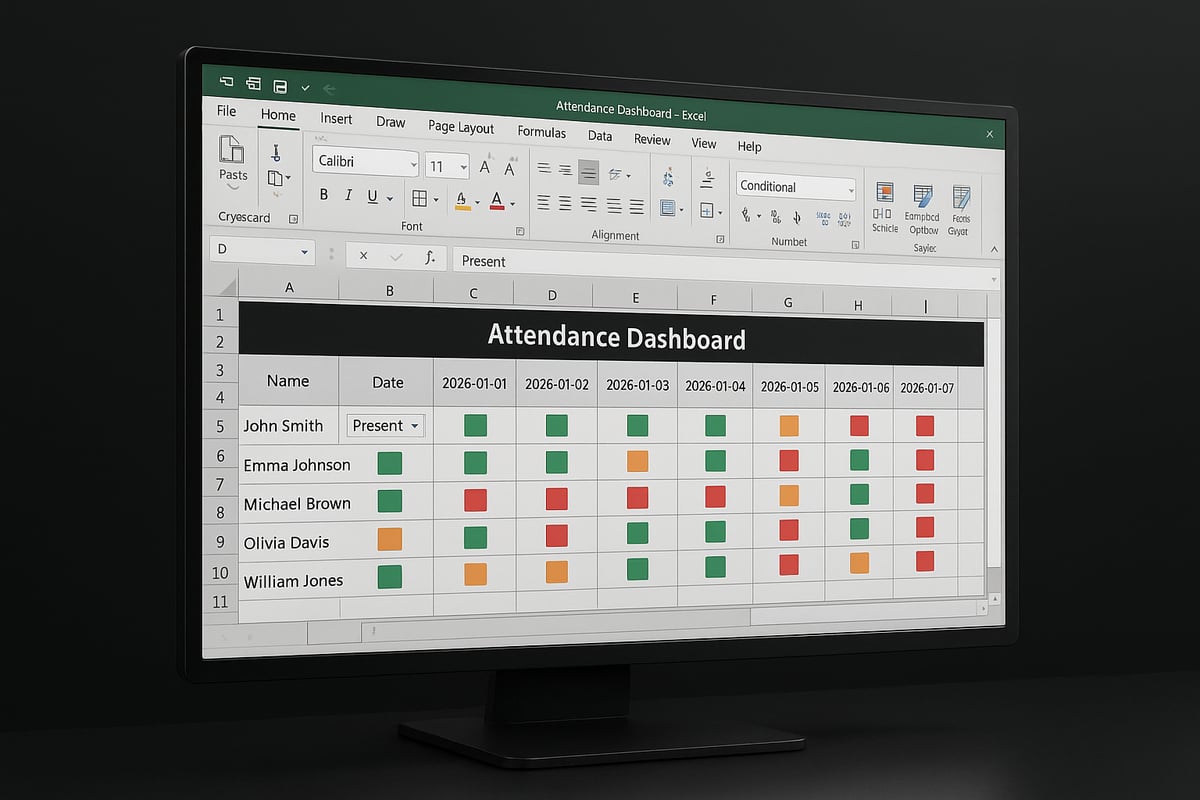
Clear visual cues are vital for spotting trends and issues at a glance. Conditional formatting lets you automatically color-code attendance statuses, making it easy to identify absences, lateness, or frequent overtime.
For example, set Present to green, Late to yellow, and Absent to red. This visual system reduces oversight and speeds up reviews. To learn how to apply these rules effectively, see this guide on Conditional formatting in Excel.
Smart visual feedback turns your staff daily attendance sheet in excel into a powerful management tool, helping leaders act quickly.
Data Validation and Error Prevention
Accuracy is non-negotiable in any staff daily attendance sheet in excel. Data validation ensures only valid entries are accepted, reducing mistakes and saving time on corrections.
Create drop-down menus for the status column so users select only allowed options. For example, use Excel's data validation to restrict entries to Present, Absent, Late, Half-Day, and so on.
This feature prevents typos and inconsistent data, making your staff daily attendance sheet in excel reliable and audit-ready.
Automation, Integration, and Protection
Excel 2026 brings powerful automation tools to your staff daily attendance sheet in excel. Use formulas like =COUNTIF(range, "Absent") to tally absences, or apply dynamic arrays for real-time summaries.
Automate data imports from biometric devices or QR code scanners to streamline updates. Protect sensitive data by locking cells and setting permissions, ensuring only authorized users can edit records.
Finally, take advantage of Excel's cloud capabilities for secure sharing and collaboration, keeping your staff daily attendance sheet in excel accessible yet protected.
Step-by-Step Guide: Creating a Staff Daily Attendance Sheet in Excel
A well-designed staff daily attendance sheet in excel empowers teams to track presence, absences, and work patterns with clarity and precision. Whether you manage a small business or a large enterprise, creating your own customized system ensures you meet your unique workflow and compliance needs.
Planning Your Attendance Sheet
Before building your staff daily attendance sheet in excel, take time to plan. Start by identifying your organization's requirements. How many employees will you track? Do you need to monitor multiple shifts, remote work, or special leave types?
Gather all necessary staff data, such as employee names, IDs, and typical schedules. Decide if you want a daily, weekly, or monthly layout. For example, a company with 50 employees and rotating shifts may benefit from a daily grid to capture complex attendance patterns.
Assign responsibility for updating and maintaining the staff daily attendance sheet in excel. Will HR manage it, or will team leads handle entries? Clear ownership reduces confusion and ensures data accuracy.
Create a list of attendance categories you wish to track, such as Present, Absent, Late, Overtime, and Leave. Anticipate future needs, like integrating with payroll or reporting tools, to future-proof your design.
Setting Up the Sheet Structure
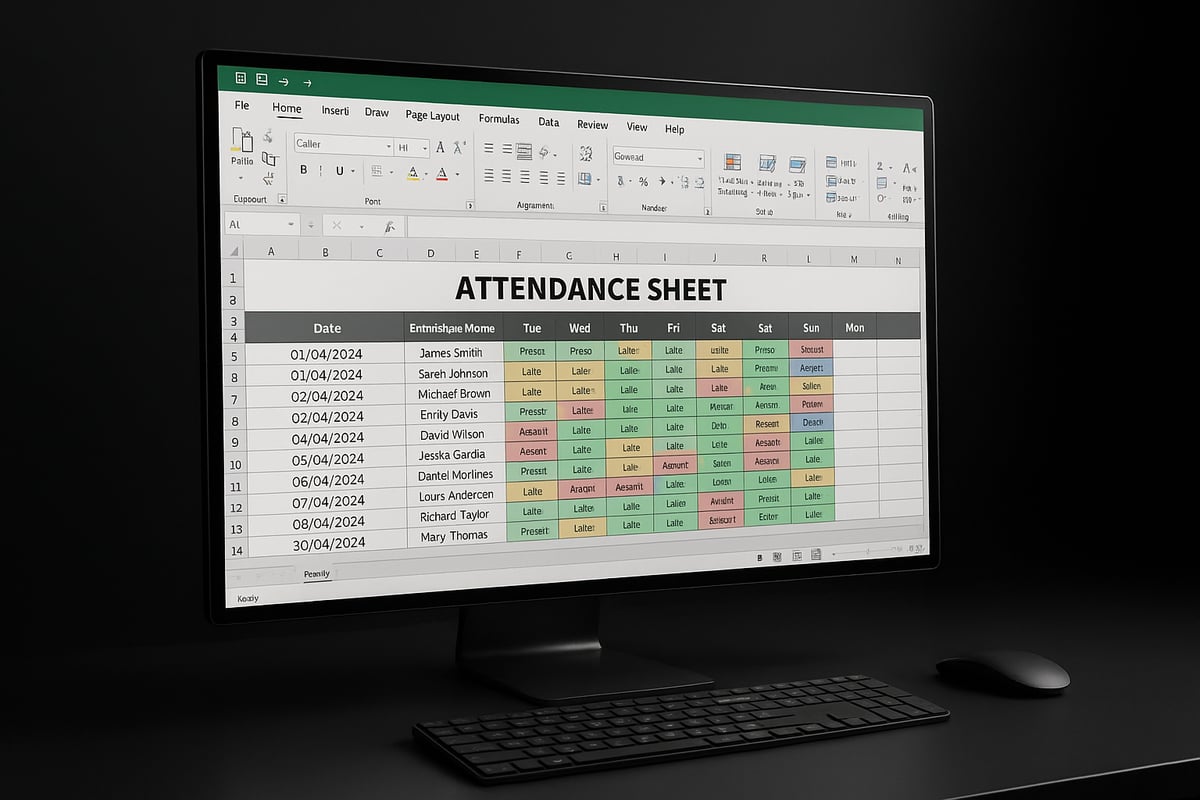
Begin structuring your staff daily attendance sheet in excel by creating columns for essential data fields. At a minimum, include Date, Employee Name or ID, Attendance Status, and Remarks. Optional columns might track shift type, overtime hours, or remote work days.
Format dates using Excel's date tools for consistency and readability. Add clear headers, then freeze the top row so headers remain visible while scrolling. Apply filters to each column to help users quickly find specific records or filter by status.
For a mid-sized company, your header row could look like this:
| Date | Employee Name | Employee ID | Status | Overtime | Remarks |
|---|---|---|---|---|---|
| 2026-01-01 | Jane Doe | 001 | Present | 2 | – |
Use cell styles to differentiate headers from data rows. As you populate your staff daily attendance sheet in excel, maintain consistent formatting throughout for a professional, easy-to-read table.
Adding Data Validation and Conditional Formatting
To reduce errors and standardize input, add drop-down menus to the Status column. Use data validation to restrict entries to specific choices, such as Present, Absent, Late, or On Leave.
Conditional formatting brings your staff daily attendance sheet in excel to life by instantly highlighting statuses. For example, you can set "Late" entries to appear in orange and "Absent" entries in red. This visual feedback helps managers spot trends at a glance.
If you are new to Excel's validation tools, consider exploring Excel data validation rules for step-by-step guidance on setting up robust checks. Preventing input mistakes early will save time and improve data reliability.
Automating Calculations with Formulas
Excel's formulas automate attendance calculations, saving you hours each month. Use COUNTIF to total each status per employee or day. For example, to count absences in January for Jane Doe, use:
=COUNTIF(D2:D32, "Absent")
Track overtime or leave balances using SUMPRODUCT or custom formulas. For monthly summaries, pivot tables can quickly aggregate totals for each employee.
Automating your staff daily attendance sheet in excel with formulas reduces manual work and ensures your data stays up to date. When you need to report on trends, these formulas make creating charts or summaries straightforward.
Protecting and Sharing Your Sheet
Safeguard your staff daily attendance sheet in excel by locking important cells, such as headers and formulas, to prevent accidental changes. Use sheet-level and workbook-level passwords to restrict unauthorized edits.
If your team collaborates remotely, store the file on Excel Online or OneDrive. Assign editor or viewer permissions so only authorized HR staff can update attendance records, while others can view but not modify the data.
For example, you might grant full editing rights to HR and read-only access to department managers. Regularly review sharing settings to maintain security and compliance as your team evolves.
Advanced Tips: Automating and Customizing Your Attendance Sheet
Staying ahead in staff management requires more than just basic tracking. Advanced features in Excel 2026 allow you to transform your staff daily attendance sheet in excel into a powerful, automated solution that boosts accuracy and saves time.
Leveraging Excel 2026 Automation Features
Excel 2026 introduces AI-powered tools that make managing your staff daily attendance sheet in excel seamless. The new autofill engine recognizes patterns such as holidays or recurring shifts, allowing you to fill entire months with a single click.
Dynamic arrays let you instantly generate real-time summaries without manual formulas. For example, use =UNIQUE(EmployeeNames) to list all staff automatically. The LAMBDA function enables you to create custom calculations tailored to your policies, such as handling half-days or complex overtime.
To further streamline your workflow, explore Automating Excel workflows for expert strategies on reducing manual effort and ensuring reliability in your attendance processes.
By leveraging these features, your staff daily attendance sheet in excel becomes not just a record, but a living tool that adapts to your business needs.
Integrating with Other Tools and Systems
A staff daily attendance sheet in excel should never operate in isolation. Integration with payroll and HR systems eliminates duplicate entry and human error. Excel 2026’s Power Query allows you to import attendance data directly from biometric devices or QR code scanners, updating your records automatically.
You can set up workflows that export attendance summaries to your payroll platform, ensuring accurate compensation. For hybrid or remote teams, connect Excel to Microsoft Teams and automate notifications when someone marks themselves as absent or late.
These integrations keep your staff daily attendance sheet in excel at the heart of your HR ecosystem, supporting real-time decision-making and compliance.
Custom Dashboards and Reporting
Transform your staff daily attendance sheet in excel into a visual dashboard that provides instant insights. Use pivot tables to summarize attendance by department, shift, or date range. Insert charts that display trends such as late arrivals or overtime, making it easy for management to spot patterns.
Set up automated monthly reports that email summaries to supervisors or HR. With Excel 2026’s enhanced collaboration tools, multiple users can review and comment on reports simultaneously, even on mobile devices.
A well-designed dashboard turns data from your staff daily attendance sheet in excel into actionable intelligence for better workforce management.
Error Prevention and Troubleshooting
Even the best staff daily attendance sheet in excel can encounter issues. Common problems include misaligned dates, duplicate entries, or broken formulas. Minimize these risks by using data validation and conditional formatting to flag errors instantly.
Excel’s auditing tools, like Trace Precedents and Error Checking, make troubleshooting straightforward. If a formula breaks, step through it with the Evaluate Formula feature to pinpoint the issue. Regularly review your attendance sheet for inconsistencies and back up your data to prevent loss.
By proactively addressing errors, you maintain the integrity of your staff daily attendance sheet in excel, ensuring reliable records for audits and payroll.
Expert Excel Help from The Analytics Doctor
If your staff daily attendance sheet in excel requires advanced customization, The Analytics Doctor provides personalized training, template development, and troubleshooting support. Services include automation setup, data integration, and tailored workshops for HR teams. With expert guidance, you can optimize every aspect of your attendance tracking and ensure your business stays compliant and efficient.

Best Practices for Managing Staff Attendance Data in Excel
Maintaining a reliable staff daily attendance sheet in excel is essential for efficient workforce management. Following best practices ensures your attendance data stays accurate, secure, and compliant as your organization grows.

Regular Data Backups and Version Control
A robust staff daily attendance sheet in excel starts with a solid backup routine. Schedule regular data exports to secure cloud storage or external drives. This protects your records from accidental deletions or file corruption.
Implement version control by saving dated copies of your sheet each week. This allows you to recover previous versions if errors occur or restore historical data for audits. Many organizations use OneDrive or SharePoint to enable automatic version history, making retrieval fast and simple.
By combining frequent backups and version tracking, you safeguard your staff daily attendance sheet in excel from data loss and ensure business continuity.
Ensuring Privacy and Compliance
Confidentiality is vital when managing a staff daily attendance sheet in excel. Access should be limited to authorized personnel only, using password protection and restricted sharing settings. This helps prevent unauthorized data exposure.
Stay informed about privacy laws such as GDPR or HIPAA. Always anonymize sensitive data when possible and avoid unnecessary personal details in your records. For more comprehensive guidance, consult Best Practices for Time and Attendance Management, which outlines compliance strategies for attendance data.
Regular reviews of access permissions and privacy protocols keep your organization compliant and employee trust high.
Training and Usage Protocols
Proper training ensures everyone understands how to use the staff daily attendance sheet in excel correctly. Hold onboarding sessions for HR staff and managers covering data entry standards, formula usage, and common pitfalls.
Create a clear protocol document outlining steps for marking attendance, handling corrections, and updating leave statuses. Use simple checklists to reinforce accuracy and consistency.
Encourage a culture of accountability by assigning sheet management roles. When everyone knows their responsibilities, your staff daily attendance sheet in excel remains accurate and up to date.
Periodic Audits and Error Prevention
Auditing your staff daily attendance sheet in excel helps catch errors before they impact payroll or compliance. Schedule weekly or monthly reviews to check for duplicate entries, misaligned dates, or missing data.
Utilize Excel’s built-in audit tools to trace formulas and highlight inconsistencies. For a step-by-step approach, refer to Auditing and debugging spreadsheets for best practices on maintaining accuracy.
Document audit findings and corrective actions to ensure continuous improvement and reliability.
Adding Context with Comments and Notes
A well-maintained staff daily attendance sheet in excel includes context for absences or lateness. Use Excel’s comment feature to add explanations for unusual entries, such as medical leave or approved overtime.
This practice helps HR teams and managers quickly understand attendance patterns without searching through emails or paper notes. It also creates a transparent record for future reference.
Adding notes improves communication and supports fair decision-making during performance reviews or compliance checks.
Example: Weekly Review Process and Industry Stats
Consider a company with 100 employees. Each week, HR runs a review of the staff daily attendance sheet in excel, checking for errors, updating notes, and backing up the file. This process reduces data inconsistencies and supports timely payroll processing.
According to industry research, 65% of HR teams report improved accuracy when they audit attendance data regularly. Adopting these best practices not only boosts reliability but also builds trust among employees and managers.
A structured review routine transforms your staff daily attendance sheet in excel into a dependable resource for your business.
Common Challenges and Solutions in Excel-Based Attendance Tracking
Tracking staff attendance in Excel remains popular for its flexibility, but it comes with real-world challenges. As organizations grow, the staff daily attendance sheet in excel can become prone to errors, difficult to manage, and vulnerable to security concerns. Understanding these pitfalls and their solutions is essential for efficient attendance management.
Human Error: Data Validation and Automation
Manual data entry is a leading source of mistakes in any staff daily attendance sheet in excel. Typing the wrong status, duplicating entries, or forgetting to update can cause serious reporting issues. To reduce errors, use Excel’s data validation features. Create drop-down lists for statuses like Present, Absent, or Late, and restrict inputs to valid options only.
Automation is another strong solution. By implementing formulas and conditional formatting, you minimize manual intervention. For a step-by-step approach to automating your attendance process, refer to Creating an Automated Attendance Sheet in Excel. This not only saves time but also improves accuracy for every staff daily attendance sheet in excel.
Managing Large Teams Efficiently
Handling attendance for hundreds of employees in a single staff daily attendance sheet in excel can be overwhelming. Large datasets increase the chances of oversight and slow down analysis. Leverage filters and pivot tables to quickly sort, group, and summarize attendance data.
Split the sheet into multiple tabs—one for each department or team—for better organization. Use Excel’s search and filter tools to locate specific records instantly. These strategies make managing a large staff daily attendance sheet in excel far more practical and scalable.
Complex Shifts and Leave Policies
Organizations with rotating shifts, split hours, or varied leave types need more than a basic staff daily attendance sheet in excel. Custom formulas can track half-days, overtime, and special leave accurately. For example, use COUNTIF to summarize absences or SUMPRODUCT for overtime calculations.
Templates tailored to your policies ensure compliance and fair tracking. Advanced users can integrate conditional logic to flag inconsistencies or policy violations. This level of customization transforms your staff daily attendance sheet in excel into a robust HR tool.
Data Security and Access Control
Sensitive attendance records require robust protection. Sharing a staff daily attendance sheet in excel without restrictions can expose data to unauthorized edits or leaks. Use sheet protection features to lock critical cells and apply passwords to sensitive sections.
Cloud-based Excel solutions, like OneDrive or SharePoint, allow you to set granular permissions. For an in-depth look at potential risks and how to address them, see Limitations of Excel for Attendance Tracking. These steps ensure your staff daily attendance sheet in excel remains secure while accessible to authorized personnel.
Scalability and Growth
As your organization expands, your staff daily attendance sheet in excel must evolve. A template that works for 10 employees may not suit 200. Scale up by using structured tables, dynamic named ranges, and automated summary dashboards.
Consider archiving monthly or yearly data to avoid bloated files. Regularly review your template’s performance and adapt formulas as your needs change. With careful planning, your staff daily attendance sheet in excel can support long-term business growth.
Transitioning from Paper to Excel
Moving from paper-based tracking to a staff daily attendance sheet in excel can be daunting but rewarding. Start by digitizing existing records and training staff on the new system. Use clear instructions and templates to simplify onboarding.
Conduct regular audits to ensure accuracy and compliance. According to HR Tech competitor blogs, 40 percent of companies cite manual error as the main challenge in attendance tracking. Transitioning to a digital staff daily attendance sheet in excel greatly reduces these risks and streamlines reporting.


