
Locked out of your Excel file? You are not alone. Password protection can instantly halt your workflow and create frustration, whether you are handling personal budgets or critical business data.
This expert guide shows you exactly how to remove the password protection in excel, using proven and ethical methods. Regain access to your important information quickly and safely.
Inside, you will discover the different types of Excel passwords, step-by-step removal instructions with and without a password, and important legal considerations. You will also learn best practices to prevent password issues in the future.
Ready to unlock your files and boost your productivity? Let us get started.
Understanding Excel Password Protection
Excel offers multiple levels of password protection, each designed to secure your data in different ways. Knowing these distinctions is essential when learning how to remove the password protection in excel, as each type affects your access and the complexity of removal.

Types of Excel Passwords and Their Purposes
Excel uses three main password types: worksheet, workbook, and file-level passwords. Each serves a unique role in protecting your data. A worksheet password restricts editing within specific sheets, ideal for financial statements or HR data. Workbook passwords protect the structure, preventing unwanted changes, while file-level passwords secure the entire document from being opened without authorization.
Common scenarios include safeguarding sensitive payroll sheets, controlling access to departmental budgets, or ensuring project trackers stay intact. Understanding these distinctions is the first step in how to remove the password protection in excel. For a detailed breakdown of each protection type and its applications, refer to Microsoft’s guidance on Excel protection.
How Password Protection Works in Excel
Behind the scenes, Excel employs encryption to secure your files. Modern versions use AES encryption, which is robust, while older editions relied on weaker SHA-1 algorithms. When you set a password, Excel either encrypts the content (for file-level protection) or stores hashed credentials for worksheet and workbook security.
This means that, depending on the type, the password may protect structure, prevent edits, or require authentication to open the file. However, knowing how to remove the password protection in excel also means understanding the system's limitations. For example, while file-level protection is strong, worksheet protection can sometimes be bypassed with scripts or third-party tools.
Why Users Lose or Forget Passwords
Forgetting Excel passwords is more common than you might think. Studies show up to 30% of business users forget passwords each year, often due to forgotten credentials, staff turnover, or inheriting files from previous employees. Another common scenario is when teams share files and the password is not documented properly.
Losing access can disrupt workflows, delay projects, and even result in lost revenue. Recognizing these issues is crucial before you attempt how to remove the password protection in excel. Always assess your situation to determine the best recovery approach.
Risks and Legal Considerations
While it may be tempting to bypass security, there are significant legal and ethical implications. Removing or circumventing a password without proper authorization may violate company policies or data protection laws. It is essential to ensure you have legitimate access rights before proceeding.
If you are unsure about your permissions, consult your IT or legal team first. When considering how to remove the password protection in excel, always prioritize compliance and ethical standards to protect both yourself and your organization.
Step-by-Step: Removing Password Protection with the Password
Struggling with how to remove the password protection in excel? If you already know the password, gaining access is straightforward and risk-free. Follow these step-by-step instructions for unlocking your Excel files, worksheets, and workbooks, and learn how to handle common issues as you go.

Locating and Entering the Password
To start, you need to know how to remove the password protection in excel by correctly entering your password. First, determine if your Excel file is protected at the worksheet, workbook, or file level.
- When opening a file, Excel prompts for a password if the entire file is encrypted.
- For worksheet or workbook protection, open the file, select the protected sheet, and look for the lock icon or warning message.
- Enter the password in the prompt that appears.
If you have inherited a file, check with colleagues or documentation for the correct password. This essential first step ensures you can proceed with unlocking features.
Removing Protection from Worksheets
Once you have access, the next step in how to remove the password protection in excel is to unprotect specific worksheets.
- Go to the ribbon, select
Review, then clickUnprotect Sheet. - Enter the password when prompted.
For different Excel versions:
- Excel 2016, 2019, and 2021: The steps are identical.
- Excel 365: The interface may look slightly different, but the process is the same.
After removal, you can freely edit the worksheet. Remember, removing protection does not affect file-level security or other sheets.
Removing Protection from Workbooks
If your goal is how to remove the password protection in excel at the workbook level, follow these steps:
- Go to
Reviewon the toolbar. - Click
Protect Workbook, then selectUnprotect Workbook. - Enter the password when prompted.
Workbook protection covers structure (adding, moving, hiding sheets) and, in older versions, windows arrangement. For example, unlocking a multi-sheet project tracker allows you to reorganize data or add new worksheets with ease.
Removing Password to Open Files
You may also need to know how to remove the password protection in excel for file-level encryption.
- Open the file with your password.
- Go to
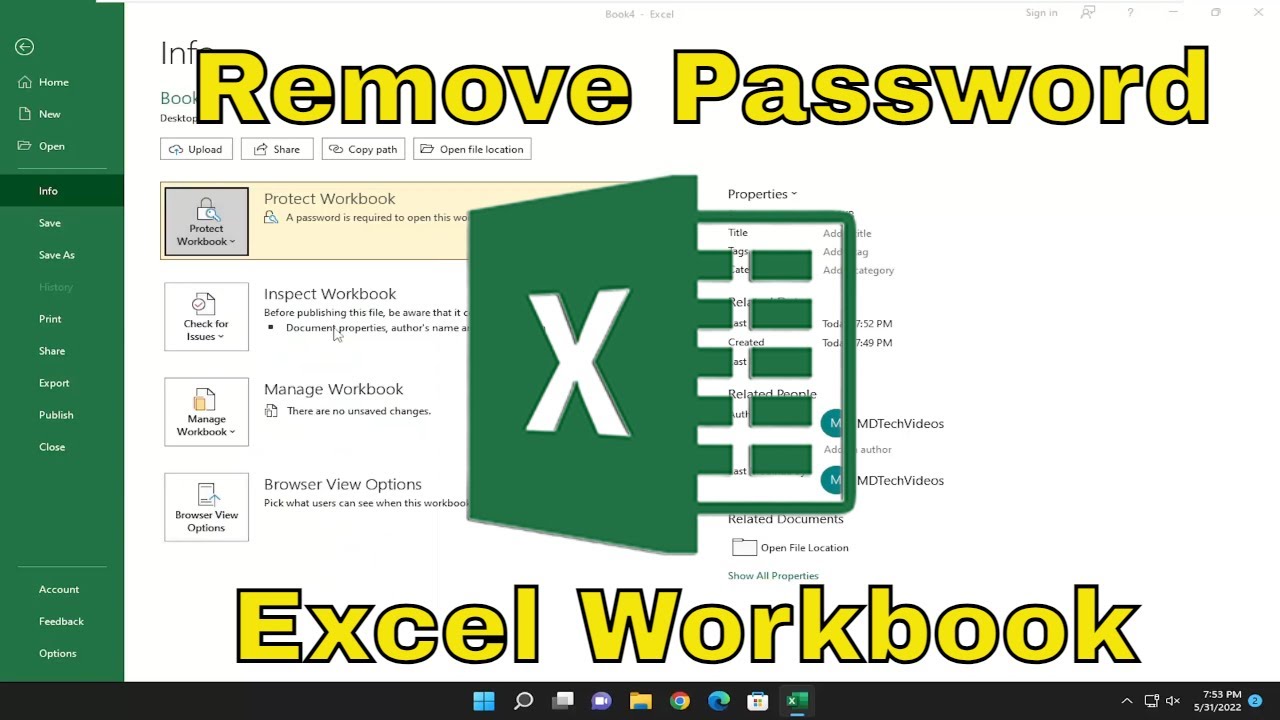
File > Info > Protect Workbook > Encrypt with Password. - Delete the existing password from the dialog box and click OK.
This action disables password protection for future openings. Be aware, removing this layer makes the file accessible to anyone with access to the file location, so always consider your security needs.
Troubleshooting Common Issues
Even when you know how to remove the password protection in excel, issues can arise:
- If your password is not accepted, double-check for typos or keyboard layout issues.
- File corruption or version mismatches may prevent successful unlocking.
- Always save a backup before attempting any changes.
If you suspect file corruption, consider following the Recover corrupted Excel workbooks guide for step-by-step recovery.
With these steps, you can efficiently regain access and control, minimizing downtime and protecting your valuable data.
How to Remove Password Protection Without the Password
Getting locked out of your Excel file can feel overwhelming, but there are several practical approaches for how to remove the password protection in excel if you no longer have the password. Each method has unique benefits, limitations, and risks. This guide breaks down the most effective strategies, so you can regain access to your data while minimizing the chance of data loss.

Built-in Recovery Options and Limitations
If you are searching for how to remove the password protection in excel using built-in tools, it is important to know that Excel itself offers very limited options. There are no official password recovery features for file-level encryption. However, if you have forgotten a worksheet password and the file is not encrypted, you might be able to use the "Unprotect Sheet" function—if the password is simple or left blank.
Built-in options may assist only with worksheet or workbook structure protection, not with passwords required to open a file. Microsoft has clearly stated that bypassing file-level encryption is not supported in their documentation. For most users, this means alternative methods are necessary when the password is truly lost.
Using VBA Macros to Unprotect Worksheets
One of the most popular solutions for how to remove the password protection in excel, especially for worksheet protection, is to use a VBA macro. This method is effective for unprotecting sheets (not files) when the password is unknown.
Follow these steps:
- Press
Alt + F11to open the VBA editor. - Insert a new module.
- Paste the following VBA code:
Sub UnprotectSheet()
  Dim i As Integer, j As Integer, k As Integer
  Dim l As Integer, m As Integer, n As Integer
  Dim i1 As Integer, i2 As Integer, i3 As Integer
  Dim i4 As Integer, i5 As Integer, i6 As Integer
  On Error Resume Next
  For i = 65 To 66: For j = 65 To 66: For k = 65 To 66
  For l = 65 To 66: For m = 65 To 66: For i1 = 65 To 66
  For i2 = 65 To 66: For i3 = 65 To 66: For i4 = 65 To 66
  For i5 = 65 To 66: For i6 = 65 To 66
    ActiveSheet.Unprotect Chr(i) & Chr(j) & Chr(k) & _
      Chr(l) & Chr(m) & Chr(i1) & Chr(i2) & Chr(i3) & _
      Chr(i4) & Chr(i5) & Chr(i6)
  Next: Next: Next: Next: Next: Next
  Next: Next: Next: Next: Next: Next
End Sub
- Run the macro on the protected sheet.
This approach works on many older or weakly protected worksheets. For more advanced VBA techniques and automation, explore Excel VBA and automation tips. Remember, this will not work for encrypted file-level passwords.
Third-Party Tools: Pros, Cons, and Safety
When you need a more robust solution for how to remove the password protection in excel, third-party tools like PassFab and Stellar are available. These programs can attempt to recover or remove passwords from both worksheets and files, including those with strong encryption.
Pros:
- User-friendly interfaces
- Can handle both simple and complex protections
- Often support batch processing
Cons:
- Risk of malware or data breach if tools are untrusted
- Some require payment or subscriptions
- Success is not guaranteed with strong encryption
| Tool | Strengths | Risks |
|---|---|---|
| PassFab | Fast, supports .xls/.xlsx | Paid, privacy concerns |
| Stellar | Broad compatibility | Mixed success rates |
Always research and vet any tool before use. Read user reviews and avoid downloading from unofficial sources to protect your data.
Manual Methods: XML File Editing (for .xlsx Files)
For those comfortable with file manipulation, another way for how to remove the password protection in excel is by editing the file’s XML structure. This works only for worksheet protection in .xlsx files.
Steps:
- Make a backup of your file.
- Change the file extension from
.xlsxto.zip. - Extract the zip file contents.
- Locate the
xl/worksheets/folder and open the relevant.xmlfile in a text editor. - Find and delete the
<sheetProtection ... />tag. - Save the file and repackage the contents back into a
.zip. - Rename the file back to
.xlsxand open it in Excel.
This method does not work for file-level passwords, only for worksheet and structure protection. Always test on a copy to prevent data loss.
Cloud-Based Solutions and Online Services
Several online services claim to help with how to remove the password protection in excel. These platforms usually require you to upload your file, after which they attempt to unlock it and provide you with the unprotected version.
Considerations:
- Data privacy is a major concern. You are uploading sensitive data to a third party.
- Success rates can vary greatly.
- Some services are free, others charge per file or by subscription.
Always check user reviews and privacy policies before using any online unlocking service. Avoid uploading confidential or regulated data to external websites.
Ethical and Legal Warnings
Before attempting how to remove the password protection in excel, consider the ethical and legal implications. Only unlock files you own or have explicit permission to access. Unauthorized removal can violate company policies, privacy laws, or intellectual property rights.
If you are unsure about the legality, consult your IT department or legal advisor. Respect data ownership and always document your actions for compliance purposes.
Preventing Data Loss During Removal
No matter which method you choose for how to remove the password protection in excel, safeguarding your data should be your top priority. Always make a backup before attempting any removal process.
Tips:
- Use version control to track changes.
- Store backups on a secure drive.
- Test the unlocked file for integrity and completeness.
A real-world example: A business attempted to unlock a protected file without backing it up, leading to irreversible data loss. Prevention is much easier than recovery.
Advanced Excel Password Removal Scenarios
Unlocking advanced scenarios requires a deeper look at how to remove the password protection in excel, especially when standard methods fail. In these cases, understanding file type, location, and complexity is crucial for regaining access safely and effectively.
Dealing with Older Excel Versions (97-2003)
If you need to learn how to remove the password protection in excel for files created in versions 97-2003, you face different challenges. These legacy files use weaker encryption, making them more vulnerable but also easier to unlock with the right tools.
Older .xls files often use simple XOR encryption. Many free and paid utilities can remove passwords from these files quickly. However, be cautious, as some tools may corrupt the file or introduce errors.
| Excel Version | Encryption Used | Removal Difficulty |
|---|---|---|
| 97-2003 | XOR, weak | Easy |
| 2007+ | AES, strong | Hard |
For example, unlocking an old .xls financial report may require a specific legacy recovery tool. Always back up your file before attempting any removal process.
Handling Complex Workbooks with Multiple Protections
Complex workbooks may have both file-level and worksheet-level passwords, making how to remove the password protection in excel more intricate. The best approach is to tackle protections in sequence, starting with the outermost layer.
First, remove the file password to open the workbook. Then, address individual worksheet or structure protection. Watch for potential pitfalls such as broken formulas or lost formatting during this process.
Step-by-step for multi-protection workbooks:
- Remove file password first
- Unprotect workbook structure
- Unprotect individual worksheets
- Review for any loss of links or formatting
Careful planning prevents accidental data loss in these advanced scenarios.
Removing Passwords from Shared or Networked Files
When files are stored on SharePoint, OneDrive, or shared drives, how to remove the password protection in excel presents unique challenges. You may need coordination with IT or file owners to ensure proper access.
Start by confirming you have the necessary permissions. Access the file exclusively to avoid version conflicts. If the file is locked by another user, request them to close it before proceeding.
Checklist for networked files:
- Confirm permissions with IT
- Ensure exclusive file access
- Communicate changes to all users
- Back up before making changes
For example, unlocking a shared sales dashboard may require scheduling downtime with your team.
Recovering Access to Corrupted or Damaged Files
Sometimes, the real challenge is not just how to remove the password protection in excel, but also dealing with file corruption. Signs of corruption include error messages or files that refuse to open even with the correct password.
Statistics indicate that 10% of password-protected files are also corrupted. In these cases, use Excel’s repair feature or trusted third-party repair software. Do not attempt password removal until you have repaired the file to avoid data loss.
Common repair tools:
- Excel’s built-in repair utility
- Dedicated file recovery software
- Professional data recovery services
Always create a backup before attempting any repair or password removal.
When to Seek Professional Help
If you have tried every method for how to remove the password protection in excel but still cannot access your file, it may be time to consult an expert. Complex formulas, extensive macros, or business-critical data increase the risks of DIY approaches.
Consider professional help if:
- The file contains sensitive or mission-critical data
- You suspect advanced encryption or file corruption
- You need to comply with legal or company policies
For a full overview of the legal implications, review the Legal considerations for Excel password recovery to ensure your actions remain compliant.
Get Expert Excel Help from The Analytics Doctor
The Analytics Doctor specializes in complex Excel issues, including how to remove the password protection in excel for files that seem inaccessible. Their services include custom troubleshooting, advanced data recovery, and personalized Excel training.

Benefits of expert support:
- Tailored solutions for your unique situation
- Hands-on guidance for safe password removal
- Training to prevent future lockouts
By choosing expert help, you protect your data and streamline your workflow, ensuring peace of mind for your business.
Best Practices to Prevent Future Excel Password Issues
Protecting your Excel files goes beyond knowing how to remove the password protection in excel. Adopting best practices ensures you avoid common pitfalls, save time, and keep sensitive data secure. Let’s explore the essential steps every user and business should follow.
Creating Strong, Memorable Passwords
Weak passwords are a major vulnerability in Excel security. Research shows that 60% of password-protected Excel files can be cracked quickly due to simple passwords (Excel password protection statistics). To avoid ever needing to learn how to remove the password protection in excel because of forgotten or compromised passwords, always create complex yet memorable passphrases.
Use a combination of uppercase and lowercase letters, numbers, and symbols. Try using a passphrase, such as a favorite quote or a string of unrelated words, instead of a random string. Password managers can help generate and store passwords securely.
Documenting and Sharing Passwords Securely
A secure process for recording and sharing passwords is vital. Never send passwords via email or leave them on sticky notes. Instead, use encrypted password managers or follow your organization’s secure sharing policy. For more in-depth guidance, check out these best practices for Excel workbook protection.
Having a clear system means you will rarely need to search for how to remove the password protection in excel due to lost credentials. Always update documentation when passwords change and restrict access only to those who need it.
Setting Appropriate Levels of Protection
Excel offers several layers of protection: worksheet, workbook, and file-level. Choose the right level based on the sensitivity of your data. For example, use worksheet protection for collaborative project sheets and file-level passwords for confidential HR data.
Understanding these distinctions helps you manage access efficiently and reduces the risk that you will have to look up how to remove the password protection in excel for files that should remain accessible. Balance security needs with usability so that essential workflows are not disrupted.
Regularly Reviewing and Updating Access Controls
Regular audits are crucial. Check who has access to your protected Excel files and update permissions as needed. When employees change roles or leave the organization, promptly revoke their access and rotate passwords.
Since 60% of data breaches involve former employees, proactively managing access minimizes the chances of needing to find out how to remove the password protection in excel due to unauthorized locks or forgotten credentials. Make access reviews part of your routine security checklist.
Backing Up Important Excel Files
Backing up your Excel files is non-negotiable. Use both automated cloud storage and manual backups for redundancy. Enable version history whenever possible.
If you ever face a situation where you need to learn how to remove the password protection in excel but risk data loss, a recent backup ensures you can restore your data quickly. Test your backup system regularly to confirm files are recoverable and up-to-date.
Training and Educating Team Members
Ongoing training is the foundation of strong Excel security. Educate your team on password best practices, secure sharing, and the importance of protection features. Resources may include workshops, online courses, or internal guides.
The more your team understands the risks and solutions, the less likely they are to encounter scenarios requiring how to remove the password protection in excel. Empowered users make fewer mistakes and help safeguard organizational data.
Leveraging Excel’s Built-in Security Features
Excel includes advanced security options like Information Rights Management, protected view, and digital signatures. Familiarize yourself with these features and apply them to sensitive files.
Using built-in tools reduces the need to research how to remove the password protection in excel after accidental lockouts. For example, protected view can prevent malware, while digital signatures verify file authenticity. Always match the security feature to the file’s risk level.


