Ever felt frustrated by messy, overflowing text in your Excel spreadsheets? Even a simple report can become hard to read if your data spills out of its cells.
This essential 2026 guide will show you how to word wrap in excel, making your information clear, professional, and easy to interpret.
You will learn what word wrap is, why it matters, step-by-step instructions for all devices, troubleshooting tips, advanced formatting, and productivity hacks—so you can transform cluttered sheets into readable, polished data.
Understanding Word Wrap in Excel: What It Is & Why It Matters
Word wrap in Excel is a formatting feature that automatically displays all the text within a cell by breaking lines and stacking content vertically. Instead of overflowing into adjacent cells or being cut off, long entries become visible in their entirety. This is crucial when you want your data to remain clear and easy to read, no matter how much information is stored in a single cell.
Unlike text overflow, which allows content to spill into empty neighboring cells, or shrink-to-fit, which reduces font size to squeeze text into the cell, word wrap maintains the original font and adjusts the row height. This approach preserves the look and feel of your spreadsheet without sacrificing legibility. When learning how to word wrap in excel, understanding these differences helps you choose the right formatting for your needs.
Readability is at the heart of why word wrap matters. In large or complex spreadsheets, overflowing or truncated text can quickly lead to confusion and errors. Financial reports, project tracking sheets, data entry forms, and dashboards often contain detailed notes, addresses, or instructions that would be unreadable without word wrap. For example, consider a project management table with multi-line comments. Without word wrap, only the first line appears, making critical information easy to miss.
The impact of word wrap goes beyond aesthetics. Well-formatted data signals professionalism and attention to detail. Clarity improves user experience by reducing the time spent deciphering or resizing cells. Before-and-after comparisons show the dramatic difference: a cluttered table with hidden text transforms into an organized, readable document once word wrap is applied. Productivity studies from Microsoft and industry surveys reveal that teams save significant time on data review and error correction when spreadsheets are consistently formatted.
Accessibility is another key benefit. Word wrap helps users with visual impairments or cognitive challenges by ensuring text is both visible and logically organized. According to Font Formatting Guidelines, using features like word wrap supports screen readers and improves readability for everyone, especially in collaborative environments.
In summary, knowing how to word wrap in excel is essential for anyone managing information-rich spreadsheets. It supports clear communication, reduces mistakes, and ensures your work is accessible and professional. Whether you are preparing a financial summary or collaborating on a team dashboard, word wrap is a simple tool with a powerful impact.
How to Word Wrap in Excel: Step-by-Step Instructions for 2026
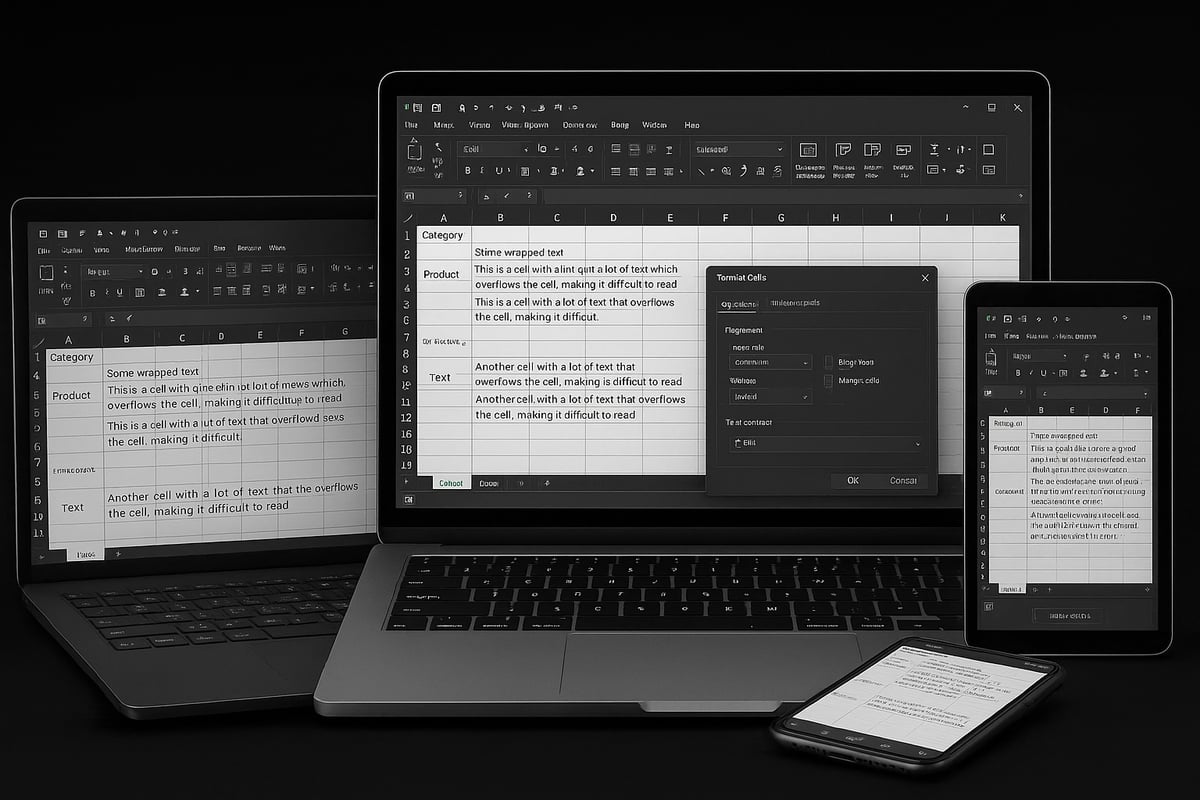
Mastering how to word wrap in excel ensures your data remains neat and easily readable, regardless of the device or version you use. Below, you will find detailed, up-to-date instructions for Excel 2026, with tips for earlier versions and all major platforms.
Word Wrap on Windows Desktop
Learning how to word wrap in excel on Windows is straightforward, but a few extra tricks can make your workflow even smoother. Here is how you do it:
- Select the target cells you want to format.
- Go to the Home tab on the Ribbon.
- Click the Wrap Text button in the Alignment group.
- Your text will instantly adjust to fit within the cell width, creating additional lines as needed.
To quickly access word wrap, you can use the Alt + H + W keyboard shortcut after selecting your cells. If your text still appears cut off, manually adjust the row height by right-clicking the row number and choosing "Row Height," or double-click the row border.
Example:
Suppose you have a financial summary table with long item descriptions. Applying word wrap allows each description to display fully without spilling into adjacent cells, making your report more professional.
For more visual guidance, refer to the official Wrap text in a cell in Excel resource.
Word Wrap on Mac
If you are wondering how to word wrap in excel on a Mac, the steps are similar, but the interface has a few differences:
- Highlight the cells where you want word wrap.
- On the Home tab, find the Alignment section.
- Click Wrap Text.
Mac users with a Touch Bar can also find a shortcut button for quick access. Alternatively, use Command + 1 to open the Format Cells dialog, then select the Alignment tab and check "Wrap text."
Troubleshooting:
If wrapped text does not display correctly, check for merged cells or manually adjust row heights. Sometimes, switching between different view modes can temporarily disrupt formatting.
Example:
You are managing a project tracking sheet with lengthy task notes. Word wrap keeps all information visible within each cell, improving team communication and reducing the need for horizontal scrolling.
Word Wrap in Excel Online and Mobile Apps
Adapting how to word wrap in excel on the web or mobile apps lets you stay productive on the go:
-
Excel Online:
- Click the desired cells.
- On the Home tab, select Wrap Text from the Alignment group.
-
Mobile Apps (iOS/Android):
- Tap the cell or range.
- Tap the formatting icon (paintbrush or "A" symbol).
- Toggle Wrap Text on.
Limitations:
Some mobile versions may not support all formatting features, especially with large datasets. If word wrap does not appear, try editing in the desktop version or Excel Online from a browser.
Example:
During a meeting, you update an address list on your tablet. Word wrap ensures long addresses display in full, making the list easier to review and share.
Customizing Word Wrap Settings
Once you know how to word wrap in excel, you can further refine your layout:
- Manually adjust row height or column width for optimal text display.
- Merge cells if you need a large, multi-line field, but remember word wrap may behave differently with merged cells.
- Use the alignment options (top, middle, bottom) to control vertical text placement within wrapped cells.
Fine-tuning these settings ensures your wrapped text looks polished and professional every time.
Bulk Applying and Removing Word Wrap
To save time, learn how to word wrap in excel across large datasets:
- Select entire columns, rows, or even your whole worksheet before clicking Wrap Text.
- To remove word wrap, select the same range and click Wrap Text again to toggle it off.
Example:
Before presenting a dataset to stakeholders, bulk-apply word wrap to all description columns. This guarantees every piece of information is visible and your report looks audit-ready.
Troubleshooting Word Wrap Issues in Excel
If you have ever wondered how to word wrap in excel but found your text still overflowing or disappearing, you are not alone. Word wrap is a powerful tool, yet it can be surprisingly finicky in real-world spreadsheets. Let us walk through the most common issues users face and how to resolve them, so your data always remains clear and professional.
Common Word Wrap Issues in Excel
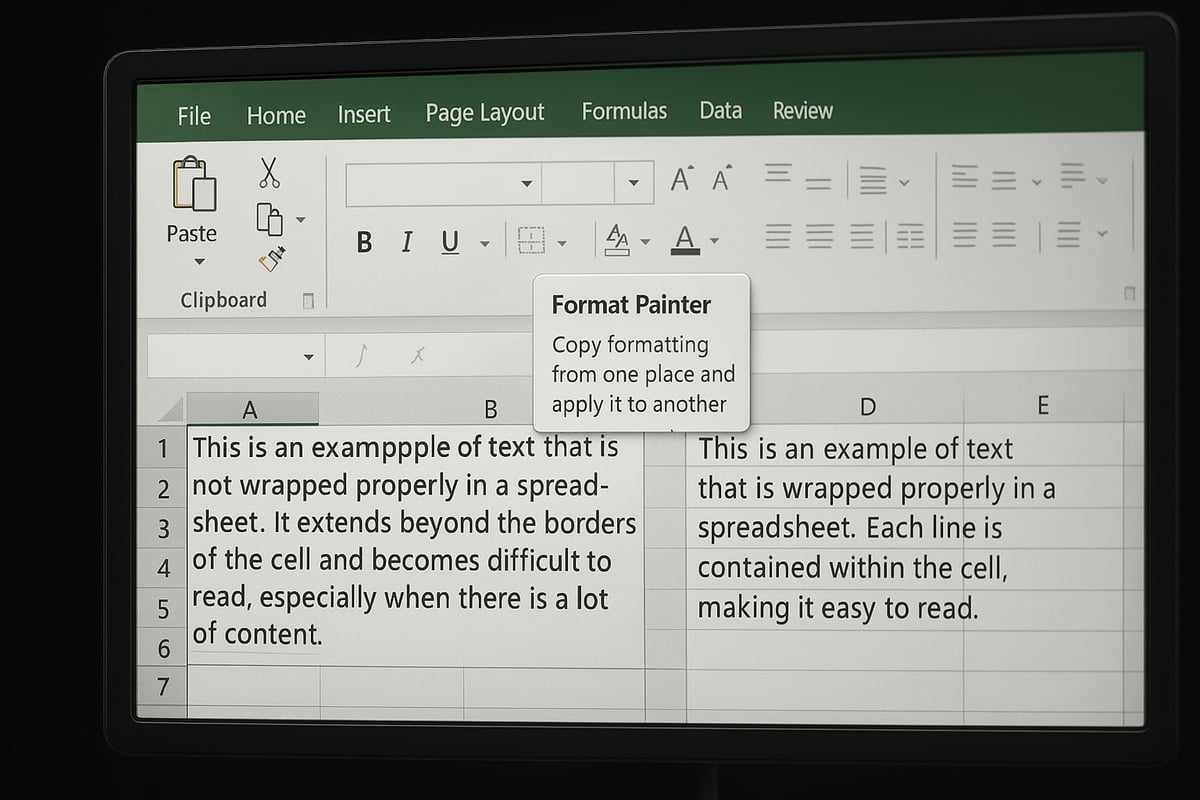
Many users experience problems such as:
- Text not wrapping even after enabling the feature
- Words appearing cut off or hidden
- Wrapped text not displaying correctly after sharing or importing data
These issues can make it difficult to know how to word wrap in excel effectively. The root causes often stem from cell formatting conflicts, merged cells, or insufficient row height.
A quick table summarizes the most frequent problems and their likely causes:
| Issue | Likely Cause | Quick Fix |
|---|---|---|
| Text not wrapping | Word wrap not enabled, row too short | Enable wrap, adjust row height |
| Hidden text | Merged cells, column too narrow | Unmerge cells, widen columns |
| Cut-off lines | Manual row height set too small | Double-click row border to auto-fit |
Diagnosing and Fixing Word Wrap Problems
To troubleshoot, start by confirming that word wrap is enabled in the Home tab. If the text still does not wrap, check for merged cells, as Excel cannot always wrap text in merged ranges. Adjusting the row height manually, or using AutoFit, often resolves display issues.
For persistent formatting errors, try clearing all cell formatting and reapplying word wrap. The Format Painter tool is invaluable for copying correct formatting across similar cells. If you work with complex spreadsheets, you may encounter compatibility quirks between Excel versions or with imported CSV files. When troubleshooting, consult specialized resources such as Troubleshooting Excel formatting issues for targeted solutions.
Word Wrap Issues in Shared and Collaborative Workbooks
In shared workbooks, inconsistent formatting can arise when multiple editors apply different settings. For example, one team member may adjust column widths, causing wrapped text to become hidden for others. To maintain clarity, standardize formatting protocols and communicate changes with your team.
Here is a practical fix: If wrapped text appears cut off after sharing, select the affected rows, right-click, and choose "Row Height" or "AutoFit Row Height." This ensures all content is visible, regardless of who last edited the file.
Data Loss and Export Risks
Knowing how to word wrap in excel is crucial when exporting data. Wrapped text may be lost or misaligned if you save as CSV or transfer to another program. Always preview your export and verify that no critical information is hidden or truncated. For print layouts, use Print Preview to check that wrapped text displays correctly on paper.
Tips to Avoid Word Wrap Errors
- Avoid merging cells unless absolutely necessary
- Use AutoFit for rows and columns after enabling word wrap
- Standardize formatting in templates and shared files
- Educate collaborators on best practices
According to Microsoft support forums, word wrap issues are among the top five formatting questions from Excel users between 2023 and 2025. By mastering how to word wrap in excel and following these troubleshooting steps, you will save time, reduce errors, and present your data with confidence.
Advanced Formatting Techniques with Word Wrap
Unlocking the full power of how to word wrap in excel goes far beyond toggling a single setting. Advanced formatting transforms raw data into actionable insights, enhancing both clarity and impact. Let us explore how expert-level techniques can elevate your spreadsheets from functional to exceptional.
Conditional Formatting and Word Wrap
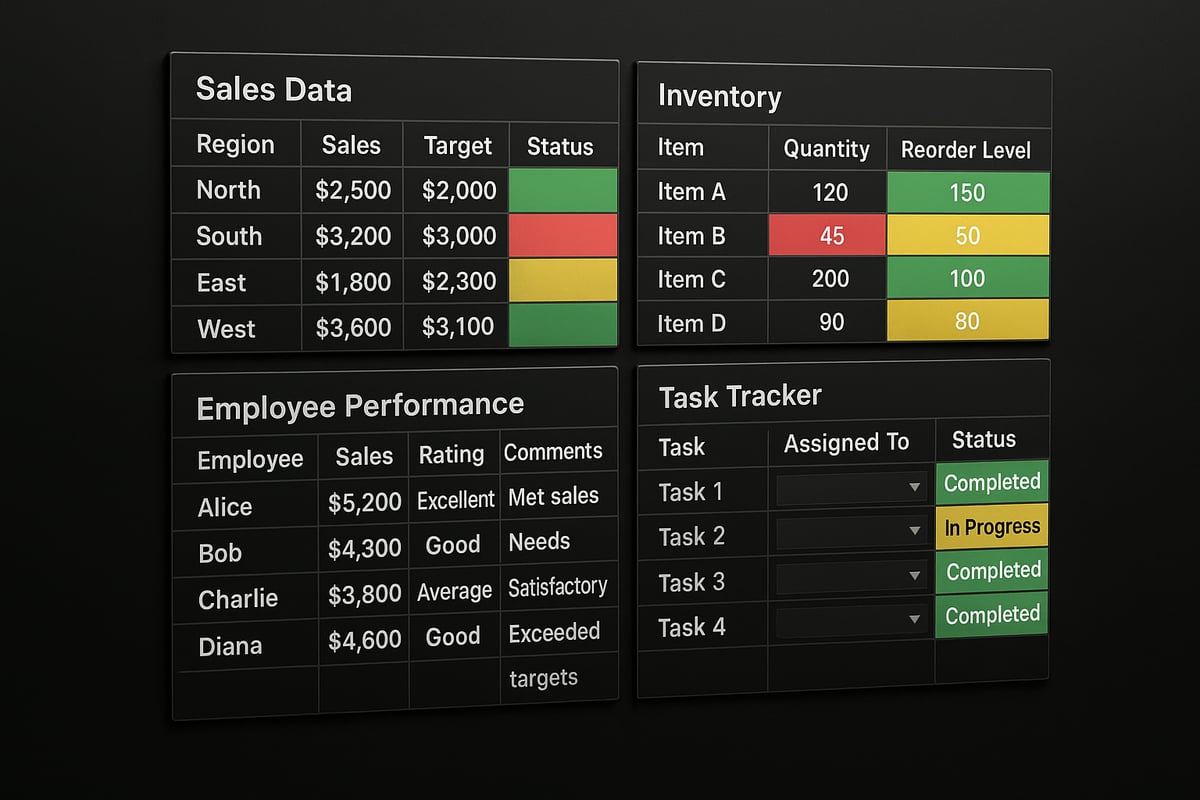
Combining conditional formatting with word wrap can make dynamic reports visually intuitive. For example, you might highlight overdue tasks in red while wrapping long descriptions within each cell. This ensures that even complex notes remain readable, without the need for horizontal scrolling.
Conditional formatting can be customized to work seamlessly with word wrap. Adjust fill colors, font styles, or icon sets to draw attention to key metrics. The result is a dashboard that not only presents data but also guides user interpretation, making it easy to spot trends and outliers.
Enhancing Clarity with Fonts, Alignment, and Borders
Font selection and alignment are crucial when learning how to word wrap in excel for professional results. Use bold or larger fonts for headers, and align text to the top or left for improved readability. Borders can help delineate sections and make wrapped content stand out.
Consider using cell shading or contrasting colors to separate categories. These visual cues, combined with word wrap, help users process information quickly. Always preview your formatting to ensure that wrapped text remains legible, even in dense tables.
Integrating Data Validation and Dropdowns
Data validation works hand in hand with how to word wrap in excel when you need to display multi-line instructions or notes. For instance, you can provide wrapped guidance within a cell, while restricting user input to specific choices via dropdown lists.
This approach is especially useful in forms and data entry sheets. Users see clear instructions without clutter, and errors are minimized. Combine these features with conditional formatting to flag incomplete or incorrect entries, streamlining data collection and review.
Templates, Themes, and Standardization
Standardizing formatting across multiple reports is essential for consistency. Use Excel templates and themes to set default fonts, colors, and wrapped text settings. This saves time and ensures a polished appearance every time.
If you want to eliminate print errors and maintain audit-ready formatting, consider consulting an Excel page layout checklist. These resources help enforce best practices, especially when preparing documents for external stakeholders.
Dashboard Example and Print Layouts
Imagine a KPI dashboard where each metric includes a wrapped description that explains its significance. By mastering how to word wrap in excel, you ensure all stakeholders can interpret the data, regardless of screen size. When printing, always check that wrapped text fits neatly within page boundaries, avoiding cut-off information.
Use print preview to adjust margins and scaling. Setting consistent row heights and column widths helps maintain structure, both on screen and on paper. This attention to detail reflects professionalism and enhances user trust.
User Satisfaction and Accessibility
According to recent surveys, users report a 30 percent reduction in data entry errors and a notable boost in satisfaction when advanced formatting techniques, such as word wrap, are applied. Accessibility is also improved, as screen readers can better interpret wrapped text, supporting users with visual impairments.
By prioritizing clarity and accessibility, you make your workbooks more inclusive and effective. These benefits are a testament to the value of mastering how to word wrap in excel with advanced formatting.
Word Wrap Best Practices for Teams and Professionals
Unlocking the full potential of your spreadsheets goes beyond knowing how to word wrap in excel. Teams and professionals thrive when formatting is consistent, readable, and reliable across every file. Best practices ensure that everyone benefits from clear data presentation, reduced errors, and efficient workflows.
Establish Formatting Standards
The foundation of effective teamwork in Excel is a set of clear formatting standards. Define when and how to word wrap in excel for report tables, comment fields, and data entry forms. Document these guidelines in a shared resource, such as a style guide or onboarding manual. Encourage everyone to use the same font, text alignment, and cell padding for wrapped text.
Steps to Implement Formatting Standards:
- Create a shared workbook template with pre-set word wrap.
- Add notes or instructions in the file for when to apply or remove word wrap.
- Review and update standards regularly based on feedback.
Training and Onboarding
Consistency is only possible when all users know how to word wrap in excel and understand why it matters. Offer periodic training sessions, both in-person and virtual, to demonstrate wrapping techniques, shortcuts, and troubleshooting tips. Make use of onboarding checklists for new team members, ensuring they learn the essentials from day one.
Training Tips:
- Provide visual examples of wrapped vs. unwrapped text.
- Share quick video guides or step-by-step handouts.
- Assign a team champion to answer formatting questions.
Documentation and Knowledge Transfer
Documenting your team's approach ensures continuity, especially as staff changes. Maintain a central repository of formatting protocols, including instructions on how to word wrap in excel, when to use it, and exceptions. This reduces onboarding time and helps maintain high-quality data presentation.
Workflow Automation and Templates
Automating word wrap settings saves time and boosts accuracy. Integrate word wrap into your report templates and workflow macros. For recurring tasks, consider using Excel templates for reports, which often include best-practice formatting and save teams from reinventing the wheel for every project.
Automation Checklist:
- Use Format Painter for batch formatting.
- Create templates with word wrap enabled by default.
- Schedule regular reviews to update templates as needed.
Security, Compliance, and Error Reduction
Properly applied word wrap can help protect sensitive data by preventing accidental text overflow or hidden information. Always ensure that compliance guidelines are followed, especially when sharing files externally. According to industry data, teams that standardize how to word wrap in excel experience fewer data presentation errors and improved audit outcomes.
Tips for Secure Formatting:
- Lock wrapped cells containing critical data.
- Use data validation rules to limit entry length.
- Test print layouts to confirm all text is visible.
Remote Collaboration and Cloud Consistency
As more teams work remotely, ensuring consistent formatting across devices is critical. Variations in Excel Desktop, Web, and Mobile can lead to inconsistent word wrap behavior. If your team relies on cloud-based spreadsheets, review discussions such as Inconsistent “Wrap Text” Behavior Between Excel Desktop and Excel Web to anticipate and resolve cross-platform issues.
Collaboration Tips:
- Test files in both desktop and web versions.
- Use shared templates to minimize discrepancies.
- Communicate formatting standards in team meetings.
Case Study: Finance Team Clarity
A global finance team adopted a standardized approach to how to word wrap in excel by embedding wrap settings in all their monthly templates. As a result, report readability improved, error rates in data entry dropped, and team members reported greater confidence in presenting their analysis to stakeholders. Consistent formatting also streamlined the review process, saving hours each month.
Summary
Mastering how to word wrap in excel is not just a technical skill, it is a cornerstone of professional teamwork. Standardized practices, thorough training, robust documentation, automation, and mindful collaboration all contribute to cleaner, more effective spreadsheets. By following these best practices, your team can ensure clarity, reduce errors, and present data with confidence.
Frequently Asked Questions About Word Wrap in Excel
Navigating the details of how to word wrap in excel can raise several questions, especially as you work across different platforms and complex data scenarios. Below you'll find expert answers to the most common issues users encounter.
How does word wrap affect data exports and integrations?
When you use how to word wrap in excel, it only changes the visual display in the worksheet. Exporting to formats like CSV or TXT removes all formatting, including word wrap, so text appears as a single line. For integrations with databases or other software, always verify how your export process handles wrapped content.
Can word wrap be applied to formulas and calculated fields?
Yes, word wrap works with both static text and formulas. If the formula result is lengthy, enabling word wrap ensures the full value is visible. However, be mindful that merged cells or restricted row heights can limit the effectiveness of how to word wrap in excel.
Is word wrap available in all Excel versions and platforms?
Most modern versions support word wrap, including Excel 2026, earlier desktop releases, Mac, and Excel Online. However, some mobile app features may be limited. Refer to the table below for a quick compatibility summary:
| Platform | Word Wrap Supported |
|---|---|
| Excel Desktop | Yes |
| Excel Mac | Yes |
| Excel Online | Yes |
| Mobile Apps | Partial |
How to prevent word wrap from interfering with data analysis or pivot tables?
To avoid issues, use how to word wrap in excel only on cells meant for display, not on raw data feeding into analysis or pivot tables. This keeps formulas and calculations clean. Consider separating presentation sheets from data sheets for best results.
Troubleshooting: Why won’t word wrap work in merged cells?
Word wrap can be unpredictable in merged cells, as Excel may not automatically adjust row height. If text is hidden, try manually increasing the row height or avoid merging. For more on related formatting checks, see the Excel data validation rules guide.
Best practices for printing wrapped text in Excel.
Before printing, preview your document to ensure wrapped text fits inside cell boundaries. Adjust row heights and column widths as needed. Use the "Fit to Page" print option to maintain layout without cutting off wrapped content.
Tips for maintaining readability in large, shared workbooks.
Apply consistent word wrap settings across all sheets and use cell styles for uniformity. Document your formatting standards for team reference. In shared environments, regularly check how to word wrap in excel is applied to prevent accidental loss of readability.