Struggling to keep your Excel data clean and error-free? If you have ever found yourself frustrated by inconsistent entries or time-consuming corrections, you are not alone.
A simple drop-down list can transform your workflow, helping you avoid mistakes, speed up data entry, and ensure every record is consistent. In this guide, you will discover how to add drop down in excel, customize lists for your needs, and troubleshoot common issues.
Whether you are a beginner or a seasoned user, follow our practical, step-by-step approach to master drop-down lists and optimize your Excel experience right away.
Understanding Drop-Down Lists in Excel
Mastering how to add drop down in excel starts with understanding what a drop-down list is and why it matters. These lists are in-cell menus that let users select from predefined options, making data entry much faster and more reliable. When you use drop-down lists, you are applying a form of data validation that stops accidental errors before they happen. For example, instead of typing an employee’s status, you can pick from options like Active, On Leave, or Terminated. According to industry research, using drop-downs can reduce entry errors by up to 90% in structured spreadsheets. For those new to the concept, the Excel Data Validation Guide provides an excellent foundation for understanding how these features work.

What Is a Drop-Down List?
A drop-down list in Excel is a cell-based menu that restricts user input to a specific set of choices. This is essential when learning how to add drop down in excel, because it ensures that only valid entries are allowed. Data validation is at the core of this feature, preventing typos and mismatched information from entering your spreadsheet. Typical use cases include forms, surveys, inventory logs, and HR databases. For example, if you want to track employee status, you can offer choices such as:
Active
On Leave
Terminated
By limiting input to these options, your data stays consistent and error-free.
Benefits of Using Drop-Down Lists
The main advantage of knowing how to add drop down in excel is the standardization it brings to your data. Drop-down lists eliminate inconsistencies, ensuring that every entry matches the approved format. This not only prevents typos but also boosts overall data integrity.
Drop-downs also speed up data entry, especially in large spreadsheets. Both creators and users benefit from time savings, as the process becomes more intuitive and less prone to mistakes. For example, a sales team can use a drop-down to pick their region, ensuring uniform reporting across the board.
Types of Drop-Down Lists in Excel
When you explore how to add drop down in excel, you will encounter several types of lists, each serving a unique purpose. Basic single drop-downs are the most common, but advanced options provide more flexibility. Here is a quick comparison:
| Type | Description | Example Use |
|---|---|---|
| Single | Static list of choices | Status selection |
| Dynamic | Updates as source data changes | Product catalog |
| Dependent | List changes based on another cell’s selection | Category > Subcategory |
| Multi-select | Allows picking multiple items (requires VBA/custom) | Project tags |
Recent Excel versions, like Excel 365, support dynamic arrays for even more advanced drop-downs.
Where Drop-Downs Fit in Excel Workflows
Understanding how to add drop down in excel is crucial for building efficient business processes. Drop-down lists are commonly used in:
- Data entry forms for HR, finance, and operations
- Budgeting and forecasting models
- Project management trackers
- Customer and inventory databases
For instance, an HR onboarding checklist might include drop-downs to select a new hire’s department and job role, ensuring every entry follows company standards. Drop-down lists help streamline workflows and keep your spreadsheets organized.
Preparing Your Data for Drop-Down Lists
Proper preparation is the cornerstone of mastering how to add drop down in excel. Before building your drop-downs, you need clean, reliable source data. This section will guide you through organizing lists, naming ranges, formatting for dynamic updates, and avoiding common pitfalls. Each step sets the foundation for accurate, efficient drop-down functionality.
Organizing Source Data
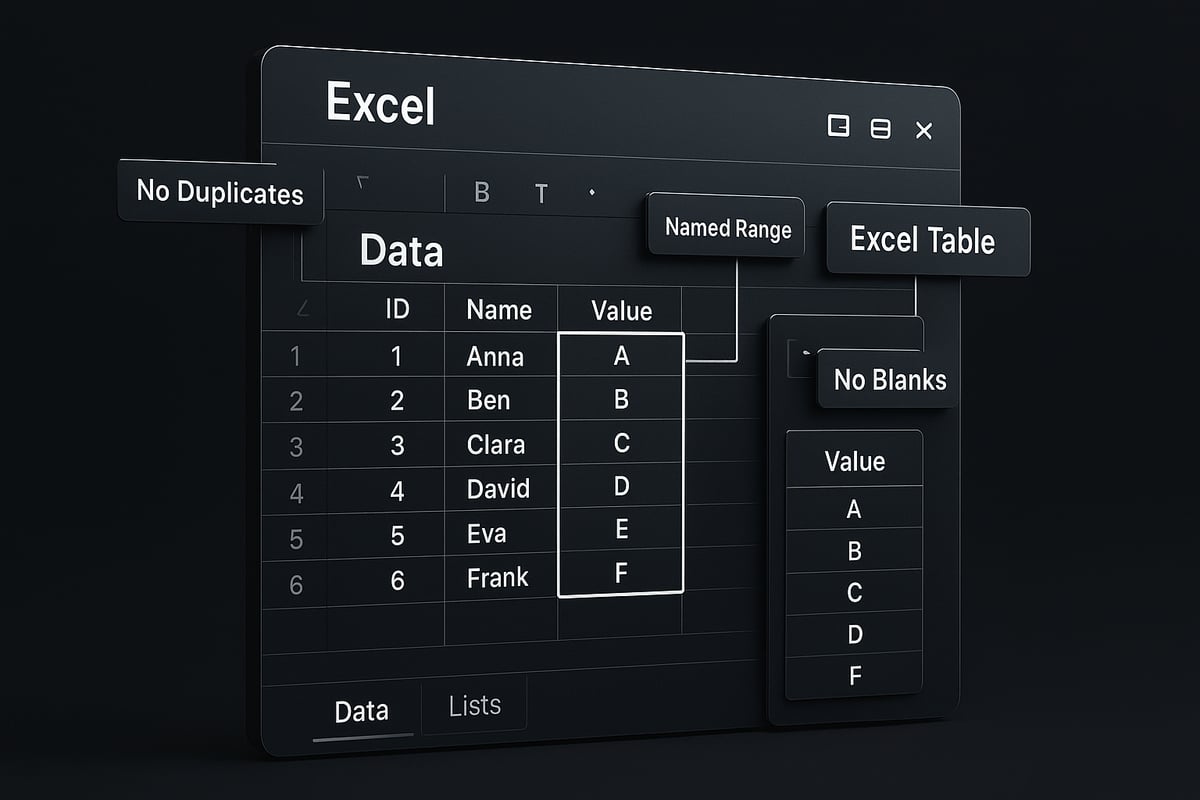
The first step in how to add drop down in excel is organizing your source data. Place your list of choices on a dedicated worksheet, such as a tab named "Lists" or "Data." This approach keeps your main worksheet uncluttered and makes future updates simple.
Avoid duplicates and blank cells in your source list. Consistent, error-free data ensures your drop-downs work every time. For example, use a single column with unique department names for an employee sheet. Excel best practices recommend using named ranges for reusable lists, which you'll learn about next.
Naming Ranges for Easy Reference
When learning how to add drop down in excel, naming your source ranges is a best practice. Select your list, then use the Name Box near the formula bar or go to the Formulas tab and choose Define Name. Give your range a descriptive name, like JobTitles or Regions.
Named ranges make your drop-down lists easier to manage. They allow you to reference lists across different sheets and simplify updates. For example, if you name cells A2 to A10 as "JobTitles," you can use =JobTitles as your drop-down source, keeping your formulas clean and portable.
Formatting Data for Dynamic Lists
Dynamic drop-downs update automatically as your source list grows. To achieve this in how to add drop down in excel, convert your list into an Excel Table by selecting your data and pressing Ctrl+T. Excel Tables auto-expand with new entries, so your drop-down always reflects the latest options.
You can also use dynamic named ranges with formulas like OFFSET and COUNTA. For advanced users with Excel 365, dynamic array functions like UNIQUE or FILTER offer even more flexibility. For a detailed walkthrough on creating and maintaining dynamic lists, see the Using Excel Tables for dynamic lists guide.
Avoiding Common Data Preparation Mistakes
To ensure success with how to add drop down in excel, avoid mixing text and numbers in your source lists. Do not use merged cells or hide rows within your range. These issues can cause drop-down errors or missing options.
Check for accidental spaces, especially trailing or leading blanks. For example, "Vegetables " (with a space) is different from "Vegetables" and can confuse your drop-downs. Carefully review your data for consistency and clarity before linking it to your drop-down list.
How to Add a Basic Drop-Down List in Excel: Step-by-Step
Creating a drop-down list in Excel is a straightforward process that can significantly improve data accuracy and streamline workflows. By following these simple steps, you will master how to add drop down in excel and unlock a more efficient way to manage your data. Let’s walk through each stage in detail, ensuring you are set up for success.

Step 1: Select Target Cells
Start by identifying where you want your drop-down list to appear. Select the specific cell or range of cells that will include the menu. For large datasets, you can apply the list to entire columns, such as B2 to B1000 for a department list. This is an essential first step in how to add drop down in excel, ensuring your validation will cover all necessary entries.
For example, if you are building an employee management sheet, you might select the entire “Department” column so every new entry uses the same options. Consistency at this stage saves time and reduces errors down the line.
Step 2: Open Data Validation Menu
With your cells selected, navigate to the Data tab on the Excel ribbon. In the Data Tools group, click on Data Validation. Alternatively, use the Windows shortcut Alt + D + L to access the menu quickly. The Data Validation dialog box will appear, presenting options you need for how to add drop down in excel.
The dialog box has three key tabs:
- Settings: Define the type of validation.
- Input Message: Guide users with prompts.
- Error Alert: Warn users of invalid entries.
Familiarity with this menu is foundational for building effective drop-downs and maintaining data integrity.
Step 3: Configure List Settings
Within the Settings tab, set the Allow field to “List.” Make sure the “In-cell dropdown” box is checked, allowing users to see the drop-down arrow when they click the cell. You may also choose to allow blank values or restrict input to list items only, based on your needs for how to add drop down in excel.
For more detailed guidance, refer to the Excel Data Validation Tutorial, which covers these settings thoroughly. Taking time to configure these options ensures a user-friendly experience and reliable data entry.
Step 4: Set the Source for the Drop-Down
Next, define the source list for your drop-down. For short, static lists, enter items directly, separated by commas (e.g., HR, Finance, IT). For longer or dynamic lists, reference a cell range or a named range (such as =JobTitles or =Sheet2!A2:A10). This flexibility is a major benefit of learning how to add drop down in excel.
Using named ranges is recommended for scalability and easy maintenance. For example, referencing a list of job titles on a separate “Lists” sheet keeps your spreadsheet organized and adaptable to change.
Step 5: Test and Use the Drop-Down List
After setting up your drop-down, click on one of the target cells. You should see a drop-down arrow appear. Click the arrow, select an option, and confirm that the chosen value populates the cell. This hands-on testing is vital in how to add drop down in excel, ensuring everything works as planned.
Try selecting different options and check for any issues. For forms with required fields, make sure the drop-down enforces selection, preventing accidental blank entries.
Alternative: Entering List Items Directly
Sometimes, you may only need a simple list with a few choices. In these cases, you can enter the options directly into the Source field, separated by commas. This approach to how to add drop down in excel is best for short, unchanging lists, like “Yes, No, N/A.”
Pros:
- Quick setup
- No extra sheets needed
Cons:
- Not scalable
- Harder to update later
Choose this method only when your list is unlikely to change.
Customizing Input and Error Messages
Enhance your drop-downs by adding input messages and error alerts. In the Data Validation dialog, use the Input Message tab to display helpful instructions when users select the cell. The Error Alert tab lets you create custom warnings if someone tries to enter a value not in your list. These features make how to add drop down in excel more user-friendly and robust.
For example, add an input message like “Please select a valid department from the list.” This guides users and reduces confusion, keeping your data clean and reliable.
Advanced Drop-Down Techniques: Dynamic & Dependent Lists
Unlocking advanced drop-down techniques in Excel can elevate your data management and bring efficiency to any workflow. Whether you want lists that grow with your data or menus that react to prior selections, mastering these features is essential. As you learn how to add drop down in excel at an advanced level, you will discover tools that adapt to your evolving needs and streamline complex tasks.
Creating Dynamic Drop-Down Lists
Dynamic drop-down lists automatically update as you add or remove items from your source data. This is crucial when you want your menus to reflect the latest information without manual adjustments. To achieve this, convert your source list into an Excel Table using Ctrl+T, which ensures the range auto-expands with new entries.
You can also use formulas for more control. For example, using the OFFSET and COUNTA functions, create a named range that grows with your list:
=OFFSET(Lists!$A$2, 0, 0, COUNTA(Lists!$A:$A)-1, 1)
If you are learning how to add drop down in excel for large or shifting datasets, these methods keep your menus current and reliable. Dynamic drop-downs are ideal for inventory lists or product catalogs that change frequently.
Building Dependent (Cascading) Drop-Down Lists
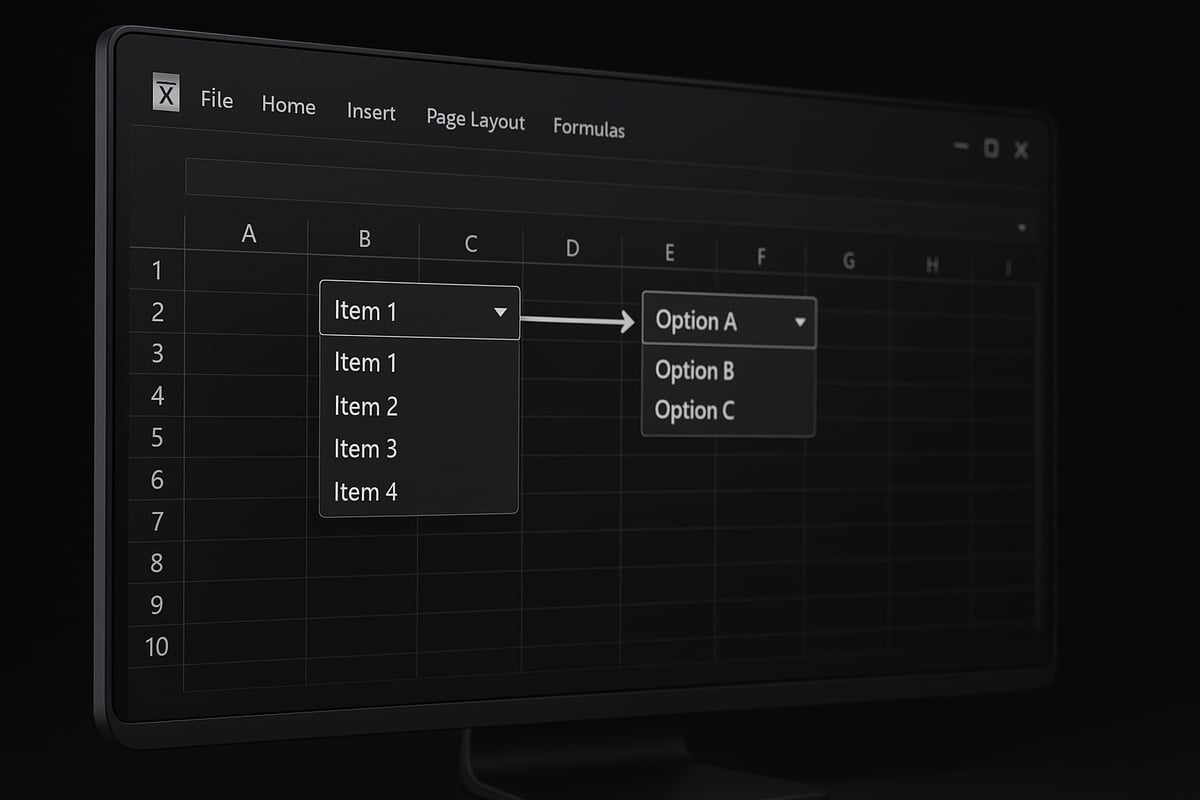
Dependent drop-down lists, also known as cascading lists, allow the options in one menu to change based on a previous selection. For example, selecting a product category in one cell filters the available products in the next cell. This technique is invaluable when you want to guide users through multi-step choices or maintain data consistency.
To understand how to add drop down in excel that reacts to user input, you will prepare separate lists for each parent category. This structure is common in forms, surveys, and project trackers. For a thorough walkthrough, see this Excel dependent drop-down list guide, which covers setup and troubleshooting.
Step-by-Step: Setting Up Dependent Drop-Downs
Setting up dependent drop-downs in Excel involves a few clear steps:
- Organize your main categories in one column and related subcategories in adjacent columns.
- Name each subcategory range exactly as its parent category.
- In your Data Validation source for the dependent cell, use the
INDIRECTfunction:
=INDIRECT(A2)
This formula links the drop-down options to the category selected in cell A2. If you are focused on how to add drop down in excel for workflows like HR onboarding or inventory tracking, dependent lists improve accuracy and user experience.
Dynamic Arrays and Modern Excel Features (2025 Update)
With Excel 365 and the latest 2025 features, dynamic arrays offer new ways to build smarter drop-downs. Functions like UNIQUE and FILTER allow you to create lists that update instantly and remove duplicates:
=UNIQUE(A2:A100)
This approach is perfect when you want your drop-down to reflect only current, non-repeating items. When exploring how to add drop down in excel using dynamic arrays, you gain real-time updates and greater flexibility. Modern Excel features also support advanced data validation and integration with dashboards.
Multi-Select Drop-Downs: Possibilities and Limitations
Native Excel drop-downs only allow one selection per cell. However, some users require multi-select functionality, such as tagging multiple project attributes. Achieving this requires VBA scripting or third-party add-ins, which can add complexity to your workbook.
If you are considering how to add drop down in excel with multi-select, weigh the pros and cons. While it can expand your data entry options, it may also complicate data analysis. For most business scenarios, single-selection drop-downs remain more manageable and error-proof.
Real-World Examples of Advanced Drop-Downs
Advanced drop-down lists are used across industries. In HR, you might use a sequence of drop-downs for Department, Role, and Manager, creating a streamlined onboarding process. Inventory teams often rely on cascading lists for Category, Product, and SKU selection, ensuring precise data capture.
By mastering how to add drop down in excel with these advanced techniques, you unlock powerful tools for efficiency and accuracy. When combined with data validation and thoughtful design, drop-downs can transform routine tasks into seamless workflows.
Troubleshooting and Managing Drop-Down Lists
Struggling with drop-down lists in Excel? Even after learning how to add drop down in excel, you may encounter issues that disrupt your workflow. From missing options to confusing errors, managing these lists efficiently is key to maintaining reliable spreadsheets.
Common Issues with Drop-Down Lists
Drop-down lists are powerful, but problems can arise if not managed carefully. You might notice the drop-down arrow missing, options not displaying, or error messages like #REF! in your cells. These issues often stem from source range changes, hidden rows, or deleted references.
Typical problems include:
- Drop-down arrow not visible
- Source range errors or
#REF! - List not updating with new items
If you’re unsure where to start, check your source range and validation settings. For an in-depth guide, visit Troubleshooting Excel drop-downs. Mastering how to add drop down in excel means knowing how to solve these common pains.
Updating and Editing Drop-Down Lists
Keeping your lists current is essential for accurate data entry. If you need to add or remove options, update your source data directly. For named ranges, adjust the range reference as needed. If your drop-down uses an Excel Table as the source, simply add new items to the table, and the list updates automatically.
After editing, always test the drop-down to ensure all options appear. Remember, knowing how to add drop down in excel is just the beginning; maintenance ensures your lists stay relevant and error-free.
Removing or Clearing Drop-Down Lists
Sometimes, you need to remove a drop-down from cells without losing the data. Select the target cell or range, then follow these steps:
Go to the Data tab
Select Data Validation
Click Clear All
This action deletes the drop-down but preserves existing entries. Use this when cleaning up forms or preparing data for export. Understanding how to add drop down in excel includes knowing how to clear them when needed.
Best Practices for Drop-Down List Maintenance
To keep your drop-downs effective, document their source and use consistent naming conventions. Audit lists regularly for outdated or duplicate options. Use color-coding or cell comments to highlight validated cells.
| Best Practice | Benefit |
|---|---|
| Document source lists | Easier troubleshooting |
| Regular audits | Prevents outdated data |
| Consistent naming | Simplifies updates |
| Color-code drop-down cells | Improves usability |
Annual reviews help ensure your methods for how to add drop down in excel remain robust and efficient.
Pro Tips and Excel Productivity Hacks for Drop-Downs
Looking for advanced strategies on how to add drop down in excel and maximize its impact? This section delivers actionable hacks and expert tips to elevate your drop-down lists. Apply these techniques to streamline workflows, improve data accuracy, and create a user-friendly Excel experience.
Enhancing User Experience with Input and Error Messages
Clear guidance can make or break the usability of your drop-downs. When deciding how to add drop down in excel, always add input messages to guide users on what to select. This reduces confusion and ensures correct entries.
- Go to Data Validation > Input Message to add helpful prompts.
- Use concise instructions like "Please select a department from the list."
- Set up custom error alerts under Data Validation > Error Alert for invalid entries.
For more on designing intuitive lists, see User-Friendly Drop-Down Lists. The right messages transform routine data entry into a smooth, error-free task.
Automating Drop-Down Updates with Excel Tables
Excel Tables can automate your drop-down lists, saving time and reducing manual updates. When learning how to add drop down in excel, structure your source data as a Table (Ctrl+T).
Benefits include:
- Automatic expansion as new items are added
- Seamless updates to all linked drop-downs
- Reduced risk of missing latest entries
For example, if your sales regions change, simply add new regions to your Table. The drop-down list updates instantly, keeping your workflow agile.
Leveraging Conditional Formatting with Drop-Downs
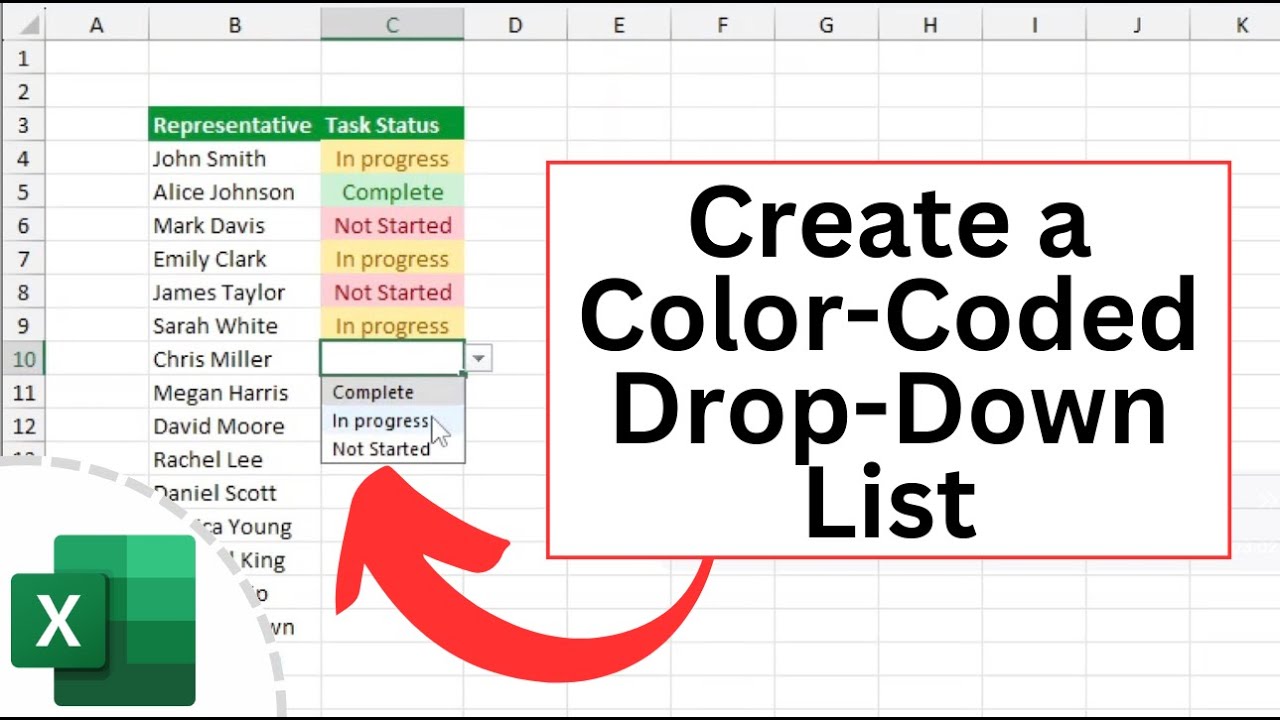
Bring your drop-downs to life using conditional formatting. As you explore how to add drop down in excel, consider highlighting cells based on selected values to draw attention or flag issues.
Common use cases:
- Color-code “High Priority” tasks in project trackers
- Highlight missing or invalid selections
- Visually separate categories for quick analysis
To apply, use Conditional Formatting > New Rule, then reference your drop-down cell value. This makes trends and exceptions stand out, boosting productivity.
Integrating Drop-Downs with Data Validation and Formulas
Drop-downs do more than control input—they can trigger formulas, charts, or dashboards. When you know how to add drop down in excel, pair drop-downs with formulas for dynamic summaries and reports.
For advanced validation, explore Excel data validation rules. Link drop-down choices to formulas using =IF, =VLOOKUP, or dynamic charts for real-time insights. This integration saves analysts hours and elevates your Excel solutions.
Frequently Asked Questions (FAQ) About Excel Drop-Down Lists
Get quick answers to the most common questions about how to add drop down in excel, including troubleshooting, advanced features, and best practices. Each FAQ below is designed to help you master drop-down lists and resolve issues efficiently.
How Do I Remove a Drop-Down List in Excel?
If you want to remove a drop-down from a cell, the process is straightforward. First, select the cell or range where the drop-down exists. Next, open the Data tab and click Data Validation.
In the Data Validation dialog, press the "Clear All" button. This removes the drop-down, but any data already entered stays in the cell. This is important when cleaning up forms after collecting responses or when updating templates.
Quick Steps:
1. Select the cell(s).
2. Go to Data tab > Data Validation.
3. Click "Clear All" and confirm.
When learning how to add drop down in excel, understanding how to remove them is just as essential for workbook maintenance.
Can I Create a Drop-Down List with Multiple Selections?
Native Excel only allows one selection per drop-down cell. If you need users to pick more than one item, you must use VBA scripts or third-party add-ins. This is common for survey forms or tagging systems.
Example VBA for Multi-Select:
Private Sub Worksheet_Change(ByVal Target As Range)
  ' Add VBA code here for multi-select functionality
End Sub
Remember, using VBA can make your workbook less portable and harder to maintain. When exploring how to add drop down in excel, consider if multi-select is truly necessary or if a different structure works better.
Why Is My Drop-Down List Not Showing All Options?
If your drop-down is missing options, check the source range. Common causes include hidden rows, filtered lists, or range references that do not cover all items. Also, ensure there are no formatting inconsistencies or accidental spaces in your list.
Dynamic lists may not update if the table does not auto-expand or if formulas like OFFSET or UNIQUE are not set up correctly. For more on spreadsheet best practices, see Research on Spreadsheet Practices.
When troubleshooting how to add drop down in excel, always double-check your source data and validation settings to ensure a smooth experience.