
Unlock Excel’s hidden potential in 2025 by mastering drop-down lists for smarter, faster data entry. This step-by-step guide on excel how to create drop down will empower you to streamline your spreadsheets, minimize mistakes, and boost accuracy. Discover why drop-downs matter, what you need to get started, and follow a clear tutorial with advanced tips, troubleshooting, and expert insights—so you can create error-free, professional spreadsheets with ease.
Why Use Drop Down Lists in Excel?
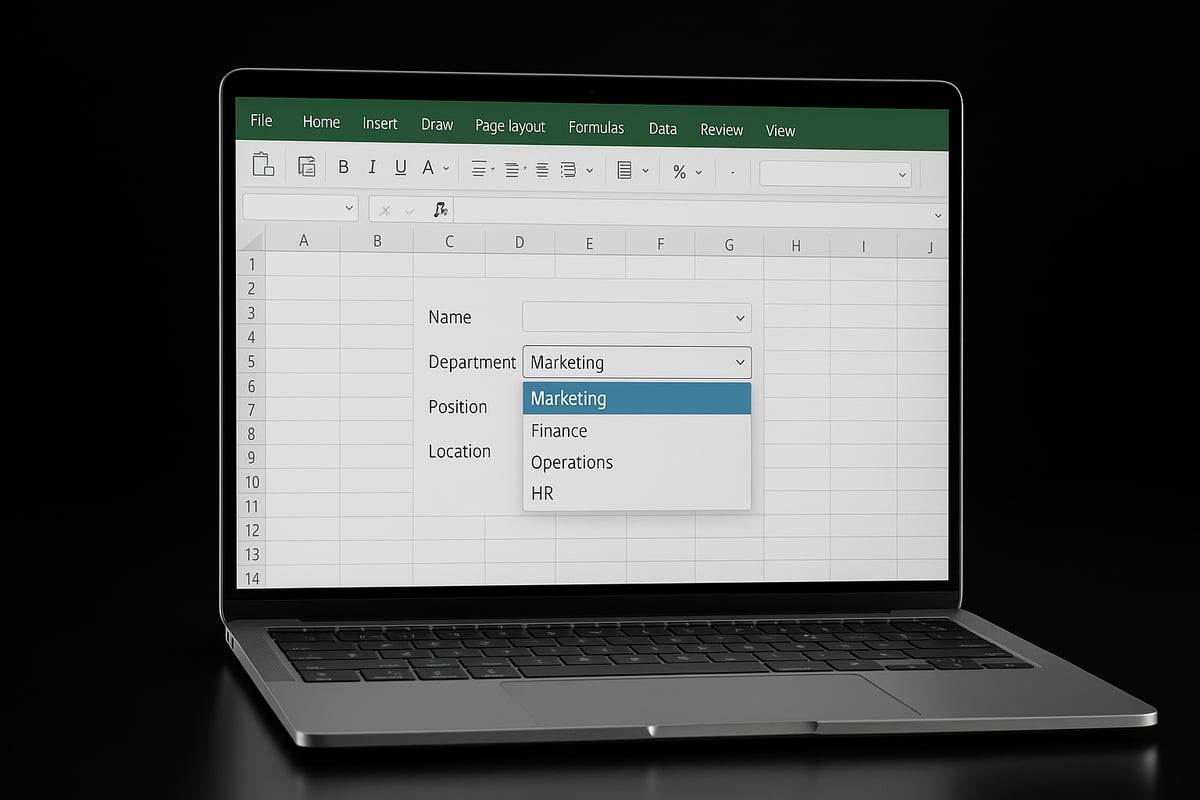
Drop-down lists are one of Excel’s most powerful features for streamlining data entry. If you are searching for excel how to create drop down, understanding their value is the first step. With a drop-down, users select options from a predefined list, ensuring every entry follows the same format and spelling.
What Is a Drop-Down List in Excel?
A drop-down list in Excel is a data validation tool that lets you restrict cell entries to set choices. When you implement excel how to create drop down, you control what users can input, reducing the risk of typos or inconsistent data.
Drop-downs are typically configured via the Data Validation feature. Once set up, a small arrow appears in the cell, and users can click to select from your list. This mechanism makes data entry faster and more accurate.
Key Benefits of Using Drop-Down Lists
The primary advantage of learning excel how to create drop down is improved data accuracy. Rather than relying on users to type values, you let them choose from your list, which minimizes mistakes.
According to Microsoft research, using drop-down menus can reduce manual data entry errors by up to 30 percent. This improvement is crucial for anyone managing critical spreadsheets. As further explored in Decrease Data Entry Errors with Drop Down Menus, drop-downs also bring consistency and speed, allowing users to move quickly through forms and tables.
Other key benefits include:
- Consistency: Every entry follows your rules.
- Speed: Selections are faster than typing.
- User Guidance: Users see only relevant choices.
- Professionalism: Forms look cleaner and more polished.
Real-World Examples and Industry Use Cases
Drop-down lists are used in nearly every industry. If you are investigating excel how to create drop down, consider these scenarios:
- Employee onboarding forms: HR teams require new staff to select departments or roles from lists.
- Project tracking: Project managers assign statuses or priorities using drop-down choices.
- Inventory management: Stock levels, item categories, and reorder points are selected from lists to prevent mismatches.
Industries benefiting from drop-downs include:
- Finance: Standardizing expense categories.
- Sales: Streamlining product selection.
- Education: Grading with fixed scales.
- Human Resources: Tracking employee skills and certifications.
Drop-Downs vs. Other Data Validation Methods
How does excel how to create drop down compare to other validation tools? While Excel offers text length limits, number ranges, and custom formulas, drop-down lists provide the highest level of control for categorical data.
| Data Validation Type | Best For | User Experience | Error Prevention |
|---|---|---|---|
| Drop-Down List | Predefined categories | Click-select options | High |
| Whole Number | Numeric ranges | Manual entry | Medium |
| Text Length | Character limits | Manual entry | Low |
| Custom Formula | Complex rules | Manual entry | Varies |
Drop-downs are ideal when you want to prevent off-list entries and ensure all data matches your business rules.
Impact on Collaboration and Data Standardization
When multiple team members edit a shared workbook, consistency becomes even more vital. Mastering excel how to create drop down ensures that everyone works from the same set of options, no matter where they are.
Drop-down lists help enforce business rules, making data uniform across departments and locations. This standardization enables better reporting, easier analysis, and fewer errors during collaboration.
In summary, learning excel how to create drop down is a foundational skill for anyone seeking reliable, efficient, and error-free data entry in Excel.
Prerequisites: What You Need Before Creating a Drop Down
Before you dive into excel how to create drop down, it is important to set up the right environment. Not every version of Excel offers the same features, so begin by confirming you are using a compatible edition. The drop-down menu feature is fully supported in Office 365, Excel 2021, and will be available in Excel 2025. If you are working with older versions, some advanced options may not be accessible.
| Excel Version | Drop Down Support | Notes for 2025 |
|---|---|---|
| Office 365 | Full | Always up-to-date |
| Excel 2021 | Full | Compatibility assured |
| Excel 2016/19 | Partial | Limited features |
| Excel Online | Limited | Some restrictions |
To start, open your workbook and locate the Data tab in the ribbon. The Data Validation tool is your primary gateway for creating drop-downs. If you are new to this process, reviewing Excel data validation rules can help you understand the underlying mechanics and best practices.
Next, prepare your source list. This list will provide the choices for your drop-down menu. Place it in a dedicated column or sheet to keep your workbook organized. Follow these steps for efficient setup:
- Remove duplicate values to ensure unique options.
- Sort the list alphabetically for easier navigation.
- Double-check for blank cells and clean up any unnecessary spaces.
For larger projects, consider naming your range for easier management. For example:
=Products
You can create a named range by selecting your list, then typing a name in the Name Box above column A. This approach makes referencing your list in Data Validation much simpler, especially when updating or reusing lists.
If you are collaborating with others or working in cloud-based environments like OneDrive or SharePoint, test that everyone can access and edit drop-downs as needed. Shared workbooks may have restrictions on editing Data Validation, so check permissions before proceeding. Excel how to create drop down in these settings requires coordination and sometimes additional permissions from your IT administrator.
Be aware of technical limitations. The maximum length for a drop-down list is 32,767 characters, and only certain data types are supported. Drop-downs cannot reference closed workbooks, and formulas may be limited in Excel Online.
Finally, consider security. Restrict editing rights to prevent accidental changes to your drop-downs. Use sheet protection to lock cells with validation, ensuring your data remains consistent even in collaborative scenarios. By preparing your workbook with these steps, you will be ready for the next phase in excel how to create drop down.
Step-by-Step Guide: How to Create a Drop Down in Excel
Unlocking the efficiency of drop-down menus starts with understanding the practical steps behind excel how to create drop down lists. This section provides a chronological, easy-to-follow process that empowers you to build user-friendly, error-resistant data entry tools in Excel.

Step 1: Prepare Your Source List
Start by organizing the values that will appear in your drop-down menu. The source list is the backbone for excel how to create drop down functionality. Place your list in a single column, either on the same worksheet or on a dedicated "Lists" sheet for clarity.
Keep your source data clean. Remove duplicates and sort items alphabetically for easier selection. For example, if you're creating a sales tracking sheet, your "Product Category" list could include: Electronics, Furniture, Office Supplies.
Here’s a quick method to remove duplicates:
Select your list > Data tab > Remove Duplicates
Consider naming your range for easier management, especially if your list will grow. To name a range:
- Select your list.
- Go to the Name Box (left of the formula bar).
- Enter a descriptive name, like
ProductCategories, and press Enter.
A well-prepared source list sets the stage for accurate, consistent data entry.
Step 2: Select the Target Cell(s)
Next, decide where users will interact with your drop-down. In excel how to create drop down, you can apply the menu to a single cell, a contiguous range, or even non-adjacent cells.
To select multiple, non-contiguous cells, hold Ctrl while clicking each cell. For example, if you want the drop-down in every row of Column B, simply click the column header to select the entire column.
Selecting the right target area ensures your drop-down is available exactly where it is needed. This is especially useful in forms or tables where uniform data entry is required.
Step 3: Open Data Validation Settings
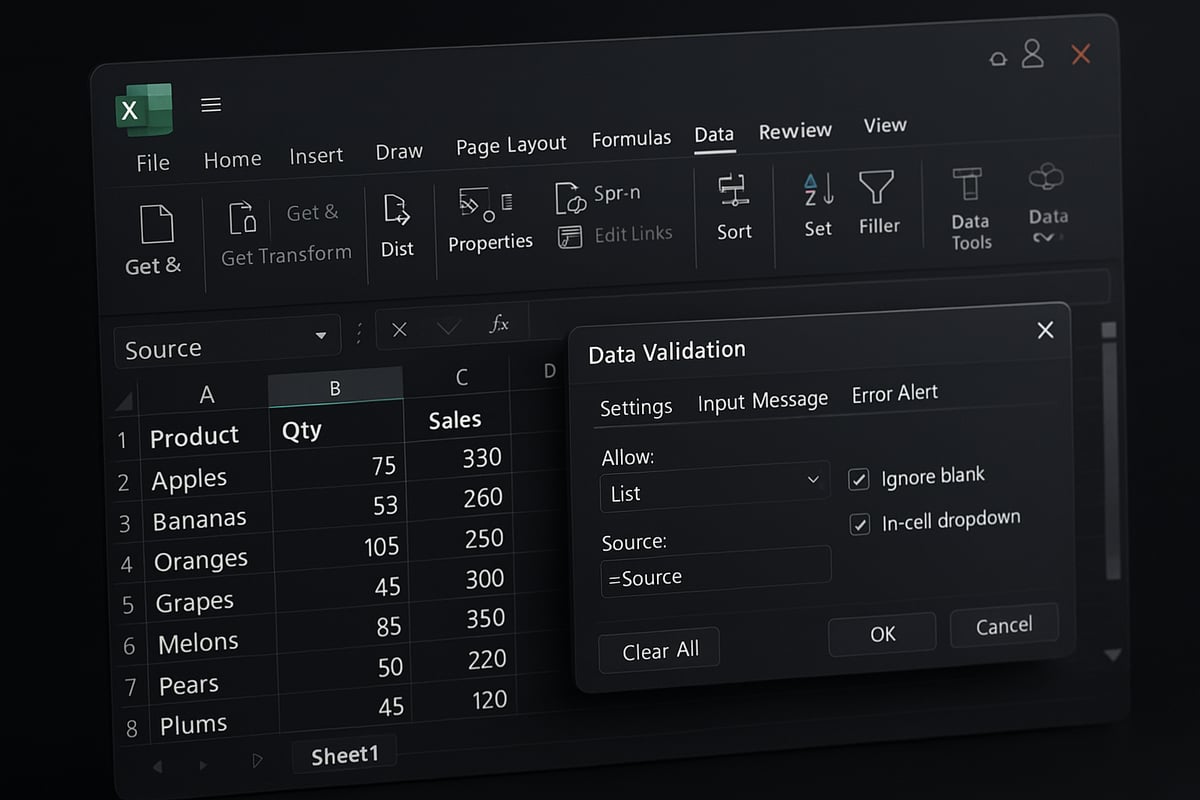
With your target cells highlighted, it is time to access the Data Validation tool. Navigate to the Data tab on the Ribbon, then click Data Validation in the Data Tools group.
A dialog box appears with three tabs: Settings, Input Message, and Error Alert. For excel how to create drop down, focus on the Settings tab first.
Description of Dialog Box:
- The Settings tab lets you define the validation criteria.
- Input Message allows you to display a helpful tip when the cell is selected.
- Error Alert lets you customize messages for invalid entries.
Using the Data Validation dialog box keeps your drop-down lists organized and easy to update.
Step 4: Configure Drop Down Options
Now, choose "List" as your validation type in the Settings tab. This is the key step that enables excel how to create drop down menus.
You have two main options for entering your source list:
- Manual Entry: Type values directly in the Source box, separated by commas (e.g., Electronics, Furniture, Office Supplies).
- Reference a Range: Use a cell reference like
=$A$2:$A$10or a named range such as=ProductCategories.
For dynamic lists that update automatically as your source list grows, convert your source to an Excel Table. Learn more about Excel tables for dynamic lists to streamline this process.
Decide whether to allow blank selections or restrict users to only values from your list. A static drop-down uses a fixed range, while a dynamic drop-down leverages tables or named ranges to reflect changes instantly.
This flexibility is what makes excel how to create drop down so powerful for modern data entry.
Step 5: Test and Use Your Drop Down
After configuring your list, test the drop-down in your target cells. Click a cell; the drop-down arrow should appear. Select an option to ensure everything functions as intended.
If a user types something not in the list, Excel will display an error message. Customize these messages under the Error Alert tab for a more user-friendly experience. For example, you might use: "Please select a valid product category."
Input Messages can also guide users with prompts like "Choose from the list to ensure accurate entry." Testing is an essential part of excel how to create drop down, ensuring your setup works before sharing the file.
Step 6: Edit or Remove a Drop Down
To edit your drop-down, revisit the Data Validation dialog for the target cells. Update the source list or change validation settings as needed. If you modify the source range, existing cells with drop-downs will reflect the new choices.
To remove a drop-down, select the cells and open Data Validation. Click "Clear All." Note that removing the drop-down does not delete existing cell values.
Be mindful of how changes impact your data. Regular maintenance ensures your excel how to create drop down remains reliable as your spreadsheet evolves.
Advanced Drop Down Features and Customization
Unlocking the full potential of Excel drop-down lists means going beyond the basics. Advanced features let you build smarter, more interactive spreadsheets, transforming how your team manages data. In this section, discover how to use the latest tools and techniques to customize and supercharge your drop-downs for any scenario.

Creating Dependent (Cascading) Drop Downs
Dependent drop-downs, also called cascading drop-downs, allow the choices in one list to change based on the selection in another. For example, selecting a department in an HR form will filter available roles in the next drop-down. To set up dependent lists, first create separate source lists for each category, such as Departments and Roles. Next, use the INDIRECT function within Data Validation to reference the right list dynamically.
In the Data Validation dialog, select “List” for Allow, and enter a formula like =INDIRECT(A2) where A2 contains the primary selection. This setup ensures only relevant options appear, reducing errors and streamlining data entry. For a complete, step-by-step walkthrough, see this Excel dependent drop-down guide.
Using this method within excel how to create drop down projects helps enforce business rules and improves data quality. You can easily adapt this approach to scenarios such as country-to-city selection or product-to-model filtering, making your spreadsheets smarter.
Using Dynamic Ranges for Auto-Updating Lists
When your source list changes frequently, dynamic ranges keep your drop-downs up to date automatically. The most efficient way is to convert your source data into an Excel Table (Ctrl+T). Tables expand as new items are added, so your drop-down always includes the latest options.
Alternatively, use a dynamic named range with a formula like:
=OFFSET(Sheet1!$A$2,0,0,COUNTA(Sheet1!$A:$A)-1,1)
This adjusts the list length as you add or remove entries. In excel how to create drop down workflows, dynamic ranges are essential for inventory management or project tracking, where data evolves over time. They reduce maintenance and prevent missing or outdated options.
Formatting and Styling Drop Downs
Enhancing the look of your drop-down cells can make spreadsheets more intuitive and visually appealing. Start by using cell fill colors or borders to indicate where users should interact. Conditional formatting is another powerful tool: highlight specific selections, such as flagging high-priority items in red.
For example, set up a rule to color any cell containing “Urgent” in your drop-down red. This not only guides users but also brings attention to critical data points. In excel how to create drop down tasks, clear formatting reduces confusion and ensures important selections stand out. Combine these techniques to create a polished, user-friendly experience.
Adding Drop Downs to Excel Tables and Forms
Applying drop-downs within structured Excel Tables offers powerful benefits for data collection and reporting. When you add a drop-down to a column in a table, all new rows automatically inherit the validation, ensuring consistency as data grows.
This approach is perfect for forms like expense reports or timesheets, where standardized categories are essential. Use the Table Design tab to add or modify columns, and apply Data Validation for each. Integrating drop-downs into your excel how to create drop down solutions makes forms scalable, reliable, and ready for team collaboration.
Restricting Drop Down Choices with Formulas
Sometimes you need to limit drop-down choices based on other data in your sheet. You can use formulas such as COUNTIF to exclude values that have already been selected. For example, if assigning tasks, prevent the same employee from being chosen twice by referencing existing assignments.
Set up a custom formula in the Data Validation dialog to filter out unwanted options. This level of control in excel how to create drop down applications prevents duplicates, enforces business rules, and ensures your data stays accurate. Advanced validation formulas take your drop-downs beyond static lists and adapt them to real-world workflows.
Troubleshooting Common Drop Down Problems
Even with the best understanding of excel how to create drop down, you may encounter common issues that disrupt your workflow. Knowing how to quickly identify and fix these problems can save you time and ensure your data remains accurate.

Drop-down Not Appearing
If your drop-down list is not visible in the selected cell, first verify that the data validation settings are applied correctly. Make sure you are using the correct method for excel how to create drop down, and check whether the target cell is part of a protected sheet or merged range. Merged cells often prevent drop-downs from displaying properly.
Sometimes, the drop-down arrow may be hidden if the cell is too small or if conditional formatting covers it. Resizing the cell or removing conflicting formats can resolve this. For more troubleshooting steps, refer to Troubleshooting Excel drop-downs for detailed guidance.
Source List and Data Issues
A common problem in excel how to create drop down is errors with the source list. If your drop-down is empty or shows unexpected values, check that the source range is correct and contains no hidden or filtered rows. Hidden rows in the source list will not appear in the menu, which can confuse users.
Additionally, duplicate or blank entries in the source list can clutter your drop-down. Clean your data by removing duplicates and ensuring all entries are meaningful. If your source list is on another worksheet, confirm that references are accurate and that the sheet is not hidden or protected.
| Issue | Quick Fix |
|---|---|
| Blank drop-down | Check source range, remove blanks |
| Duplicates | Use Remove Duplicates on source list |
| Missing entries | Unhide rows, correct range reference |
Error Messages and Compatibility
If users see “The value you entered is not valid,” this means the input does not match an item from the list. To help users, customize your error alerts and provide clear instructions. For advanced validation and user guidance, explore Excel drop-down validation lists and explanatory notes.
Compatibility can also be a challenge, especially when using excel how to create drop down across different versions or platforms like Excel Online and mobile apps. Some features, such as dynamic arrays or advanced data validation, may not be fully supported in all environments. Always test your drop-down lists on each platform used by your team.
Protecting and Maintaining Drop-Downs
To prevent unauthorized changes, protect your worksheet and restrict editing permissions. Only users with appropriate access should be able to modify drop-down settings or source lists. In collaborative workbooks, clearly document the logic behind each drop-down to avoid confusion.
Regularly review and update your lists, especially in large or shared files. This proactive approach ensures your excel how to create drop down efforts remain effective and error-free as your data evolves.
Expert Tips and Best Practices for Drop Downs in 2025
Creating robust and user-friendly drop-down lists is essential for modern Excel workflows. By following expert strategies, you can maximize accuracy, efficiency, and collaboration in your spreadsheets. Let us explore the top best practices for excel how to create drop down, ensuring your data entry is smarter and more reliable in 2025.
Centralize and Update Your Source Lists
Keep all drop-down source lists in a dedicated, easily accessible sheet. This approach streamlines updates and ensures everyone uses the same options, minimizing confusion. Regularly review and clean your lists to remove outdated or duplicate entries.
The excel how to create drop down process benefits immensely from centralization, helping enforce business standards and simplify future edits. For teams, a centralized source reduces the risk of accidental changes in shared workbooks.
Consider using a master data sheet as the single source of truth for all validation lists. This practice is especially valuable in collaborative environments.
Use Named Ranges and Excel Tables for Scalability
Leverage named ranges and structured tables to make your drop-downs scalable and dynamic. Assigning a name to your list range, such as =ProductList, makes referencing it in Data Validation straightforward.
Excel tables automatically expand as you add new items, so your drop-downs always stay up to date without manual intervention. The excel how to create drop down workflow becomes easier to maintain and adapt, especially as your dataset grows.
Here is a quick example using a named range:
=ProductList
This method improves clarity and reduces errors in complex workbooks.
Document Drop Down Logic for Team Members
Always document the logic behind each drop-down, including its source, purpose, and any dependencies. Add comments, a dedicated documentation sheet, or workbook notes to explain how and why each list is used.
Clear documentation is vital for onboarding new team members and maintaining consistency. In the excel how to create drop down process, this practice helps prevent accidental misconfiguration and ensures your intentions are understood.
A simple table can summarize your lists and their functions:
| Drop Down Name | Source Range | Purpose |
|---|---|---|
| DeptList | Sheet2!A2:A10 | HR forms |
| ProdList | Sheet3!B2:B20 | Sales tracking |
Integrate Drop Downs with Formulas and Automation
Enhance your drop-downs by linking them with formulas for smarter automation. Use functions like VLOOKUP, XLOOKUP, or IF statements to trigger calculations or display related information based on user selections.
The excel how to create drop down feature becomes even more powerful when combined with automation. For example, selecting a department from a drop-down can auto-populate related roles or permissions.
This integration not only saves time but also ensures accuracy and consistency across your workbook.
Optimize Performance in Large Datasets
In large workbooks, avoid volatile formulas or overly complex validation rules that can slow performance. Use efficient range references and keep source lists compact and relevant.
If your drop-downs are linked to extensive datasets, consider limiting visible options with filters or formulas. This approach keeps the excel how to create drop down feature responsive and user-friendly, even in enterprise-scale spreadsheets.
Ensure Accessibility for All Users
Design drop-downs to be accessible to everyone, including users with disabilities. Use clear, descriptive labels and avoid ambiguous terms. Ensure keyboard navigation is possible and provide instructions for users unfamiliar with drop-downs.
Accessibility is a key consideration in excel how to create drop down, promoting inclusivity and usability across diverse teams.
Leverage New Excel 2025 Features and Real-World Insights
Stay updated with the latest Excel 2025 enhancements, such as improved Data Validation interfaces and AutoComplete for drop-down lists. These features can dramatically boost data entry speed and accuracy, as detailed in Speed up data entry with AutoComplete in Excel.
Adopt recommended workflows from experts, such as regularly reviewing drop-downs for relevance and testing them in shared or cloud-based environments.
Finally, always validate your drop-down strategy by referencing real-world research on spreadsheet errors, like the findings in Impact of Errors in Operational Spreadsheets, to reinforce the importance of robust data validation.

