Feeling overwhelmed by endless rows and columns in Excel? You are not alone. Massive datasets can make even simple analysis seem impossible.
Luckily, there is a powerful solution within your reach. This beginner’s guide will show you how to make excel pivot table, step by step, so you can quickly summarize, analyze, and visualize your data.
Discover what Pivot Tables are, why they matter, and exactly how to create and customize them for your needs. Avoid common mistakes, learn expert tips, and unlock the full potential of your data. Ready to get started? Follow along and transform the way you work with Excel.
Understanding Pivot Tables in Excel
Unlocking the power of Excel starts with understanding Pivot Tables. For anyone curious about how to make excel pivot table, this section lays the groundwork by explaining what Pivot Tables are, why they matter, and dispelling common myths. By the end, you will see why Pivot Tables are the secret weapon for data analysis in 2026.
What is a Pivot Table?
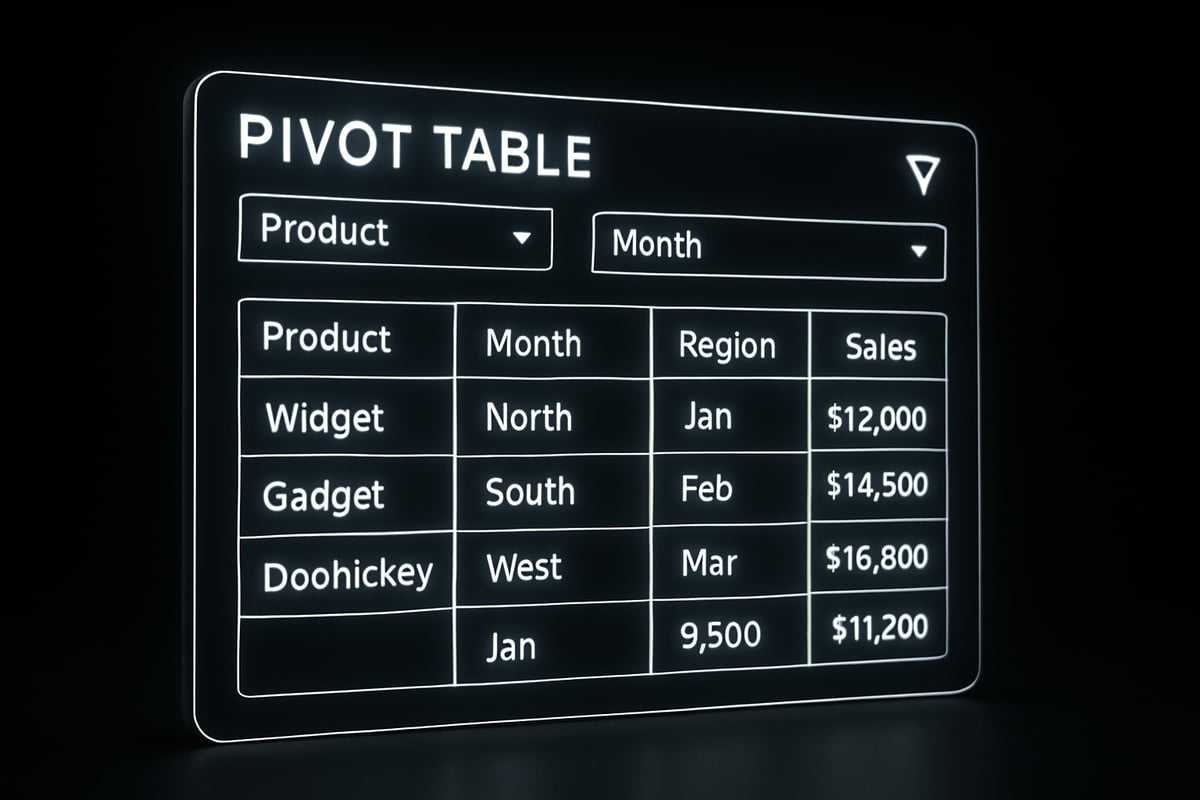
A Pivot Table is a dynamic tool in Excel that lets you quickly summarize, analyze, and explore large sets of data. Unlike static formulas, Pivot Tables allow you to reorganize information on the fly, helping you see patterns and trends instantly.
Key features include data summarization, filtering, grouping, and, most importantly, pivoting—rotating your data to view it from different angles. For example, you can use a Pivot Table to summarize sales by region and product, then instantly switch to view sales by month and category.
| Feature | Pivot Table | Manual Formulas (SUMIF/SUMIFS) |
|---|---|---|
| Setup Speed | Very Fast | Slower |
| Flexibility | Highly Flexible | Limited |
| Data Exploration | Interactive | Static |
| Pivoting Capability | Yes | No |
If you are learning how to make excel pivot table, remember: pivoting means transforming rows into columns or vice versa to see your data from new perspectives.
Benefits and Use Cases
Pivot Tables make analyzing large datasets simple and efficient. With just a few clicks, you can summarize, count, or average data, turning thousands of rows into clear, actionable insights. This is invaluable for professionals who want to explore data and generate reports without complex formulas.
Imagine analyzing sales performance across multiple branches. A Pivot Table instantly shows which regions outperform others, highlights trends, and uncovers opportunities. In business, finance, project management, and many other fields, Pivot Tables are essential for data-driven decision-making.
To expand your skills beyond how to make excel pivot table, explore broader Data Analysis in Excel techniques for even deeper insights.
Pivot Table Components
Every Pivot Table is built using key components that work together seamlessly:
- Row fields: Define how data is grouped vertically.
- Column fields: Organize data horizontally.
- Value fields: Contain the numbers or data to be summarized.
- Filter fields: Allow you to focus on specific data subsets.
The Field List pane in Excel helps you drag and drop these fields into the right areas. For example, you might map "Product" to rows, "Month" to columns, and "Sales" to values, instantly generating a clear summary.
Understanding these components is crucial for mastering how to make excel pivot table and unlocking the tool's full potential.
Common Myths and Misconceptions
Many believe Pivot Tables are reserved for Excel experts or require coding knowledge. In reality, modern Excel has made these tools accessible to everyone. You do not need advanced skills—just a basic understanding and a willingness to experiment.
Pivot Tables are intuitive, user-friendly, and designed to help users at all levels make sense of their data. Let go of the myths, and discover how simple and powerful Pivot Tables can be.
Preparing Your Data for Pivot Tables
Preparing your data is the essential first step in learning how to make excel pivot table reports that are accurate and insightful. Clean, well-structured data ensures your Pivot Tables work smoothly and return correct results. Before you start, review your dataset, tidy up inconsistencies, and follow these foundational steps.

Organizing Source Data
Good Pivot Tables begin with structured data. Place your data in a rectangular range with each column holding a unique header, such as "Date," "Product," "Region," and "Amount." Make sure there are no blank rows or columns within your dataset.
Remove any subtotals or summary rows, as these can confuse Excel when you learn how to make excel pivot table summaries. Each row should represent a single record—think of each as one transaction or entry. Consistency at this stage helps prevent issues later.
Converting Data to Excel Table
To simplify updates and ensure reliable references, convert your dataset into an official Excel Table. Select your data, then go to the Insert tab and choose Table. This step is crucial for anyone exploring how to make excel pivot table reports from dynamic data.
Excel Tables automatically expand when you add new entries. For a more detailed walkthrough, visit the Excel Table Setup Guide. By using Tables, your Pivot Table will always include the latest data, saving you from manual adjustments.
Naming and Managing Tables
Naming your Excel Table makes it easier to identify when building Pivot Tables, especially if you manage multiple tables in one workbook. After creating your Table, select it, then use the Table Name box in the Design tab to give it a descriptive name, such as "SalesData."
Clear names help you track which table is connected to which Pivot Table, streamlining how to make excel pivot table layouts for various reports. This habit also improves collaboration and troubleshooting.
Data Quality Checks
Before you build your Pivot Table, check your data for duplicates, errors, and inconsistencies. Scan for blank cells, validate that number columns contain only numeric values, and that dates are formatted correctly.
A quick quality check is a vital step in how to make excel pivot table results trustworthy. Use Excel’s built-in tools like Remove Duplicates and Data Validation to catch problems early. Fixing issues now means fewer headaches later.
Tips for Large Datasets
Handling large volumes of data? Keep your data range manageable for optimal Pivot Table performance. If your dataset becomes unwieldy, consider splitting it into smaller sections or using filters to focus on relevant records.
Avoid unnecessary columns and keep only what you need. This approach ensures faster refresh times and smoother analysis when you learn how to make excel pivot table reports, even with big data.
Step-by-Step: How to Make an Excel Pivot Table
Ready to unlock the power of Pivot Tables? Follow this detailed guide to discover how to make excel pivot table from scratch. Each step is designed for absolute beginners, using clear instructions and practical examples. By the end, you will confidently summarize, analyze, and visualize your data with ease.
Step 1: Selecting Your Data
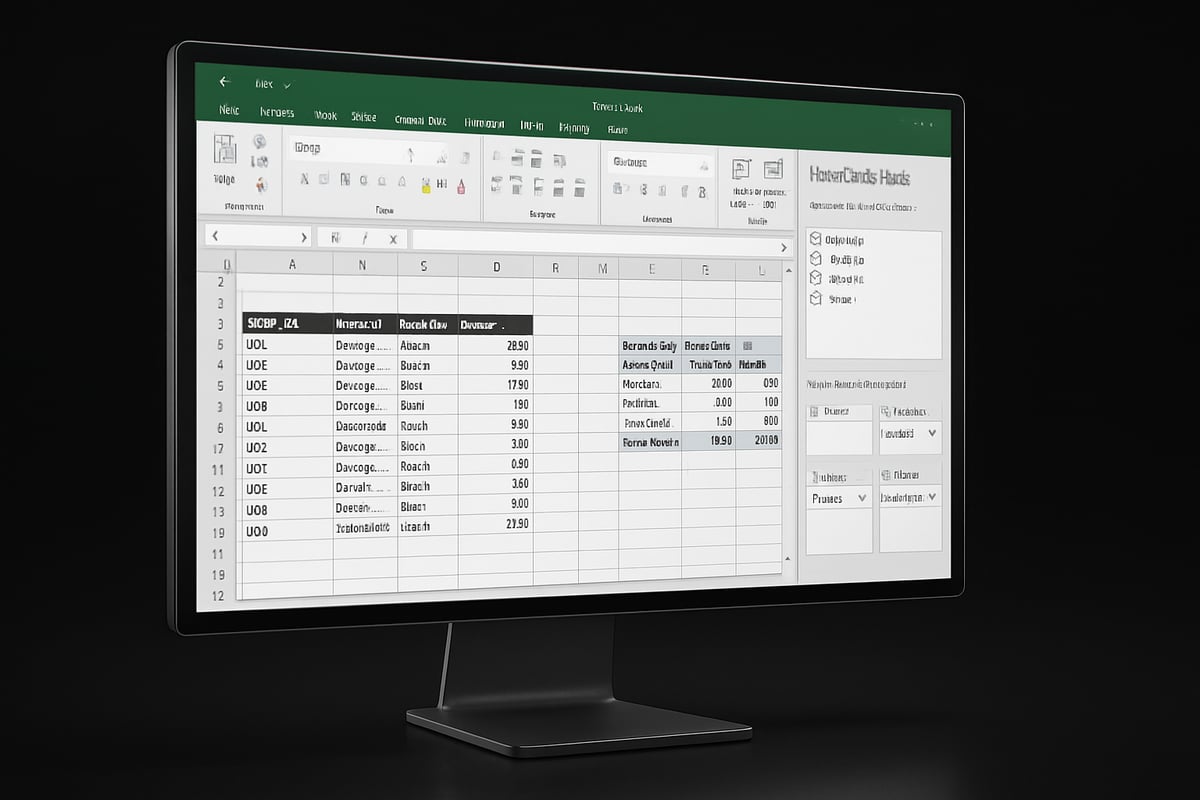
The first step in how to make excel pivot table is selecting your source data. Click any cell within your dataset or formatted Excel Table. Make sure all relevant columns and rows are included, and avoid blank rows or headers.
For example, if you have sales data with columns like Date, Product, Region, and Amount, click anywhere inside this table. Excel will automatically detect the data range when you move to the next step.
Before proceeding, double-check that your data is clean, with unique headers and no merged cells. This foundational step ensures your Pivot Table accurately reflects your dataset and prevents errors later.
Step 2: Inserting the Pivot Table
With your data selected, go to the Excel ribbon and click the Insert tab. Choose PivotTable from the options. A dialog box appears, confirming the data range and asking where to place your Pivot Table.
You can opt to insert the Pivot Table into a new worksheet, which keeps your analysis separate and organized. Alternatively, select an existing worksheet to place the Pivot Table alongside your data for quick comparison.
Click OK to create the Pivot Table. Excel generates a blank Pivot Table layout and opens the Pivot Table Field List, ready for configuration. This step is crucial in how to make excel pivot table, as it sets the stage for your analysis.
Step 3: Understanding the Pivot Table Field List
The Pivot Table Field List pane is your control center. It displays all the fields (column headers) from your source data. The pane is divided into two sections: Fields (showing available data columns) and Layout (with four areas: Rows, Columns, Values, Filters).
To build your report, drag fields from the list into these areas. For instance, drag Region to Rows, Product to Columns, and Sales to Values. This arrangement determines how your data is summarized and displayed.
Grasping the Field List structure is essential for how to make excel pivot table work efficiently, as it allows you to explore different data perspectives without altering your original dataset.
Step 4: Arranging Fields for Your Report
Arranging fields is interactive and flexible. Use drag-and-drop to reposition fields in the Rows, Columns, Values, and Filters areas. Add or remove fields to focus your analysis on specific metrics or categories.
For example, to compare sales by product and month, drag Product to Rows and Month to Columns. To gain new insights, simply rearrange the fields—the Pivot Table updates instantly to reflect your changes.
Experiment with different configurations to discover trends or outliers. If you want a visual walkthrough, you might find this Excel Pivot Table Tutorial – 5 Easy Steps for Beginners helpful for further clarity.
Step 5: Choosing Summary Functions
By default, Excel summarizes numeric data (like sales) with the Sum function. However, you can change this to Average, Count, Max, or Min, depending on your analysis needs.
To modify the summary function, right-click a value in your Pivot Table, select Summarize Values By, and choose your preferred calculation. For example, select Average to see the mean sales per product.
Selecting the right summary function is a key element of how to make excel pivot table deliver actionable insights. It tailors your report to answer specific business questions.
Step 6: Using “Show Values As” Calculations
Beyond basic summaries, you can display data as percentages, differences, or running totals using the “Show Values As” feature. Right-click a value field, choose Show Values As, and pick from options like % of Grand Total or % Difference From.
For instance, display sales as a percentage of overall totals to highlight each region’s contribution. This dynamic calculation adds context and depth to your analysis.
Leveraging “Show Values As” is a powerful aspect of how to make excel pivot table reveal patterns and relationships within your data, making complex analysis more accessible.
Step 7: Creating a Recommended Pivot Table
If you are unsure where to start, Excel’s Recommended PivotTables feature offers instant solutions. Select your data, go to Insert, then click Recommended PivotTables. Excel suggests several report layouts based on your dataset.
Preview the options and select the one that best fits your needs, such as a summary by region or product. Click OK to create the Pivot Table automatically.
This feature streamlines how to make excel pivot table for beginners, providing a quick path to meaningful reports without manual configuration.
Customizing and Analyzing Pivot Tables
Customizing your Pivot Table is the key to unlocking deeper insights and making your reports truly stand out. Once you understand how to make excel pivot table, the next step is tailoring its look, layout, and calculations to fit your analysis needs. Let’s break down the essential ways to format, arrange, and analyze your Pivot Table for maximum impact.

Formatting and Styling
A polished appearance makes your Pivot Table easier to read and interpret. Excel offers a range of built-in styles through the Design tab. With just a few clicks, you can:
- Apply pre-defined color schemes for instant visual appeal
- Add banded rows or columns for clarity
- Highlight key metrics, such as top-performing products, using conditional formatting
Custom styles let you match your company’s branding or emphasize specific results. For example, you might use a bold color to spotlight products with the highest sales. If you’re eager for more step-by-step tips on how to make excel pivot table visually engaging, check out this Pivot Tables in Excel – Step by Step Tutorial for additional guidance.
Changing Report Layouts
Pivot Tables offer flexible layouts so you can present your data in the most meaningful way. The three main layout forms are:
| Layout | Structure | Best For |
|---|---|---|
| Compact | Nested rows | Space-saving overviews |
| Outline | Indented levels | Hierarchical data |
| Tabular | Flat, columns | Detailed reports |
Switch between these layouts in the Design tab. Removing default headers like “Row Labels” and “Column Labels” makes your field names stand out. When learning how to make excel pivot table, experimenting with layouts helps you see your data from new perspectives and ensures your reports are clear and professional.
Filtering and Sorting Data
Filtering and sorting are essential for analyzing specific segments of your data. With Pivot Tables, you can:
- Use Filters to focus on certain regions, products, or time periods
- Add Slicers for quick, interactive selection of categories
- Sort values to highlight top or bottom performers
For example, filter your table to show only the top five regions by sales. Sorting columns or values lets you instantly spot trends or outliers. Mastering these features is a crucial part of how to make excel pivot table that adapts to any analysis question.
Grouping Data
Grouping data allows you to condense large lists into digestible categories. With Pivot Tables, you can:
- Group dates into months, quarters, or years for time-based analysis
- Group numbers, such as sales amounts, into ranges or bins
- Combine text values to analyze custom categories
Suppose you want to track sales by quarter instead of by individual date. Simply right-click a date field and select “Group.” This approach streamlines your view and is a core technique for anyone learning how to make excel pivot table for dynamic reporting.
Adding Calculated Fields
Calculated fields enable you to perform custom calculations directly within your Pivot Table. To add one:
- Click anywhere inside the Pivot Table
- Go to the Analyze tab, then click “Fields, Items & Sets”
- Choose “Calculated Field,” enter your formula, and name the field
For example, you might calculate profit margin by dividing profit by sales. As you practice how to make excel pivot table, using calculated fields helps you derive new insights without altering your original data. This feature is especially valuable for financial or operational analysis.
Managing and Refreshing Pivot Tables
Keeping your Pivot Tables accurate and up to date is essential for reliable analysis. If you want to master how to make excel pivot table workflows, understanding how to refresh, move, and maintain your tables is key. This section will guide you through the crucial steps and best practices for managing and updating Pivot Tables in Excel.
Refreshing Data
Pivot Tables do not update automatically when your source data changes. To ensure your reports reflect the latest information, you must refresh them manually. After adding new data or editing existing entries, select your Pivot Table and go to the Analyze tab, then click Refresh. Alternatively, right-click anywhere in your Pivot Table and choose Refresh from the context menu.
If you are learning how to make excel pivot table solutions that adapt to new data, regular refreshing is a must. This process updates calculations, totals, and any filters or groupings you have set. For more troubleshooting advice on refreshing issues, explore Excel Troubleshooting Tips.
Auto-Refresh Options
For users managing dynamic datasets, automating refreshes can save time. Excel allows you to set Pivot Tables to refresh automatically each time the workbook opens. Right-click the Pivot Table, select PivotTable Options, and under the Data tab, check "Refresh data when opening the file."
This setting is particularly helpful if you are distributing workbooks or using scheduled data imports. If you focus on how to make excel pivot table updates seamless, auto-refresh ensures your analyses always use the most recent data. Remember, this does not refresh in real-time during editing, only at workbook open.
Moving and Deleting Pivot Tables
Sometimes, you might need to relocate a Pivot Table for better organization or clarity. Select the entire Pivot Table, then use Cut (Ctrl+X) and Paste (Ctrl+V) to move it to a new worksheet or location. Be careful not to break links to the source data.
To delete a Pivot Table, select it and press Delete. This removes the table but leaves the source data intact. If you are experimenting with how to make excel pivot table layouts, moving or removing tables helps keep your workspace tidy and focused.
Preventing Column Resizing
By default, Pivot Tables may automatically resize columns after each refresh, which can disrupt your preferred layout. To prevent this, right-click your Pivot Table, choose PivotTable Options, and uncheck "AutoFit column widths on update" under the Layout & Format tab.
Learning how to make excel pivot table settings work for you ensures columns remain at your chosen width, keeping your reports consistent. This small adjustment can greatly improve the readability and professionalism of your dashboards.
Preserving Formatting on Refresh
Custom formatting, such as cell colors or number formats, can sometimes be lost after refreshing your Pivot Table. To retain your styles, open PivotTable Options and make sure "Preserve cell formatting on update" is checked on the Layout & Format tab.
Consistent formatting saves time and maintains a polished look in every Pivot Table you create. If formatting is still lost, double-check your steps and consider copying styles from a backup. Reliable formatting is a hallmark of effective how to make excel pivot table strategies.
Troubleshooting Common Pivot Table Issues
If you are learning how to make excel pivot table, running into issues is normal. Knowing how to troubleshoot common problems will save you time and frustration. Let us walk through the most frequent challenges and how to resolve them with confidence.
Dealing with Blank or Incorrect Data
One of the first hurdles when learning how to make excel pivot table is handling blank or incorrect data. Blank cells, errors, or missing values can cause your Pivot Table to display unexpected results, such as "(blank)" rows or incorrect totals.
To troubleshoot, start by scanning your source data for empty cells or error values like #DIV/0!. Use Excel’s "Go To Special" feature to highlight blanks or errors quickly. Replace blanks with zeros or meaningful placeholders, and correct any formula errors in your data range.
If your Pivot Table still shows "(blank)" entries, check for hidden spaces or non-printing characters that might look empty but are not. Cleaning your data before creating a Pivot Table is essential. For a step-by-step visual guide, consider watching Microsoft Excel: A Beginners’ Guide to Pivot Tables in Excel [Video], which demonstrates effective troubleshooting techniques.
Fixing Field and Layout Problems
After you figure out how to make excel pivot table, you might notice fields missing from the Field List or columns appearing out of order. This typically happens if your source data has missing headers, merged cells, or inconsistent formats.
To fix field issues, first ensure every column in your data has a unique header. Avoid merged cells, as these can confuse Excel’s field mapping. If the Field List is not displaying all columns, refresh the Pivot Table or update the data source range.
If the layout seems wrong, reset the Pivot Table by removing all fields and re-adding them in the desired order. This allows you to rebuild the report structure cleanly. Regularly check your source data for any changes that might affect field display.
Resolving Performance Issues
Large datasets can slow down your Pivot Table, especially when you are exploring how to make excel pivot table with thousands of rows. Performance issues often appear as slow refresh times or even Excel freezing temporarily.
To improve speed, limit your data range to only the necessary columns and rows. Avoid adding too many calculated fields or complex formulas within the Pivot Table. If possible, filter your data before creating the Pivot Table to reduce the load.
Consider splitting extremely large data sets into smaller tables or using Excel’s Power Pivot feature for enhanced performance. Removing unused fields from the report can also help your Pivot Table run more efficiently.
Handling Data Source Changes
When updating your source data, you may notice that changes do not appear in your Pivot Table right away. This is a common challenge for anyone learning how to make excel pivot table.
To resolve this, refresh your Pivot Table by right-clicking anywhere in the table and selecting "Refresh." If you have added new columns or expanded the data set, update the data source range by selecting "Change Data Source" from the PivotTable Analyze tab.
If you converted your data to an Excel Table before making your Pivot Table, it will automatically expand as you add new data. Always double-check that the full range is included in your Pivot Table after making changes.
Avoiding Common Mistakes
Many beginners make simple mistakes when figuring out how to make excel pivot table. These include forgetting to convert data to a table, missing headers, or using merged cells in the source data.
To avoid these pitfalls:
- Always use unique headers for each column.
- Keep your data in a continuous block with no blank rows or columns.
- Convert your data to an Excel Table for dynamic range adjustment.
- Never use merged cells in your source data.
For a comprehensive checklist and more troubleshooting advice, download the Excel Pivot Tables Step by Step Guide. Following these tips will make your experience with Pivot Tables smoother and more productive.
Advanced Tips and Best Practices for Beginners
Unlocking the full potential of Pivot Tables means moving beyond the basics. Mastering advanced techniques and following best practices will transform how to make excel pivot table projects, even if you are just starting out. Here are actionable tips and strategies designed for beginners ready to take their Pivot Table skills to a higher level.
Exploring Pivot Table Design Tab Features
The Design tab is your control center for styling and organizing Pivot Tables. When you click inside your Pivot Table, the Design tab appears on the ribbon. Here, you can quickly switch between different visual styles, adjust banded rows or columns, and highlight totals for better clarity.
For example, you can use the Report Layout menu to choose between Compact, Outline, or Tabular form. Compact displays data in a condensed view, while Tabular gives each field its own column for easier reading. Adjusting subtotals and grand totals helps you focus on the data that matters most.
If you want to see how to make excel pivot table layouts truly stand out, try customizing colors and fonts. Highlighting top-performing categories with bold colors in the Design tab makes your insights pop. Consistent formatting across multiple tables also supports professional, easy-to-read reports.
Using Slicers and Timelines
Slicers are interactive buttons that make filtering Pivot Table data quick and intuitive. To add a slicer, select your Pivot Table, then go to the Insert tab and click Slicer. Choose the field you want to filter, such as "Region" or "Product." Instantly, clickable buttons appear, letting you filter with a single click.
Timelines are similar tools, but they are designed specifically for date fields. They allow you to filter data by years, quarters, months, or even days. Just insert a timeline, and drag to select the period you want to analyze.
When learning how to make excel pivot table reports interactive, slicers and timelines are invaluable. They let users explore data dynamically, without altering the underlying structure. This is especially useful for dashboards and presentations that require real-time data exploration.
Creating Pivot Charts
Pivot Charts visualize your summarized data, making it easier to spot trends and outliers. After creating your Pivot Table, select it and click Insert > PivotChart. Choose the chart type that matches your analysis—Column, Line, Pie, or others.
For instance, a line chart is perfect for showing sales trends over time, while a bar chart compares sales across different regions. Pivot Charts are directly linked to your Pivot Table: when you filter or rearrange data, the chart updates instantly.
If you ever wondered how to make excel pivot table results more engaging, adding Pivot Charts is the answer. These visuals turn numbers into stories, making your reports more compelling and easier to understand.
Automating with Macros (Beginner Level)
Automation saves time, especially when working with repetitive tasks. Excel’s macro recorder lets you automate steps like refreshing all Pivot Tables at once. Here’s a simple way to get started:
Sub RefreshAllPivotTables()
    Dim ws As Worksheet
    For Each ws In ThisWorkbook.Worksheets
        Dim pt As PivotTable
        For Each pt In ws.PivotTables
            pt.RefreshTable
        Next pt
    Next ws
End Sub
Record your own macros by going to the View tab, clicking Macros, and selecting Record Macro. Perform your actions, then stop recording. Assign the macro to a button for instant access.
Understanding how to make excel pivot table workflows more efficient with macros means less manual work and more time for analysis.
Best Practices for Reliable Pivot Tables
Building reliable Pivot Tables starts with good habits. Here are essential best practices:
- Keep source data clean, with consistent headers and no merged cells.
- Name your tables and fields clearly for easy reference.
- Refresh Pivot Tables regularly to ensure up-to-date results.
- Document custom calculations and formulas for transparency.
- Limit excessive calculated fields to maintain performance.
For those eager to explore more advanced features like Power Pivot and data modeling, check out this in-depth Power Pivot and Data Modeling guide. It is a valuable resource for anyone looking to deepen their understanding beyond how to make excel pivot table basics.
Learning Resources and Further Support
Excel offers extensive documentation, tutorials, and community forums. Microsoft’s official support site is a great starting point. Free online courses and YouTube channels provide step-by-step guides on how to make excel pivot table projects from scratch.
Joining Excel communities allows you to ask questions and learn from real-world scenarios. As you practice, you will discover more tips and tricks for mastering Pivot Tables.
Get Expert Excel Help from The Analytics Doctor
If you need personalized support or want to accelerate your learning, The Analytics Doctor provides expert Excel training tailored for beginners and teams. Services include custom spreadsheet solutions, workflow automation, and troubleshooting for how to make excel pivot table challenges.

Access free guides and templates, or schedule a consultation for one-on-one guidance. Whether you are a beginner or managing a team, expert help can make your Pivot Table journey smoother and more effective.