Excel users constantly face the challenge of organizing data efficiently. While manual sorting works for small datasets, larger workbooks with thousands of rows require automation. Learning to sort using VBA enables you to create powerful macros that organize data instantly, saving time and reducing errors. This comprehensive guide walks you through everything needed to implement sorting automation in your Excel workbooks, from basic syntax to advanced multi-column sorting techniques.
Understanding the VBA Sort Object
VBA provides robust sorting capabilities through the Range.Sort method. This method allows you to programmatically organize data based on specific criteria, applying the same sorting rules you would use manually but with the speed and repeatability of code.
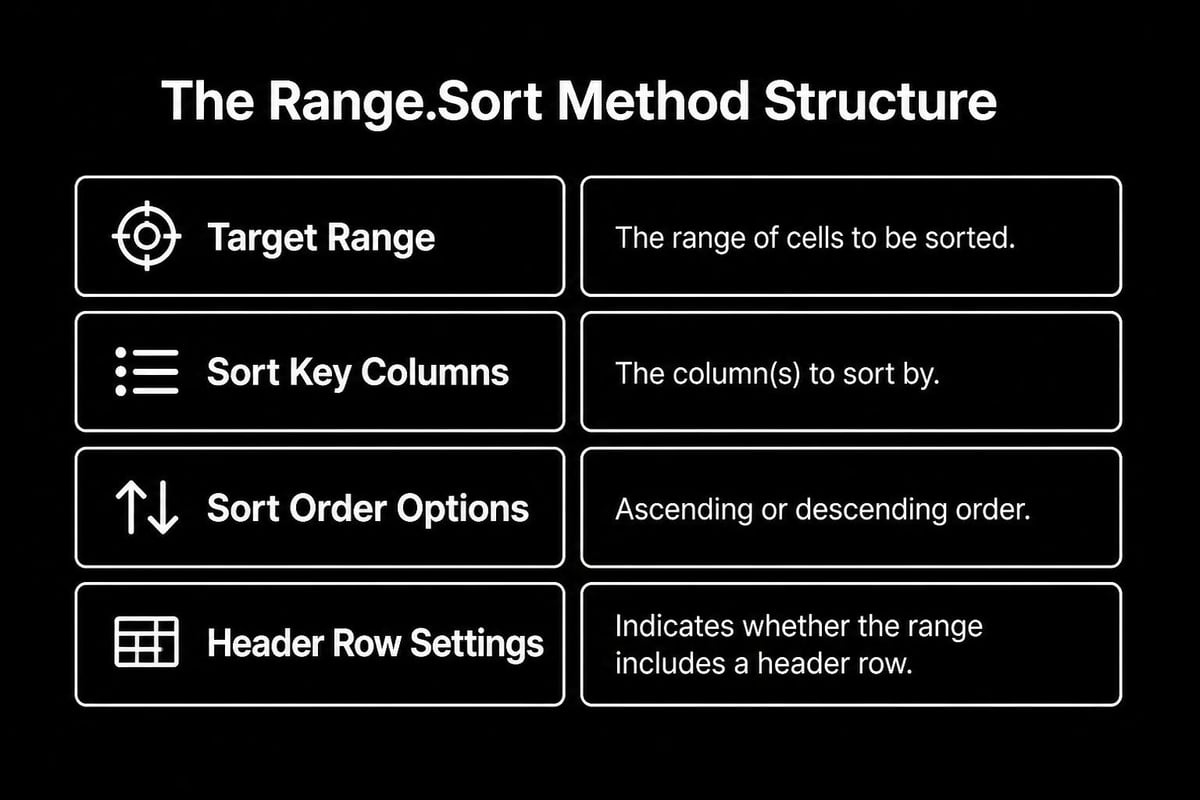
The Range.Sort method in Excel VBA forms the foundation of sorting automation. When you sort using VBA, you specify a range of cells and define parameters such as the key column, sort order, and whether headers are present. Understanding these components ensures your sorting macros work reliably across different datasets.
Basic Syntax and Parameters
The fundamental syntax for the Sort method requires careful attention to several parameters. At minimum, you need to specify the range to sort and at least one key column that determines the sort order.
Essential parameters include:
- Key1: The primary column or field to sort by
- Order1: Ascending (xlAscending) or descending (xlDescending)
- Header: Whether the range includes a header row (xlYes, xlNo, or xlGuess)
- MatchCase: Whether sorting should be case-sensitive
- Orientation: Sort by rows (xlSortRows) or columns (xlSortColumns)
Here's a straightforward example of sort using VBA for a simple dataset:
Sub SortDataAscending()
    Range("A1:D100").Sort Key1:=Range("A1"), Order1:=xlAscending, Header:=xlYes
End Sub
This code sorts the range A1:D100 based on column A in ascending order, treating the first row as headers.
Single Column Sorting Techniques
Single column sorting represents the most common sorting scenario. Whether you're organizing customer names alphabetically, arranging sales figures from highest to lowest, or sequencing dates chronologically, single column sorting provides the foundation.
When implementing single column sorts, specify the exact range and key column. The Header parameter becomes critical here because it determines whether VBA includes the first row in the sort operation. Setting this incorrectly can result in header labels being sorted alongside your data.
Sorting in Ascending Order
Ascending sorts arrange data from lowest to highest for numbers, A to Z for text, and oldest to newest for dates. This order works well for alphabetical lists, chronological timelines, and ranking items from smallest to largest.
Sub SortByNameAscending()
    Dim ws As Worksheet
    Set ws = ActiveSheet

    ws.Range("A1:E500").Sort _
        Key1:=ws.Range("B1"), _
        Order1:=xlAscending, _
        Header:=xlYes
End Sub
This macro sorts a table by column B while maintaining the relationship between all columns in the range.
Sorting in Descending Order
Descending sorts reverse the order, placing highest values first. Sales reports, performance rankings, and priority lists typically benefit from descending sorts where you want to see top performers or most recent entries first.
The VBA Sort function tutorial from EDUCBA provides detailed explanations of how order parameters affect different data types. Understanding these nuances helps you choose the appropriate sort direction for your specific use case.
Multi-Column Sorting Strategies
Complex datasets often require sorting by multiple columns simultaneously. Multi-column sorting applies a primary sort, then uses additional columns to break ties. This approach mirrors how you might manually sort data by clicking multiple column headers while holding Shift.
Sort using VBA with multiple keys enables sophisticated data organization. For example, you might sort a sales database first by region, then by sales representative within each region, and finally by transaction date for each representative.
| Sort Level | Column | Order | Purpose |
|---|---|---|---|
| Primary | Region | Ascending | Group by geographic area |
| Secondary | Rep Name | Ascending | Alphabetize within region |
| Tertiary | Date | Descending | Most recent first per rep |
Implementing Three-Key Sorts
VBA's Sort method supports up to three sort keys natively. Each key requires its own Order parameter to specify ascending or descending arrangement.
Sub MultiColumnSort()
    With ActiveSheet.Sort
        .SortFields.Clear
        .SortFields.Add Key:=Range("A1"), Order:=xlAscending
        .SortFields.Add Key:=Range("C1"), Order:=xlDescending
        .SortFields.Add Key:=Range("D1"), Order:=xlAscending
        .SetRange Range("A1:F1000")
        .Header = xlYes
        .Apply
    End Sub
This method uses the SortFields collection, which provides greater flexibility than the traditional Range.Sort syntax. The Clear method removes any previous sort criteria before adding new ones.

Dynamic Range Sorting
Hard-coded ranges work for static datasets, but dynamic ranges adapt to changing data sizes. Using the CurrentRegion property or End method ensures your sort includes all data regardless of how many rows exist.
Sub SortDynamicRange()
    Dim LastRow As Long
    LastRow = Cells(Rows.Count, 1).End(xlUp).Row

    Range("A1:E" & LastRow).Sort _
        Key1:=Range("A1"), _
        Order1:=xlAscending, _
        Header:=xlYes
End Sub
This code finds the last row with data in column A, then sorts from row 1 to that last row. The range expands or contracts automatically based on your data.
Sorting Tables and ListObjects
Excel Tables (ListObjects in VBA) require a slightly different approach than standard ranges. Tables offer built-in sorting functionality that respects the table structure and maintains formatting.
When you sort using VBA with table objects, you reference the ListObject and its Sort property. This method ensures table features like total rows and structured references remain intact during the sort operation.
Working with Table Sorts
Sub SortExcelTable()
    Dim tbl As ListObject
    Set tbl = ActiveSheet.ListObjects("SalesData")

    With tbl.Sort
        .SortFields.Clear
        .SortFields.Add Key:=tbl.ListColumns("Amount").Range, Order:=xlDescending
        .Header = xlYes
        .Apply
    End With
End Sub
This approach uses the ListColumns collection to reference columns by name rather than letter, making code more readable and resilient to column reordering.
Benefits of Table-Based Sorting
Tables provide several advantages:
- Automatic range expansion as data grows
- Column name references instead of cell addresses
- Maintained formatting and formulas
- Built-in filter compatibility
- Clearer code readability
The Excel VBA sort range examples from ExcelDemy demonstrate both table and range sorting approaches, helping you choose the best method for your situation.
Sorting Special Data Types
Different data types require specific handling to sort correctly. Dates, numbers stored as text, and custom formats can produce unexpected results if not addressed properly.
Date-Based Sorting
Dates present unique challenges because Excel stores them as serial numbers but displays them as formatted dates. When sorting dates, ensure your data contains true date values rather than text strings that look like dates.
The guide on how to sort data by date using VBA provides specific techniques for handling date columns. Date sorting typically uses ascending order for chronological sequences (oldest to newest) or descending for reverse chronological (newest to oldest).
Sub SortByDateDescending()
    Range("A1:D500").Sort _
        Key1:=Range("C1"), _
        Order1:=xlDescending, _
        Header:=xlYes, _
        DataOption1:=xlSortNormal
End Sub
The DataOption1 parameter can be set to xlSortNormal for standard sorting or xlSortTextAsNumbers when dealing with numbers formatted as text.
Case-Sensitive Sorting
By default, VBA sorting ignores case distinctions, treating "Apple" and "apple" identically. For scenarios requiring case sensitivity, set the MatchCase parameter to True.
Sub CaseSensitiveSort()
    Range("A1:B100").Sort _
        Key1:=Range("A1"), _
        Order1:=xlAscending, _
        Header:=xlYes, _
        MatchCase:=True
End Sub
With case-sensitive sorting enabled, uppercase letters sort before their lowercase equivalents.
Advanced Sorting Techniques
Beyond basic sorting operations, VBA offers sophisticated capabilities for complex data organization scenarios. These advanced techniques address edge cases and specialized requirements.
Custom Sort Orders
Sometimes alphabetical or numerical ordering doesn't meet business needs. Custom lists enable sorting by categories like months, days of the week, or company-specific hierarchies.
Creating and applying custom sort orders:
- Define your custom list in Excel's Custom Lists settings
- Reference the custom list in your VBA code
- Apply the sort using the SortOn parameter set to xlSortOnValues
- Specify the custom order through the OrderCustom parameter
This functionality proves valuable when sorting quarterly reports, department hierarchies, or priority levels that don't follow alphabetical sequence.
Sorting by Color or Icon
Modern Excel versions support conditional formatting with colors and icons. VBA can sort based on these visual indicators using the SortOn parameter.
Sub SortByColor()
    With ActiveSheet.Sort
        .SortFields.Clear
        .SortFields.Add(Key:=Range("A1:A100"), _
            SortOn:=xlSortOnCellColor, _
            Order:=xlAscending, _
            DataOption:=xlSortNormal).SetIcon Icon:=ActiveWorkbook.IconSets(xl3TrafficLights1).Item(3)
        .SetRange Range("A1:D100")
        .Header = xlYes
        .Apply
    End With
End Sub
This technique organizes data by cell background color or icon sets, useful for visually-prioritized datasets.

Error Handling and Best Practices
Robust VBA sorting code includes error handling to manage unexpected situations. Data inconsistencies, protected sheets, or filtered ranges can cause sorting operations to fail.
Common Sorting Errors
Frequent issues when implementing sort using VBA include:
- Protected worksheets: Sorting fails if the sheet is protected
- Filtered data: Active filters can interfere with sort operations
- Merged cells: Merged cells in the sort range cause errors
- Hidden rows: Hidden rows may be skipped or cause unexpected results
- Empty ranges: Attempting to sort empty ranges generates errors
Implementing Error Prevention
Sub SafeSort()
    On Error GoTo ErrorHandler

    Dim ws As Worksheet
    Set ws = ActiveSheet

    If ws.ProtectContents Then
        MsgBox "Cannot sort protected sheet"
        Exit Sub
    End If

    If ws.AutoFilterMode Then
        ws.AutoFilterMode = False
    End If

    ws.Range("A1:E1000").Sort _
        Key1:=ws.Range("A1"), _
        Order1:=xlAscending, _
        Header:=xlYes

    Exit Sub

ErrorHandler:
    MsgBox "Sorting error: " & Err.Description
End Sub
This code checks for protection and filters before attempting the sort, preventing common failure scenarios.
Performance Optimization
Large datasets benefit from performance optimizations. Turning off screen updating and automatic calculation during sort operations significantly improves execution speed.
Key optimization techniques:
- Disable ScreenUpdating before sorting
- Set Calculation to Manual temporarily
- Process data in memory when possible
- Avoid repeated sorting in loops
- Use tables for frequently sorted data
Sub OptimizedSort()
    Application.ScreenUpdating = False
    Application.Calculation = xlCalculationManual

    Range("A1:Z10000").Sort _
        Key1:=Range("A1"), _
        Order1:=xlAscending, _
        Header:=xlYes

    Application.Calculation = xlCalculationAutomatic
    Application.ScreenUpdating = True
End Sub
These settings prevent Excel from redrawing the screen and recalculating formulas during the sort, reducing processing time substantially.
Sorting Arrays in Memory
For maximum performance with large datasets, sort arrays in memory rather than worksheet ranges. This approach processes data without interacting with the Excel interface, providing dramatic speed improvements.
The tutorial on how to sort arrays in VBA demonstrates various array sorting techniques. While more complex than range sorting, array sorting excels when processing tens of thousands of rows.
Array Sorting Implementation
Sub SortArrayExample()
    Dim DataArray As Variant
    Dim SortedArray As Variant
    Dim i As Long

    DataArray = Range("A2:E1000").Value

    SortedArray = BubbleSortArray(DataArray, 1)

    Range("G2:K1000").Value = SortedArray
End Sub

Function BubbleSortArray(arr As Variant, SortColumn As Long) As Variant
    Dim i As Long, j As Long
    Dim temp As Variant

    For i = LBound(arr) To UBound(arr) - 1
        For j = i + 1 To UBound(arr)
            If arr(i, SortColumn) > arr(j, SortColumn) Then
                For col = LBound(arr, 2) To UBound(arr, 2)
                    temp = arr(i, col)
                    arr(i, col) = arr(j, col)
                    arr(j, col) = temp
                Next col
            End If
        Next j
    Next i

    BubbleSortArray = arr
End Function
This example loads data into an array, sorts it using a bubble sort algorithm, then writes the sorted results back to the worksheet. For production use, consider implementing QuickSort or other efficient algorithms for better performance.
Practical Applications and Use Cases
Understanding when and how to sort using VBA transforms routine Excel tasks into automated workflows. Different business scenarios demand specific sorting approaches.
Financial Report Automation
Monthly financial reports often require consistent sorting: accounts by number, transactions by date, or expenses by category. VBA macros ensure reports follow the same organization every time.
Sub SortFinancialReport()
    Dim ws As Worksheet
    Set ws = ThisWorkbook.Worksheets("Financials")

    With ws.Sort
        .SortFields.Clear
        .SortFields.Add Key:=ws.Range("A1"), Order:=xlAscending
        .SortFields.Add Key:=ws.Range("E1"), Order:=xlDescending
        .SetRange ws.Range("A1").CurrentRegion
        .Header = xlYes
        .Apply
    End With
End Sub
This macro sorts financial data by account code first, then by amount in descending order within each account.
Customer Database Management
Customer databases benefit from multi-level sorting: by state, then city, then last name. This organization facilitates regional analysis and mail merge operations.
| Level | Field | Order | Business Value |
|---|---|---|---|
| 1 | State | Ascending | Regional grouping |
| 2 | City | Ascending | Local clusters |
| 3 | Last Name | Ascending | Individual identification |
Inventory Management
Warehouse inventory systems require sorting by location, product category, and stock level. Automated sorting helps identify low-stock items and organize picking lists.
The step-by-step sorting guide from Excel Easy provides practical examples applicable to inventory tracking scenarios, demonstrating how to sort based on multiple criteria efficiently.
Integration with Other VBA Operations
Sorting rarely exists in isolation. Most business processes combine sorting with filtering, data validation, or report generation. Understanding how to integrate sorting into larger workflows maximizes automation value.
Combining Filters and Sorts
Applying filters before sorting enables targeted data organization. For example, filter for a specific region, then sort by sales amount within that region.
Sub FilterAndSort()
    Dim ws As Worksheet
    Set ws = ActiveSheet

    ws.Range("A1").AutoFilter Field:=2, Criteria1:="Northeast"

    ws.Range("A1:F1000").Sort _
        Key1:=ws.Range("D1"), _
        Order1:=xlDescending, _
        Header:=xlYes
End Sub
This combination provides focused analysis on specific data subsets.
Data Validation After Sorting
After sorting, validate that data meets quality standards. Check for duplicates, verify calculations, or ensure values fall within expected ranges.
Post-sort validation steps:
- Confirm header rows remain in position
- Verify formulas still reference correct cells
- Check for sorting errors in date columns
- Validate that related data remained together
- Ensure conditional formatting updated correctly
Report Generation Workflow
Complete report automation often follows this sequence: import data, clean and format, sort by relevant criteria, calculate summaries, and export or email results. Each step builds on the previous one.
Sub GenerateWeeklyReport()
    ImportDataFromSource
    CleanAndFormatData
    SortByPriorityAndDate
    CalculateSummaryMetrics
    FormatAsReport
    SaveAndEmailReport
End Sub
This modular approach keeps code organized and maintainable, with sorting as one component in a comprehensive automation solution.
Mastering sort using VBA transforms how you manage Excel data, enabling automation that saves hours of manual work while ensuring consistency across reports. These techniques provide the foundation for building sophisticated data management solutions. When you need expert guidance on implementing VBA solutions or troubleshooting complex sorting scenarios, The Analytics Doctor offers personalized training and support to help you build robust, efficient Excel automation that solves your specific business challenges.